
Appendix B: Tutorial for basic ESP design
B1. Creating Project and Adding Well Data
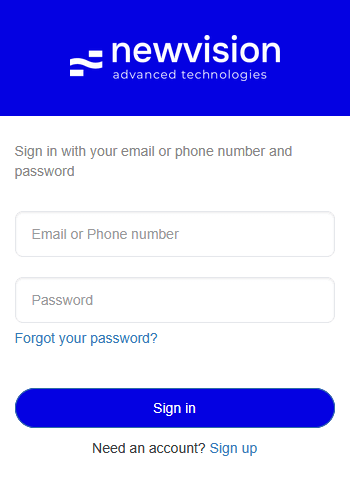
Login to the newvision system by entering your login and password.
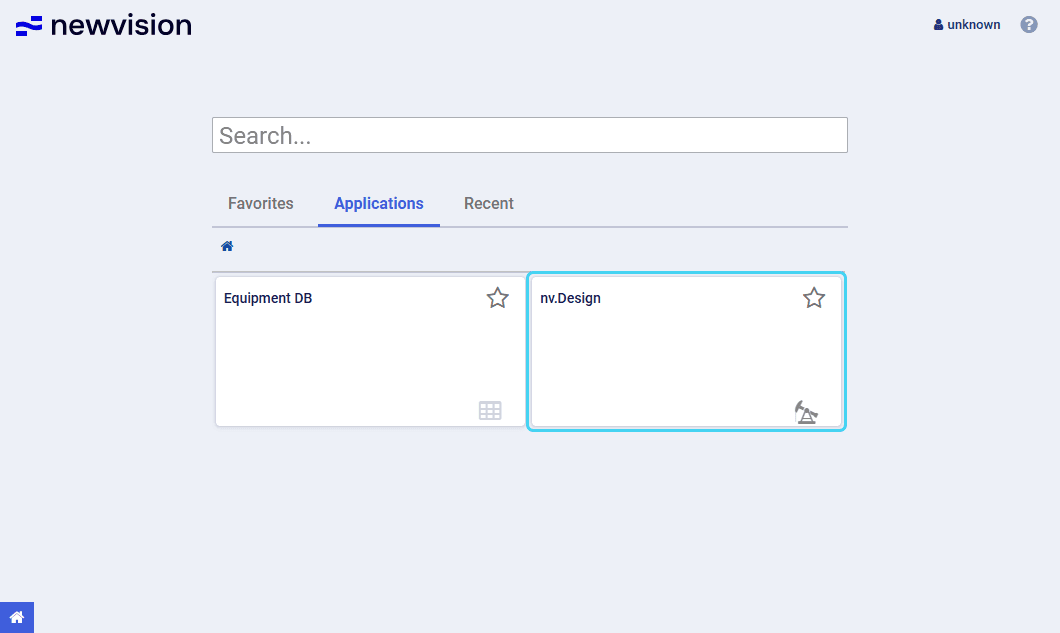
The home page opens.On the home page, click the nv.design module tile.
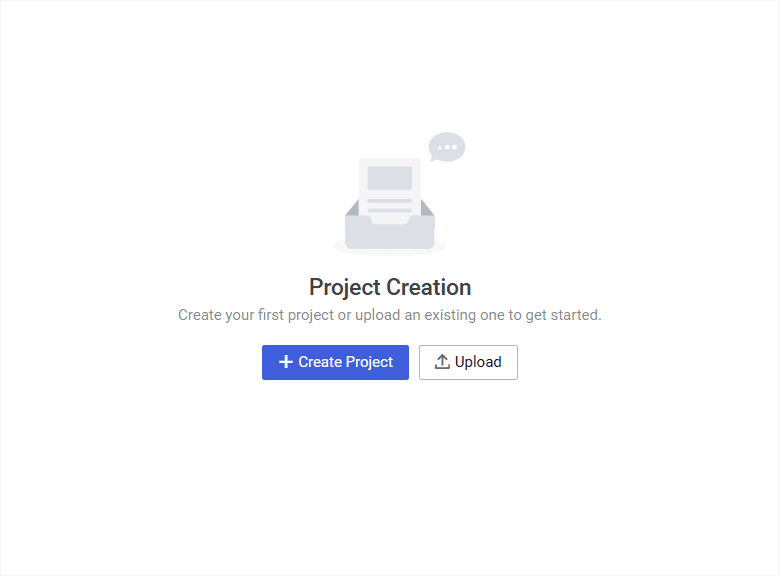
The Project Creation window opens.
In the Project Creation window, click Create Project (
 ) .
) .
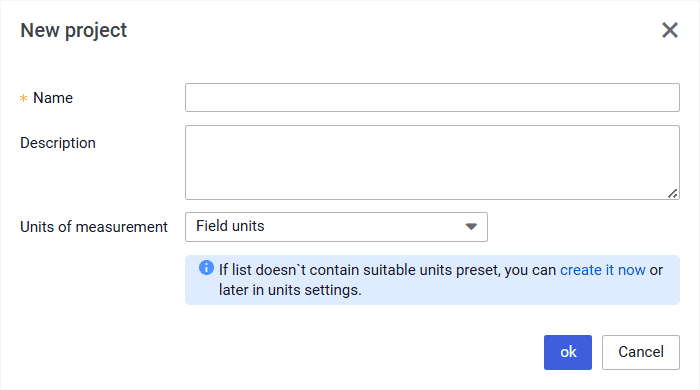
The New project window opens.
In the New project window, fill in the Name field, select a measurement system from the Units of measurement list or create a custom set of units, and then click ok .
The created project opens with a default case created automatically.
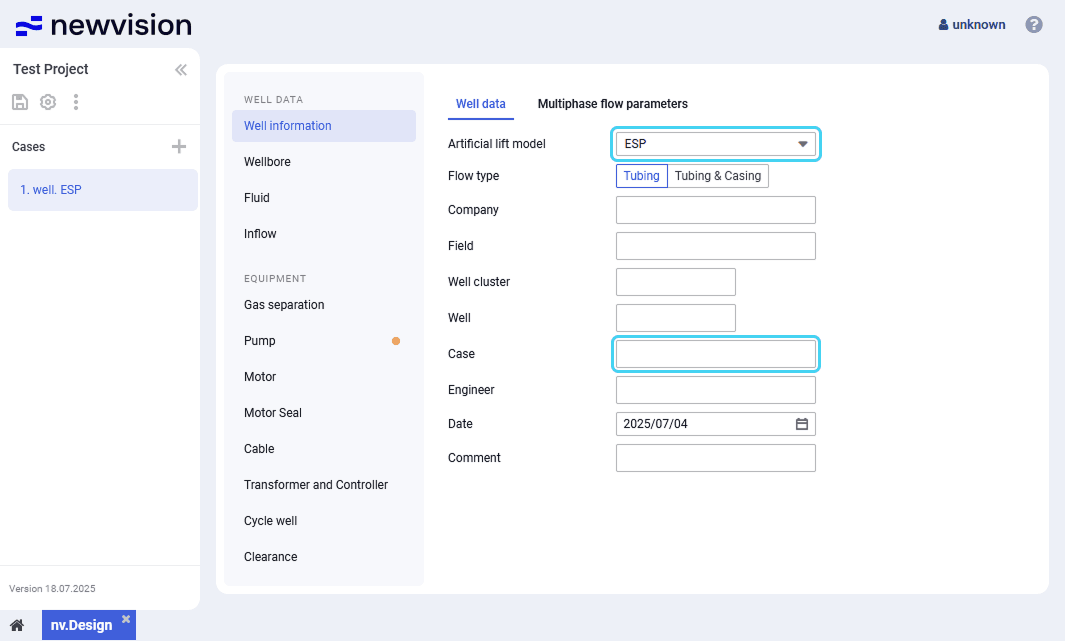
In the Well information section, on the Well data tab, from the Artificial lift model list, select ESP , and then, in the Case field, enter a name for the new case.
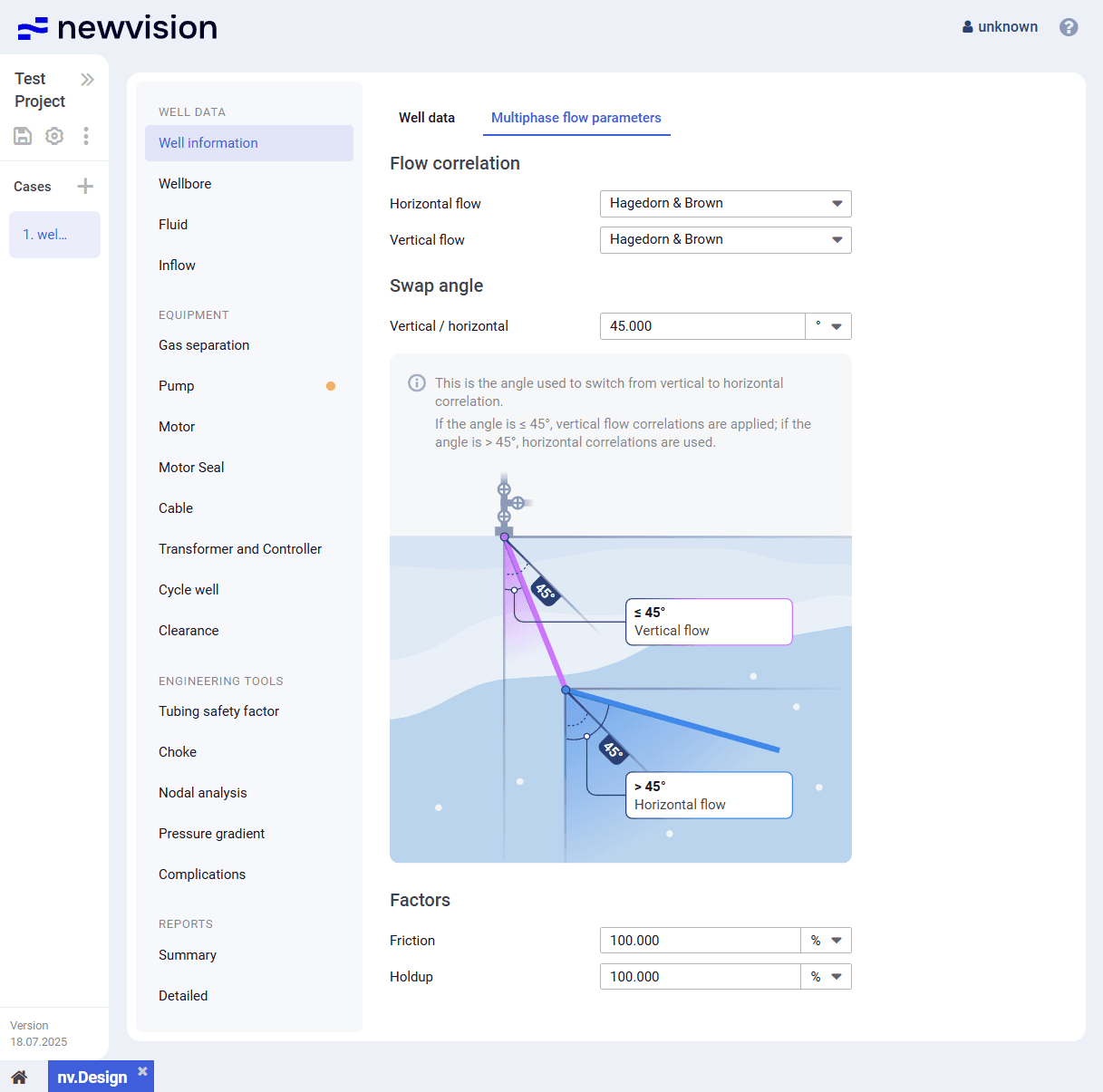
In the Well information section, on the Multiphase flow parameters tab, select the horizontal and vertical flow correlations, and, if needed, change the transition angle and/or friction and holdup factors. For details, see Multiphase Flow Parameters.
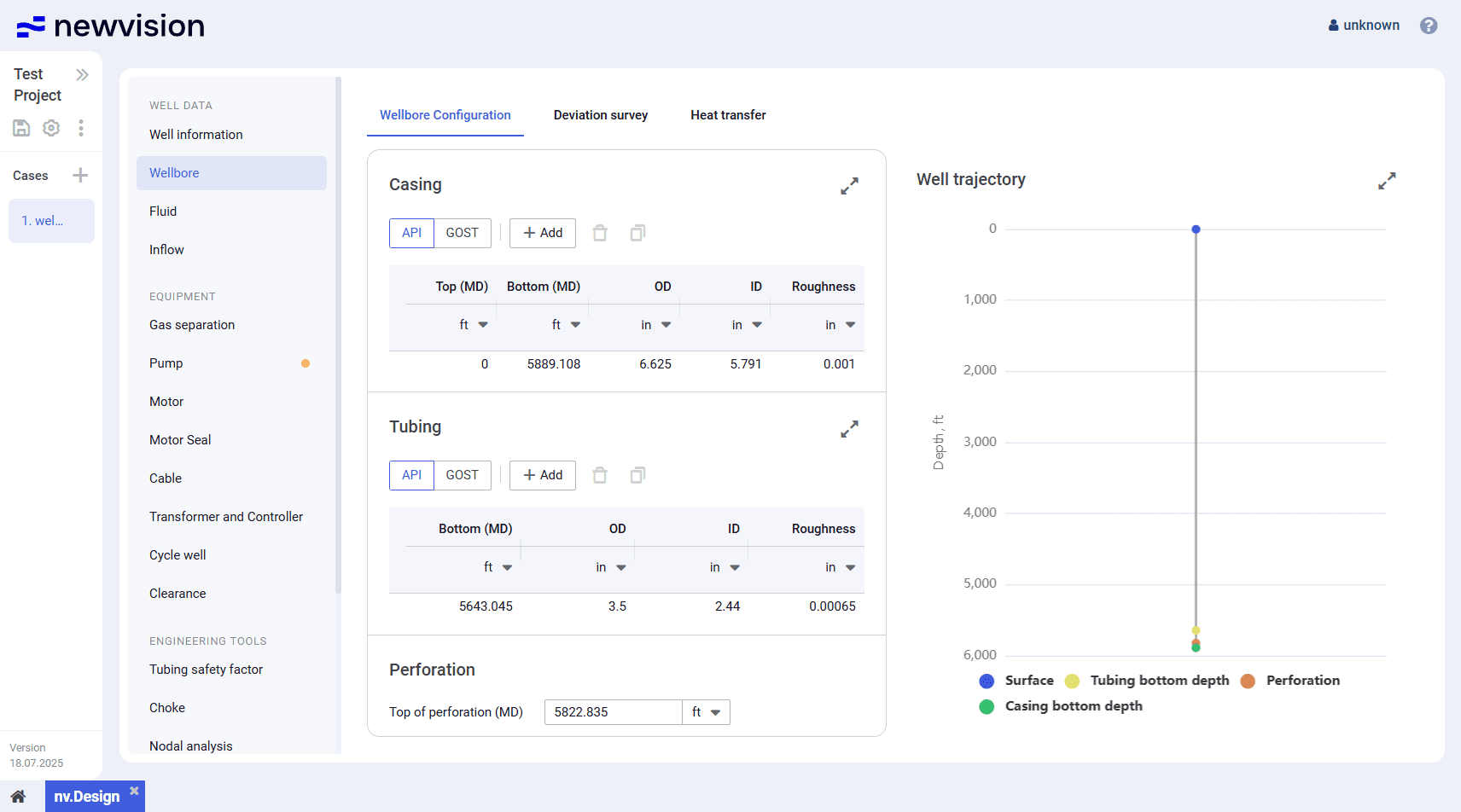
In the Wellbore section, on the Wellbore configuration tab, configure the casing and tubing data and fill in the Top of perforation field.
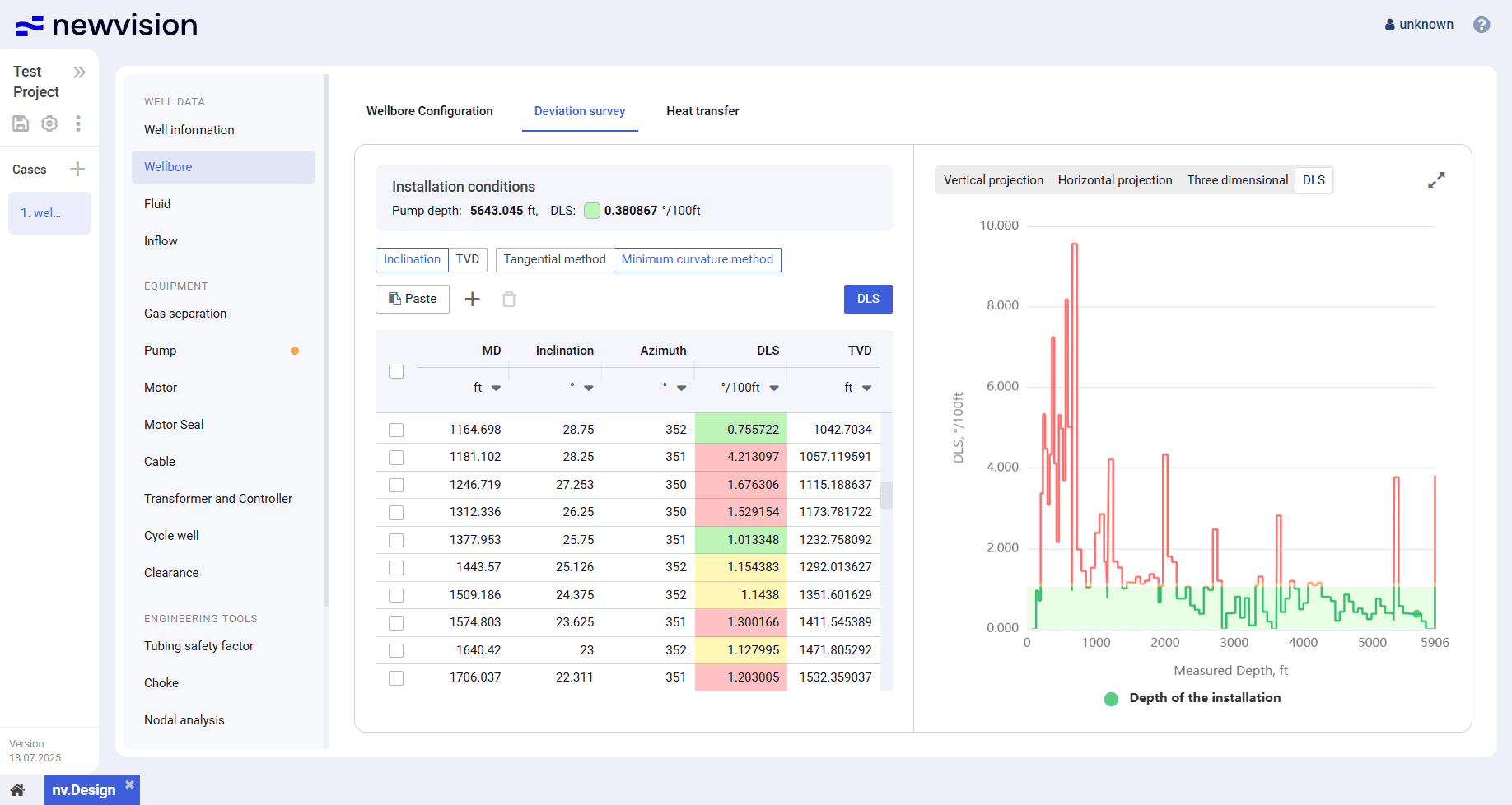
In the Wellbore section, on the Deviation survey tab, configure maximum allowable dogleg severity and deviation survey parameters.
In the Wellbore section, on the Heat transfer tab, configure the temperature parameters and add well test data for building the well temperature profile.
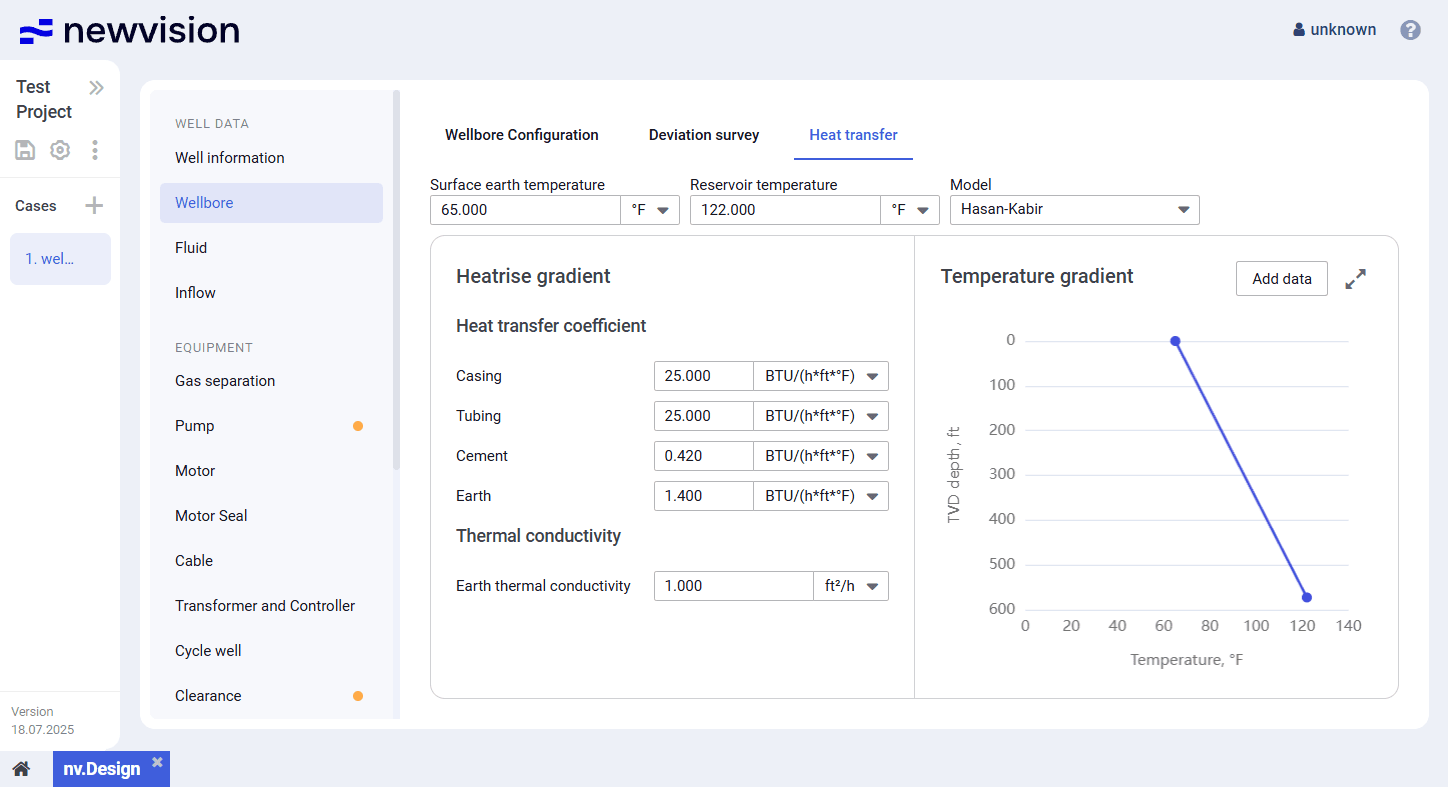
In the Fluid section, configure the well fluid PVT properties and correlations used for their calculation. For details, see Configuring Fluid PVT Properties.
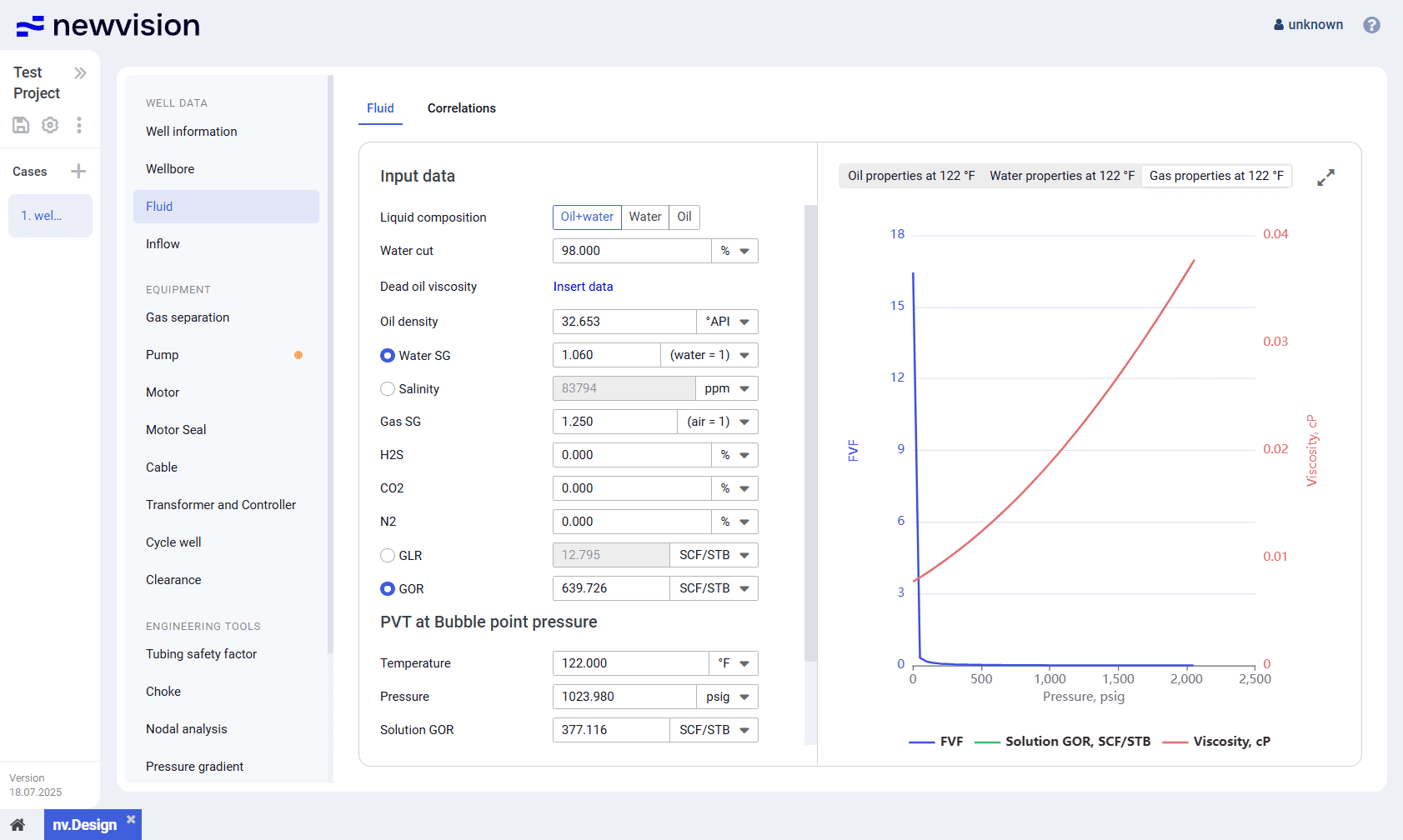
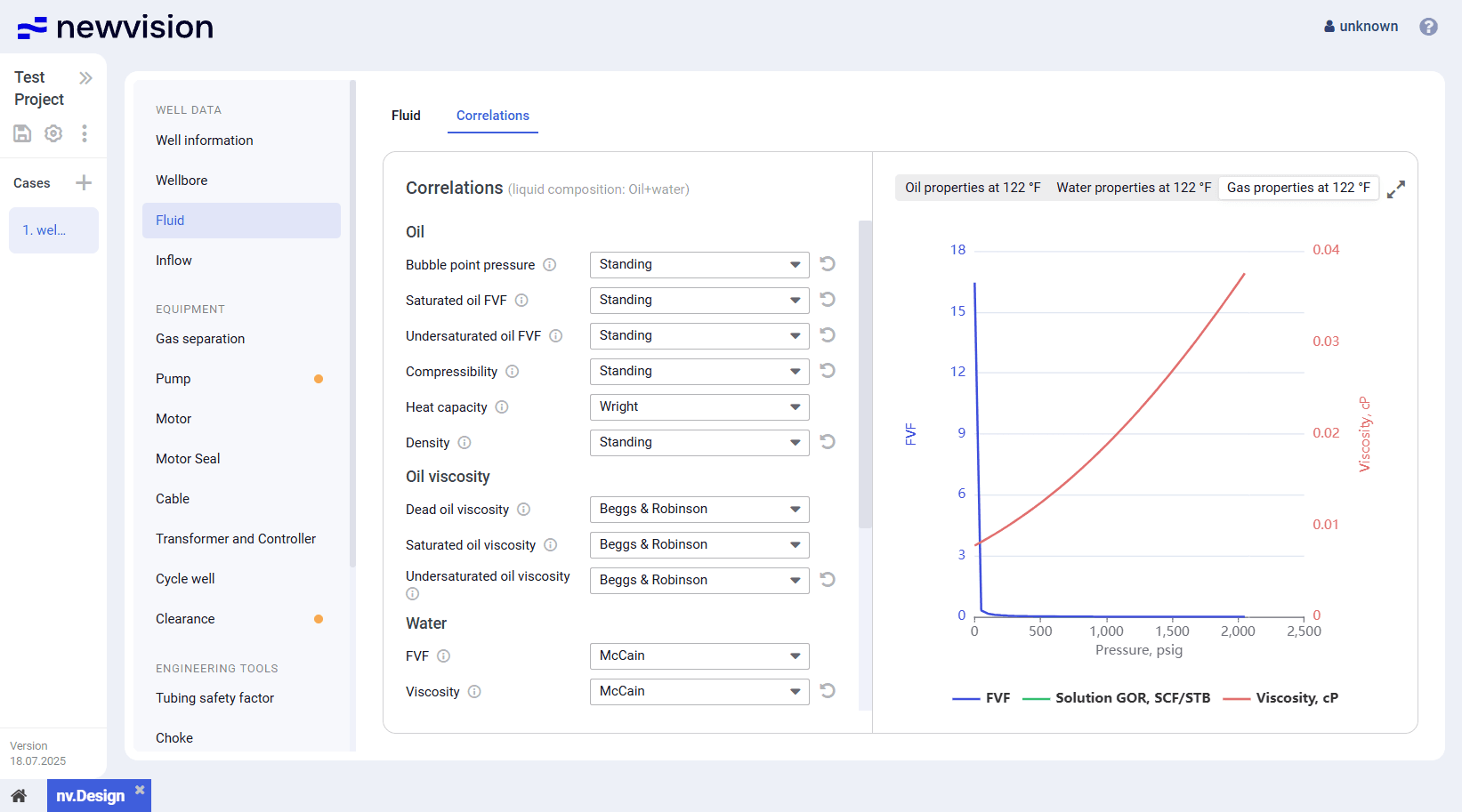
In the Fluid section, on the Correlations tab, select desired correlations from the corresponding lists. For details, see Appendix A: PVT Correlations.
B2. Configuring Equipment
After adding general well data, proceed to equipment design:
- In the Pump section, in the Calculation parameters pane, configure the calculation target parameters: enable two of the three available parameter groups: Well productivity , Stages , and Pump frequency . For details, see Pump.
In the Pump section, in the Pump selection pane, click Add (
) and select the desired model for the first pump section.
Note
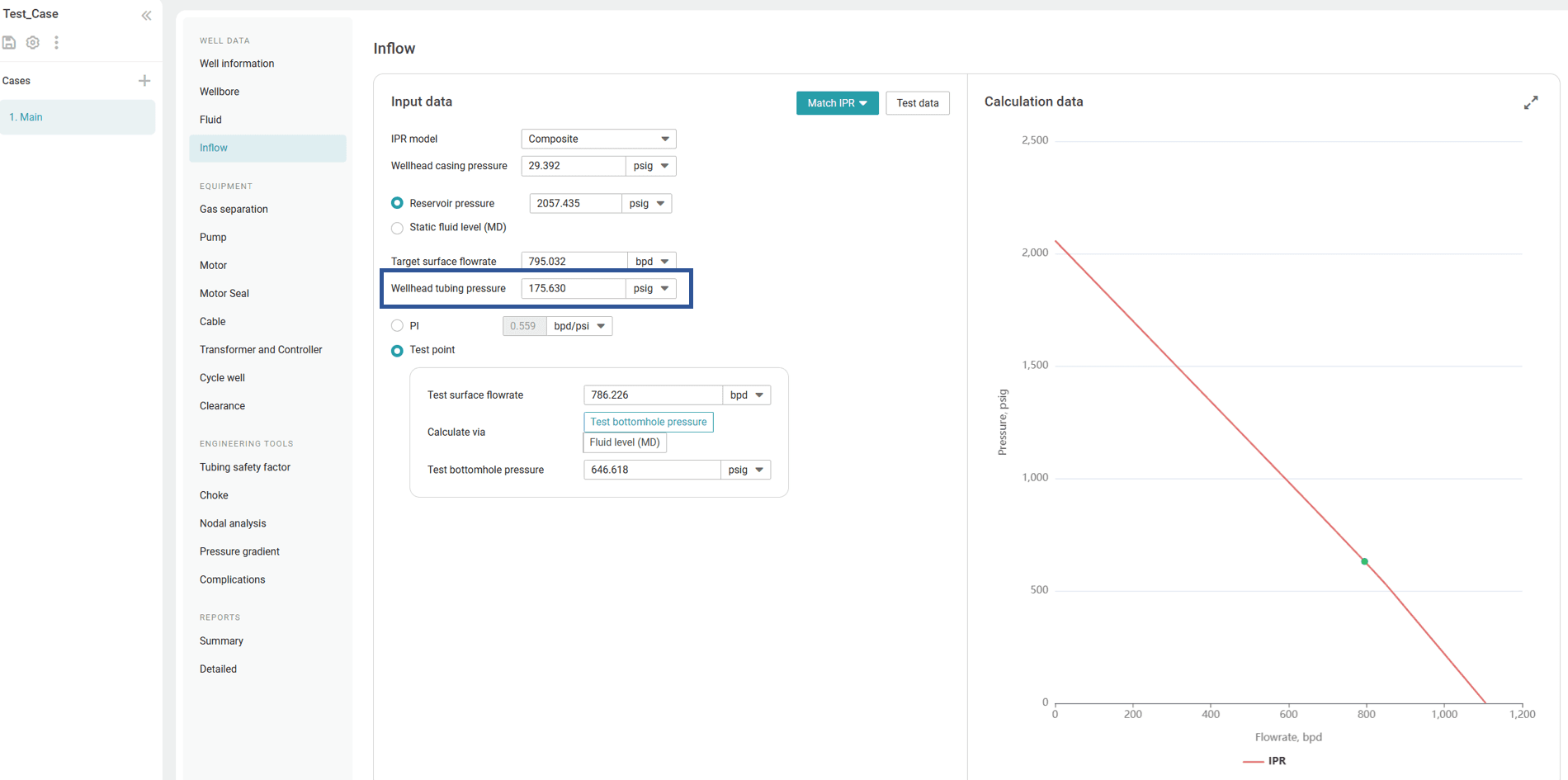
You can add up to three pump sections in the same way.Go back to the Inflow section, and enter the target value for the Wellhead tubing pressure parameter.
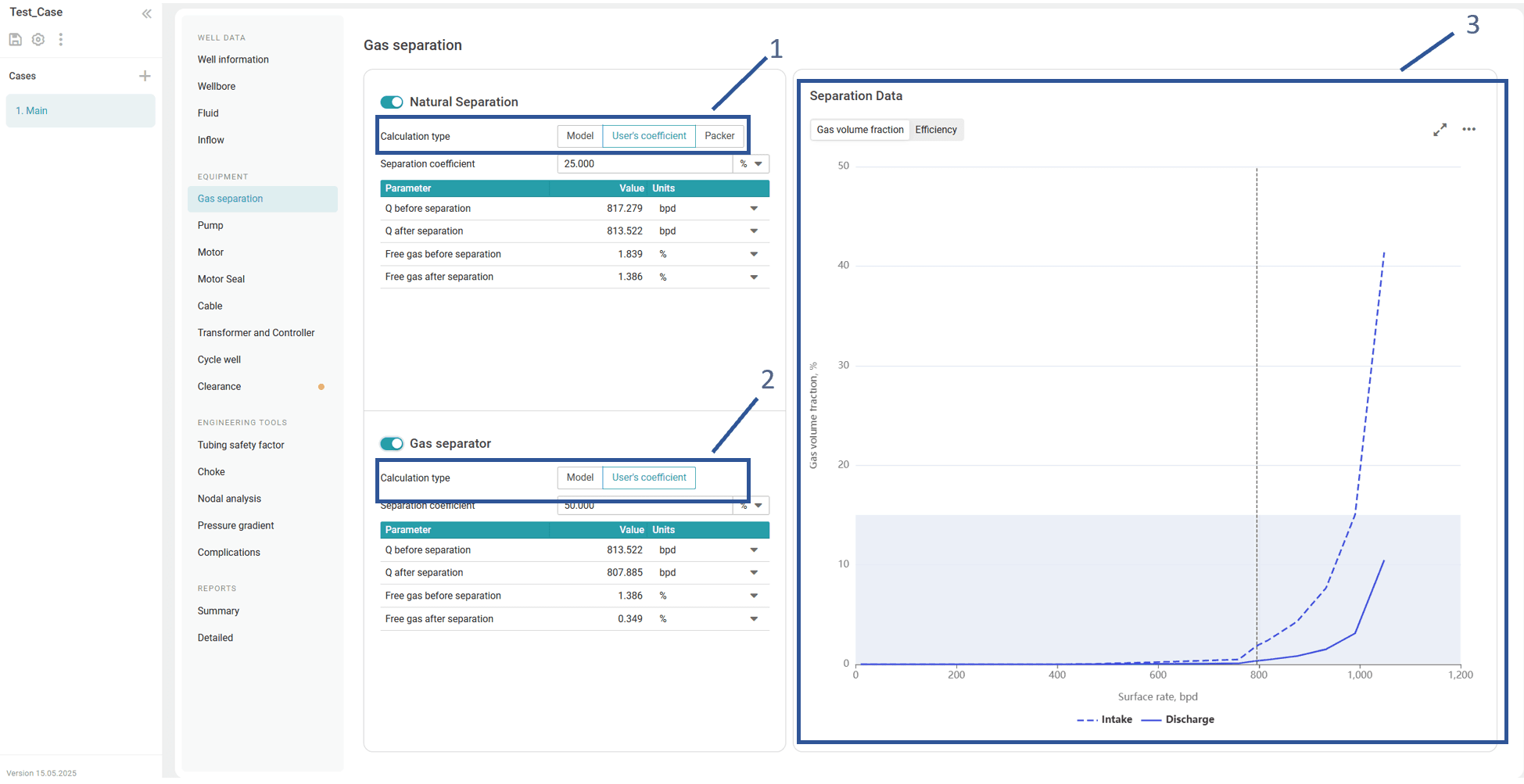
In the Gas separation section, configure the well natural, and/or mechanical separation parameters. The applied dynamic performance will closely reflect realistic conditions, taking into account variations in the separation coefficient depending on the production rate at the pump intake.
- (Optional) Go back to the Pump section, in the upper-right corner of the section, click Pump derating factors , and then configure the flow rate, and power consumption derating factors for the pump sections. For details, see Configuring Pump Parameters.
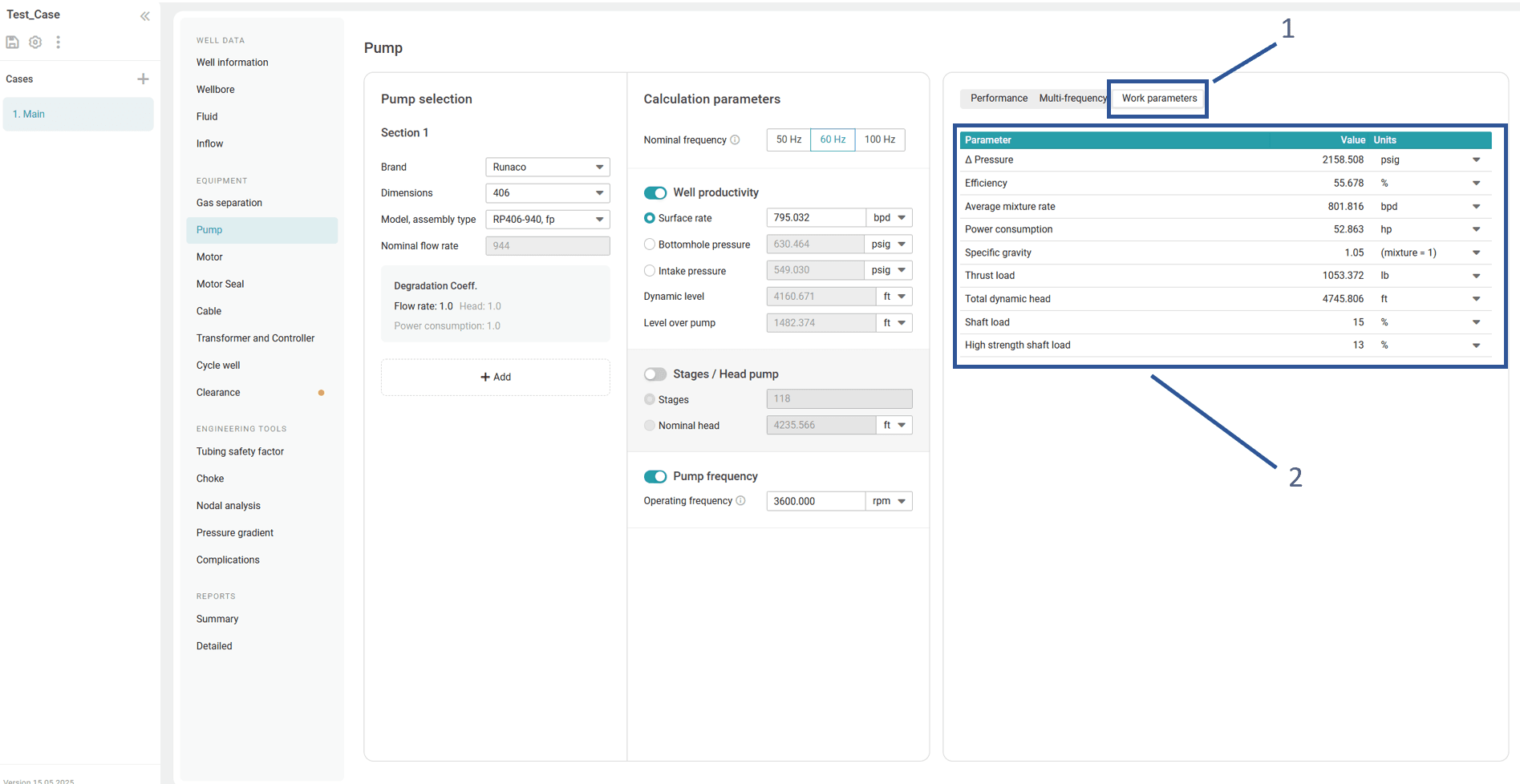
In the right part of the Pump section, view the calculation results presented as curves ( Pump performance and Multi-frequency tabs) and a table ( Calculation data tab).
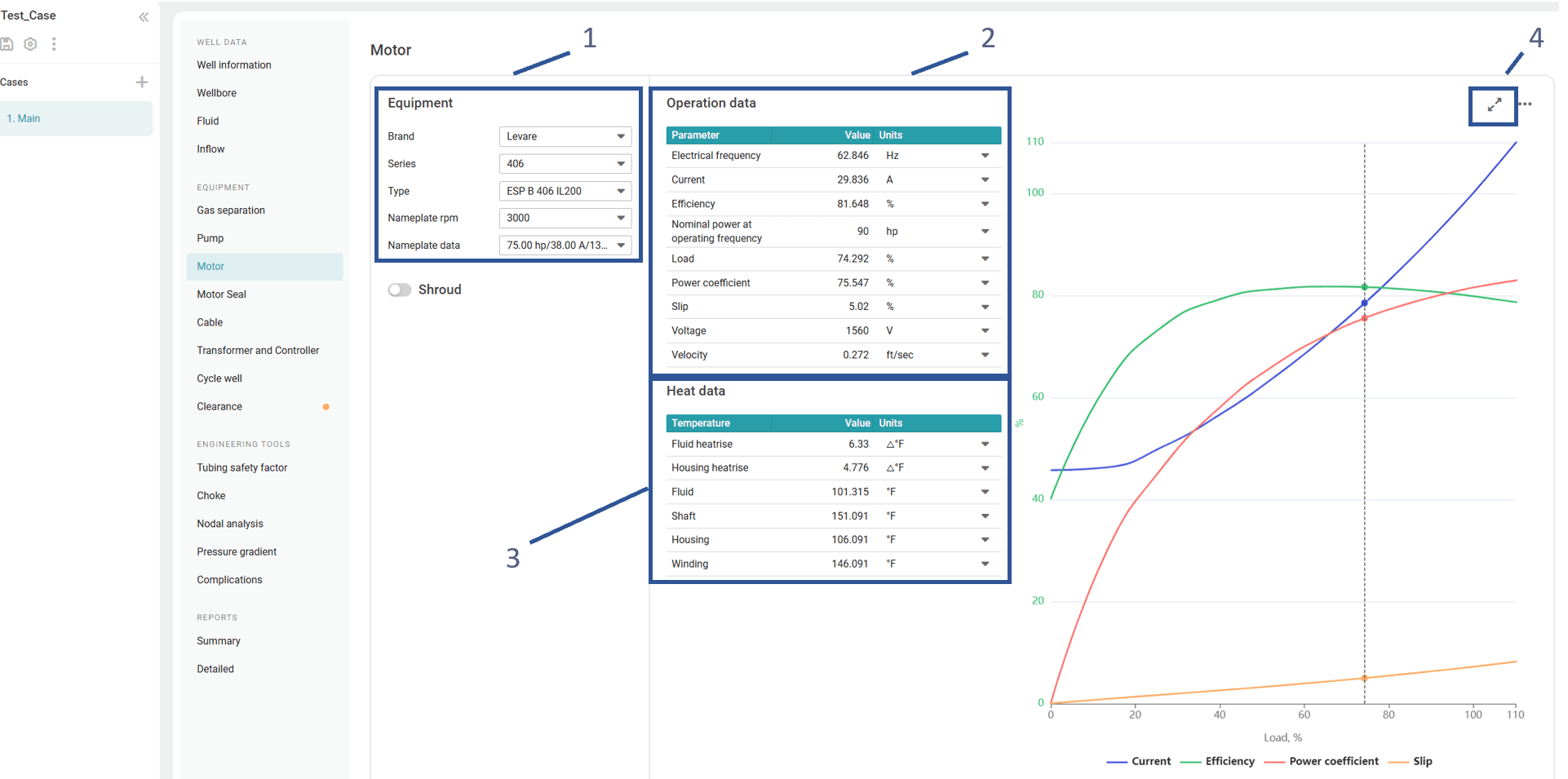
In the Motor section, in its left part, select a model of the motor that best suits the current parameters and, if needed, enable the Shroud option and specify the shroud inner and outer diameters. For details, see Motor.
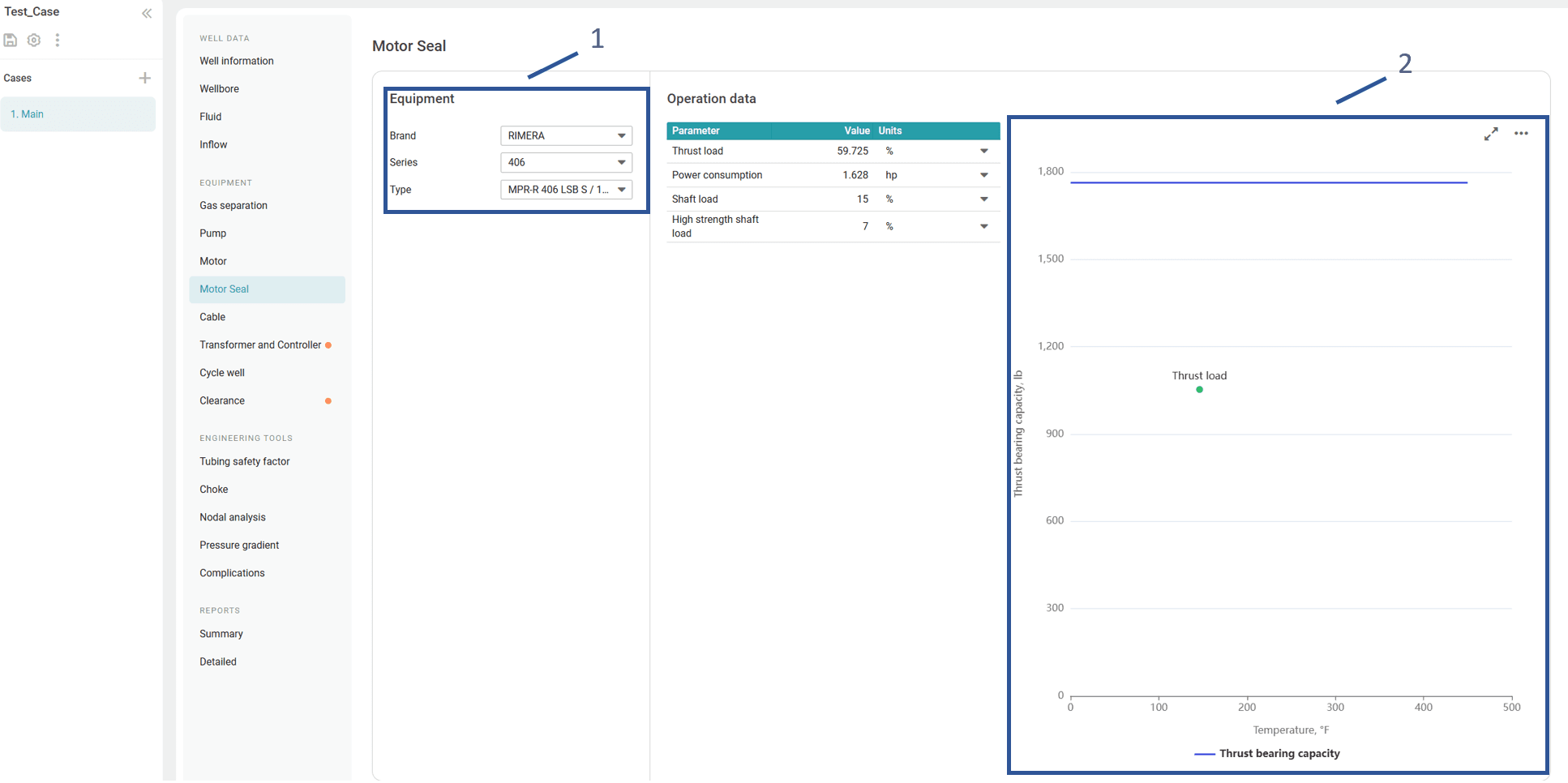
In the Motor Seal section, in its left part, select a model of the motor seal. For details, see Motor Seal.
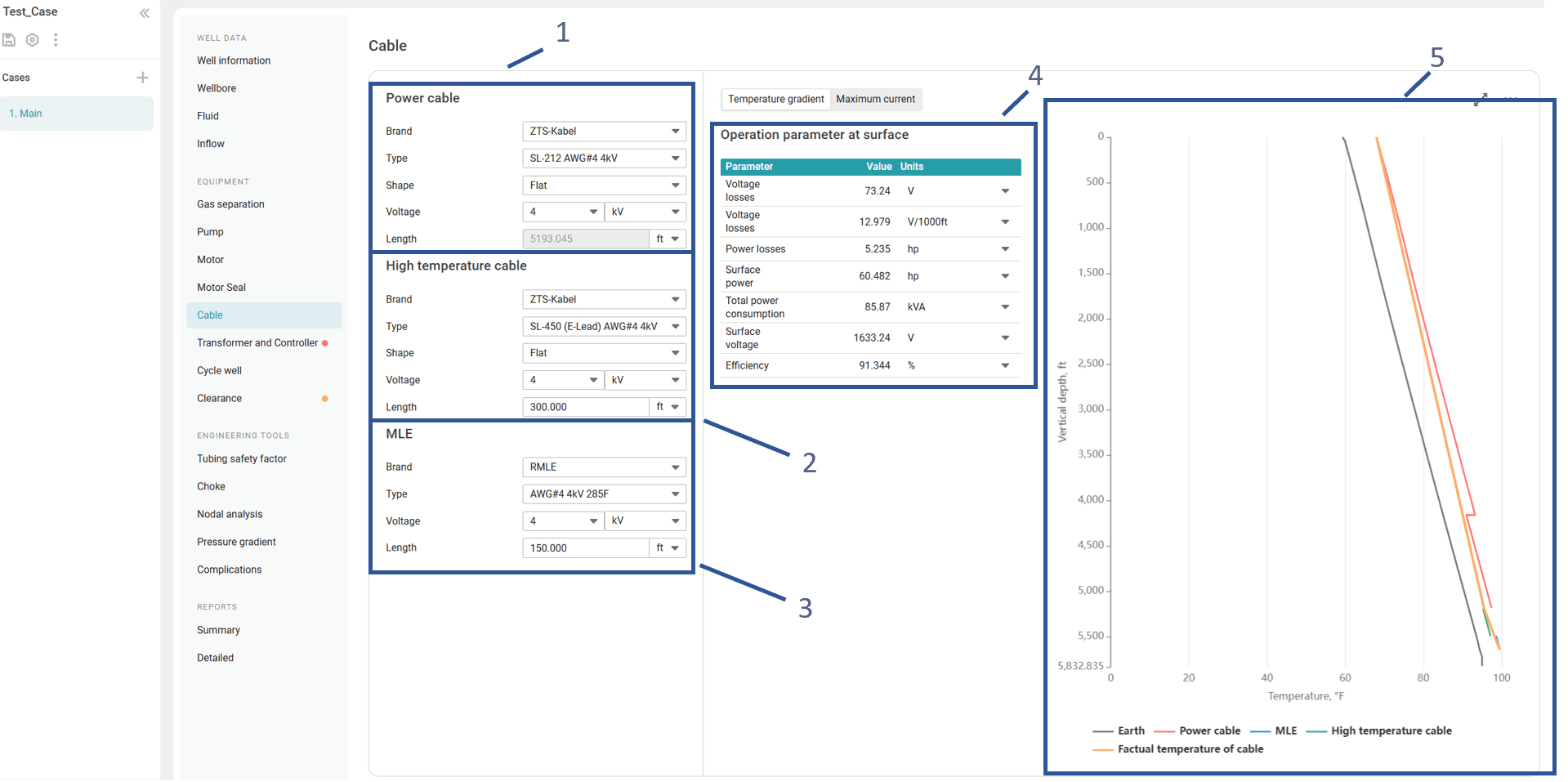
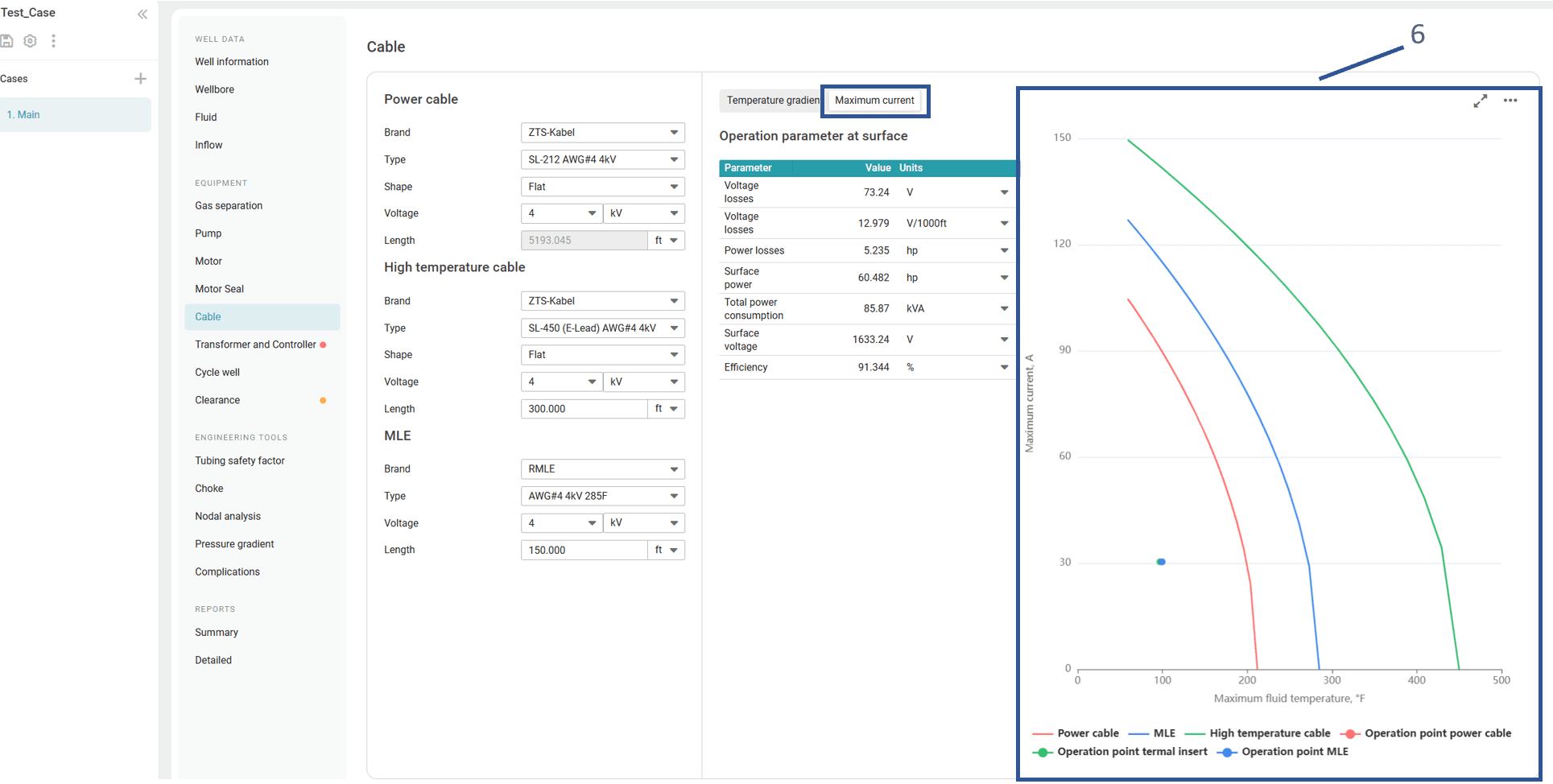
In the Cable section, select a power cable and, if needed, a high-temperature cable and a motor lead extension (MLE). For details, see Cable.
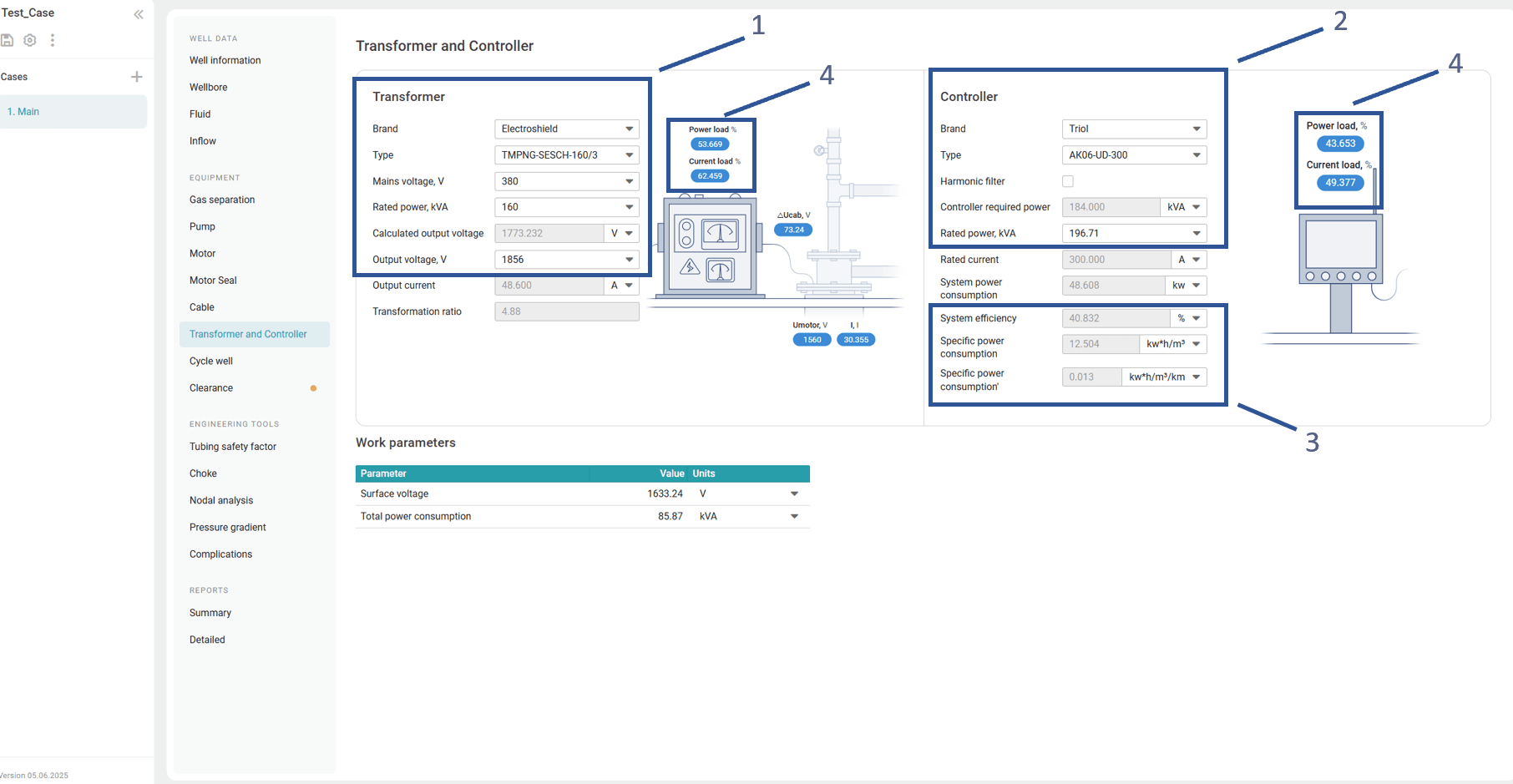
In the Transformer and Controller section, select the desired equipment models in the corresponding panes. For details, see Transformer and Controller.
- In the Clearance section, where equipment dimension data is automatically imported from other sections. The system calculates the maximum equipment size and minimum clearance—both critical for defining operating conditions (1).
A useful feature allows alignment of the motor offset relative to other downhole equipment and accessories (2). Assembly alignment can also be adjusted to match the ESP and production string axes.
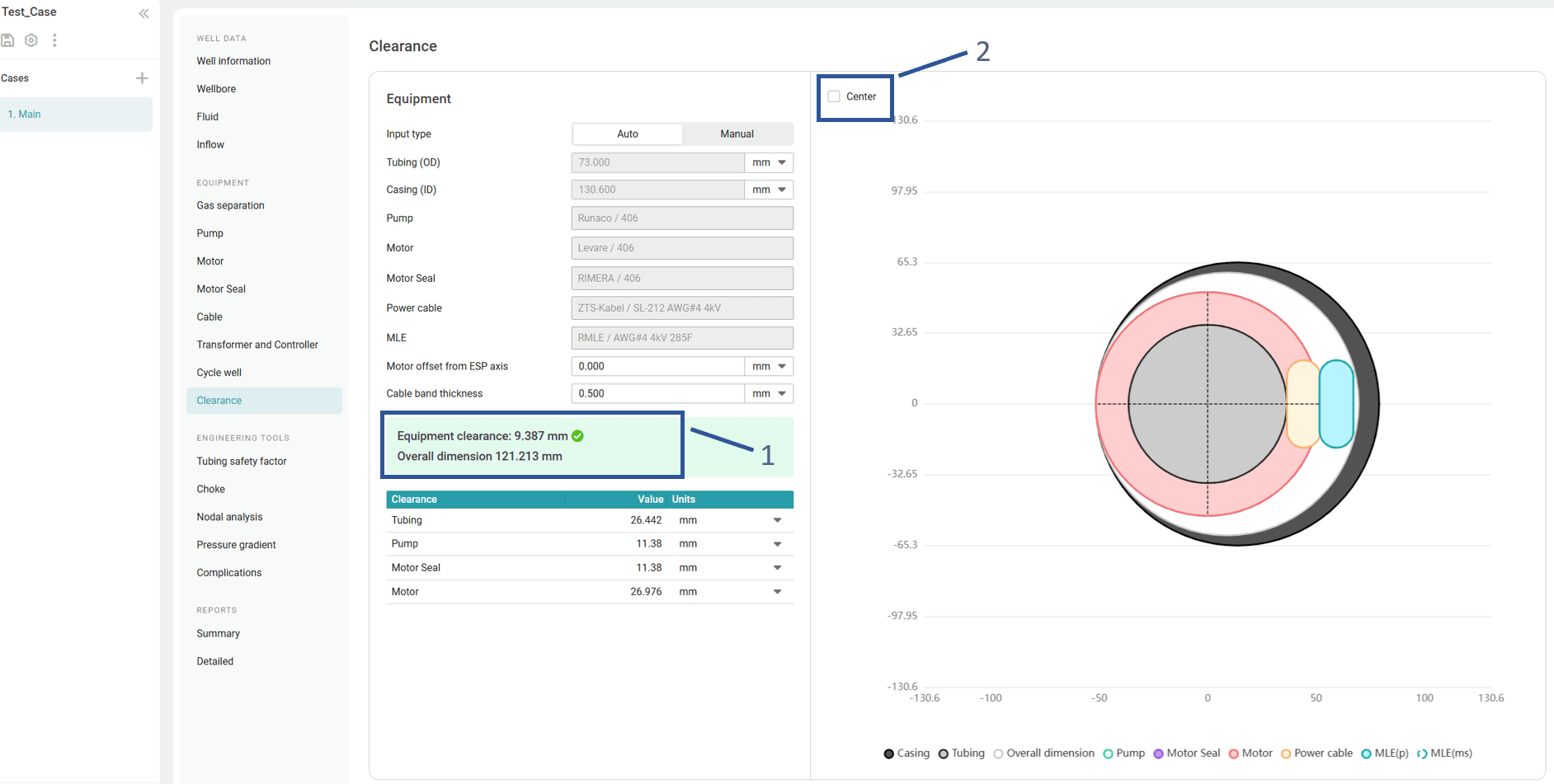
Manual input of equipment dimensions enables a quick check to determine whether clearance values fall within acceptable limits, even before detailed calculations are performed (3).
On the right, a simplified ESP layout inside the well is displayed (4).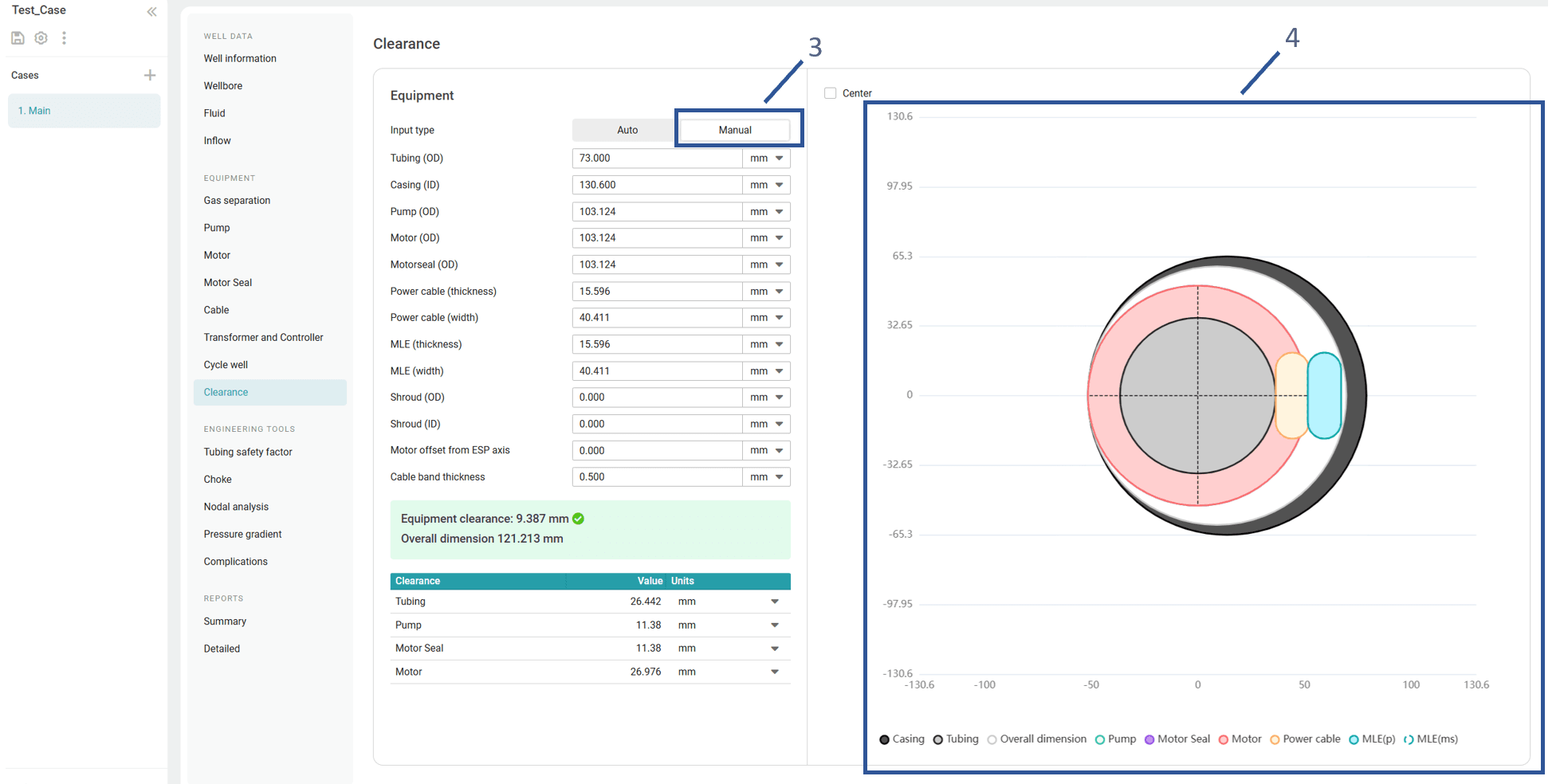
B3. Generating Reports
After all the well design parameters are configured, the system automatically generates the following reports:
- Summary report : Provides a simplified layout of the well with summary data on the well and production equipment parameters. For details, see Summary.
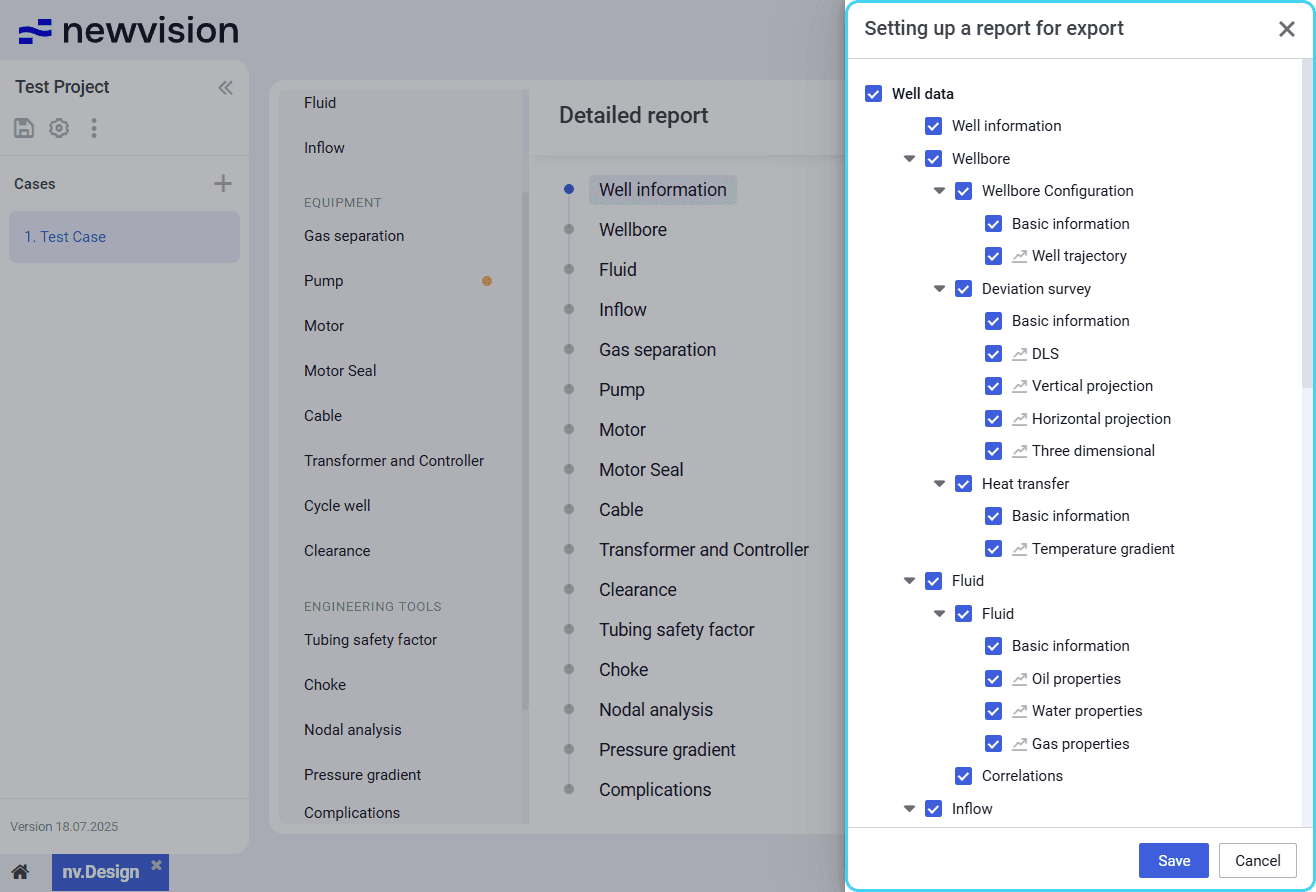
- Detailed report : Accumulates the input data and calculation results from all the module sections. You can customize the report by showing or hiding specific report sections. For details, see Detailed.
To open a report, in the left part of the module working area, click the desired report name at the bottom of the section list.
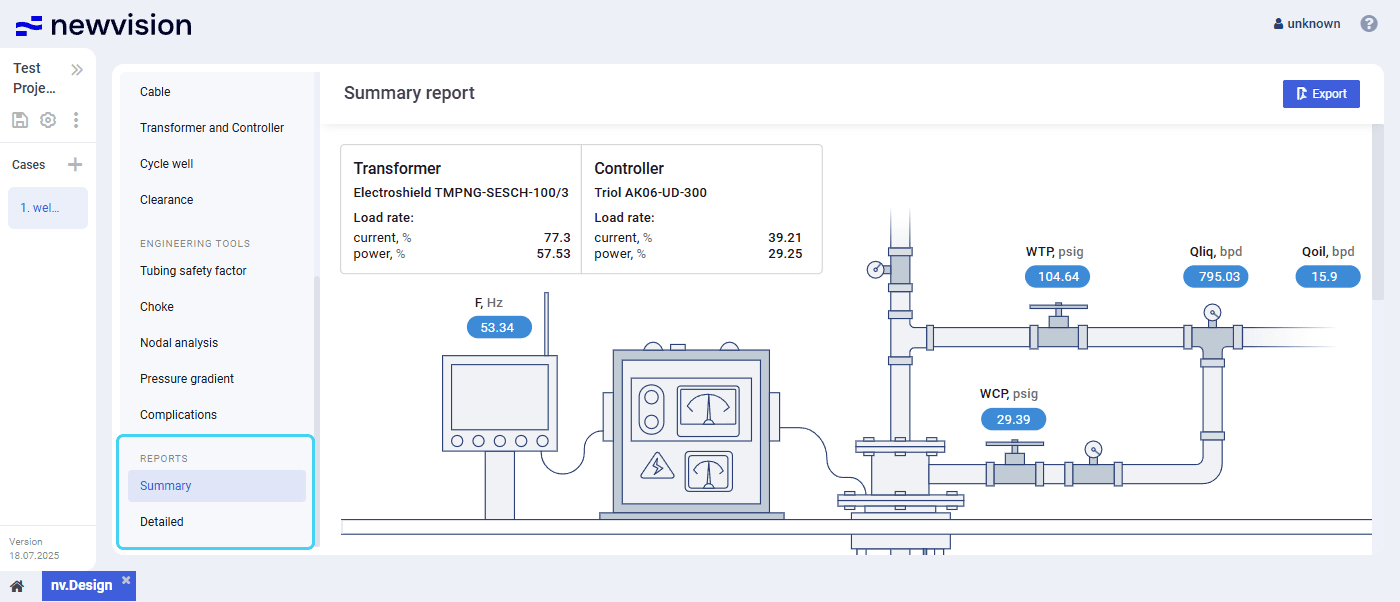
To export or print a report, in the upper-right corner of the report, click Export (  ) , and then, in the standard browser window, select the desired action.
The Detailed report can also be exported to XLSX. To do this, in the upper-right corner of the report, click Download (  ) .
) .
To configure the Detailed report structure, in the upper-right corner of the report, click Customize (  ) , and then, in the window that appears, select and/or clear check boxes of the sections that you want to show or hide in the report.
| Note Changes in the report configuration affect only the PDF export. Reports exported to XLSX contain all sections, including those that were hidden. |
User guide
Software for Well and Downhole Equipment Modeling