
System Interface
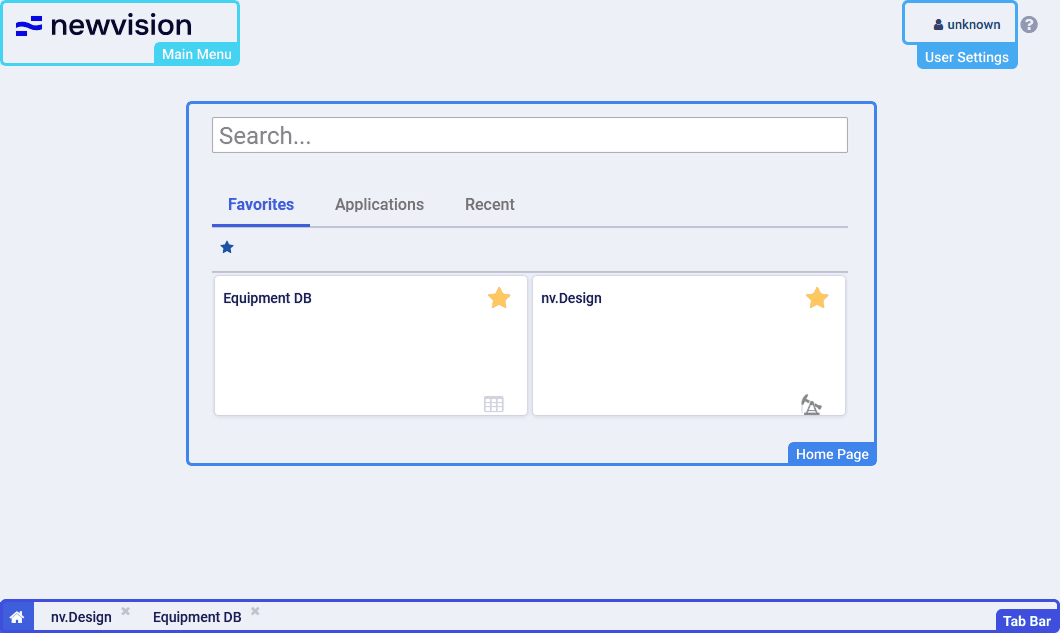 The system interface consists of the following parts:
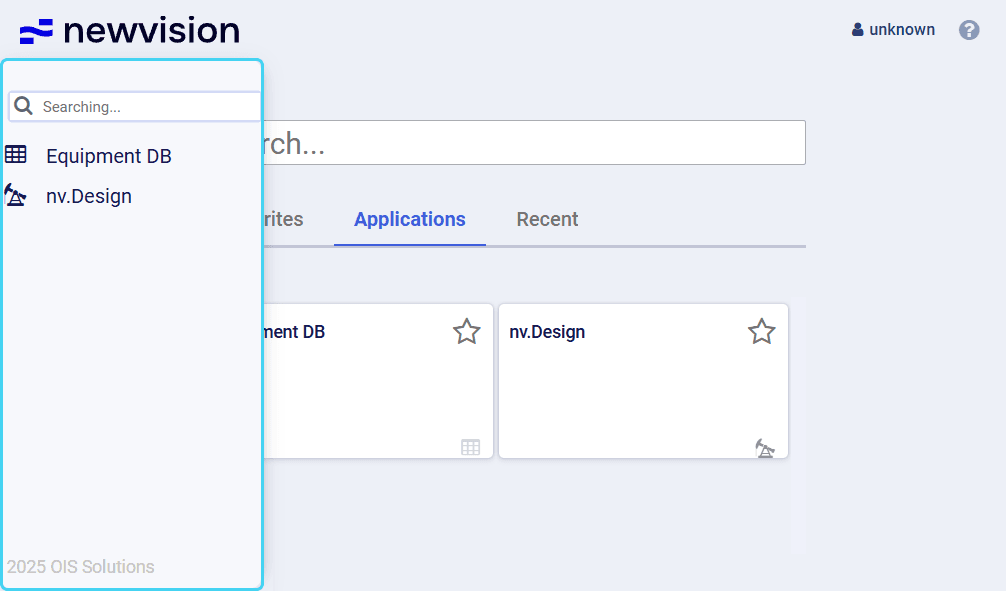
- Main menu: Opens the menu with a list of all system modules.
- User settings: Opens the menu from which you can change user settings and log out of the system. For details, see User Settings.
- Home page: Provides a list of all system modules displayed as tiles with the ability to set up quick access and view recently opened modules. For details, see Home Page.
- Tab bar: Provides a list of all currently opened modules displayed as tabs.
2.1 User Settings
The User Settings menu provides the ability to configure user system settings and log out of the system.
To open the menu, in the upper-right corner of the system window, click the name of the current user.
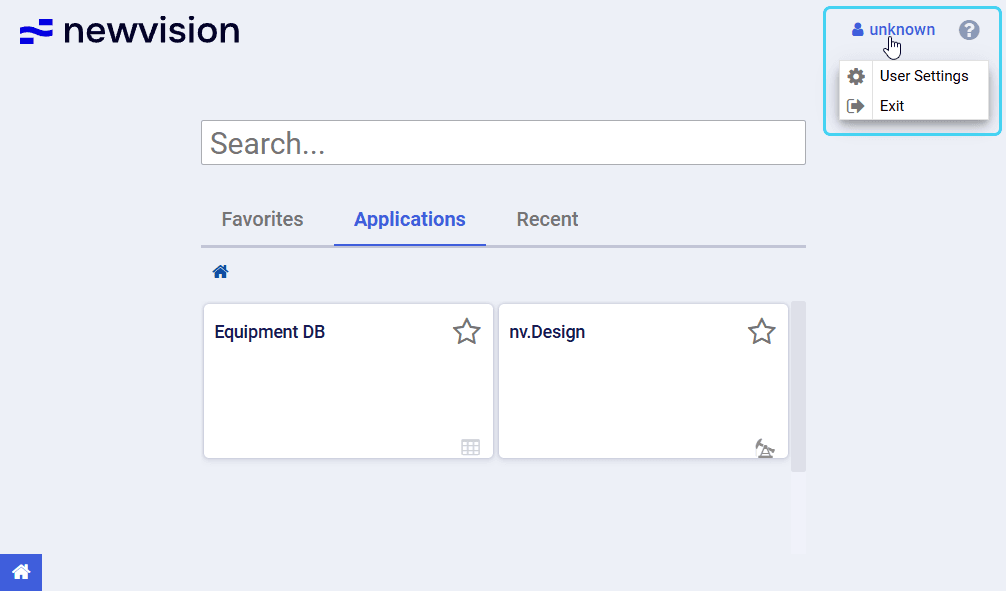
The User Settings menu contains two options:
- User Settings: Opens a window with general interface settings that are individual for each user.
- Exit: Ends your current session in the system.
The User Settings window provides the ability to configure general system parameters, such as interface language and menu behavior.
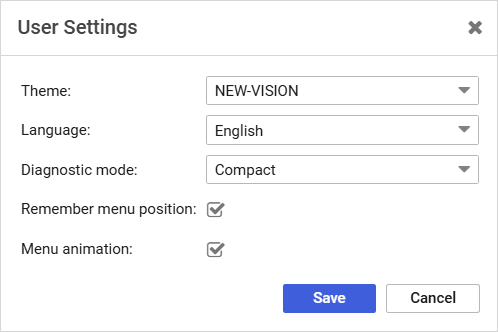
In the User Settings window, you can configure the following parameters:
- Theme: Color theme of the system interface.
- Language: System interface language.
- Diagnostic mode: Level of detail in system error notifications.
By default, the Compact mode is selected, and error notifications are displayed in pop-up windows that appear in the lower-right corner of the window and disappear automatically in a few seconds.
If the Full mode is selected, error notifications are displayed in a separate dialog window. - Remember menu position: If selected, every time you open the main menu during the current session, it opens at the position where you left off.
If cleared, the menu always opens at its default state with all lists of modules collapsed. - Menu animation: If selected, navigation through the main menu is smoothed with animation effects.
To apply the settings, click Save. If you change the theme or interface language, the system reloads automatically. Other settings are applied without reloading.
2.2 Home Page
Home page is the first page that opens after you log in to the system.
You can open it at any time while working with the system by clicking Home ( ) in the lower-left corner of the system window.
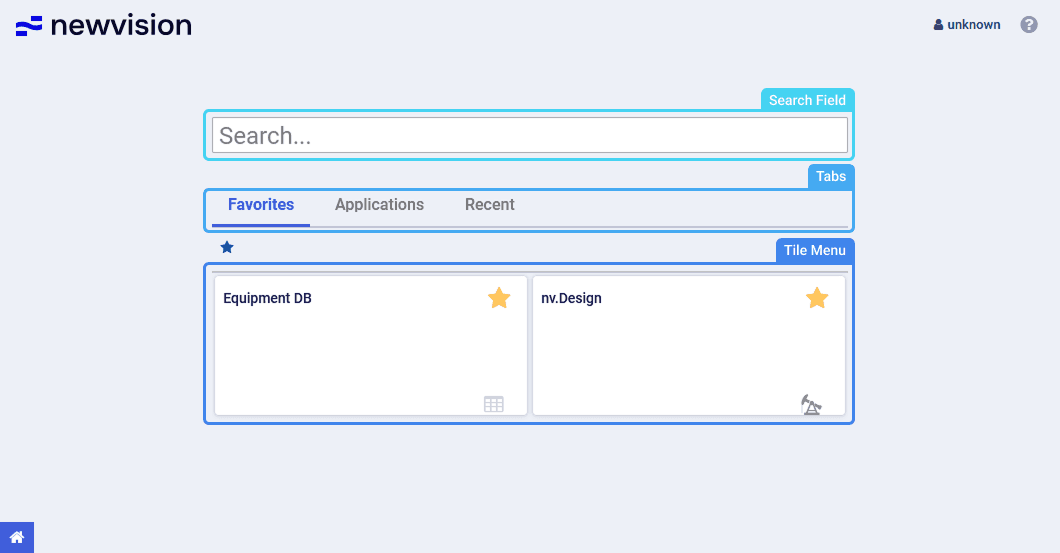
Home page contains the following components:
- Search field: Text field for searching for the required module.
- Tabs: Tabs for grouping and navigation among system modules:
Modules: All system modules available to you.
Favorites: Modules that you added to favorites.
To add a module to favorites, click the star icon in the upper-right corner of its tile. To remove it from favorites, click the star icon again.
Recent: Modules that you opened recently.
- Tile menu: Modules represented as tiles for quick access to the system modules.
To open a module, click the corresponding tile in the tile menu or use the main menu instead.
To close a module, click the cross icon ( ) in the right part of the corresponding tab in the tab bar.
For details, see System Interface.
User guide
Software for Well and Downhole Equipment Modeling