
Well Design Parameters
Well design parameters in the nv.design module are distributed in sections that are organized in the following groups:
All the sections provide an error notification mechanism:
A red marker (
 ) next to a section name or tab indicates that one or more values in the corresponding section or tab are incorrect. These are critical errors that must be resolved before proper well model operation is possible.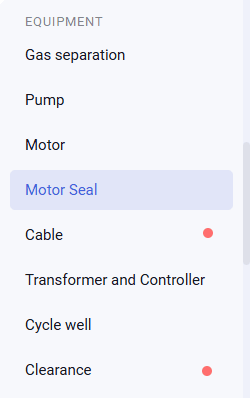
Within the section, fields containing incorrect values are highlighted with a red border and an error icon (
 ). Hovering the cursor over the field displays an error message with details and recommendations for correction.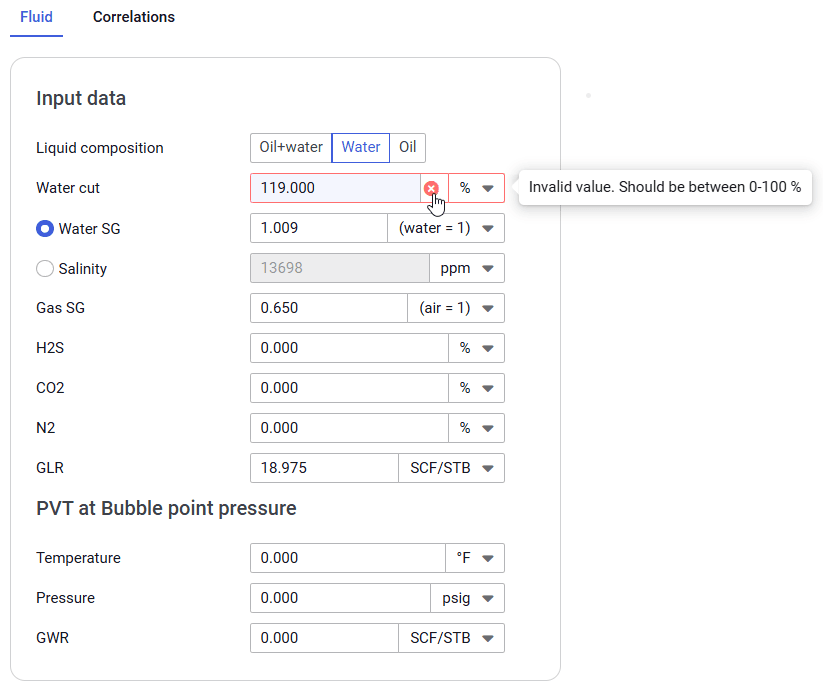
An orange marker (
 ) next to a section name or tab indicates non-critical errors that should still be resolved to ensure calculation accuracy.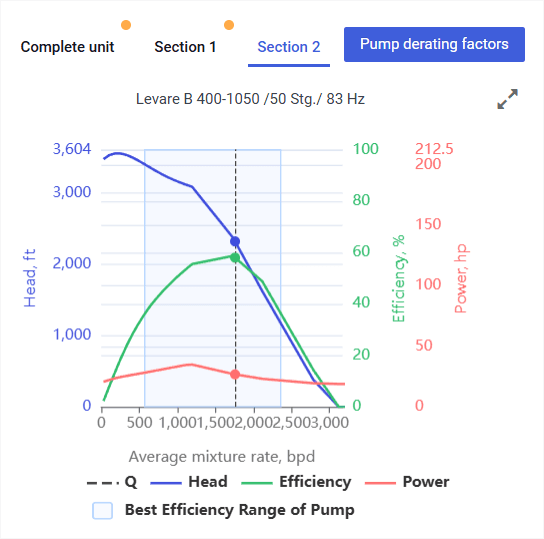
In tables with calculated values, instead of a border, a cell fill of the corresponding color is used.
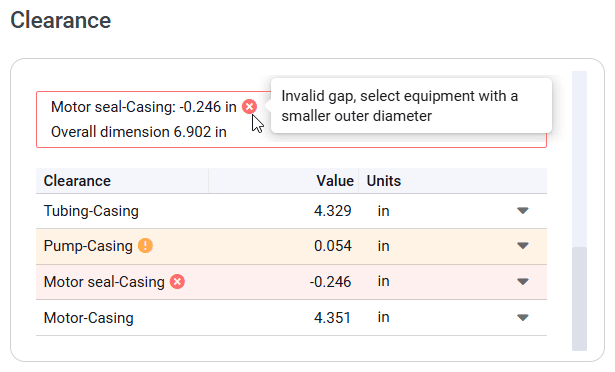
In some tables, the text color changes instead.
5.1 Well Data
The group consists of the following sections:
Parameters in these sections do not depend on the well lift type and are essential for accurate calculations.
5.1.1 Well Information
The Well information section provides general information about the well. It consists of two tabs:
5.1.1.1 Well Data
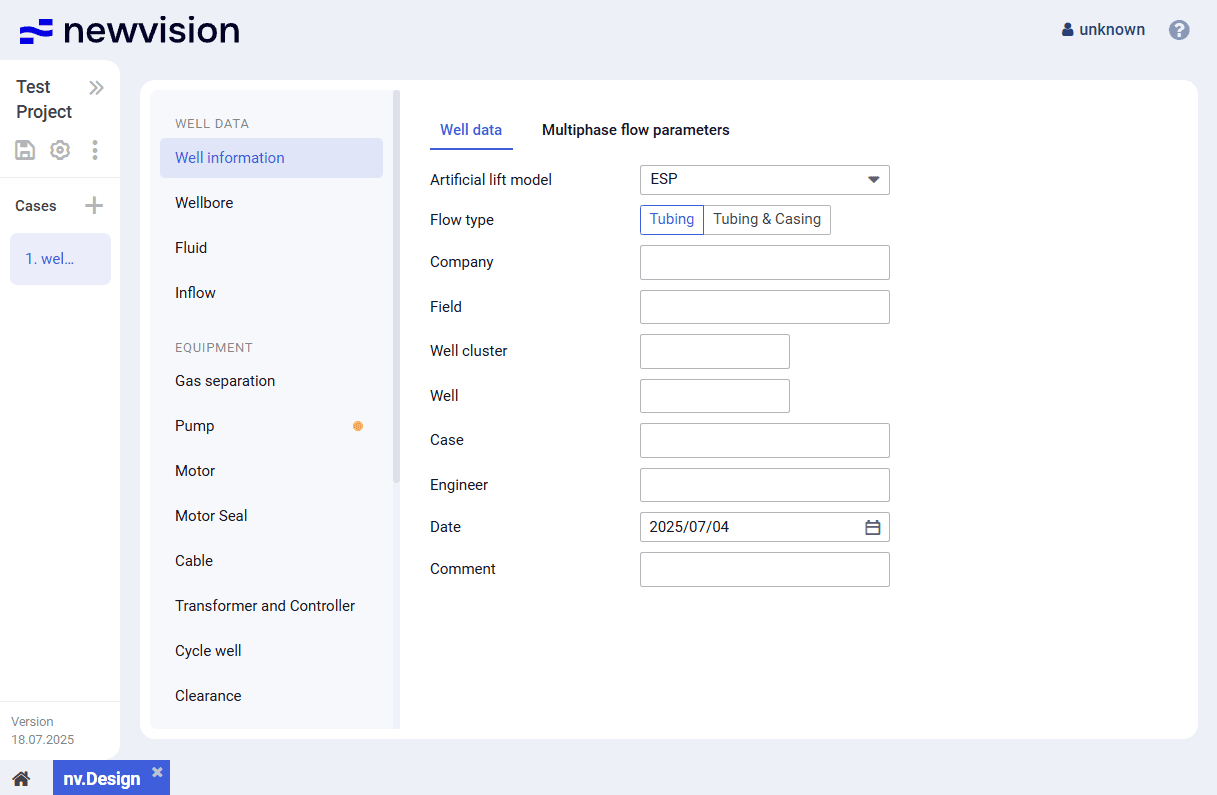
On the Well data tab, you can select the well lift type and enter general information about the well, such as company name, field name, well number, etc.
5.1.1.2 Multiphase Flow Parameters
On the Multiphase flow parameters tab, you can select correlations used for the tubing multiphase flow and configure their application conditions.
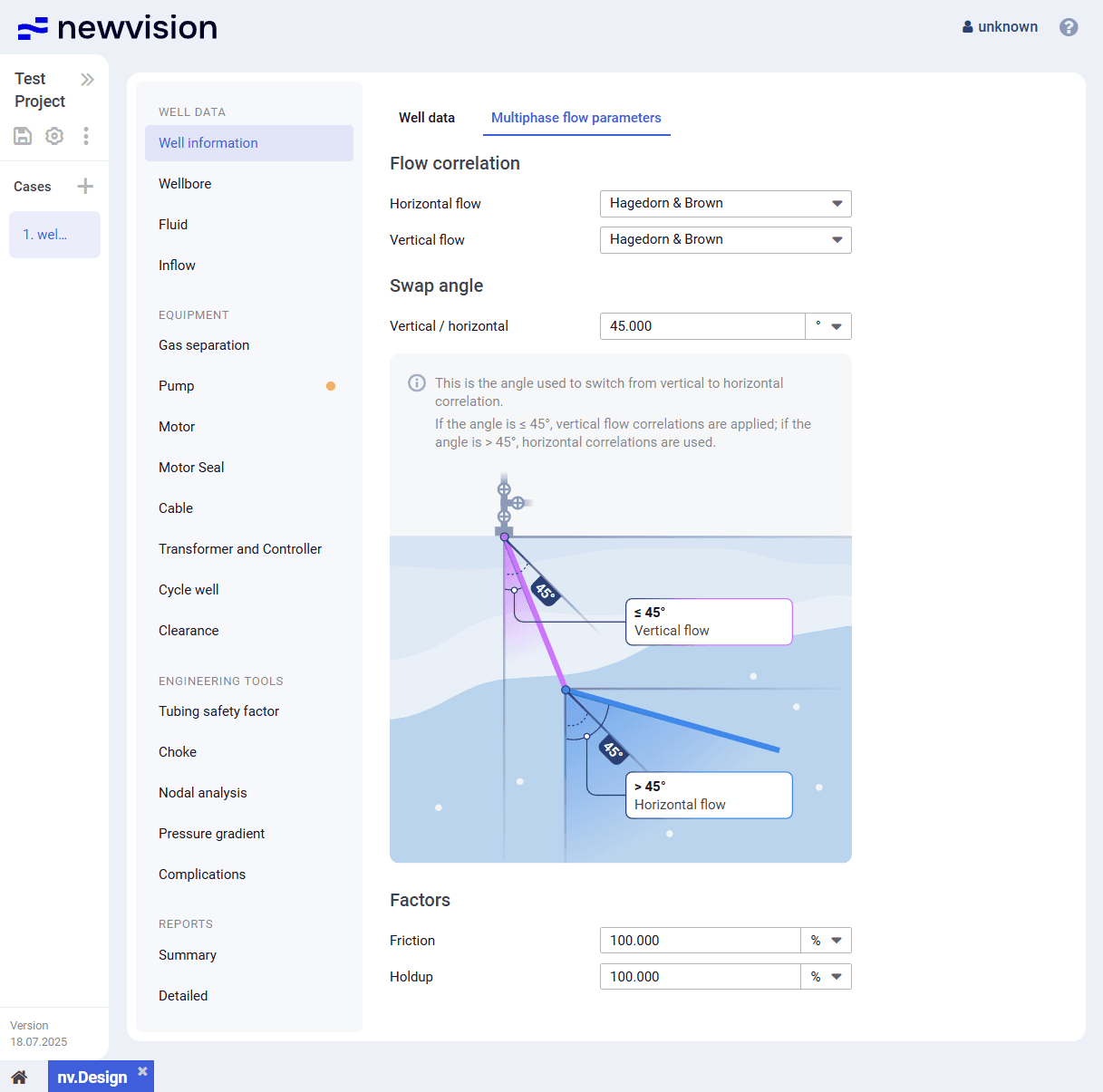
The tab contains the following parameter groups:
- Flow correlation
- Angle of transition between flows
- Factors
Flow Correlation
In this group, you can select correlations that will be used for the horizontal and vertical flow calculations. For details on the available correlations, see Multiphase Flow Correlations.
Angle of Transition Between Flows
In this group, you can set the threshold inclination angle at which the system switches between horizontal and vertical flow correlations.
Below the field with the angle value, a simplified flow scheme is displayed. It visualizes horizontal and vertical flows and the selected transition angle.
 | Note Switching between correlations is important because different flow regimes and pressure loss behaviors are observed depending on the pipe inclination. This automatic switch provides more accurate modeling of pressure losses and flow behavior in deviated and directional wells. |
Factors
In this group, you can specify the friction and hold-up factors. They can be used to adjust pressure loss calculations in the wellbore:
- Friction factor affects frictional losses (ΔPf).
- Hold-up factor affects the hydrostatic gradient (ΔPa).
The total pressure loss is calculated using the following formula:
ΔP = (friction factor ΔPf) + (hold-up factor⋅ΔPa) + ΔPg
ΔP = (friction factor⋅ΔPf) + (hold-up factor ΔPa) + ΔPg
| Note This is a generalized formula. The exact formula for each component depends on the selected flow correlation. |
The default value for both friction and hold-up factors is 100%. You can modify it in calibration and testing purposes.
5.1.1.2.1 Multiphase Flow Correlations
On the Multiphase flow parameters tab of the Well information section, the following multiphase flow correlations can be selected:
Moody
The Moody correlation is used to calculate friction factors and pressure losses in single-phase flows of gas or liquid, based on Reynolds number and relative pipe roughness. While it was originally developed for single-phase conditions, it is often incorporated into multiphase models to estimate friction factors in each phase separately.
Typical data ranges:
- Temperature: 4°C – 177°C
- Pressure: 0.1 bar – 689 bar
Gray
The Gray correlation accounts for the influence of gas-liquid interaction in multiphase flow, specifically designed for pressure drop estimation in gas-lift operations and vertical wellbores. It is well suited for calculating bottomhole pressure and tubing performance where the gas-liquid ratio significantly affects flow behavior.
Typical data ranges:
- Temperature: 4°C – 150°C
- Pressure: 6.89 bar – 345 bar
- Gas-liquid ratio: Broad range typical for gas-lift systems
Poettmann-Carpenter
The Poettmann-Carpenter method was one of the first empirical models to incorporate the effects of two-phase flows in vertical wells. It estimates pressure losses in tubing based on flow rates and pipe dimensions, enabling basic evaluation of artificial lift performance and production behavior.
Typical data ranges:
- Temperature: 4°C – 177°C
- Pressure: 0.1 bar – 689 bar
Orkiszewski
The Orkiszewski correlation is widely applied in vertical multiphase flow modeling. It accounts for flow regime transitions (bubbly, slug, annular, segregated) and includes corrections for different flow patterns. This makes it valuable for pressure drop predictions in well design and production optimization.
Typical data ranges:
- Temperature: 4°C – 177°C
- Pressure: 0.1 bar – 689 bar
Griffith
The Griffith correlation is applied to vertical two-phase flows, particularly in wellbores. It considers gas-liquid interaction and offers a simplified method to calculate pressure losses based on mixture properties and flow regime assumptions.
Typical data ranges:
- Temperature: 4°C – 177°C
- Pressure: 0.1 bar – 689 bar
Duns & Ros
The Duns & Ros correlation evaluates pressure losses in vertical and inclined multiphase flow, accommodating various flow regimes including bubbly, slug, and annular. It provides accurate results for high gas-liquid ratio conditions that are often encountered in oil wells.
Typical data ranges:
- Temperature: 4°C – 177°C
- Pressure: 0.1 bar – 689 bar
Beggs & Brill
The Beggs & Brill correlation was developed for multiphase flows in pipelines with different inclination angles. It offers regime-specific calculations for pressure losses in horizontal, vertical, and inclined sections. This correlation is widely adopted due to its flexibility and applicability to field-scale models.
Typical data ranges:
- Temperature: 4°C – 177°C
- Pressure: 0.1 bar – 689 bar
Aziz
The Aziz model is designed for predicting multiphase pressure gradients in inclined and horizontal pipes. It captures complex gas-liquid interactions and adjusts for pipe angle, making it effective in pipelines and horizontal wellbores.
Typical data ranges:
- Temperature: 4°C – 177°C
- Pressure: 0.1 bar – 689 bar
Ansari
The Ansari correlation offers a mechanistic approach for predicting pressure drop, velocity, and flow distribution in vertical and inclined wells. It integrates flow regime transitions and detailed physical modeling to make it suitable for high-accuracy production system simulations.
Typical data ranges:
- Temperature: 4°C – 177°C
- Pressure: 0.1 bar – 689 bar
Hagedorn-Brown
The Hagedorn-Brown correlation is one of the earliest and most widely used models for vertical two-phase flows in oil wells. It enables reliable calculation of pressure losses based on well depth, fluid rates, and tubing diameter, serving as a benchmark for many commercial software implementations.
Typical data ranges:
- Temperature: 4°C – 177°C
- Pressure: 0.1 bar – 689 bar
5.1.2 Wellbore
The Wellbore section provides information about the downhole equipment, well profile, and heat transfer. It consists of three tabs:
5.1.2.1 Wellbore configuration
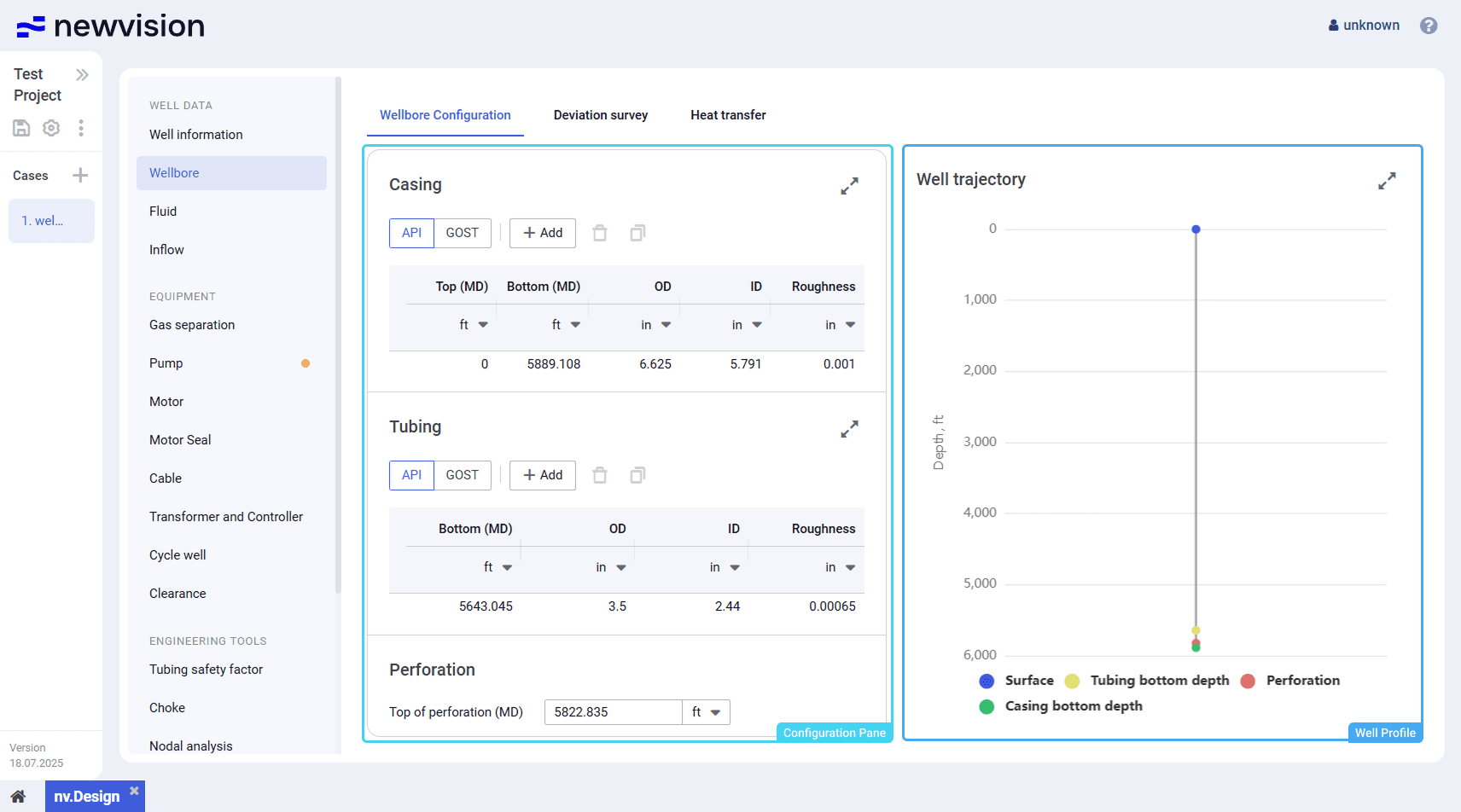
On the Wellbore Configuration tab, you can configure tubing and casing parameters, such as their top and bottom depths (MD), number of stages, and diameters.
The tab consists of two panes:
- Configuration pane in the left part of the tab.
- Well profile in the right part of the tab.
Configuration Pane
The pane contains three groups of parameters: Casing , Tubing , and Perforation .
The Casing and Tubing groups contain tables with corresponding parameters. Each row in the table corresponds to one casing or tubing stage.
Both tables provide the following controls:
API/GOST
Provides the ability to select the set of standard pipe sizes, API (American Petroleum Institute standard) or GOST (Russian national standard), that prescribes the tubing and casing outer and inner diameters.
Add (  )
)
Adds a new row to the table for entering the casing or tubing stage parameters at the specified depth. For details, see Configuring Casing and Tubing Data.
You can enter data to the tables manually or paste it to a new row from another source using the Ctrl+V shortcut. The source table must have the same column configuration as the target one. The pasted entries are automatically sorted by depth.
For example, you can try copying the data from the following table:
| Top (MD) | Bottom (MD) | OD | ID |
| 0 | 8690 | 7 | 6.276 |
| 8400 | 11320 | 4.5 | 3.92 |
| 0 | 7150 | 2.875 | 2.441 |
| Note The header row must not be copied from the source table. |
Delete (  )
)
Deletes the selected row from the table.
Clone (  )
)
Creates a copy of the selected row.
Expand (  ) / Collapse (
  )
)
Expands the parameter group to full screen or collapses it back to the original size.
The Perforation group contains only one parameter, Top of perforation (MD) .
Well Profile
The pane contains the well profile that is built based on the data entered in the left part of the section (see description above).
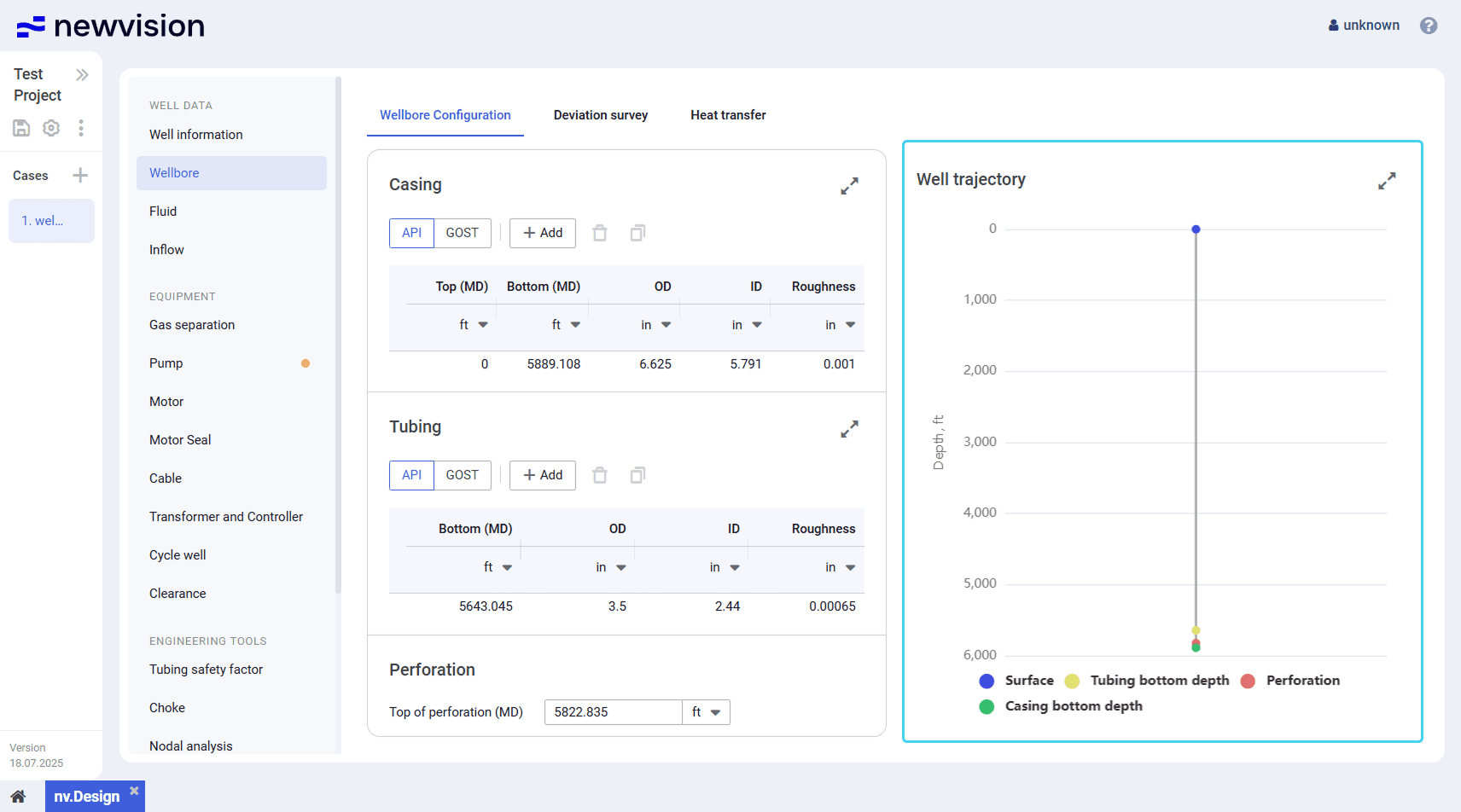
On the profile, depths are displayed as markers of different color.
To show or hide a marker, click its name under the profile.
You can also expand the pane to full screen or collapse it back to the original size using the Expand ( ) / Collapse ( ) buttons located in the upper-right corner of the pane.
5.1.2.1.1 Configuring Casing and Tubing Data
To configure the well tubing and casing parameters, perform the following actions:
- Open the nv.design module.
For details on navigation in the system, see System Interface. In the left part of the working area, in the list of the module sections, click Wellbore .
To the right of the list, the Well Configuration tab opens.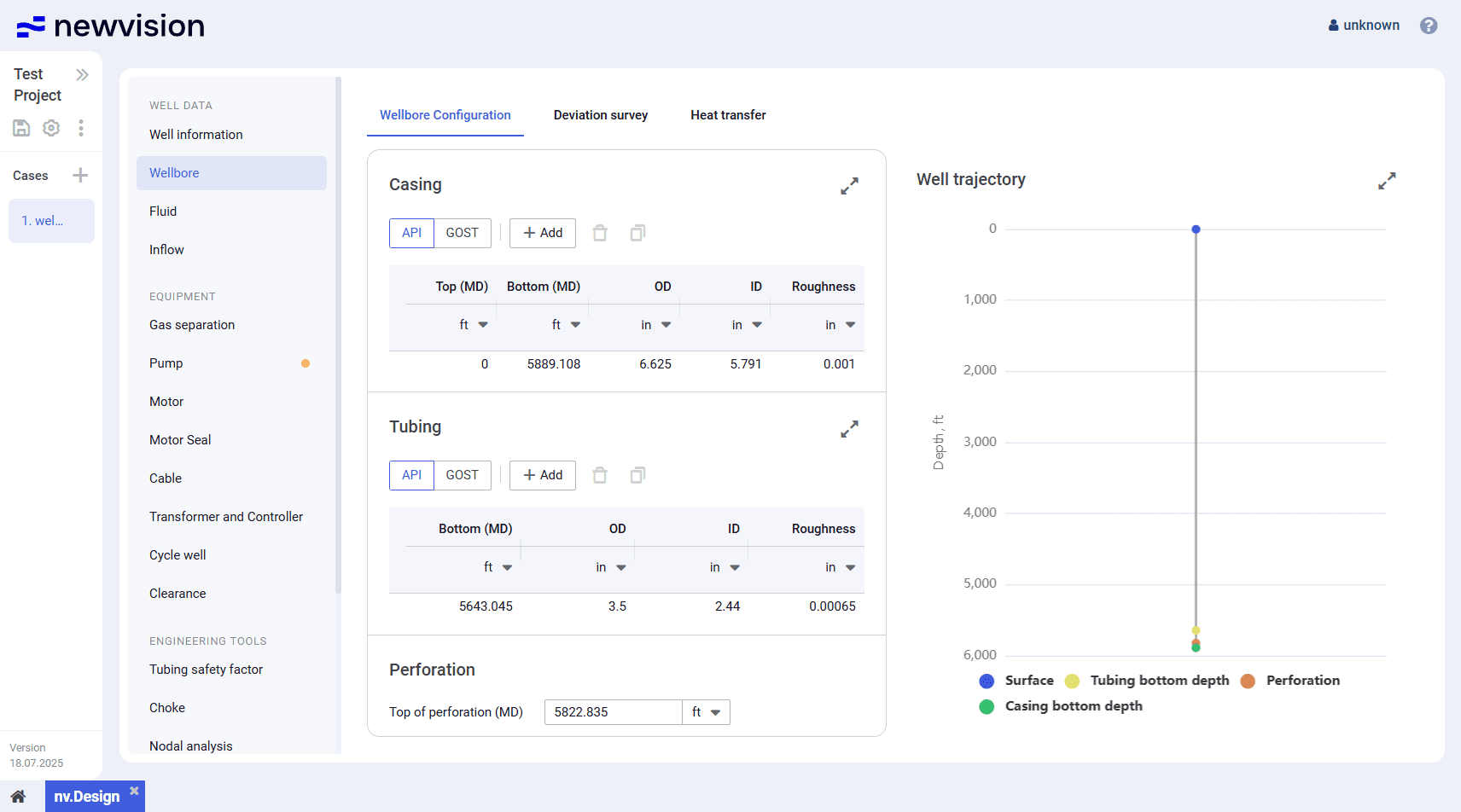
- In the Casing parameter group, select the standard for outer and inner diameters of the casing: API or GOST .
Add new entries to the table. You can do it in the following ways:
To add a new entry, perform the following actions:
a. Above the table, click Add (
) .
A new row appears in the table.b. In the new row, double-click values in the Top (MD) and Bottom (MD) columns and enter the desired values.
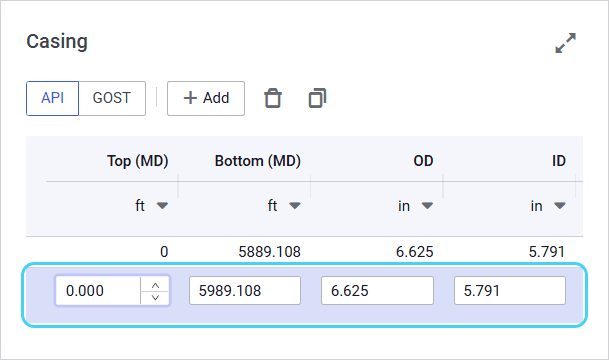
c. Double-click values in the OD and ID columns and select the desired outer and inner diameters from the lists.
To create a copy of an existing entry, select the entry that you want to copy in the table, and then, above the table, click Duplicate (
) .
The copied entry appears in the table.To paste a row with data from another table, copy it to the clipboard, select any entry in the table, and then press Ctrl+V.
The copied entry appears in the table.Note
The inserted data must contain numerical values only. If the data includes a row with NaN (not a number) values, delete them after insertion.Entries in the table are automatically sorted by the Bottom (MD) value.
- Repeat Steps 3–4 for the Tubing parameter group.
In the right part of the Well Configuration tab, the well profile is displayed. (Optional)
To edit an entry, double-click the desired value and make necessary changes.
To delete an entry, select it in the table, and then, above the table, click Delete (
) .- To save changes, in the left part of the module, click Save (
 ) under the name of the current project.
5.1.2.2 Deviation survey
On the Deviation survey tab, you can build vertical, horizontal, dogleg severity (DLS), and 3D projections of the well.
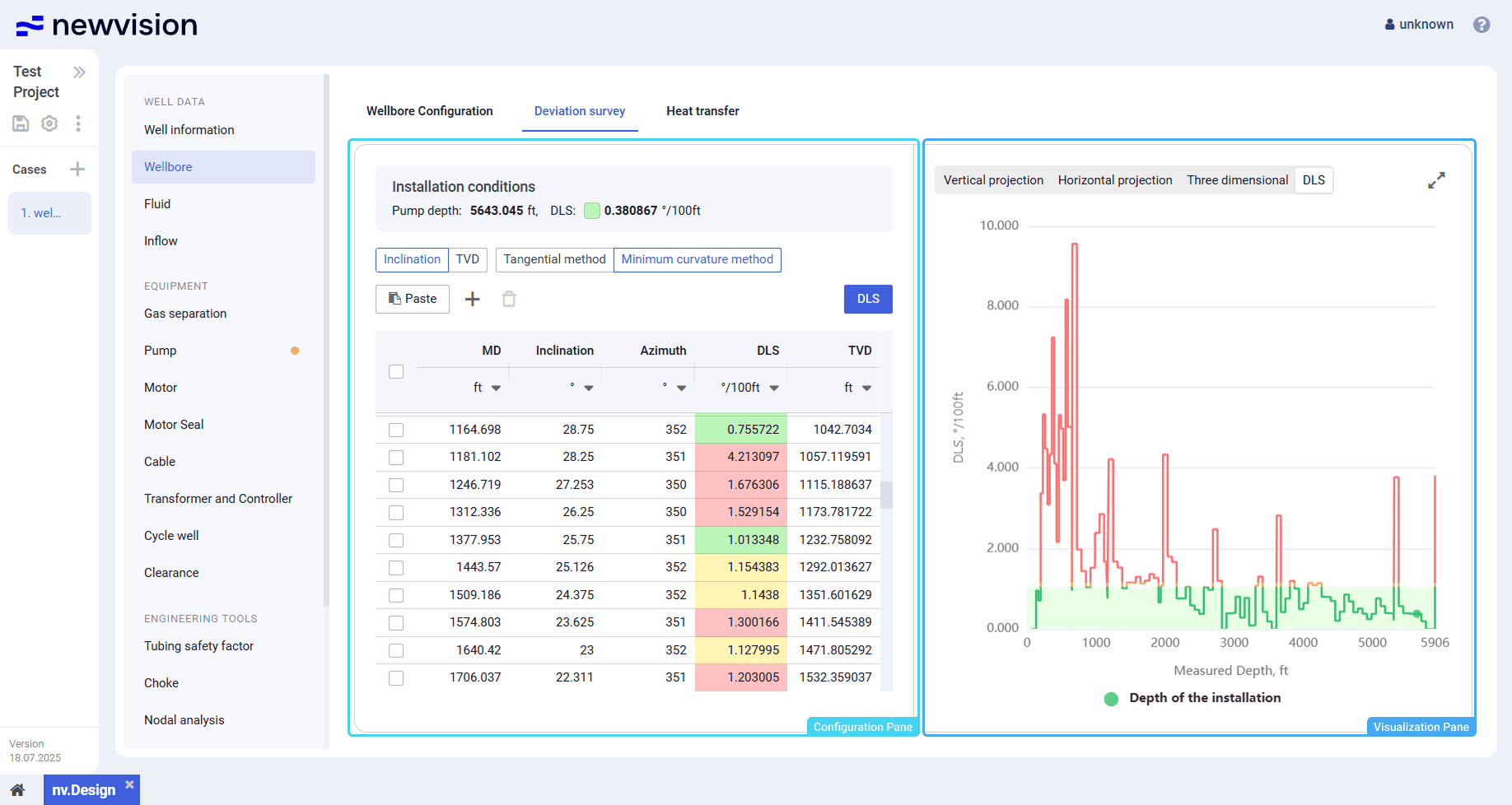
The tab consists of two panes:
- Configuration pane in the left part of the tab.
- Visualization pane in the right part of the tab.
Configuration Pane
The pane contains a table with the well directional survey data required for calculation. For details on how to enter the data and run a calculation, see Running Deviation Survey Calculation.
At the top of the pane, the installation conditions are displayed:
- Pump depth value equals the tubing bottom measured depth taken from the Wellbore configuration tab.
- DLS value corresponds to the dog leg severity at the pump setting depth. If there is no data for this very depth, the next available value is taken.
The color of the square to the left of the DLS value indicates if it is feasible to install the pump at this depth: a green square means that the maximum DLS value is withing the allowable range, a red one means that the maximum allowable value is exceeded. This value can be configured in the ESP depth setting determination window. For details, see Configuring DLS.
Below the Installation conditions area, the following controls are available:
Inclination / TVD
Provides the ability to select the parameter based on which the calculation will be performed.
In the table, values of the selected parameter are entered manually. Values of the other parameter are calculated automatically.
Tangential method / Minimum curvature method
Provides the ability to select the calculation method:
- The Tangential method assumes constant inclination and azimuth between survey points. Is simpler but less accurate.
- The Minimum curvature method models the well as a smooth arc and provides higher accuracy, especially over longer intervals.
By default, the Minimum curvature method is used as it offers the most reliable results for most wellbore profiles.
Paste (  )
)
Pastes data from the clipboard to a new row in the table.
Alternatively, to paste data, you can use the Ctrl+V shortcut.
| Note The inserted data must contain numerical values only. If the data includes a row with NaN (not a number) values, delete them after insertion. |
Add ( )
Adds a new row to the table for entering the deviation survey data. For details, see Running Deviation Survey Calculation.
Delete (  )
)
Deletes the selected rows from the table.
To select a row, select the corresponding check box in the leftmost column of the table.
DLS
Opens the ESP depth setting determination window where you can calculate the maximum allowable DLS values based on the ESP length and outer diameter. For details, see Configuring DLS.
In the table, values in the first three columns are editable. Values in the other two are calculated automatically.
In the DLS column, the following color indication is used based on the maximum allowable DLS:
- Green fill: The value is well below the critical value and no actions are required.
- Yellow fill: The value is 0,89-0,9 of the critical value and requires attention.
- Red fill: The value is greater than the critical value and must be fixed.
Visualization Pane
The pane provides the following types of the well projections distributed on the corresponding tabs:
- Vertical projection
- Horizontal projection
- DLS
- 3D projection
 | Important Projections are displayed only if the deviation survey data table in the left part of the section does not contain errors. |
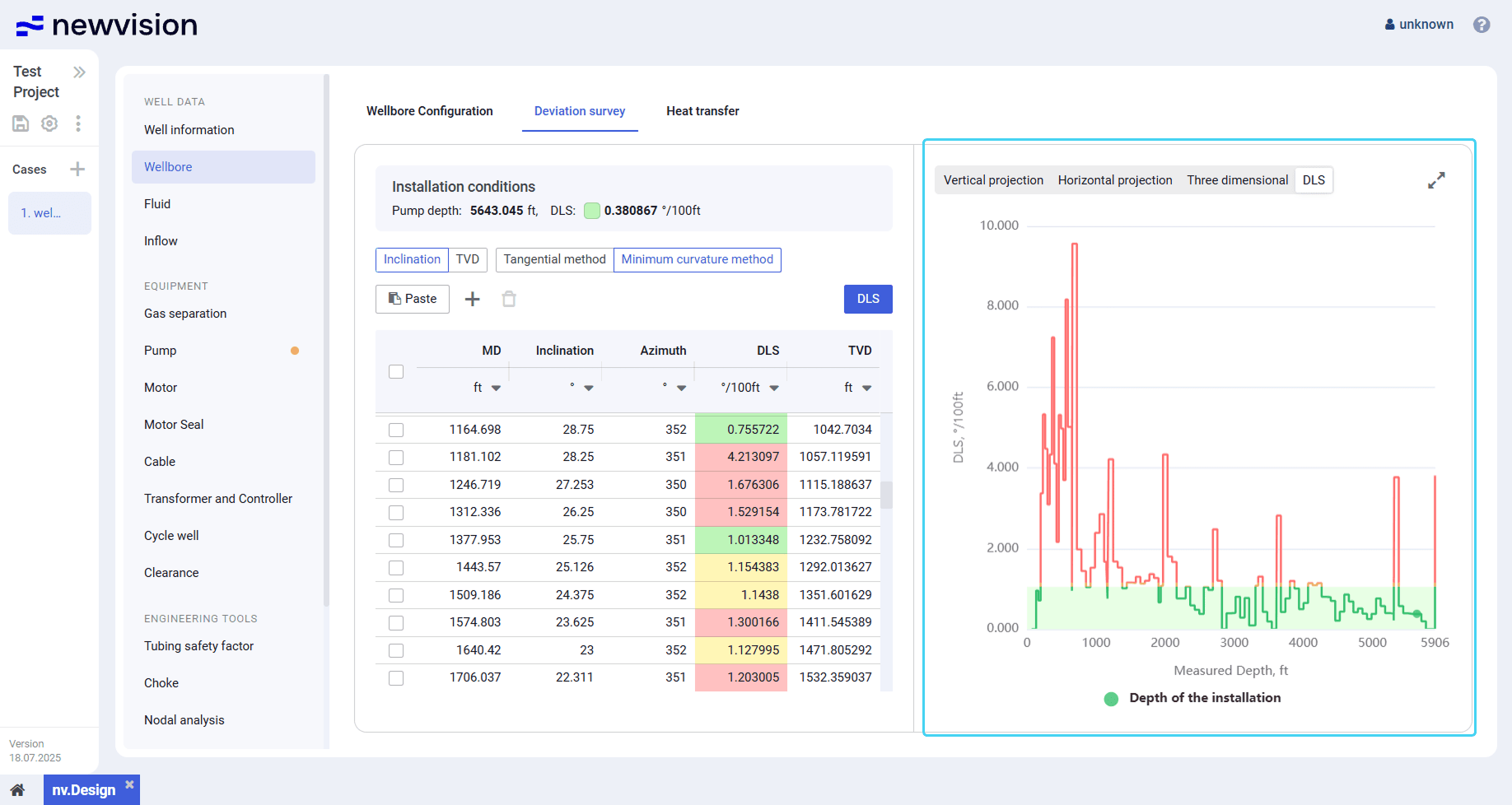
On the DLS tab, sections suitable for equipment installation are highlighted with a green fill.
On other projections, depths are displayed as markers of different color.
To show or hide a marker, click its name under the profile.
You can also expand the pane to full screen or collapse it back to the original size using the Expand ( ) / Collapse ( ) buttons located in the upper-right corner of the pane.
5.1.2.2.1 Configuring DLS
To configure the well tubing and casing parameters, perform the following actions:
- Open the nv.design module.
For details on navigation in the system, see System Interface. In the left part of the working area, in the list of the module sections, click Wellbore , and then go to the Deviation survey tab.
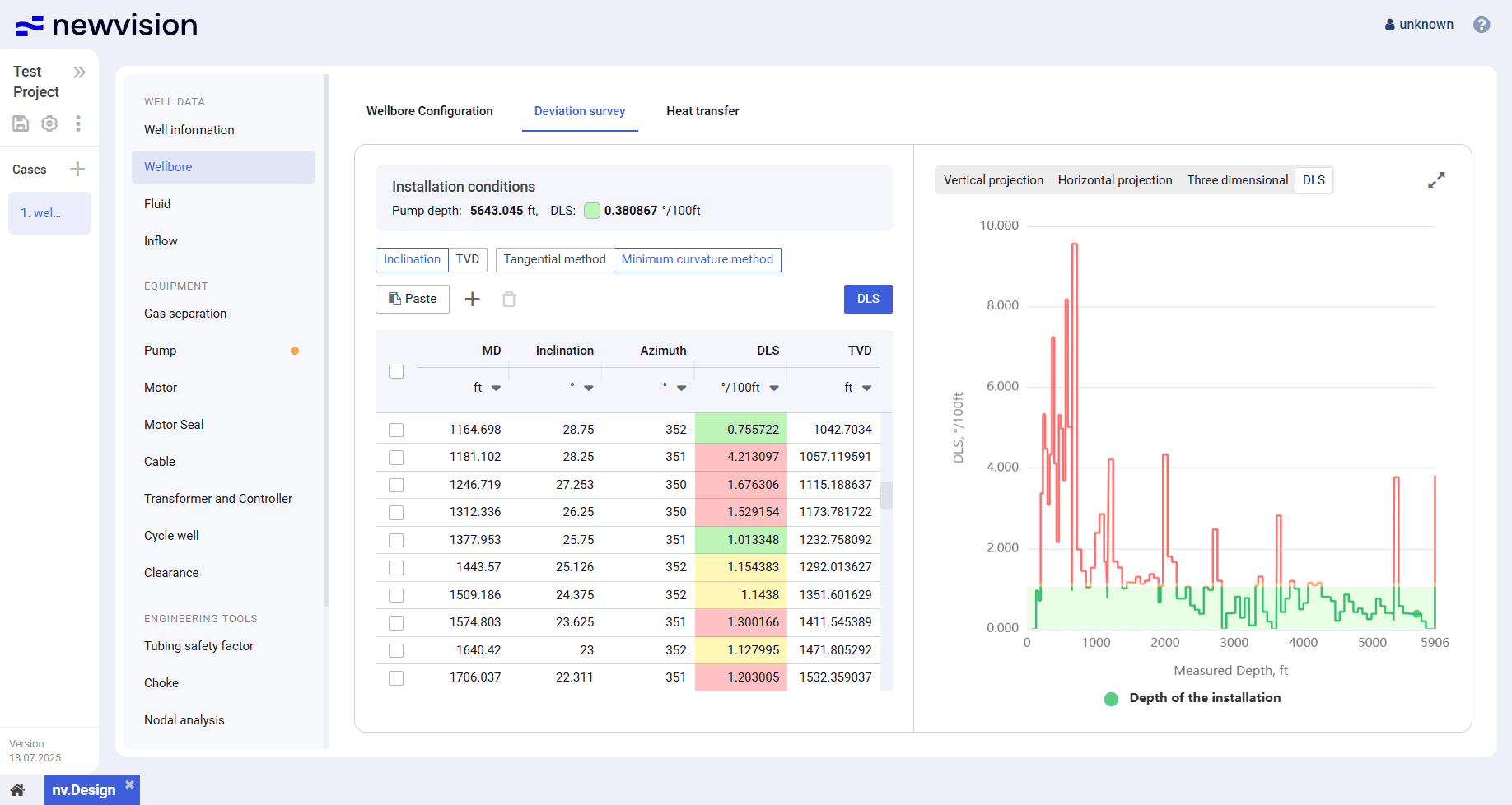
At the top of the pane in the left part of the section, click DLS .
The ESP depth setting determination window opens in the right part of the section.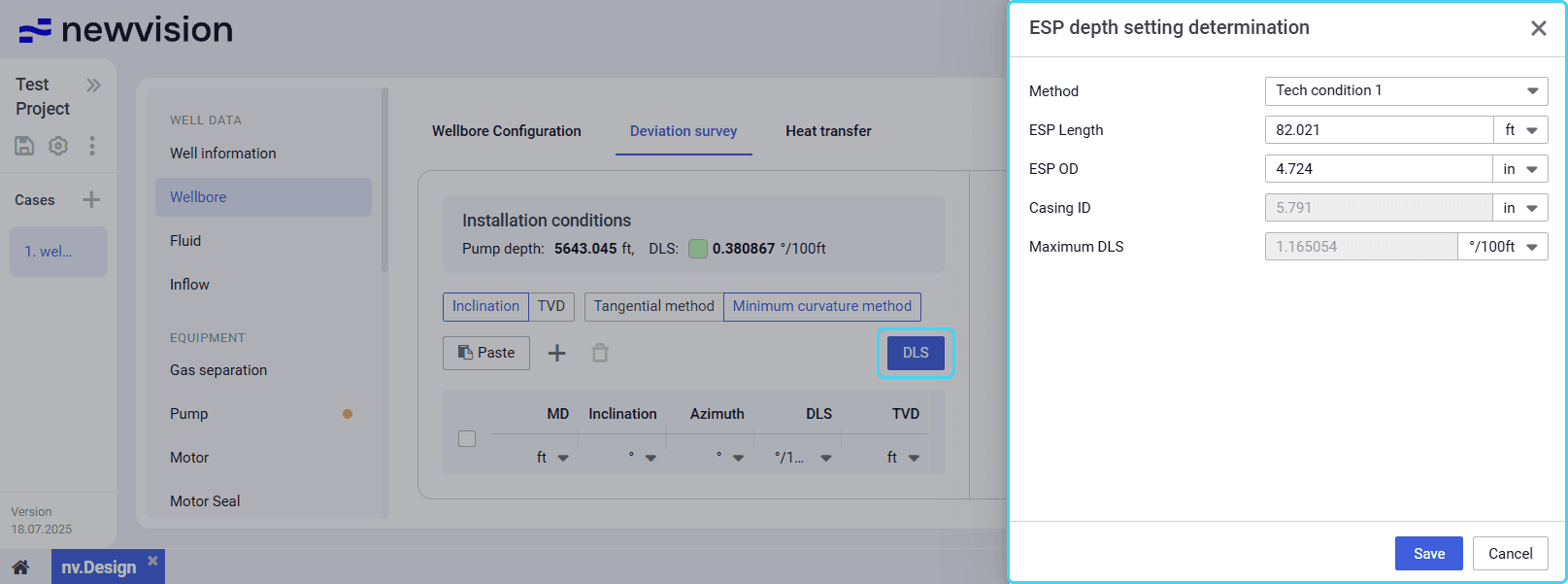
In the window that appears, perform the following actions:
a. From the Method list select the calculation method: Tech Condition 1 (less strict) or Tech Condition 2 (stricter).
b. ( Optional) Edit values in the ESP Length and ESP OD fields.
Values in the Casing ID and Maximum DLS fields are calculated automatically.c. At the bottom of the window, click Save .
- To save changes, in the left part of the module, click Save ( ) under the name of the current project.
5.1.2.2.2 Running Deviation Survey Calculation
To configure deviation survey parameters and run a calculation, perform the following actions:
- Open the nv.design module.
For details on navigation in the system, see System Interface. In the left part of the working area, in the list of the module sections, click Wellbore , and then go to the Deviation survey tab.
At the top of the pane in the left part of the section, select the parameter based on which the calculation will be performed: Inclination or TVD .
Note
Values of the selected parameter must be entered in the table manually. Values of the other parameter will be calculated automatically.To the right of the parameters selected at the previous step, select the calculation method:
The Tangential method assumes constant inclination and azimuth between survey points. Is simpler but less accurate.
The Minimum curvature method models the well as a smooth arc and provides higher accuracy, especially over longer intervals.
Note
By default, the Minimum curvature method is used as it offers the most reliable results for most wellbore profiles.- Above the table, click DLS and configure the maximum allowable dog leg severity. For details, see Configuring DLS.
Add new entries to the table. You can do it in the following ways:
To add a new entry, perform the following actions:
a. Above the table, click Add (
) .
A new row appears in the table.b. In the new row, double-click values in the first three columns and enter the desired values.
Values in the other two columns are calculated automatically.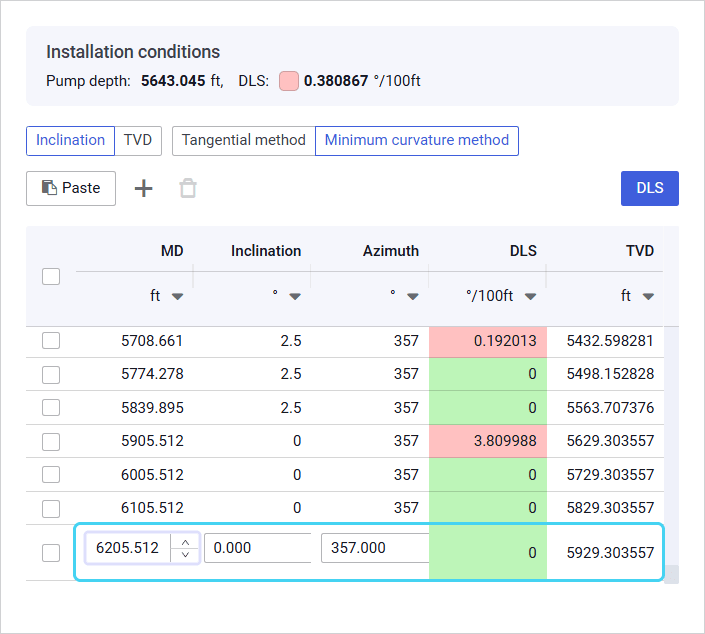
To paste a row with data from another table, copy it to the clipboard, and then, above the table, click Paste (
) , or press Ctrl+V.
The copied entry appears in the table.Note
The inserted data must contain numerical values only. If the data includes a row with NaN (not a number) values, delete them after insertion.- (Optional) To delete an entry from the table, select it, and then, above the table, click Delete ( ) .
Ensure that in the Installation conditions area above the table, the color of the square to the left of the DLS value is green. If it is red, make changes to the parameter values.
When the configuration is completed and there are no errors, in the right part of the tab, the well projections are displayed.
On the DLS tab, sections suitable for equipment installation are highlighted with a green fill.
- To save changes, in the left part of the module, click Save ( ) under the name of the current project.
5.1.2.3 Heat transfer
On the Heat Transfer tab, you can model the temperature distribution along the wellbore.
The tab consists of the following parts:
- General parameters at the top of the tab.
- Heatrise gradient pane in the left part of the tab.
- Temperature gradient pane in the right part of the tab.
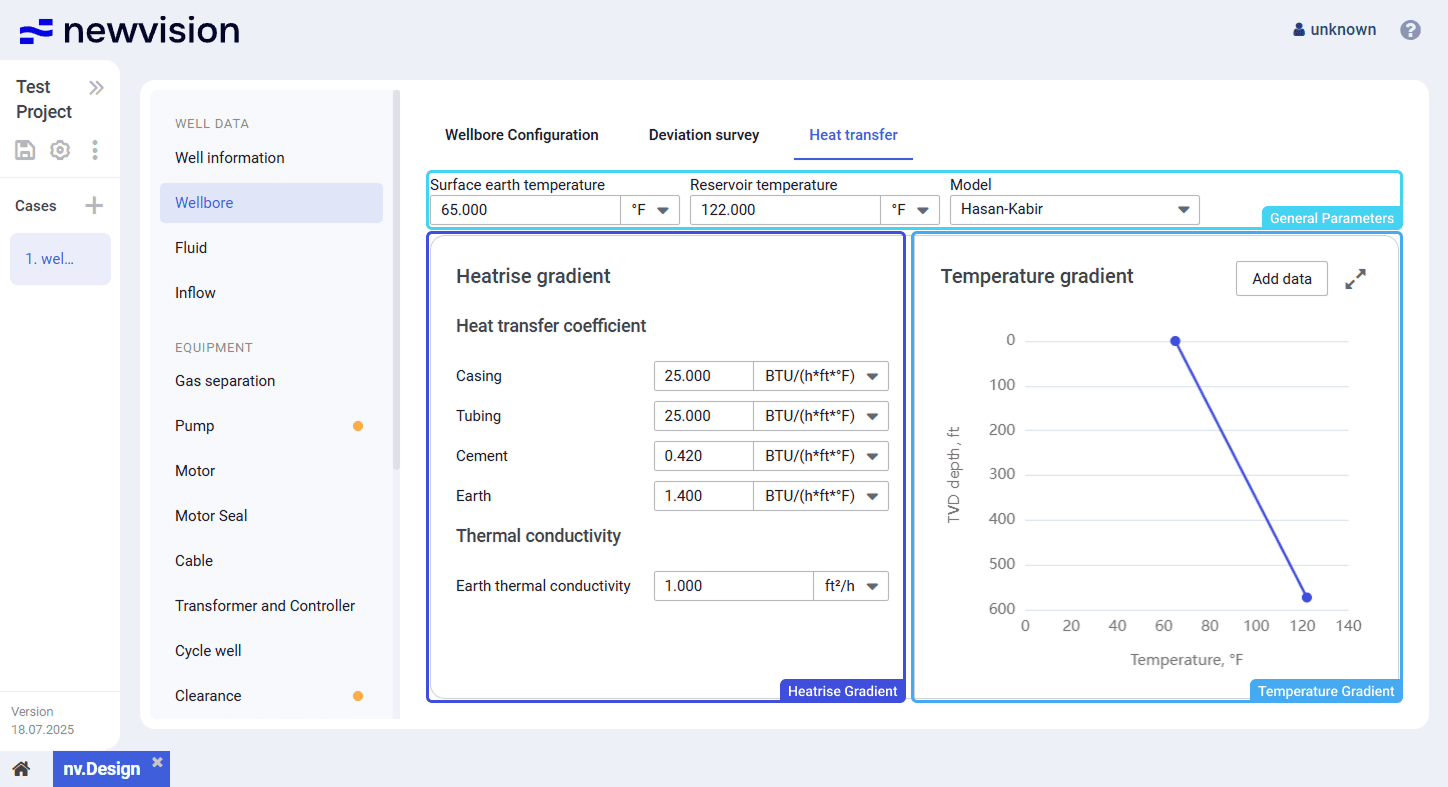
General Parameters
General parameters are required for the temperature gradient modeling.
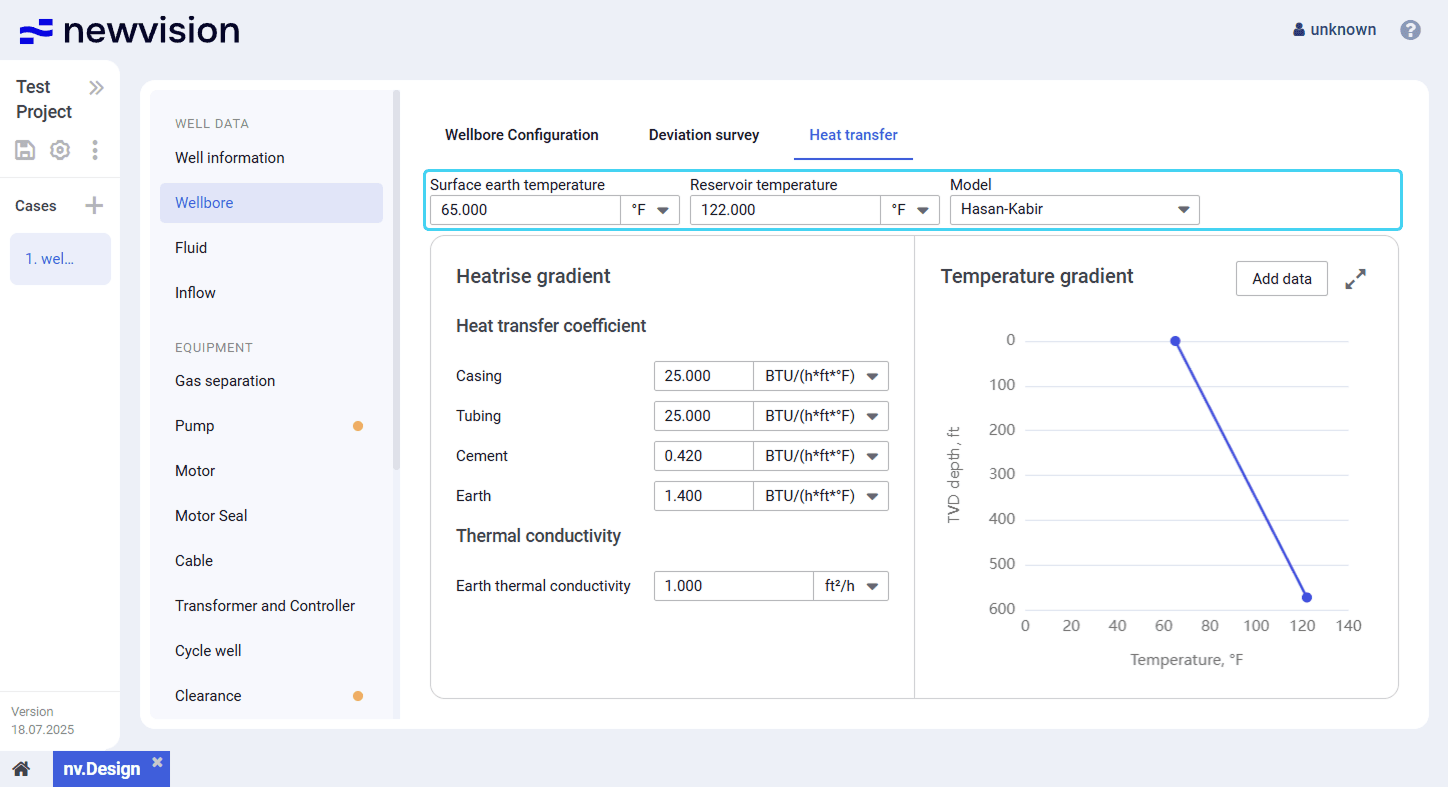
There, you need to specify the Surface earth temperature and Reservoir temperature values and select the calculation model from the Model list.
Two calculation models are available:
- Hassan-Kabir: Provides more accurate estimates as it takes into account heat transfer coefficients of the well casing, tubing, cement, and formation, as well as thermal conductivity of the surrounding formation.
This method is based on a semi-analytical model developed by Hasan and Kabir, which solves the energy balance equations to estimate fluid and formation temperatures during steady-state or transient flow in the wellbore. - Rough Approximation: Provides less accurate but faster estimates. It requires fewer input parameters and uses only a general (lumped) heat transfer coefficient. This model is suitable for quick estimations or cases where detailed thermal data is unavailable. It generates a simplified temperature profile along the wellbore.
| Important If precise physical properties are not available, it is recommended to use the default Hassan-Kabir model. |
Heatrise Gradient
The pane contains well parameters that affect temperature distribution along the wellbore.
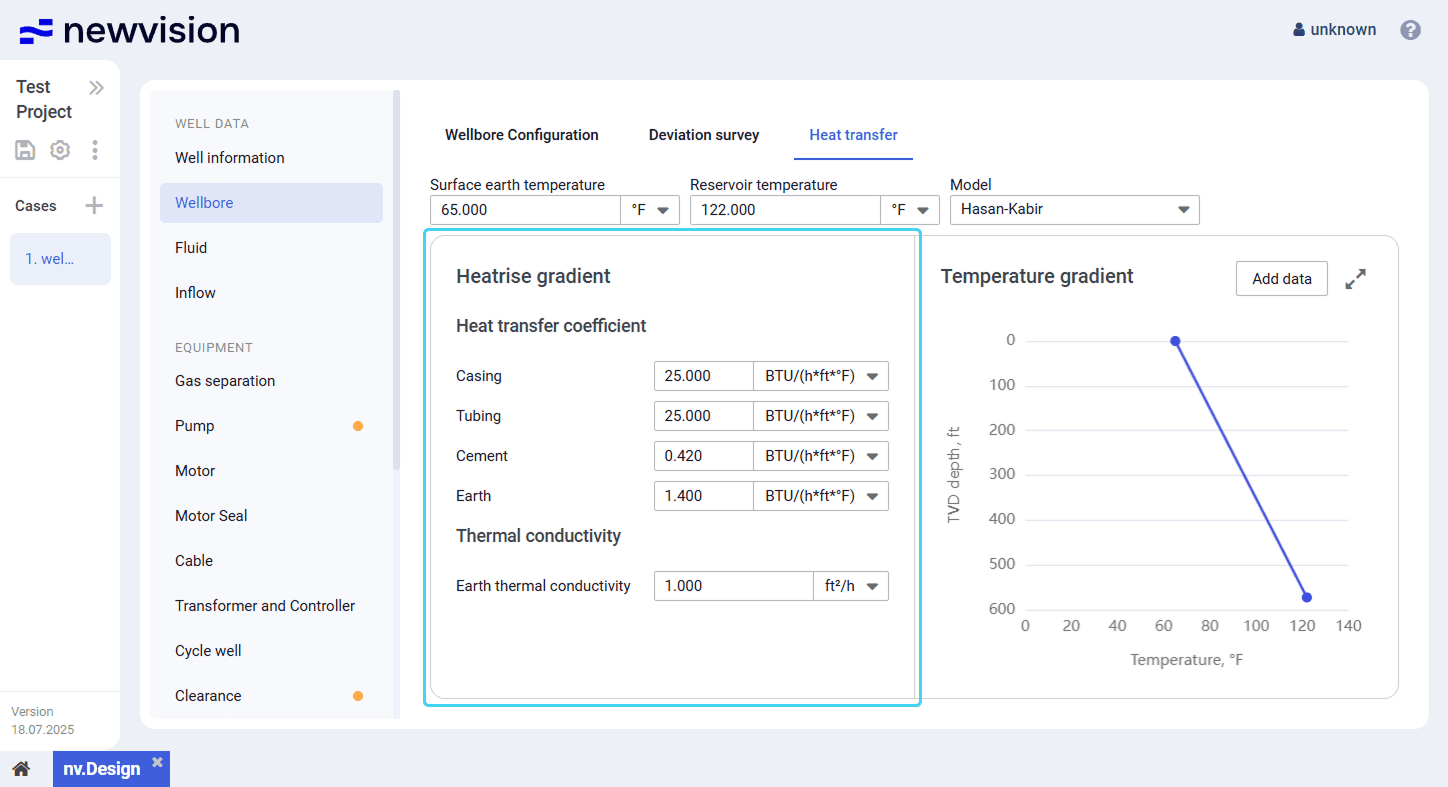
Depending on the selected model (see description above), different sets of parameters are available.
If the Hassan-Kabir model is selected, the pane contains two parameter groups:
- Heat transfer coefficient
- Thermal conductivity
If the Rough Approximation model is selected, only the Overall heat transfer coefficient value can be specified.
Temperature Gradient
The pane contains a chart representing the well temperature profile constructed based on the input data and selected calculation model.
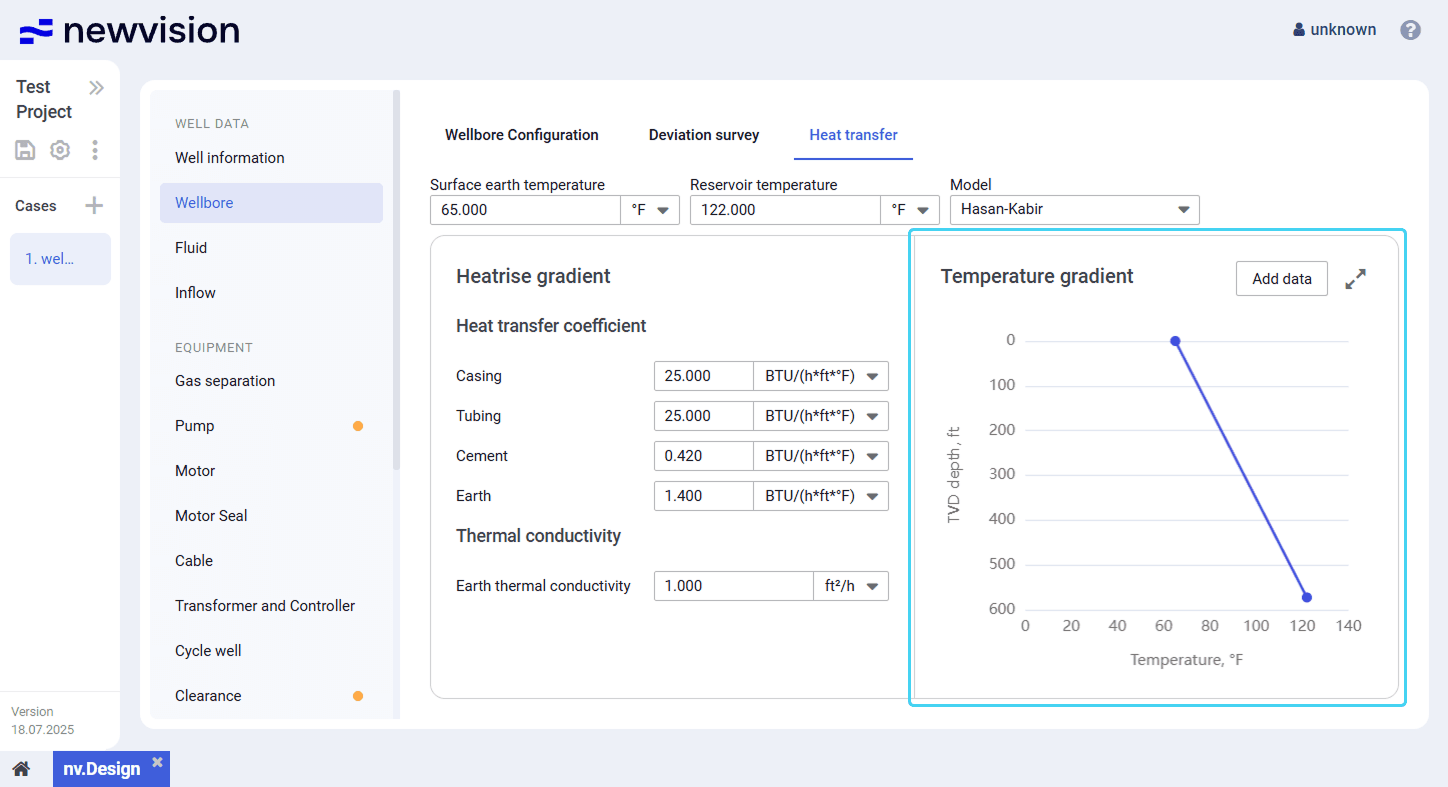
To improve the profile accuracy, you can add more information about the wellbore temperature at different depths. For details, see Adding Well Test Data.
You can also expand the pane to full screen or collapse it back to the original size using the Expand ( ) / Collapse ( ) buttons located in the upper-right corner of the pane.
5.1.2.3.1 Configuring Heat Transfer Parameters
To configure the well heat transfer parameters, perform the following actions:
- Open the nv.design module.
For details on navigation in the system, see System Interface. In the left part of the working area, in the list of the module sections, click Wellbore, and then go to the Heat transfer tab.
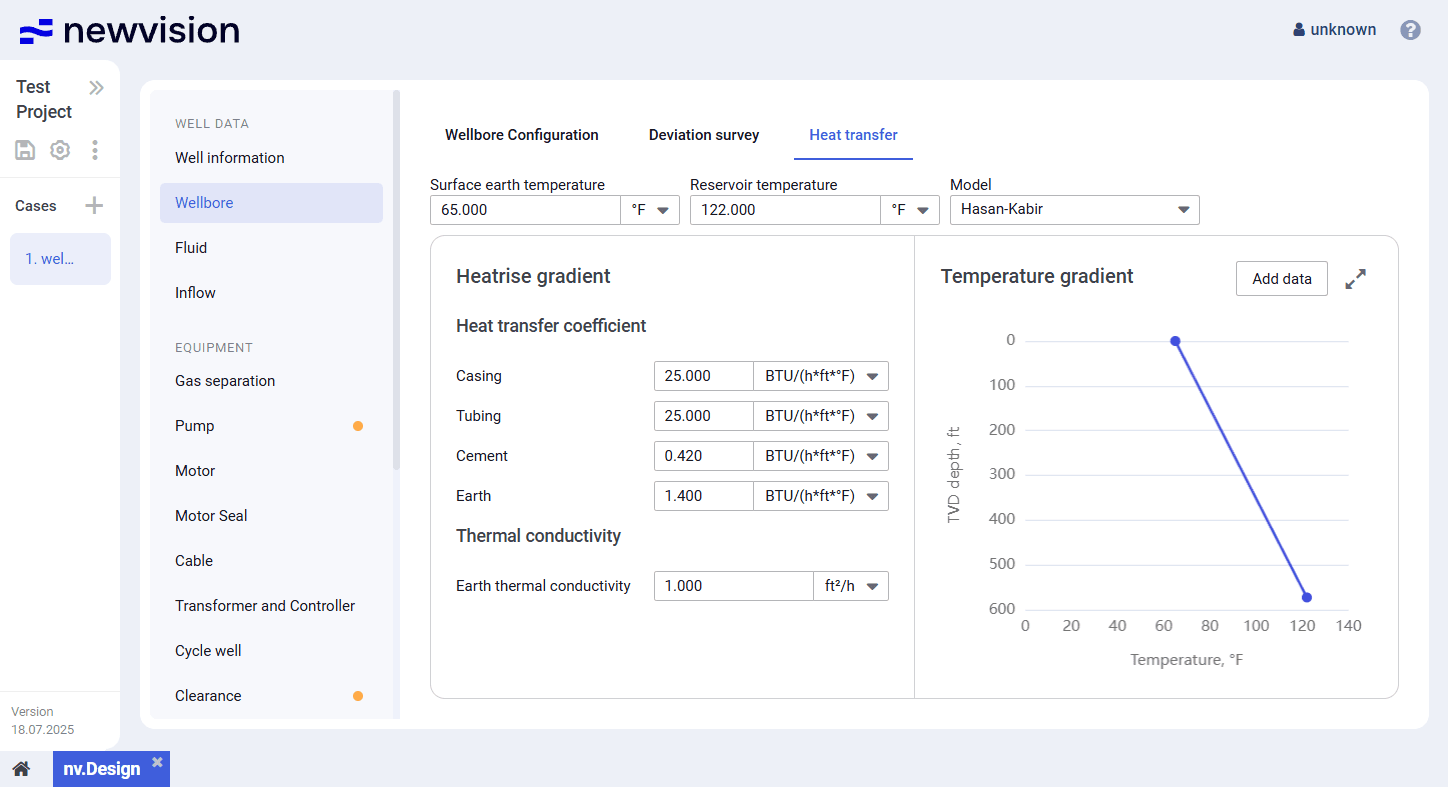
- At the top of the tab, in the Surface earth temperature and Reservoir temperature fields, enter the desired values.
- From the Model list, select the calculation model. For details, see Heat Transfer.
(Optional) In the Heatrise gradient pane, edit values of the desired parameters.
Note
The list of parameters available in this pane may differ depending on the model selected in Step 4.- (Optional) To enhance the accuracy of the well temperature profile, in the upper-right corner of the section, click Add data and enter available temperature data at different well depths. For details, see Adding Well Test Data.
- After the configuration is completed, in the Temperature gradient pane, view the resulting temperature profile.
- To save changes, in the left part of the module, click Save () under the name of the current project.
5.1.2.3.2 Adding Well Test Data
To add temperature data obtained during the well tests, perform the following actions:
- Open the nv.design module.
For details on navigation in the system, see System Interface. In the left part of the working area, in the list of the module sections, click Wellbore, and then go to the Heat transfer tab.
At the top of the pane, in the right part of the section, click Add data.
The Add data window opens in the right part of the section.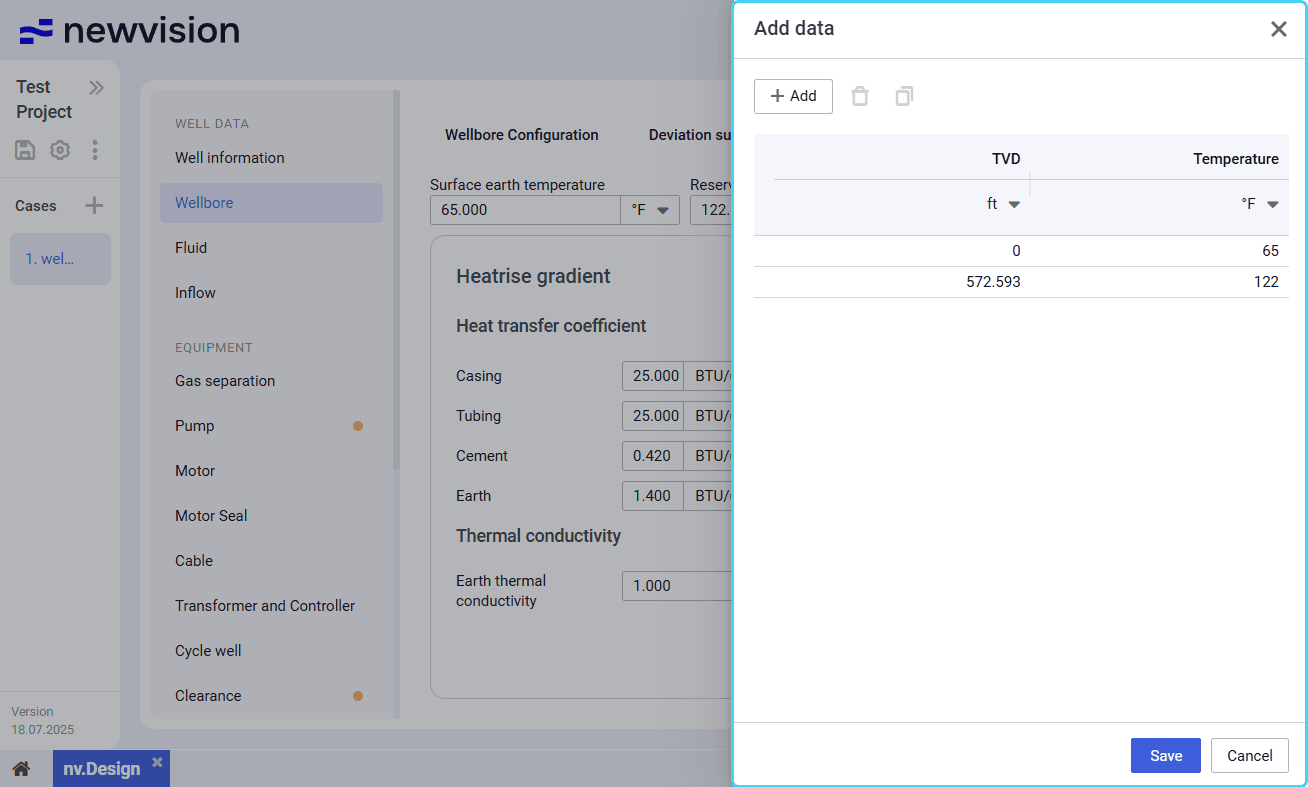
Note
Two rows are added by default.
The first row is with a zero TVD and the temperature specified in the Surface earth temperature field at the top of the Heat transfer section.
The second row is with the TVD equal to the Top of perforation depth (MD) parameter from the Wellbore Configuration tab and the temperature specified in the Reservoir temperature field at the top of the Heat transfer section.Add new entries to the table. You can do it in the following ways:
To add a new entry, above the table, click Add (
), and then, in the new row, double-click values in the TVD and Temperature columns and enter the desired values.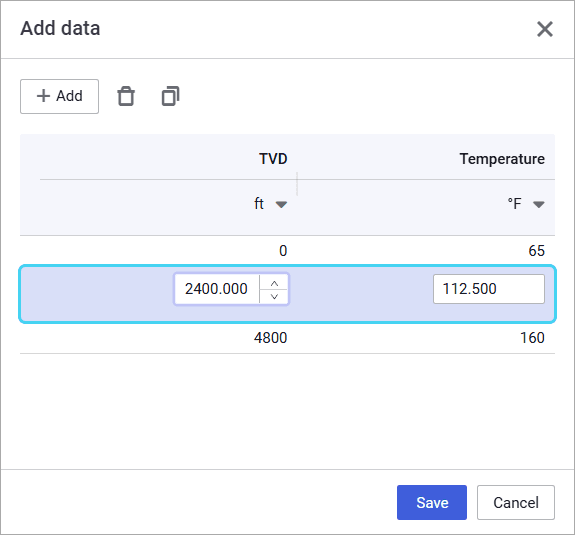
To create a copy of an existing entry, select the entry that you want to copy in the table, and then, above the table, click Duplicate (
).
The copied entry appears in the table.- (Optional)
To edit an entry, double-click the desired value and make necessary changes.
To delete an entry, select it in the table, and then, above the table, click Delete (). - To save changes, in the left part of the module, click Save () under the name of the current project.
5.1.3 Fluid
The section provides information about the PVT properties of oil, water, and/or gas. It consists of two tabs:
5.1.3.1 Fluid
On the Fluid tab, you can configure PVT properties of the well fluid.
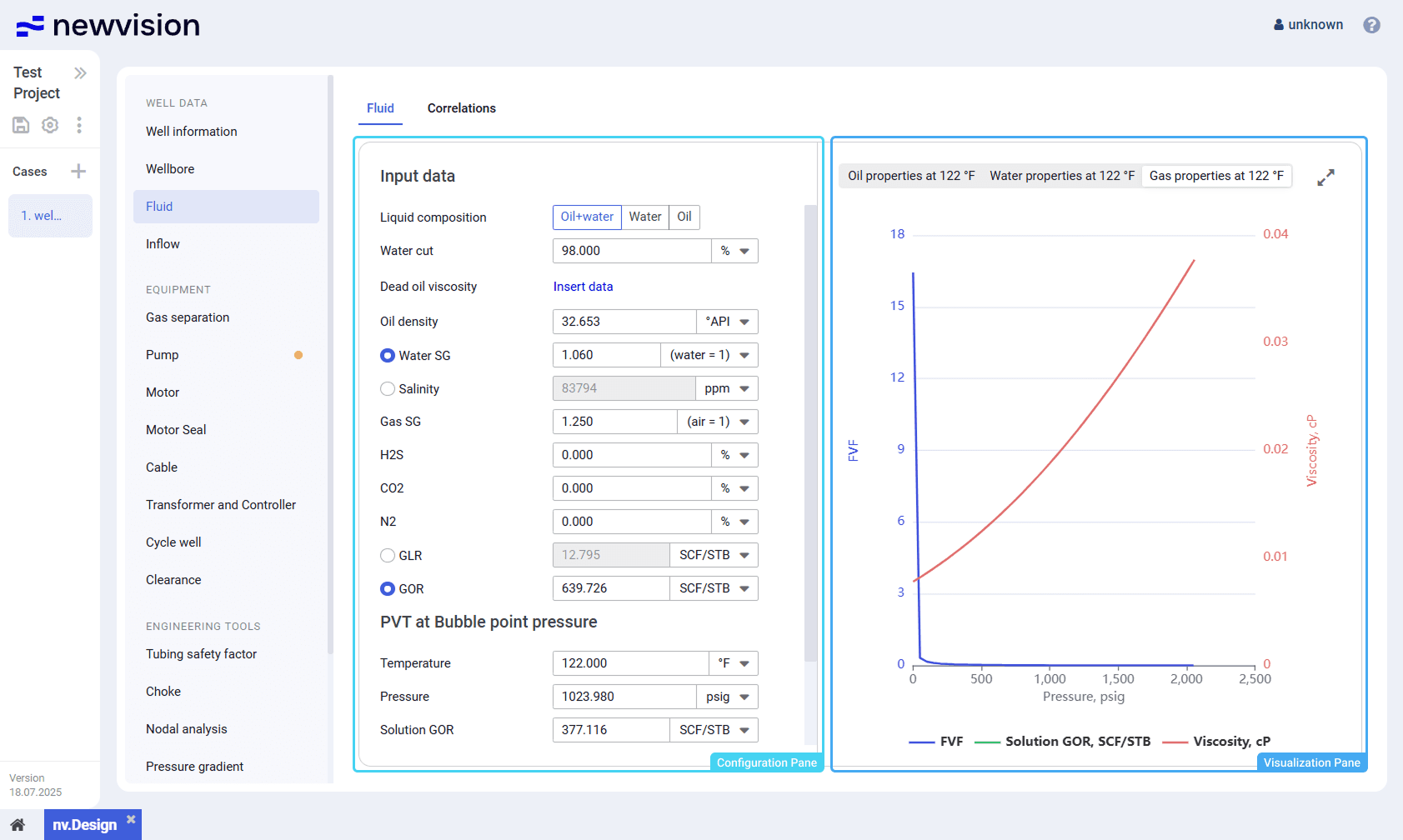
The tab consists of two panes:
- Configuration pane in the left part of the tab.
- Visualization pane in the right part of the tab.
Configuration Pane
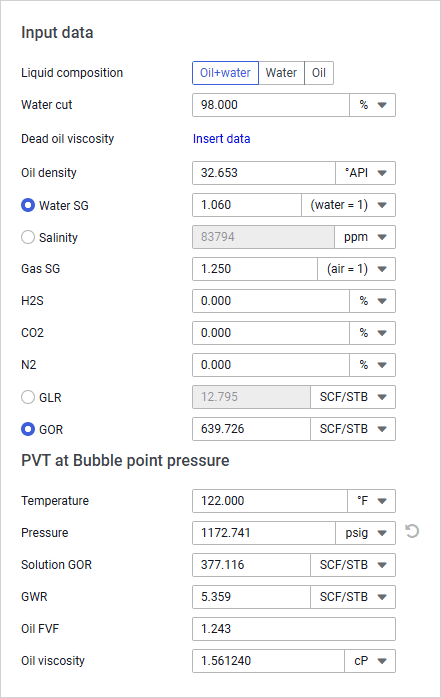
The pane contains PVT property values distributed in two parameter groups:
- Input data: Parameter values at standard conditions.
To configure dead oil viscosity matching, to the right of the parameter name, click Insert data. For details, see Configuring Dead Oil Viscosity Matching. - PVT at bubble point pressure: Parameter values at a specified temperature.
The temperature is specified in the Temperature field.
Visualization of the PVT properties at this temperature is displayed in the left part of the tab (see description below).
Visualization Pane
The pane contains charts that visualize the FVF, Solution GOR, and Viscosity values of oil, water, and gas at the temperature specified in the Temperature field in the configuration pane (see description above).
The pane consists of three tabs with charts of the corresponding fluid components:
- Oil properties at X °C
- Water properties at X °C
- Gas properties at X °C
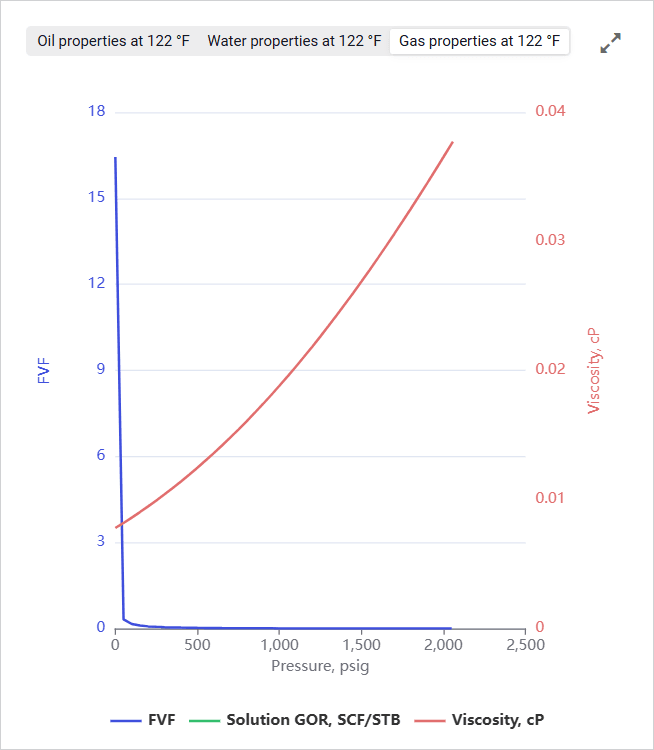
To show or hide a parameter on the chart, click the parameter name under it.
You can also expand the pane to full screen or collapse it back to the original size using the Expand () / Collapse () buttons located in the upper-right corner of the pane.
5.1.3.1.1 Configuring Fluid PVT Properties
To configure dead oil viscosity matching, perform the following actions:
- Open the nv.design module.
For details on navigation in the system, see System Interface. In the left part of the working area, in the list of the module sections, click Fluid.
To the right of the list, the Fluid tab opens.
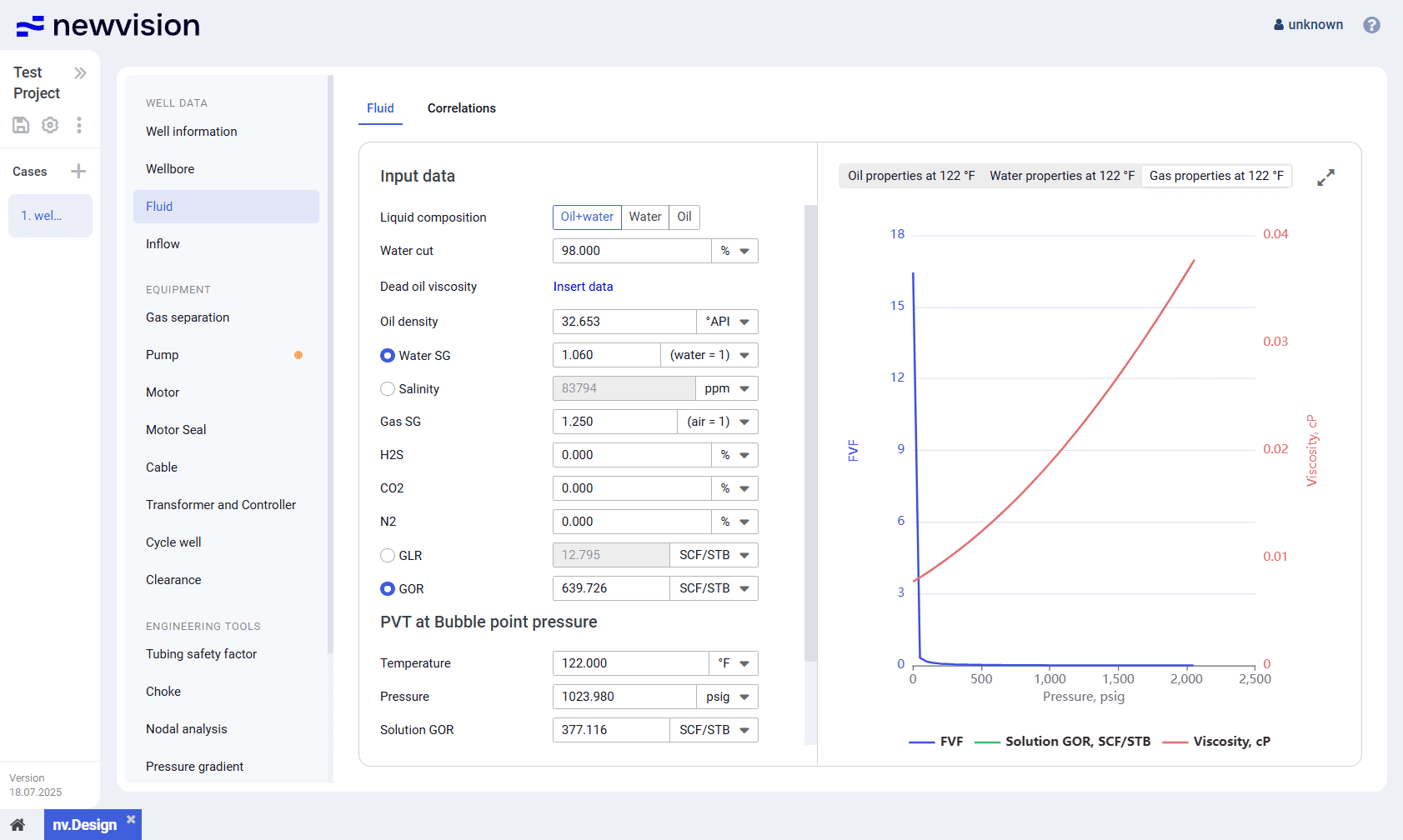
In the left part of the tab, in the Input data parameter group, perform the following actions:
a. To the right of the Liquid composition parameter name, select the well fluid composition option: Oil+water, Water, or Oil.
In the list of available parameters below, only the parameters relevant to the selected composition remain.b. In the Water cut field, enter the desired value.
c. (Optional) If the fluid composition includes high-viscosity oil, click Insert data and configure matching parameters so that available correlations could be applied. For details, see Dead Oil Viscosity Matching.
Note
If some calibration points have already been added, instead of Insert data, their number (e.g., 5 points) is displayed.d. In the Input data parameter group, fill in the rest of the PVT properties under surface conditions.
Go to the Correlations tab and select the correlations that are most suitable for the input parameters. For details, see Appendix A: PVT Correlations.Parameter values in the PVT at Bubble point pressure group are calculated automatically based on the selected correlations.
(Optional) Edit values in the PVT at Bubble point pressure group.
Note
After you modify any value in this parameter group, to the right of the corresponding field, the Reset ( ) button appears. Using it, you can reset the parameter to the calculated value.
- In the right part of the tab, view charts that visualize the FVF, Solution GOR, and Viscosity values of gas, water, and/or oil at the temperature specified in the Temperature field.
- To save changes, in the left part of the module, click Save () under the name of the current project.
5.1.3.1.2 Dead Oil Viscosity Matching
To configure dead oil viscosity matching, perform the following actions:
- Open the nv.design module.
For details on navigation in the system, see System Interface. In the left part of the working area, in the list of the module sections, click Fluid .
To the right of the list, the Fluid tab opens.
In the left part of the tab, under the Input data heading, click Insert data .
Note
If some calibration points have already been added, instead of Insert data , their number (e.g., 5 points ) is displayed.The Dead oil viscosity window opens in the right part of the tab.
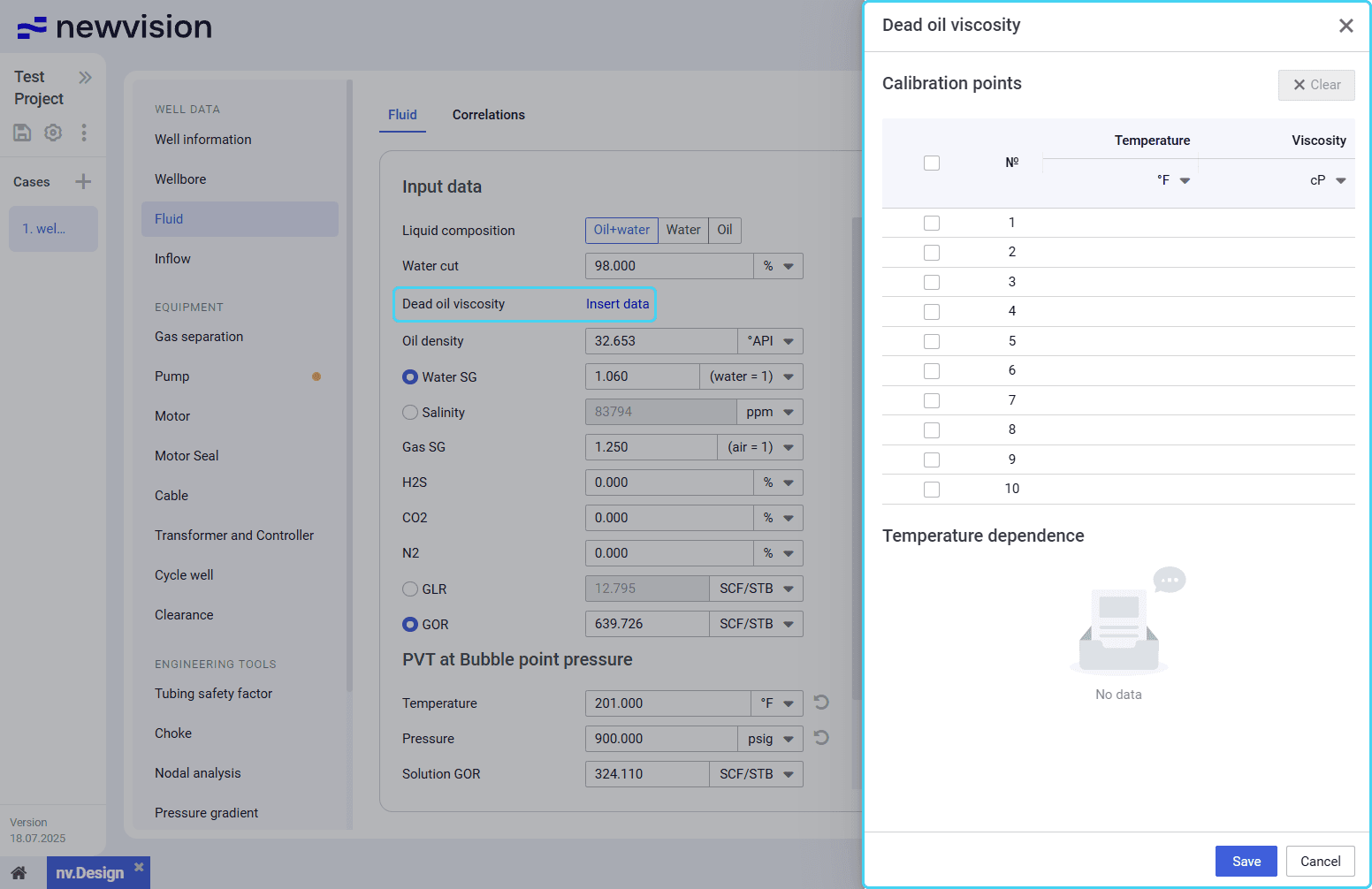
In the window, add matching data to the Calibration points table. You can do it in the following ways:
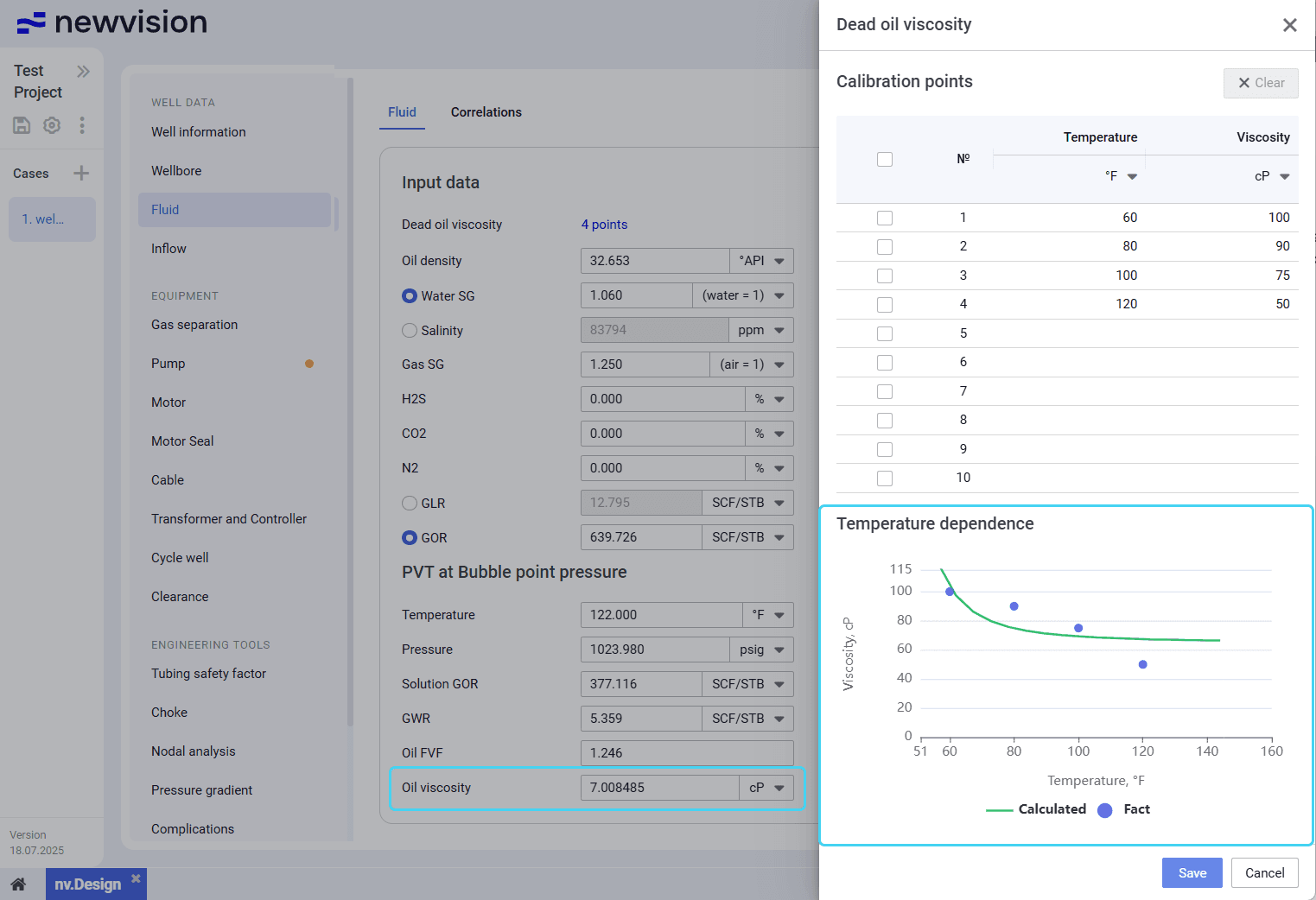
To add data manually, double-click cells in the Temperature and Viscosity columns and enter the desired values.
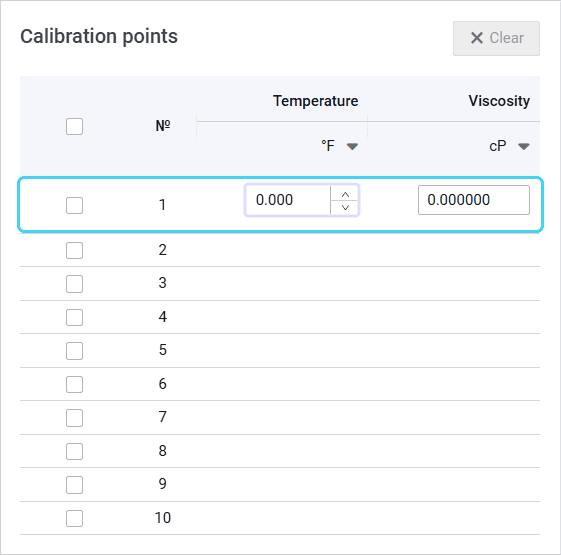
To paste data from another table, copy it to the clipboard, and then press Ctrl+V.
The copied entries appear in the table. The more data you add, the more accurate results the matching provides.
Note
The inserted data must contain numerical values only. If the data includes a row with NaN (not a number) values, delete them after insertion.(Optional)
To edit values in the table, double-click the desired value and make necessary changes.
To clear data from a row, select its check box in the leftmost column, and then, above the table, click Clear (
 ) .
) .After the configuration is completed, at the bottom of the window, click Save .
Below the Calibration points table, the Temperature dependence chart appears. Under the PVT at Bubble point pressure heading in the left part of the tab, the Oil viscosity value is matched to the actual data.
- Close the window by clicking the cross icon ( ) in its upper-right corner.
- To save changes, in the left part of the module, click Save ( ) under the name of the current project.
5.1.3.2 Correlations
On the Correlations tab, you can select correlations that are used for the PVT property calculations.
The tab consists of two panes:
- Correlations pane in the left part of the tab.
- Visualization pane in the right part of the tab.
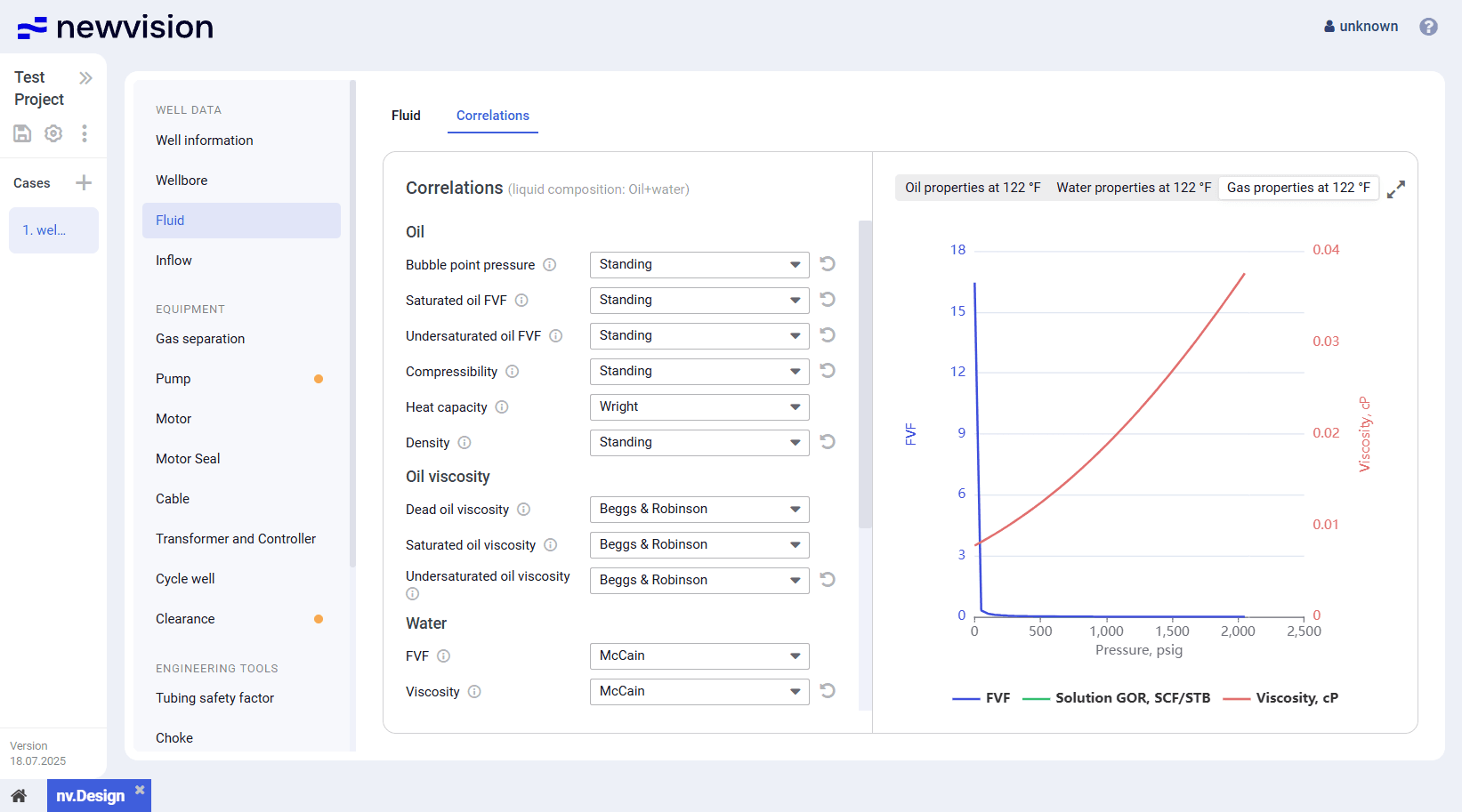
In addition to the basic physical properties of oil, gas, and water, you can configure the interfacial tension between gas and water, as well as between gas and oil. Interfacial tension affects the flow regime, phase slip, and emulsion formation in multi-phase flow, which in turn impacts pressure and velocity calculations.
Next to the names of available parameters, the information icon (  ) is displayed. On hovering over it, a hint with a brief description of the corresponding parameter appears.
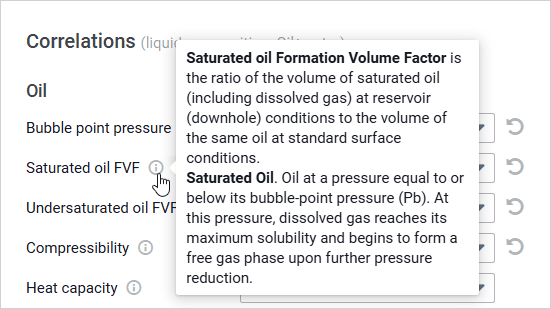
| Note After you change a correlation selected by default, to the right of the corresponding list, the Reset ( ) button appears. Using it, you can change the correlation back to the default option. |
In the right part of the tab, the same visualization pane is displayed. For details, see Fluid.
A detailed description of the correlations and the criteria for their selection are provided in Appendix A: PVT Correlations.
5.1.4 Inflow
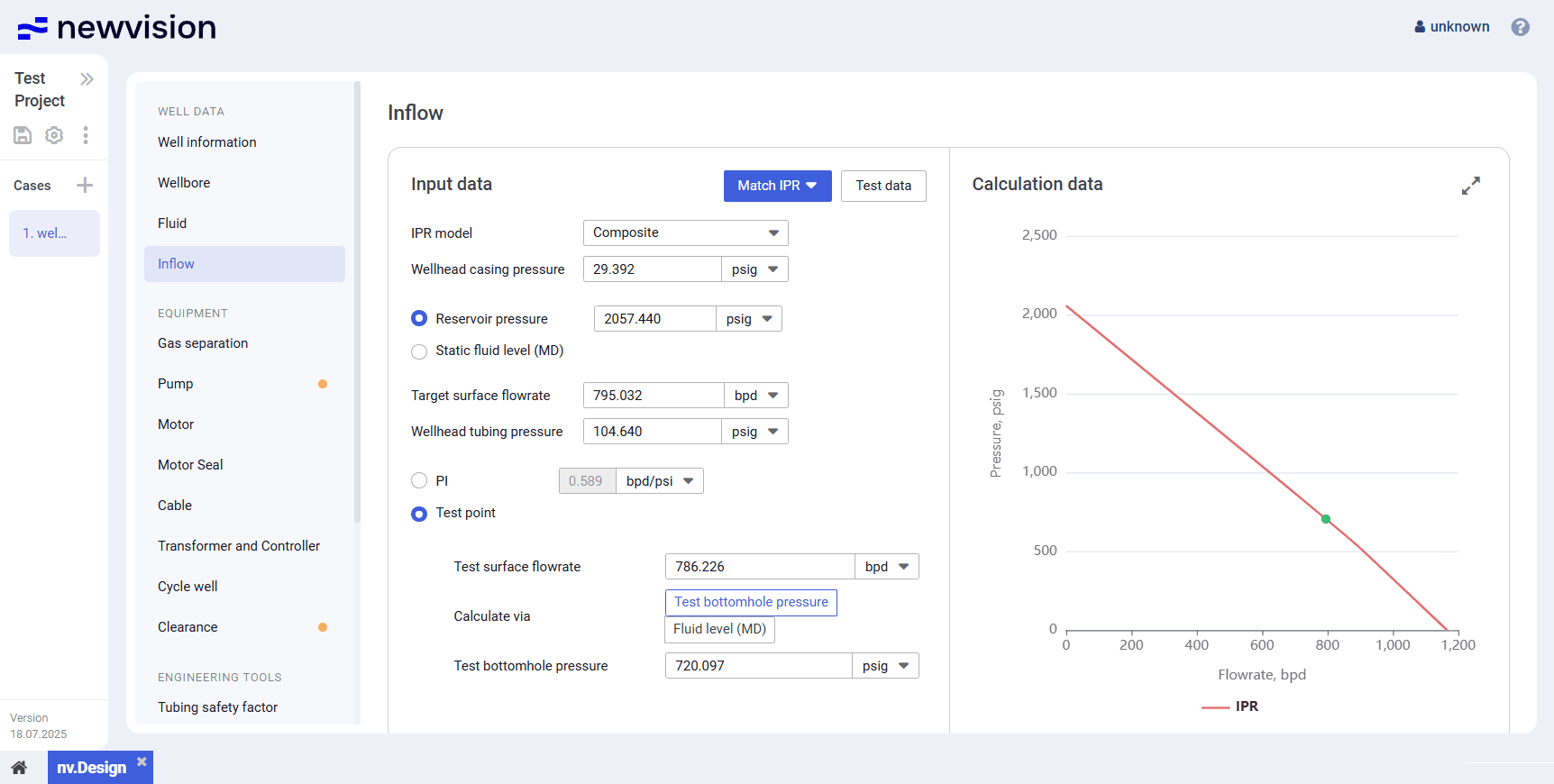
The section provides information about the well inflow parameters that are used for building the IPR (Inflow Performance Relationship) curve.
The section consists of two panes:
5.1.4.1 Input Data
The pane contains the well parameters used for the IPR construction.
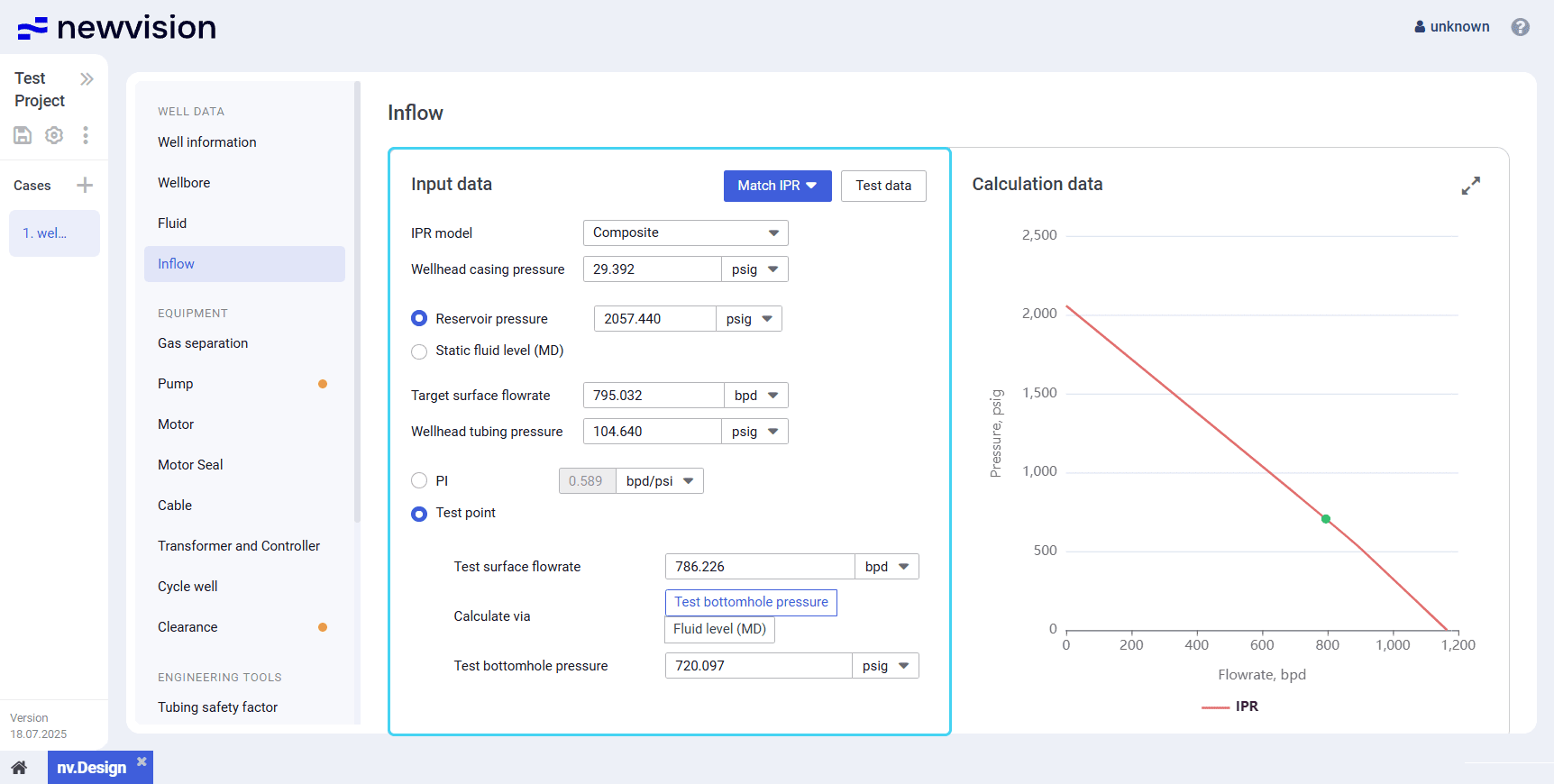
The IPR configuration depends on the model that is used for calculation. The choice of the model should be determined by the reservoir type, well operating conditions, analysis goals, and available data.
For details on the IPR configuration, see Calculating IPR.
You can select one of the following models from the IPR model list:
Composite
This model combines several inflow models and is applied under complex operating conditions: high water cut (above 40–50%), multiphase flow (oil, water, gas), varying inflow regimes, and reservoir heterogeneity.
This approach requires a more comprehensive dataset but provides a more realistic estimate of well performance, especially when bottomhole pressure significantly deviates from bubble point pressure and phase transitions or inflows from different reservoir zones occur.
Vogel Model
This model assumes homogeneous flow (typically oil) and is most effective when bottomhole pressure is below bubble point pressure with minimal water production. It accounts for gas liberation due to pressure drop and provides reliable inflow prediction for undersaturated reservoirs.
However, the model’s accuracy decreases with high water cut. In this case, the composite model is preferred. The PI model is not suitable under these conditions, as it fails to account for multiphase effects.
PI (Productivity Index)
This model is based on a linear relationship between flow rate and pressure drawdown and is applicable only when bottomhole pressure is above bubble point pressure and water cut is low.
In the presence of gas release or increasing water production, the model becomes unreliable because it does not reflect phase changes or increased flow resistance under multiphase flow conditions.
The calculation can be based either on the reservoir pressure value or, if it is unavailable, on the static fluid level. You can also select between calculation based on the productivity index ( PI ) and a set of custom parameters ( Test point ). For details, see Calculating IPR.
5.1.4.2 Calculation Data
The pane contains the IPR curve constructed based on the parameter values entered in the Input data pane.
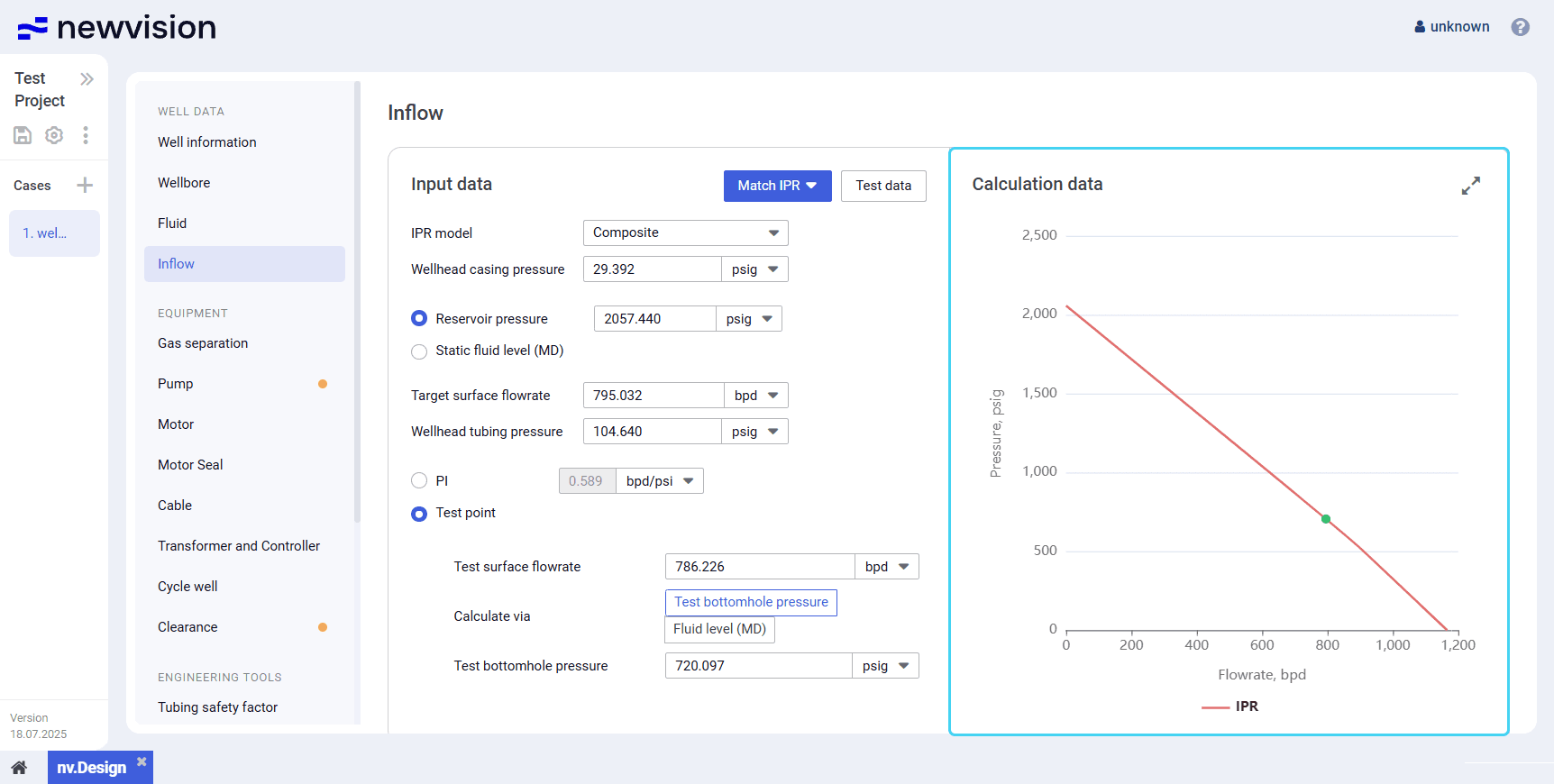
You can expand the pane to full screen or collapse it back to the original size using the Expand ( ) / Collapse ( ) buttons located in the upper-right corner of the pane.
Calculating IPR
To configure deviation survey parameters and run a calculation, perform the following actions:
- Open the nv.design module.
For details on navigation in the system, see System Interface. In the left part of the working area, in the list of the module sections, click Inflow .
To the right of the list, the Inflow section opens.
In the upper-right corner of the Input data pane, click Test data .
The Test data window opens.
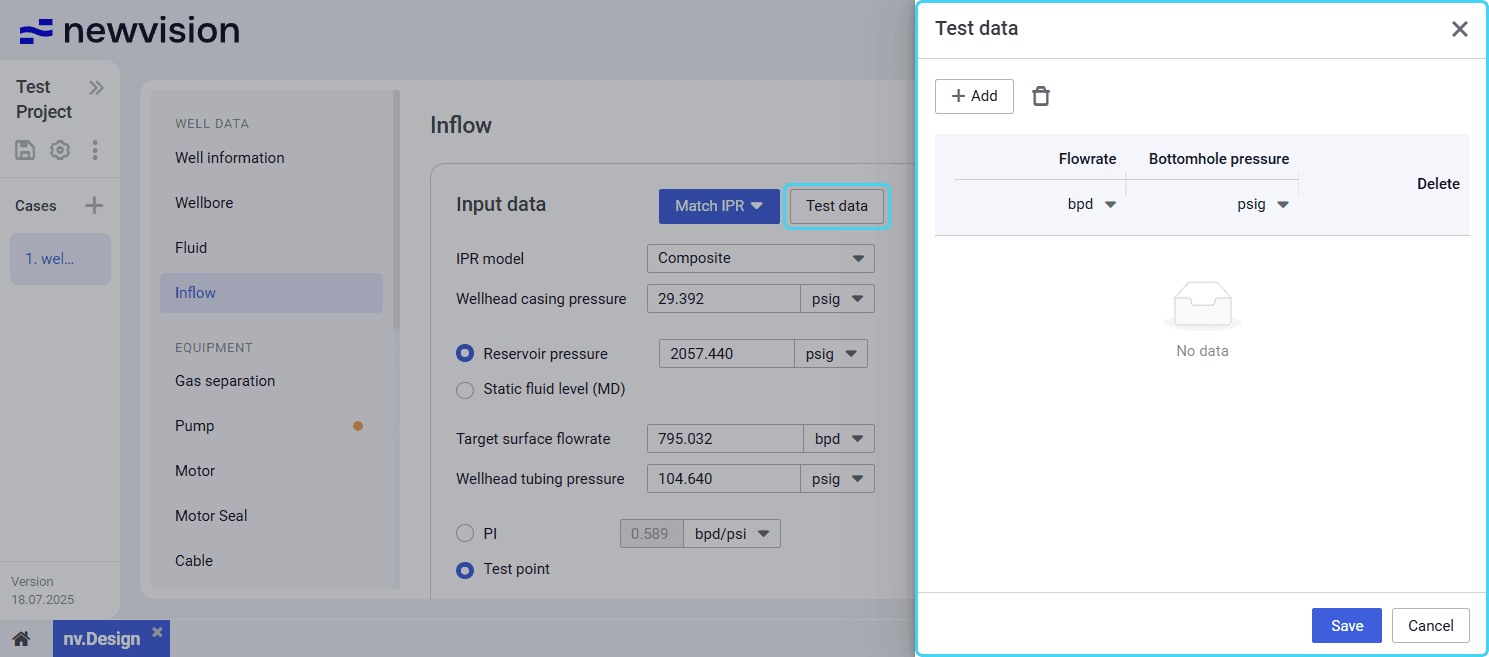
In the window, enter actual values of the flow rate and corresponding bottom hole pressures obtained during well tests:
a. Above the table, click Add (
) .
A new row appears in the table.In the new row, double-click values in the Flowrate and Bottomhole pressure columns and enter the desired values.
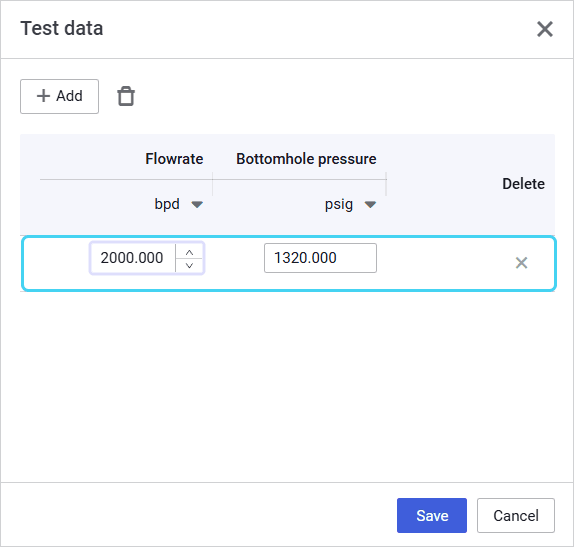
c. Repeat Steps 1–2 for all available measurements.
Note
The more measurements you add, the more accurate results the calculation provides.d. (Optional)
To edit an entry, double-click the desired value and make necessary changes.
To delete an entry, select it in the table, and then, above the table, click Delete (
) , or click the cross icon (  ) in the Delete column.
e. At the bottom of the window, click Save .
At the top of the Input data pane, from the IPR model list, select the appropriate model: Composite , Vogel , or PI . For description of these models, see Inflow.
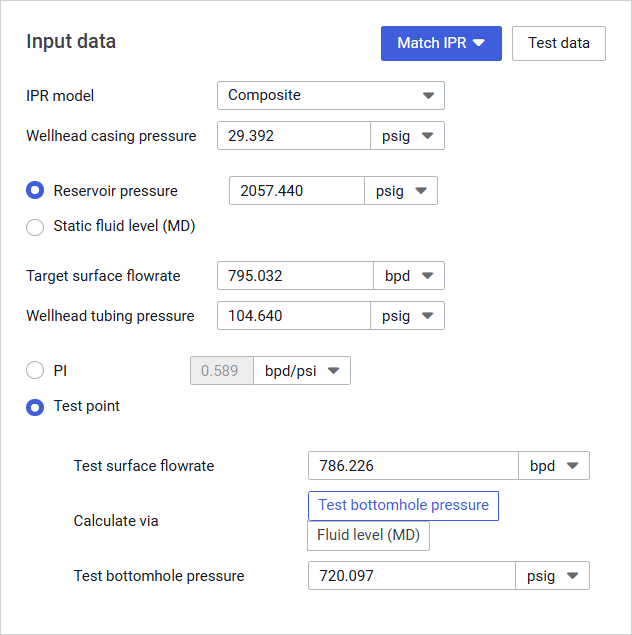
- In the Wellhead casing pressure field, enter the desired value.
- Select the parameter that will be used for the calculation: Reservoir pressure or, if it is unavailable, Static fluid level (MD) .
- (Optional) If the Static fluid level (MD) option is selected, fill in the Wellhead casing pressure and Static fluid level (MD) fields.
- In the Target surface flowrate and Wellhead tubing pressure fields, enter the desired target values.
- Select one more parameter based on which the calculation will be performed: productivity index ( PI ) or a set of custom parameters ( Test point ).
Depending on the option selected at the previous step, perform one of the following actions:
(For PI ) In the PI field, enter the productivity index value.
(For Test point ) Fill in the Test surface flowrate field, select the desired Calculate via option, and fill in the rest of the fields.
- In the upper-right corner of the Input data pane, click Match IPR and select PI from the drop-down menu.
In the Calculation data pane, the IPR curve is matched to the actual data and configured calculation parameters. - To save changes, in the left part of the module, click Save ( ) under the name of the current project.
5.2 Equipment
Configuration of sections in this group depends on the artificial lift type selected in the Well Information section. For details, see Well Data.
For ESP, the group consists of the following sections:
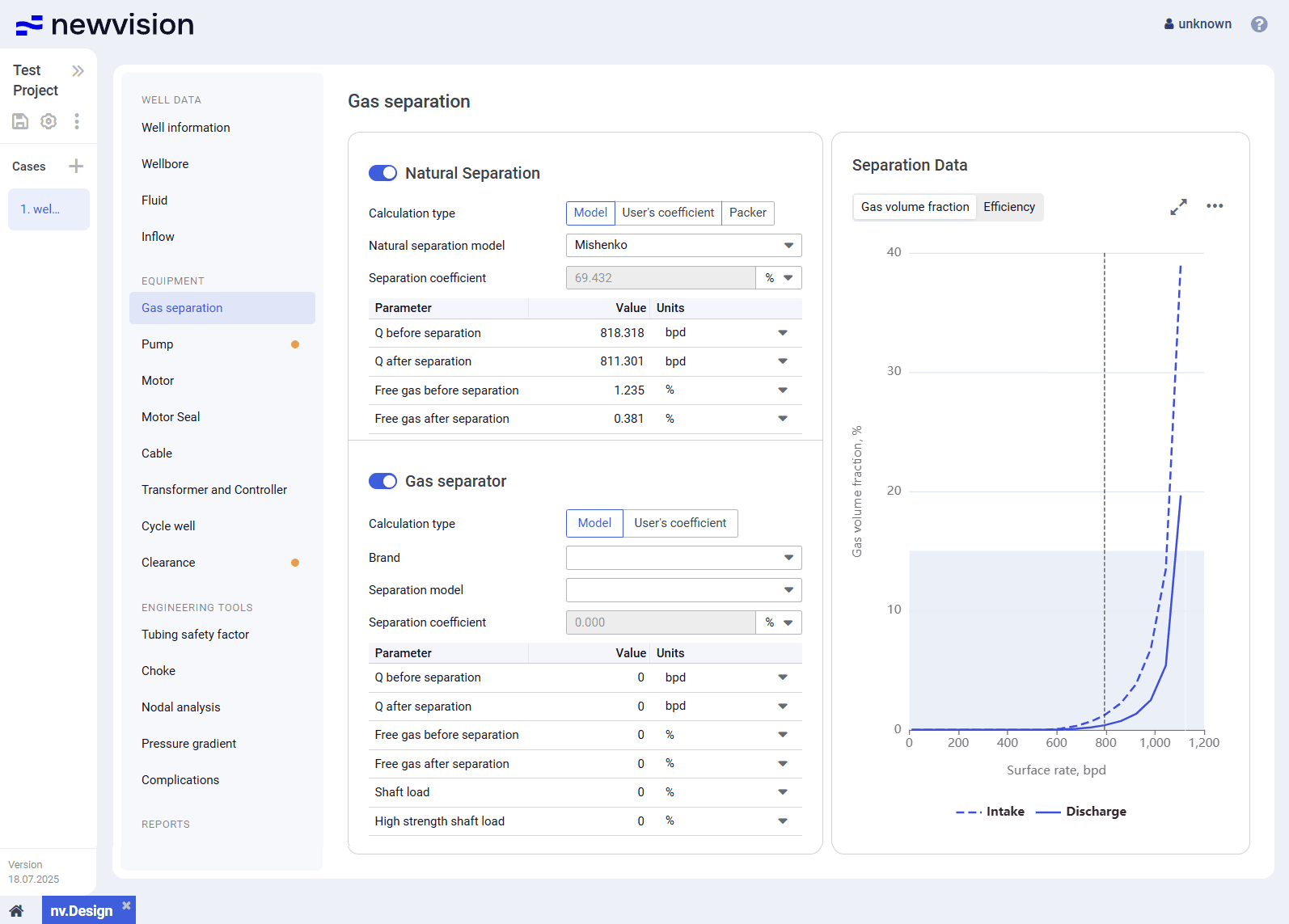
Gas Separation
The Gas separation section provides information about the separation parameters at the pump intake.
The section consists of the following parts:
- Natural Separation parameter group in the left part of the section.
- Gas separator parameter group in the left part of the section.
- Separation Data pane in the right part of the section.
| Important Pump section models and target parameters such as surface rate and pump frequency from the Pump section. Target tubing head pressure from the Inflow section. |
Natural Separation
This parameter group provides controls for configuring the natural separation parameters.
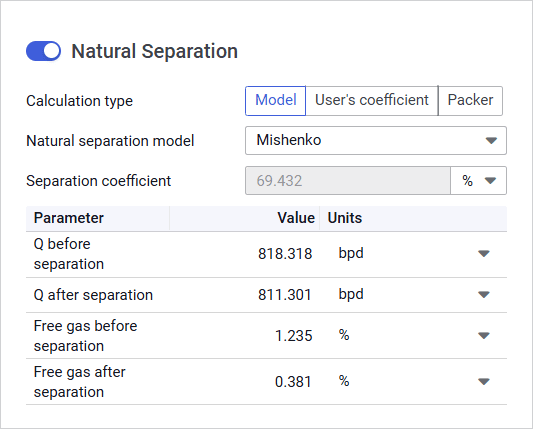
To enable or disable natural separation, use the toggle to the left of the group name.
| Note If all separated gas enters the pump, the Natural separation group must be disabled. |
You can select one of the following calculation methods:
Model : Calculation using one of the pre-defined models.
You can select the model from the Natural separation model list:
Mishenko : Simplified approach where key physical forces, such as friction and gravity are treated with limited detail. Instead, the model focuses on the representation of phase transitions, particularly the release of gas from oil within the wellbore.
It is commonly used under relatively simple well conditions and is especially effective when assessing gas liberation dynamics prior to surface separation equipment.Alhanati : Comprehensive description of multiphase flow physics. The model is designed for scenarios where complex phase interactions must be considered. It is particularly suitable for directional and vertical wells, as it accounts for wellbore inclination, gravitational segregation, and phase slip.
Due to its higher accuracy, this model is typically applied in challenging operating environments where realistic modeling of fluid behavior in the wellbore is critical for performance optimization.- User’s coefficient : Calculation using a custom user-defined coefficient.
You can enter it in the Separation coefficient field. - Packer : Calculation via simulation of a packer.
Below these controls, there is a table with the values of the flow rate (Q) and free gas content before and after separation.
Gas Separator
This parameter group provides controls for configuring the separation parameters if a gas separator is used.
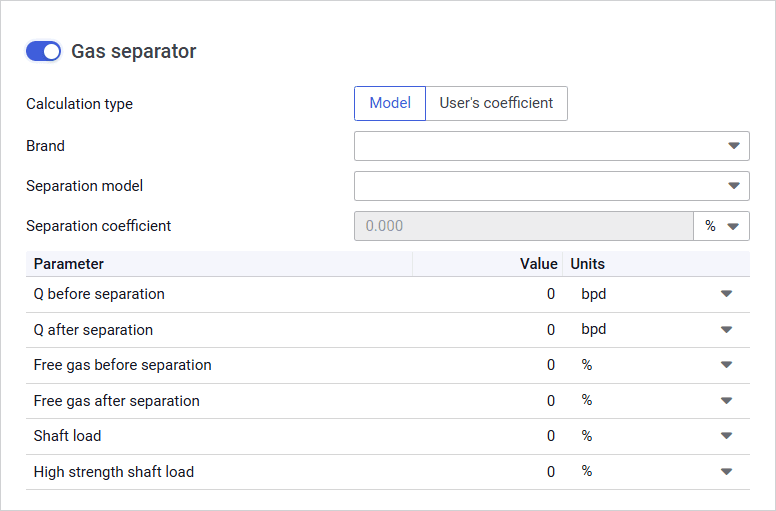
To enable or disable mechanical separation, use the toggle to the left of the group name.
You can select one of the following calculation methods:
- Model : Calculation based on the specific gas separator model parameters.
You can select the separator by selecting its manufacturer and model from the Brand and Separation model lists respectively. - User’s coefficient : Calculation using a user-defined coefficient.
You can enter it in the Separation coefficient field.
Separation Data
The pane provides visualization of the separation characteristics based on the parameters configured in the Natural Separation and Gas separator parameter groups (see description above).
The pane consists of two tabs:
Gas volume fraction : Chart representing values of the gas volume fraction at intake and discharge depending on the surface flow rate.
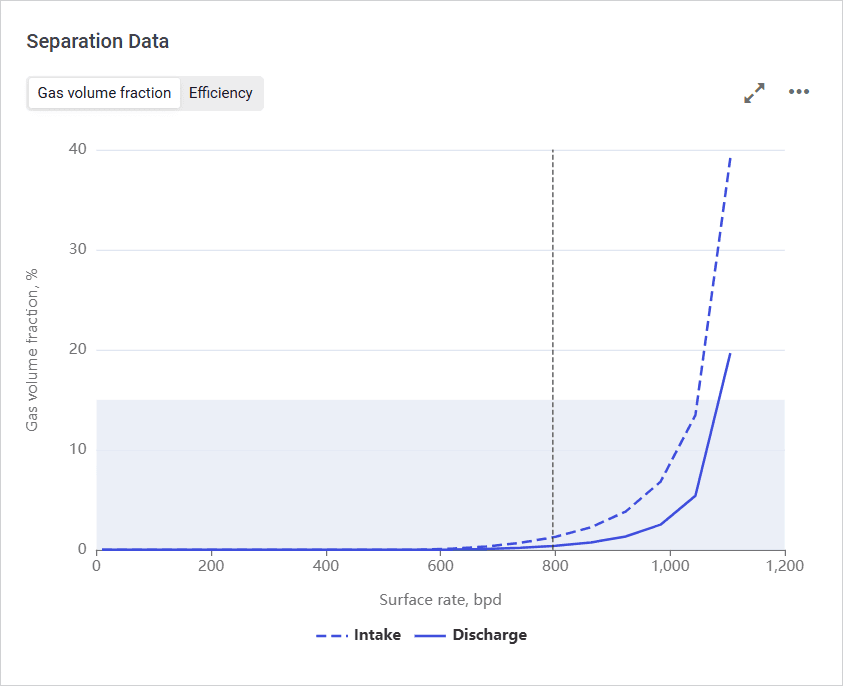
Efficiency : Chart representing total, natural and/or mechanical separation efficiency depending on the surface flow rate.
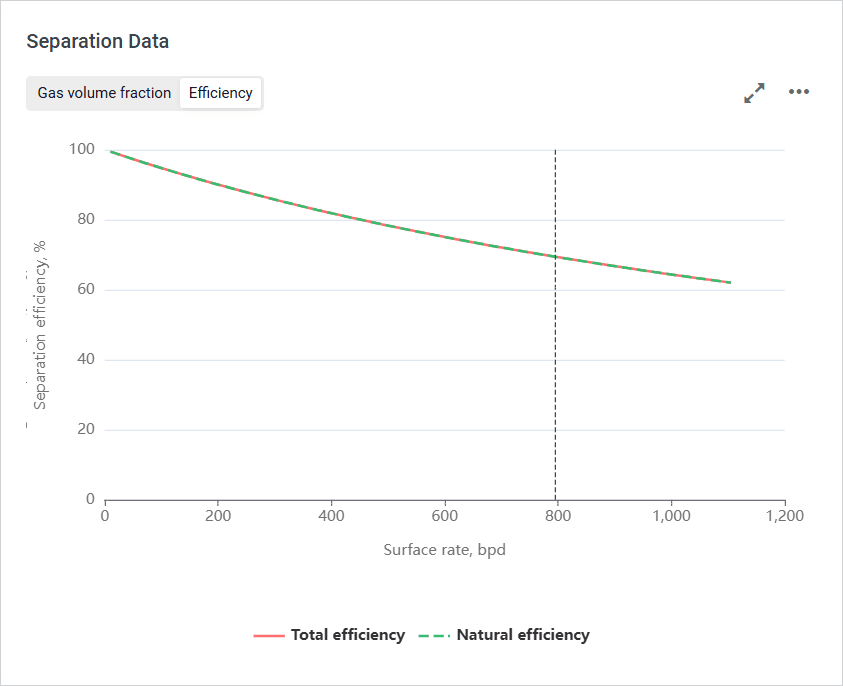
To show or hide a parameter on the chart, click the parameter name under it.
On hovering over any point on the chart, a window with information about the exact parameter values at this point is displayed.
You can also expand the pane to full screen or collapse it back to the original size using the Expand ( ) / Collapse ( ) buttons located in the upper-right corner of the pane.
5.2.2 Pump
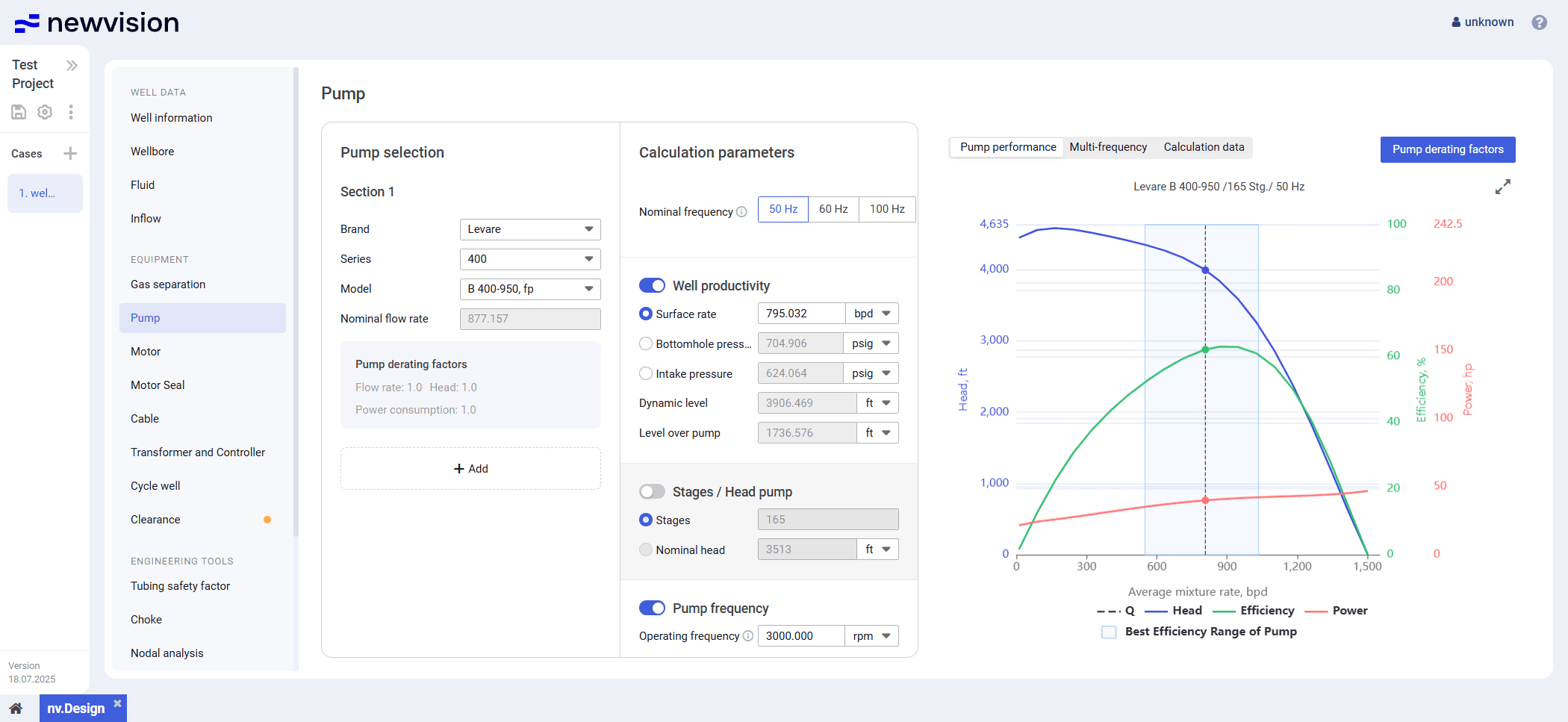
The Pump section provides information about the pump and target calculation parameters. This is the key section to which the equipment data must be added.
For details, see Configuring Pump Parameters.
The section consists of three panes:
- Pump selection pane in the left part of the section.
- Calculation parameters pane in the central part of the section.
- Visualization pane in the right part of the section.
Pump Selection
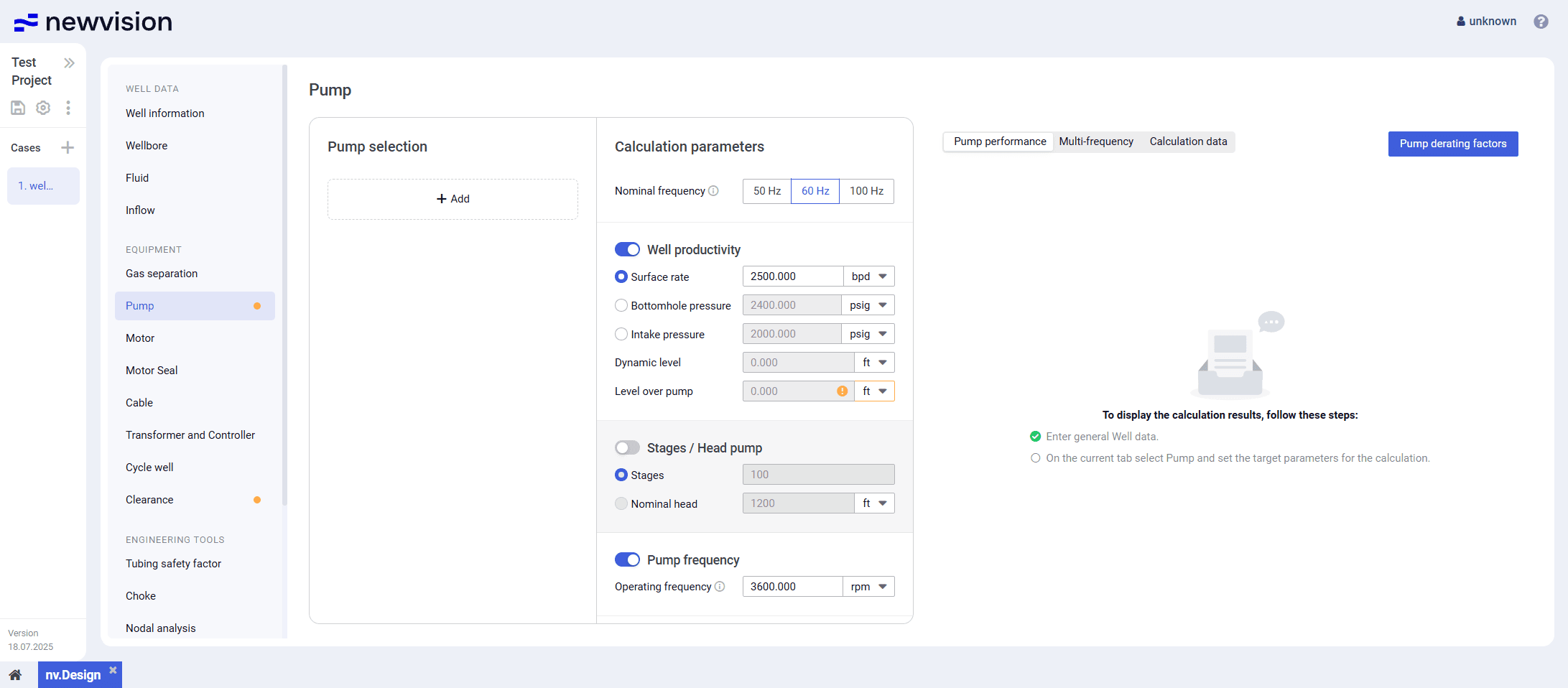
In this pane, you need to select a pump or several pump sections. To do this, click Add ( ) , and then select the pump parameters from the corresponding lists.
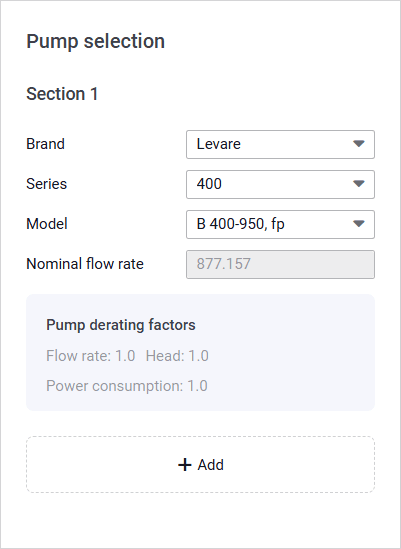
At the bottom of each pump section, the Pump derating factors area is displayed. The default derating factor value is 1, which means the section is operational and working normally. You can edit the derating factor values in the Derating factors window. For details, see Configuring Pump Parameters.
Calculation Parameters
In this pane, you can configure target parameters of the pump that are required for the calculation.
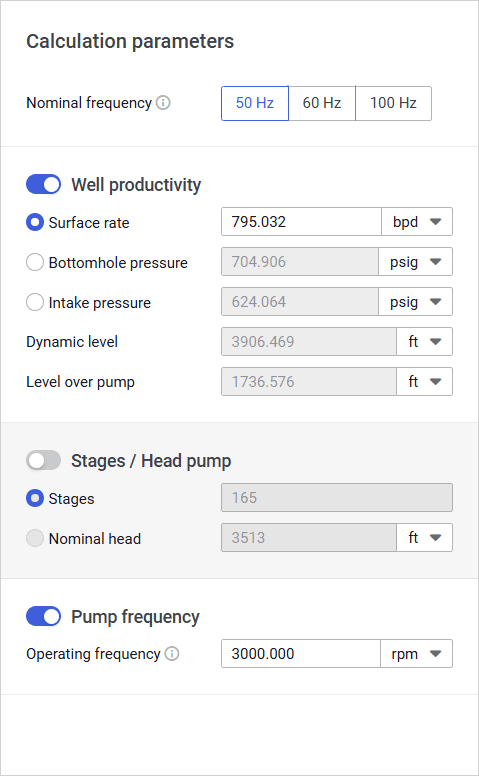
The pane contains three parameter groups:
- Well productivity
- Stages
- Pump frequency
You can select only two of these groups at the same time, the third will be calculated automatically. In case of conflicting inputs, other values are automatically recalculated.
| Important 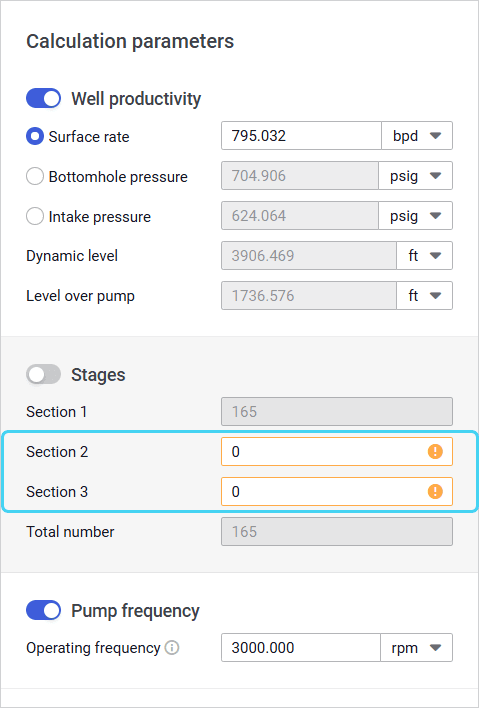 |
To select or deselect a parameter group, use the toggle to the left of the group name.
If only one pump section is selected in the Pump selection pane, at the top of the pane, the Nominal frequency parameter is displayed. Its value is used for calculating the pump’s nominal flow rate and nominal head.
By default, the 50 Hz option is selected.
Well productivity
In this group you can select one of the following target parameters and specify its value: Surface rate , Bottomhole pressure , or Intake pressure .
The Surface rate value is taken from the Inflow section. For details, see Inflow.
Stages
In this group, you can specify the number of stages of each pump section.
If there is only one section, instead of the number of stages, you can enter the nominal head value. The other parameter value is calculated automatically. If the number of stages is specified, the nominal head is calculated based on the catalog value obtained from the pump testing with water.
Pump Frequency
The group contains only one parameter, Operating frequency. By default, its value is set to 3600 rpm.
Visualization Pane
The pane contains charts that visualize pump operation characteristics.
Depending on the number of pump sections, the pane may consist of different tabs.
If there is only one pump section, the following tabs are available:
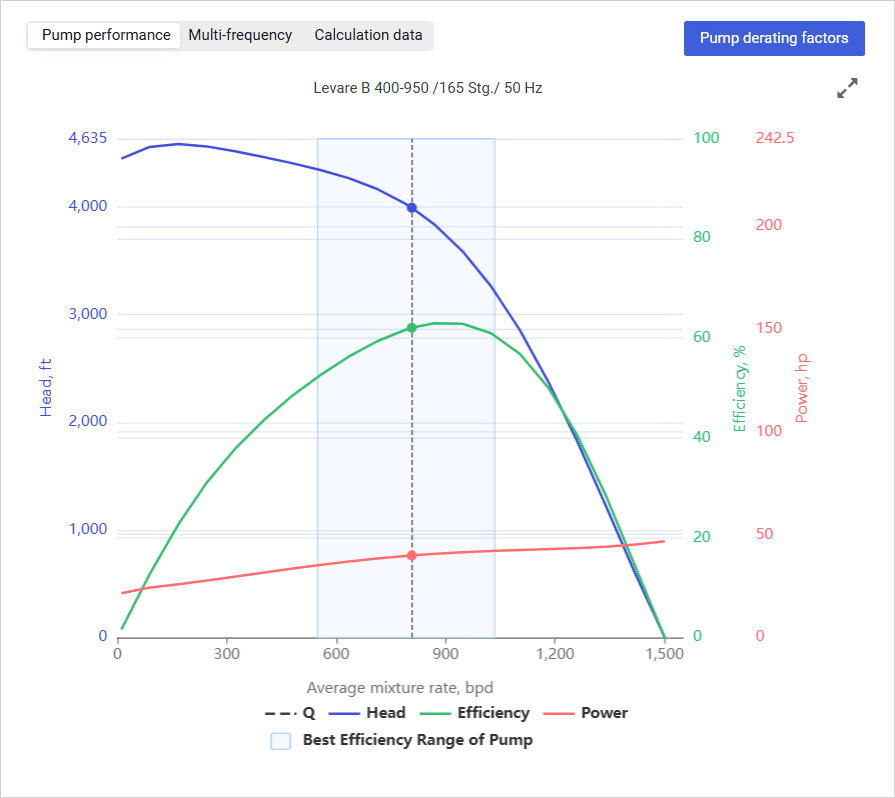
Pump performance : Provides the pump H-Q (head-flow) curve with values of the pump flow rate, head, efficiency, power, and operating range.
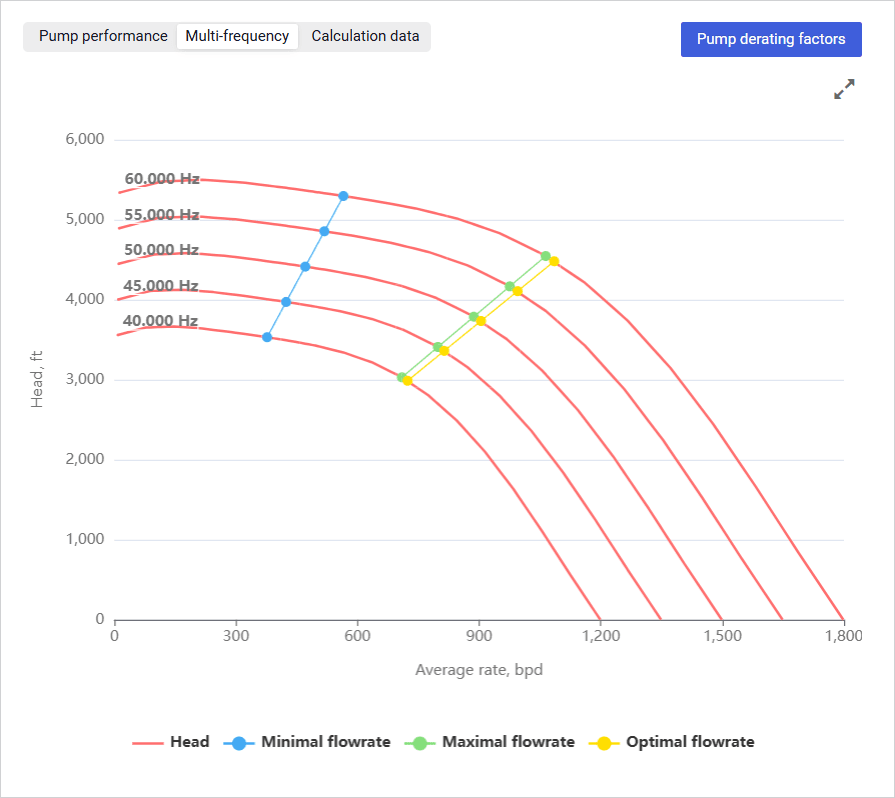
Multi-frequency : Provides graphs of the pump head at various frequencies.
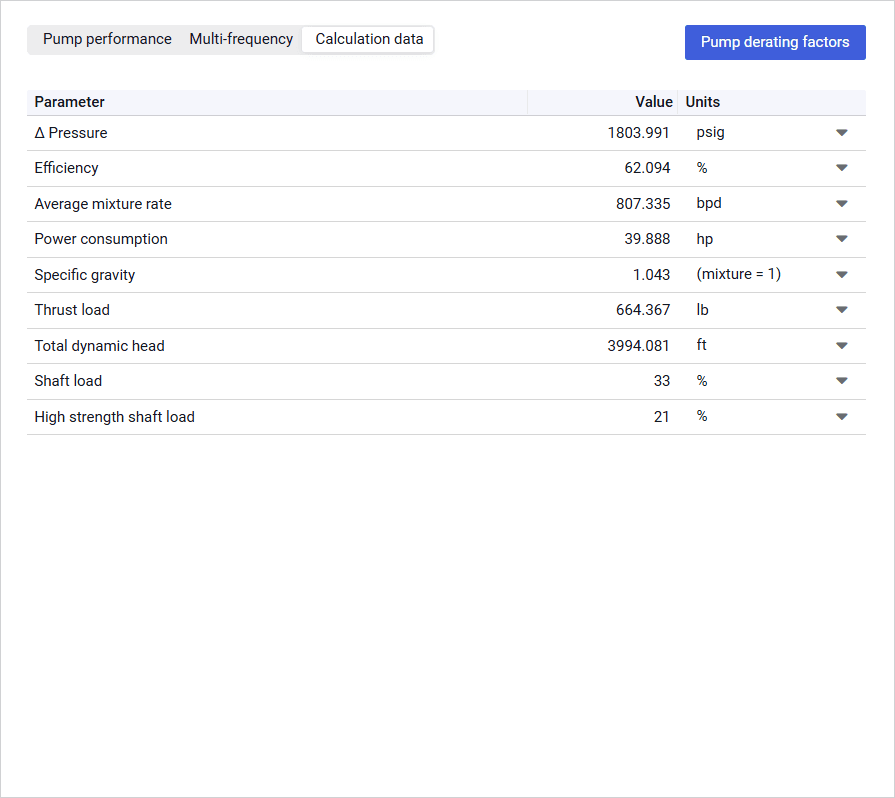
Calculation data : Provides a table with values of the pump’s pressure differential, efficiency, power consumption, shaft load, etc. These parameters help to select the most suitable motor, motor seal, cable, and surface equipment.
For example, the Thrust load value can be used to select a motor seal so that the thrust bearing load remains within acceptable limits.
If there are two or three pump sections, the following tabs are available:
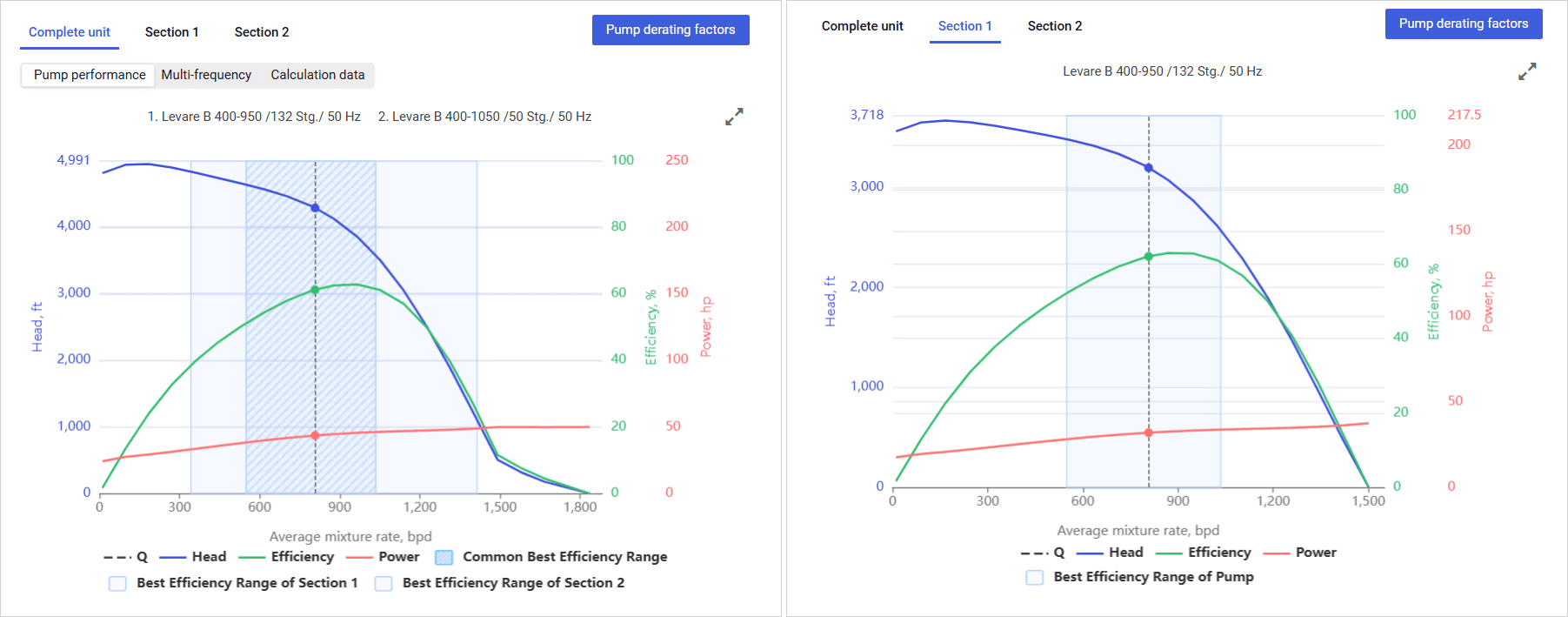
- Complete unit : Contains the same sub-tabs as a single-section pump (see description above) with integrated data for the whole pump configuration.
- Section 1 : Provides the same data as the Pump performance tab (see description above) with the H-Q (head-flow) curve for the specific pump section.
- Section 2 : Same as Section 1 .
- Section 3 : Same as Section 1 .
To show or hide a parameter on the chart, click the parameter name under it.
On hovering over any point on the chart, a window with information about the exact parameter values at this point is displayed.
You can also expand the pane to full screen or collapse it back to the original size using the Expand ( ) / Collapse ( ) buttons located in the upper-right corner of the pane.
5.2.2.1 Configuring Pump Parameters
To configure parameters of the pump installed in the well, perform the following actions:
- Open the nv.design module.
For details on navigation in the system, see System Interface. In the left part of the working area, in the list of the module sections, click Pump .
To the right of the list, the Pump section opens.
In the Pump selection pane, click Add (
) .
The Section 1 parameter group appears.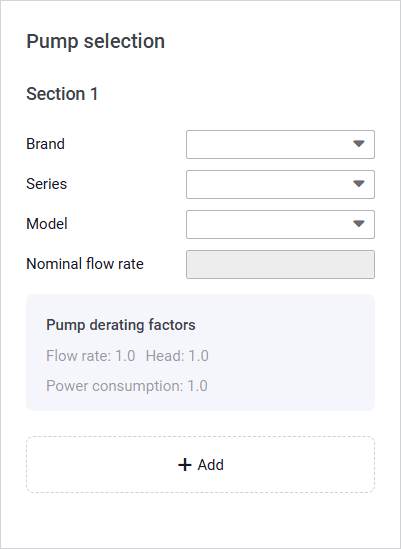
- Under the Section 1 heading, select a manufacture, series and model of the first pump section from the corresponding lists.
- (Optional) To add one or two more pump sections, repeat Steps 3–4.
(Optional) To edit pump derating factors for the pump sections, perform the following actions:
a. In the upper-right corner of the section, click Pump derating factors .
The Derating factors window opens.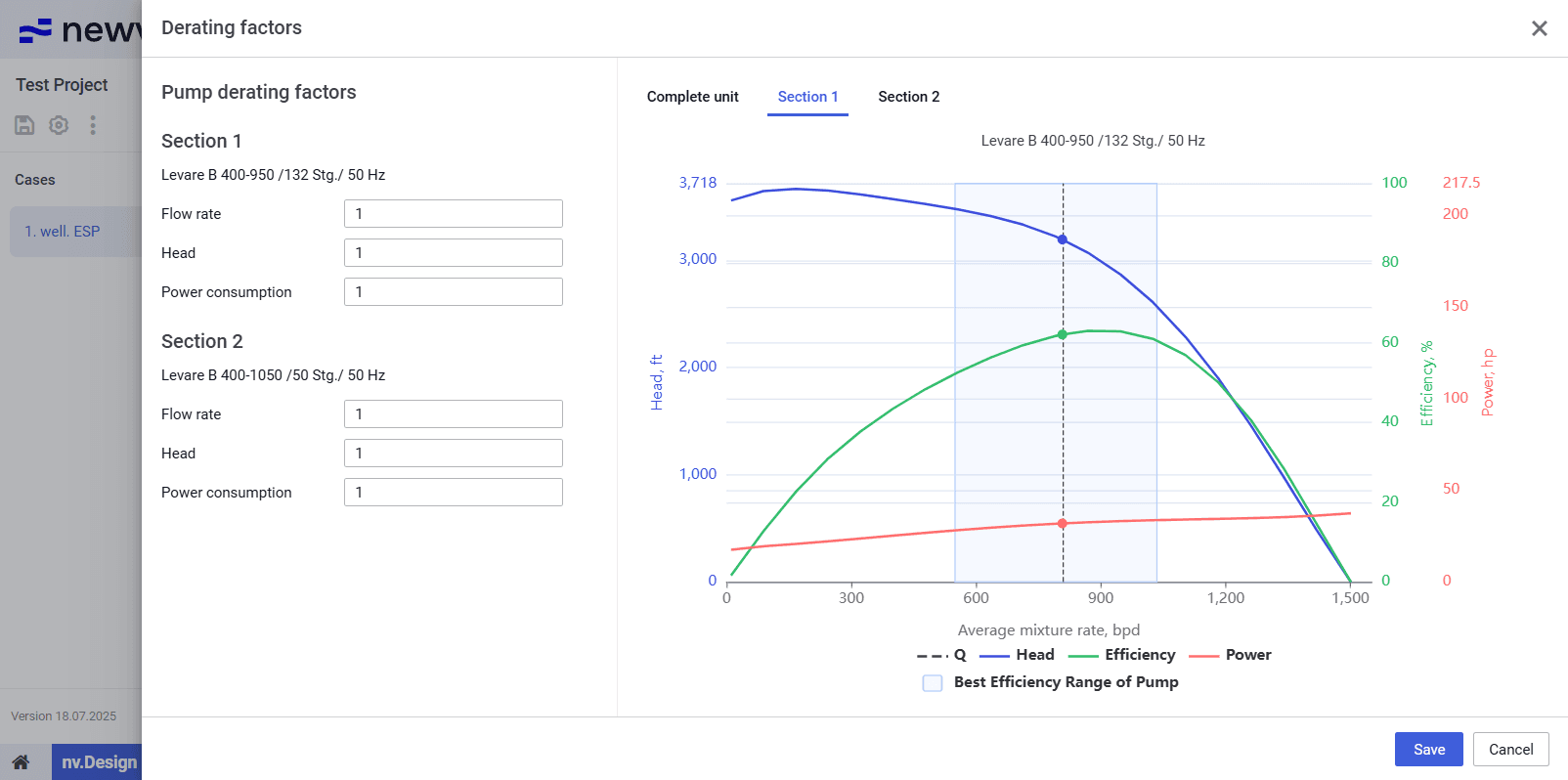
b. In the window that opens, in the Flow rate , Head , and Power consumption fields, enter the derating factor values for the desired pump sections.
In the right part of the window, tabs with charts representing the pump operation characteristics are adjusted according to the entered derating factors. For details on these charts, see Pump.
Warnings, if there are any, are displayed below the charts.Note
If the entered factors and/or other parameters configured in the Pump section are not feasible, charts are not displayed. In this case, you need to change the input data.c. At the bottom of the window, click Save .
In the Calculation parameters pane, enable two of the three parameter groups based on which further calculations will be performed. To do this, use the toggle to the left of the group name.
Depending on the selected groups, perform the following actions:
(For Well productivity ) Select the target parameter ( Surface rate , Bottomhole pressure , or Intake pressure ) and specify its value.
The other group parameters are calculated automatically.(For Stages ) Depending on the number of the pump sections, perform one of the following actions:
If there is only one section, select the parameter based on which the calculation will be performed ( Stages or Nominal head ) and specify it value.
The other parameter is calculated automatically.If there are two or three sections, specify the number of stages for the second and the third sections.
(For Pump frequency ) Specify the pump operating frequency.
The default value is 3 600 rpm.Note
Even if the Stages parameter group is not enabled, if the pump consists of two or three sections, you still need to specify the number of stages for each of them.- After the configuration is completed, in the right part of the section, charts representing the pump performance are displayed. For details on the charts that are displayed in the visualization pane, see Pump.
- To save changes, in the left part of the module, click Save ( ) under the name of the current project.
5.2.3 Motor
The Motor section provides information about the pump motor installed in the well.
| Note To perform calculations in this section, you need to specify general well parameters and pump data. For details, see Well Data and Pump. |
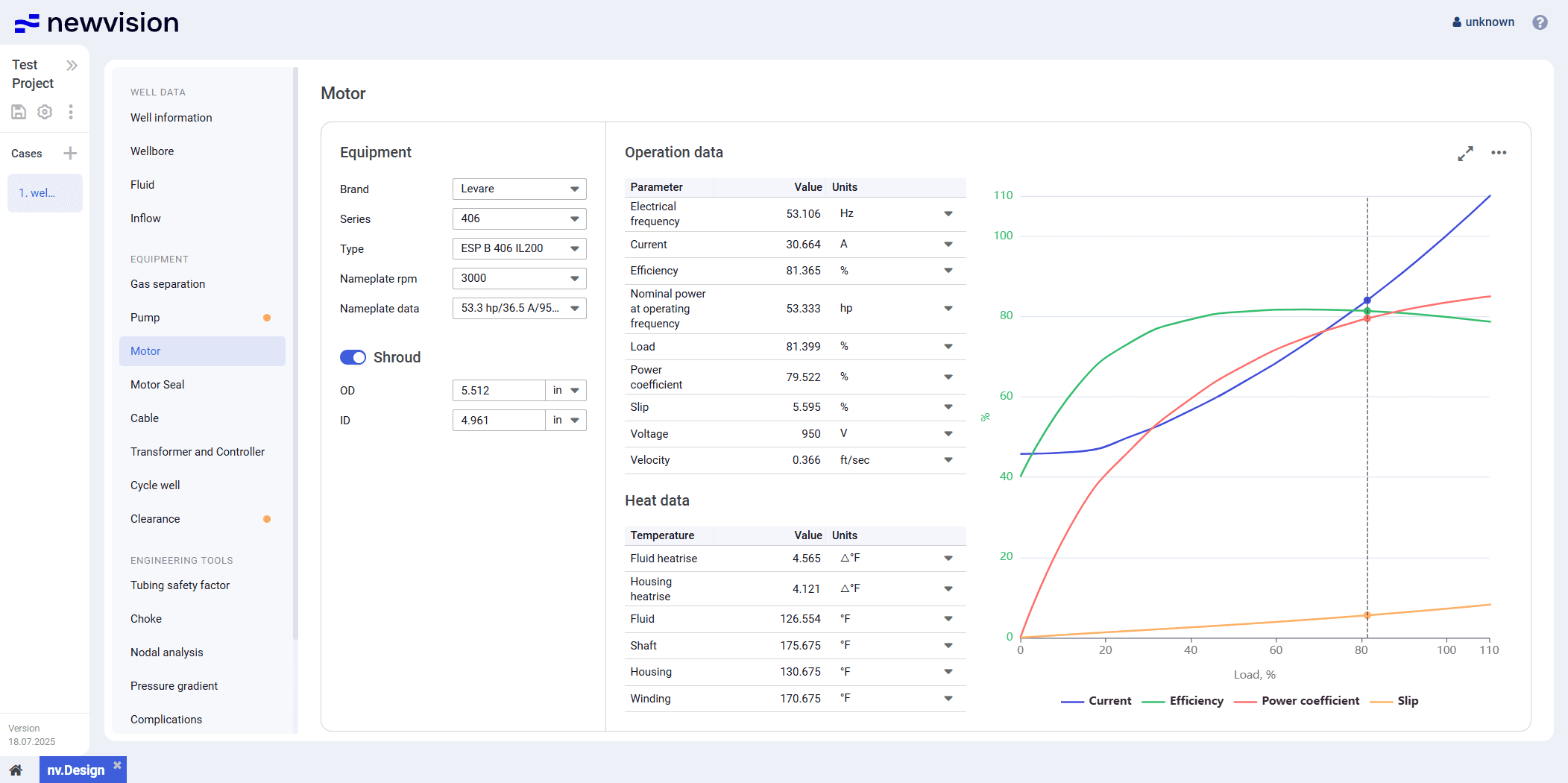
The section consists of the following parts:
- Equipment pane in the left part of the section.
- Operation data and Heat data tables in the central part of the section.
- Visualization pane in the right part of the section.
Equipment
The pane provides controls for the motor selection.
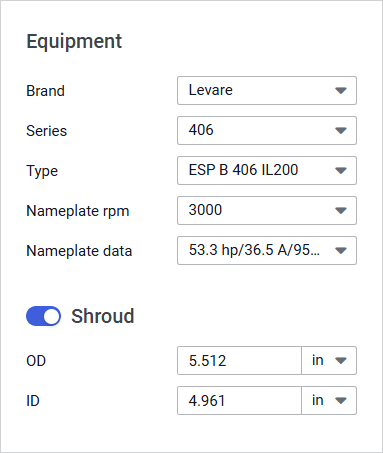
To select a motor, select the desired options from the parameter lists.
| Note The nv.design module supports calculations for permanent magnet (PM) motors, high-speed, and low-speed motors (for PCP lift type). |
If a shroud is used, enable the Shroud parameter group using the corresponding toggle.
| Note To enable the Shroud group, all motor parameters must be specified. |
In the Shroud group, you can edit default values of the shroud outer ( OD ) and inner ( ID ) diameters.
If the shroud is not used, the fluid velocity is calculated in the annular space between the casing and the motor housing.
Operation Data and Heat Data
The Operation data and Heat data tables provide calculation results for the selected motor configuration.
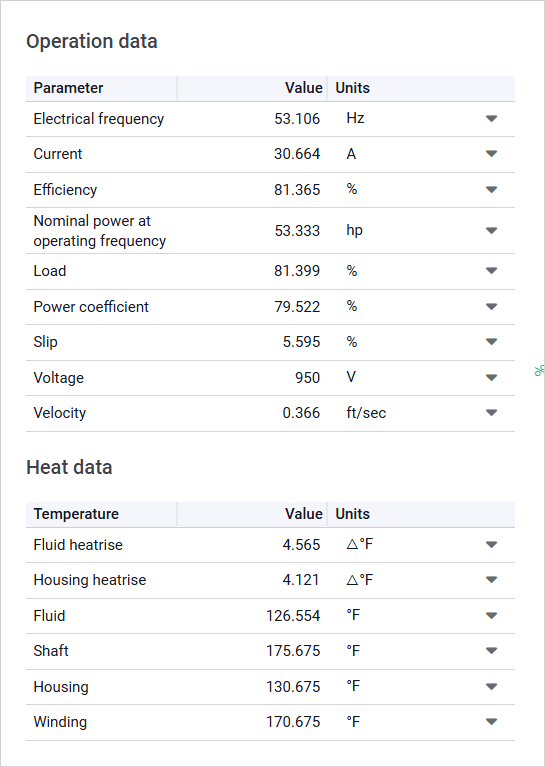
The Electrical frequency parameter corresponds to the rate at which the alternating current changes direction. It determines the rotational speed of the magnetic field in the motor stator and directly affects the shaft’s rotational speed. This value is calculated based on the number of motor poles and the actual rotor speed. In induction motors, the rotor always spins slightly slower than the magnetic field—a phenomenon called slip (the Slip parameter in the table)—which is essential for generating torque.
| Note The Electrical frequency parameter is displayed and must be set by the dispatcher on the controller as a key operating parameter. |
The Velocity parameter and parameters from the Heat data table can be used to select a motor with suitable dimensional specifications and maximum winding temperature.
Visualization Pane
The pane contains a chart that represents the motor performance parameters under varying motor loads (X-axis) along with their percentages compared to nominal values (Y axis).
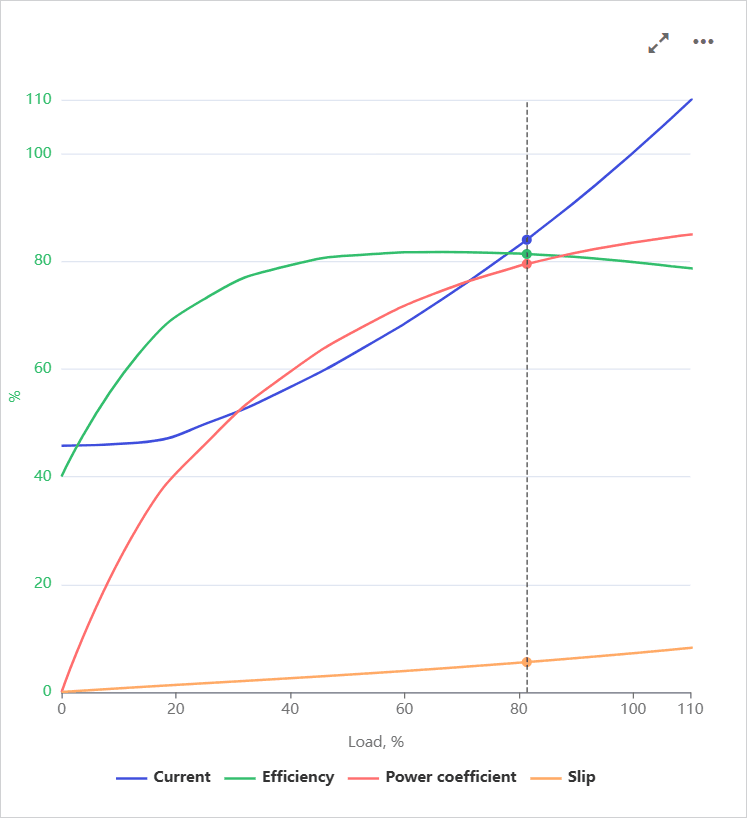
On hovering over the chart, a vertical dashed line is displayed. The intersection points of the line with the parameter curves represent the motor operating points. On hovering over these points, a window with information about the exact parameter values at this point is displayed.
To show or hide a parameter on the chart, click the parameter name under it.
You can also expand the pane to full screen or collapse it back to the original size using the Expand ( ) / Collapse ( ) buttons located in the upper-right corner of the pane.
Motor Seal
The Motor Seal section provides information about the seal installed at the motor.
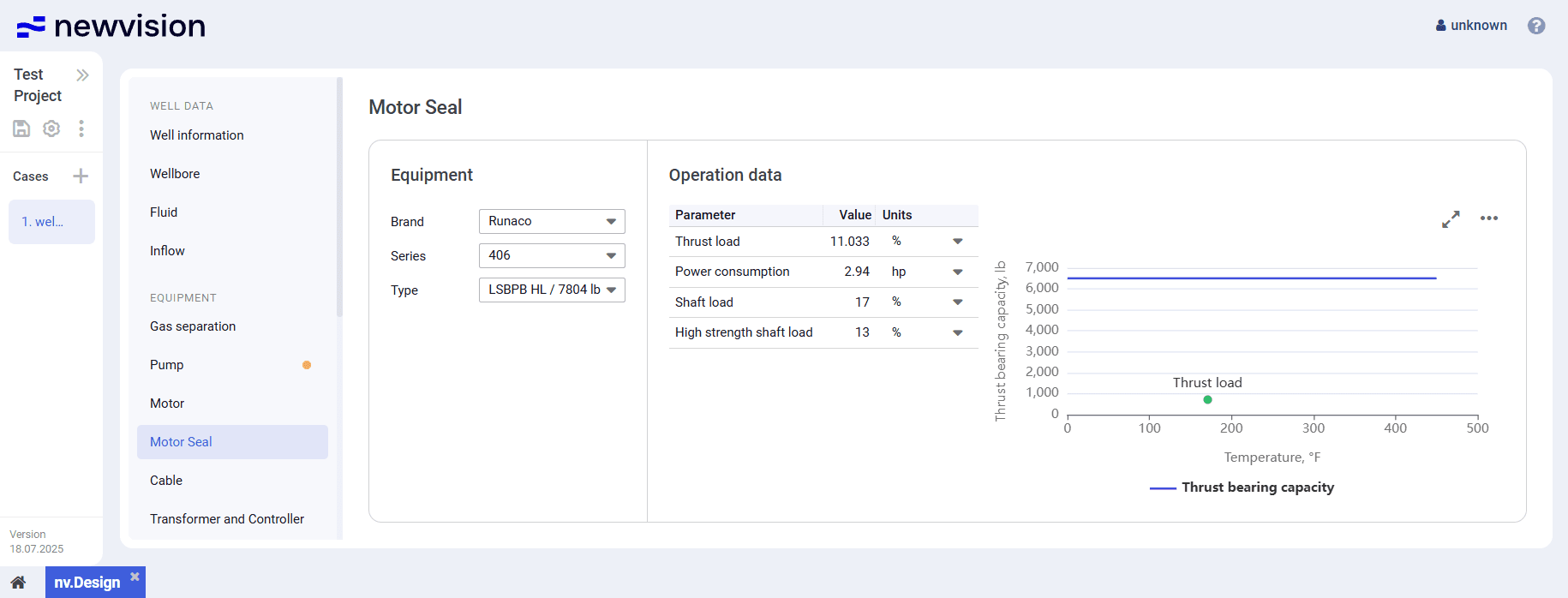
The section consists of the following parts:
- Equipment pane in the left part of the section.
- Operation data table in the central part of the section.
- Visualization pane in the right part of the section.
Equipment
The pane provides controls for the motor seal selection.
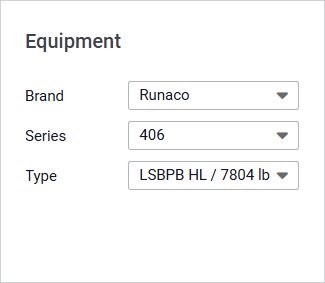
To select a seal, select the desired options from the parameter lists.
Operation Data
The Operation data table provides calculation results for the selected motor seal. The motor seal capacity and load are calculated based on the thrust load value from the Calculation data table in the Pump section.
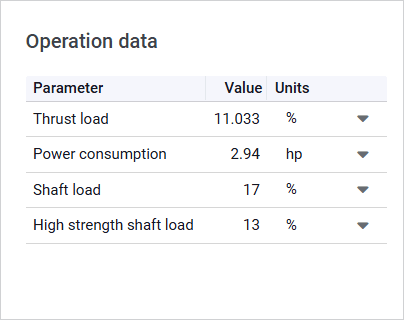
The table contains values of the following parameters expressed in percentages relative to their nominal values:
- Thrust load : Actual thrust load relative to the nominal thrust bearing capacity.
- Power consumption : Estimated energy consumption of the motor seal.
- Shaft load : Load on the shaft relative to the maximum allowable load for a standard-strength shaft.
- High strength shaft load : Load on the shaft relative to the maximum allowable load for a high-strength shaft.
If any of the calculated load values exceed acceptable thresholds, the system shows a warning that recommends selection of a motor seal with a higher thrust capacity.
Visualization Pane
The pane contains a motor seal performance chart displaying the Thrust bearing capacity parameter values at different operating temperatures.
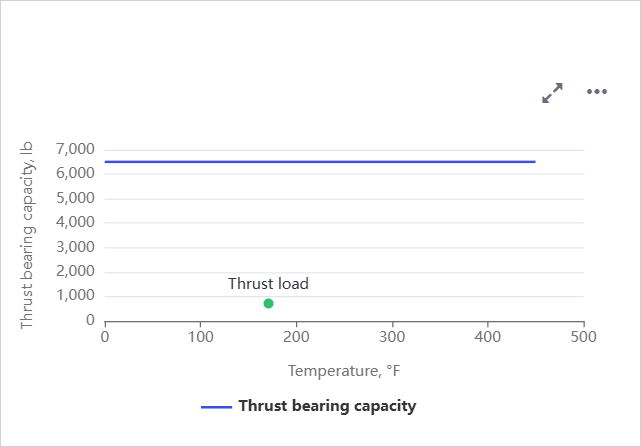
The green dot represents the current operating point. On hovering over it, a window with information about the thrust load and corresponding temperature is displayed.
You can also expand the pane to full screen or collapse it back to the original size using the Expand ( ) / Collapse ( ) buttons located in the upper-right corner of the pane.
5.2.5 Cable
The Cable section provides information about the cable. You can configure up to three cable segments.
The section consists of the following parts:
- Power cable , High temperature cable , and MLE parameter groups in the left part of the section.
- Operation parameter at surface table in the central part of the section.
- Visualization pane in the right part of the section.
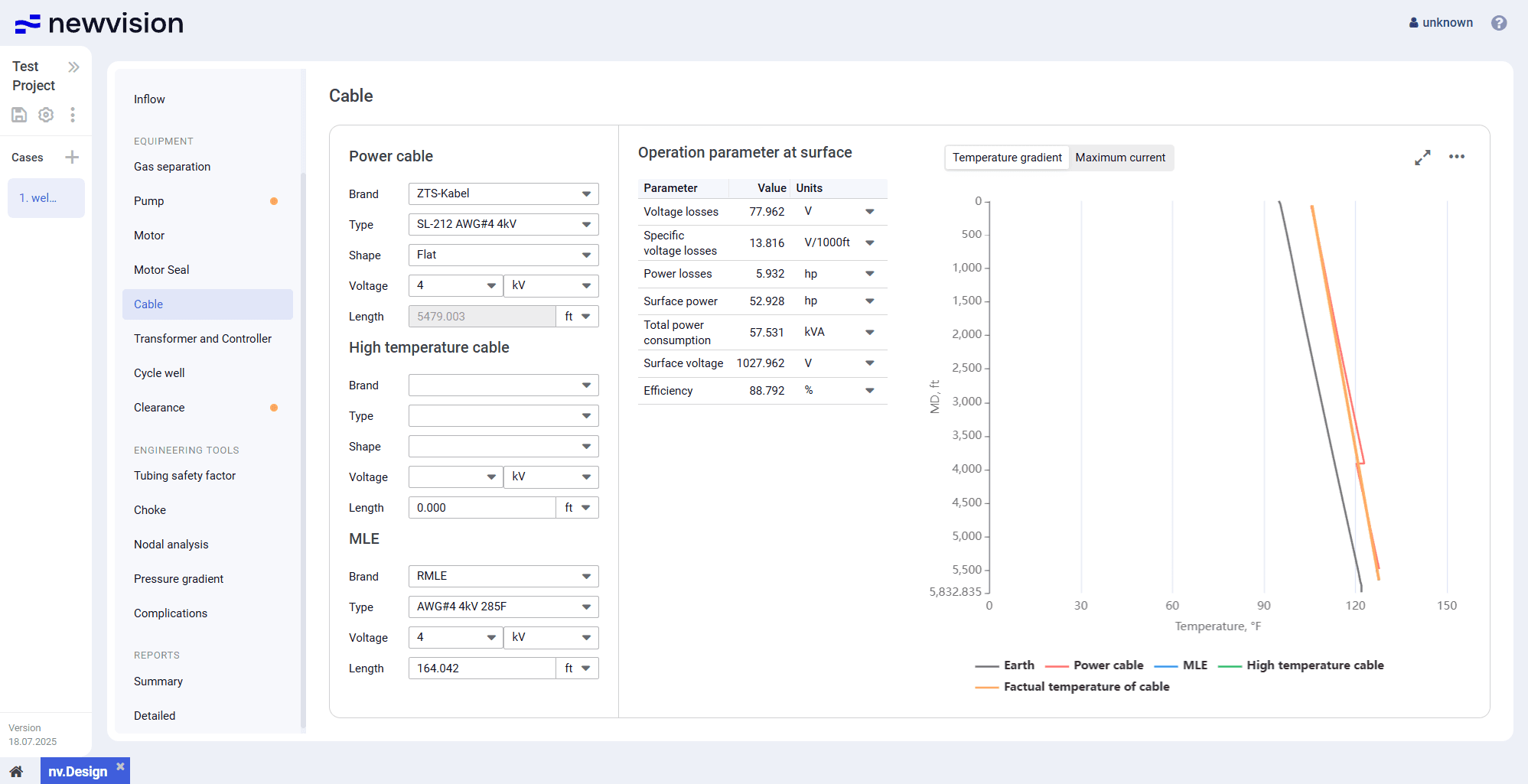
Power Cable, High Temperature Cable, and MLE
These parameter groups provide controls for selection and configuration of the cable segments.
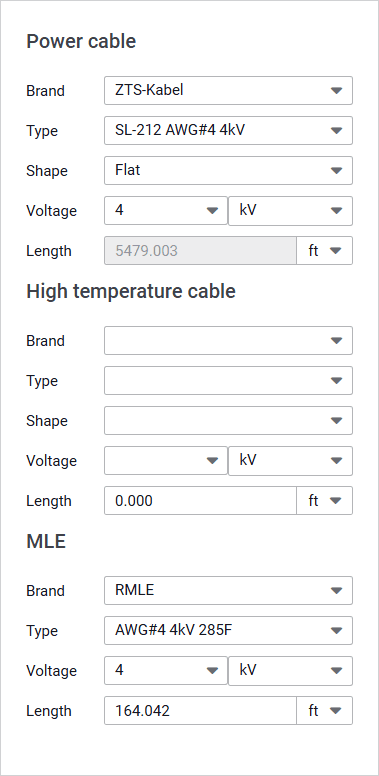
Power cable
This is the main parameter group. Power cable is typically laid from the surface to the ESP setting depth. Its length is calculated automatically and equals the installation depth specified in the Wellbore section. For details, see Wellbore configuration.
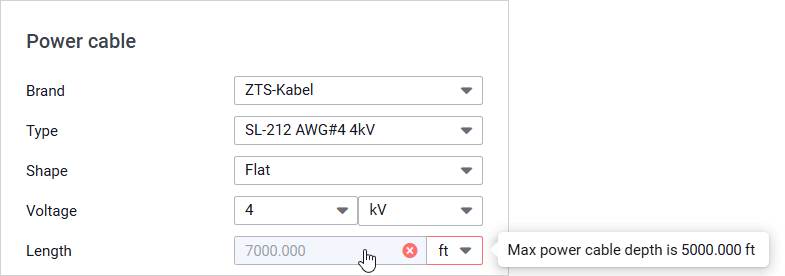
The system also provides a warning mechanism that evaluates the maximum allowable cable power cable length based on the temperature down the wellbore. If the wellbore temperature exceeds the power cable's maximum nominal value, the error icon ( ) is displayed. In this case, a high-temperature cable must be used.
For example, if the ESP setting depth is 7 000 ft and the tooltip says ‘Max power cable depth is 5 000 ft’, that means that a high-temperature cable and/or motor lead extension (see description below) must be used for 2 000 ft.
High temperature cable
High temperature cables are recommended for high-temperature zones (e.g., due to hot fluid, high reservoir temperature, or significant operating currents) where considerable heat generation may occur.
Such cables are designed for enhanced thermal resistance and should be routed from the ESP setting depth to the depth at which the temperature becomes acceptable for a standard power cable.
MLE (Motor Lead Extension)
Extensions are used in the pump setting zone to connect the cable to the motor with a transition to a different thermal rating.
| Note Lengths of the high temperature cable and motor lead extension are entered manually. The length of the power cable is adjusted accordingly to maintain the total installation depth. |
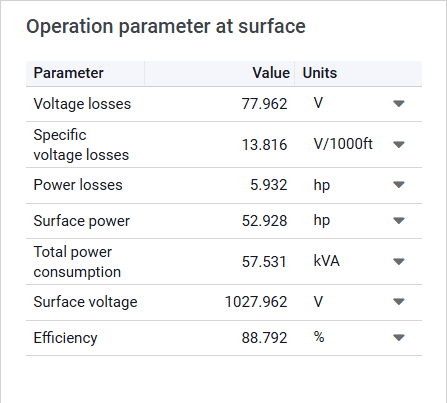
Operation Parameter at Surface
The Operation parameter at surface table provides calculation results for the selected cable configuration.
Visualization Pane
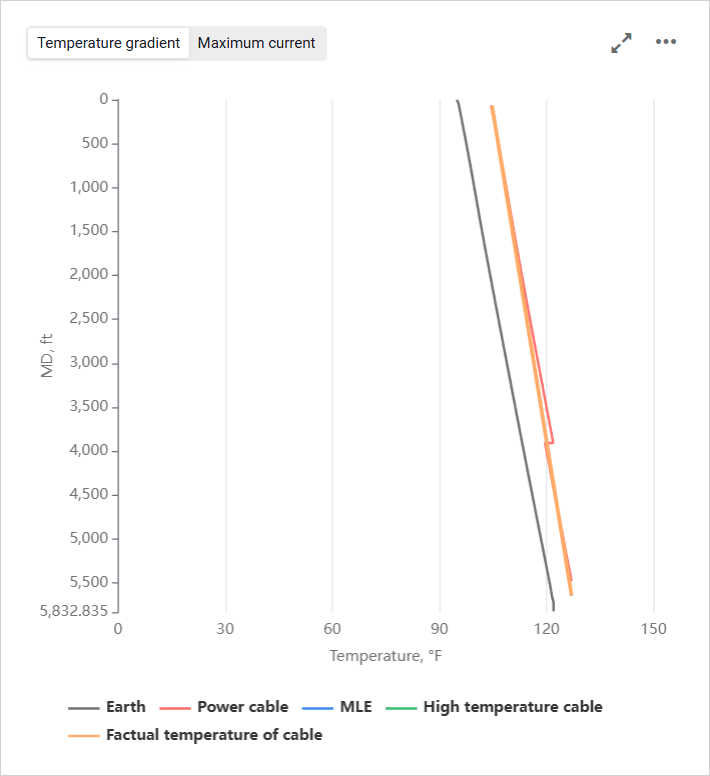
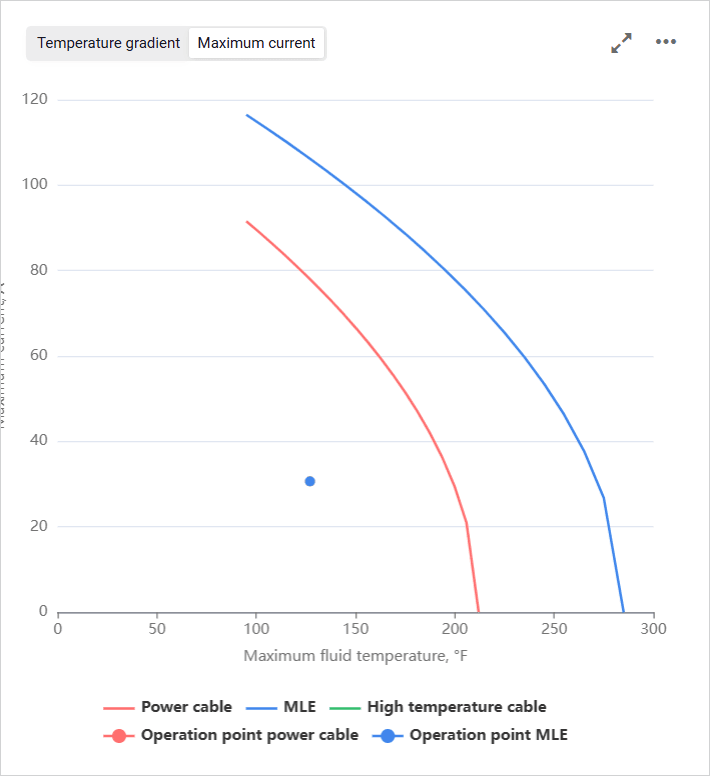
The pane consists of two charts distributed on different tabs:
Temperature gradient : Chart representing submersible electric cable.
The Power cable , MLE , and High temperature cable curves account for the following physical phenomena: temperature jumps when transitioning from gas to liquid, splices, insulation and armor losses, annulus thermal gradient considering inclination, etc.
The Factual temperature of cable curve reflects the dynamic longitudinal redistribution of temperature over time along the entire cable length.
Maximum current : Chart representing dependence of the allowable current on the maximum temperature of the well fluid.
To show or hide a parameter on the chart, click the parameter name under it.
On hovering over any point on the chart, a window with information about the exact parameter values at this point is displayed.
You can also expand the pane to full screen or collapse it back to the original size using the Expand ( ) / Collapse ( ) buttons located in the upper-right corner of the pane.
5.2.6 Transformer and Controller
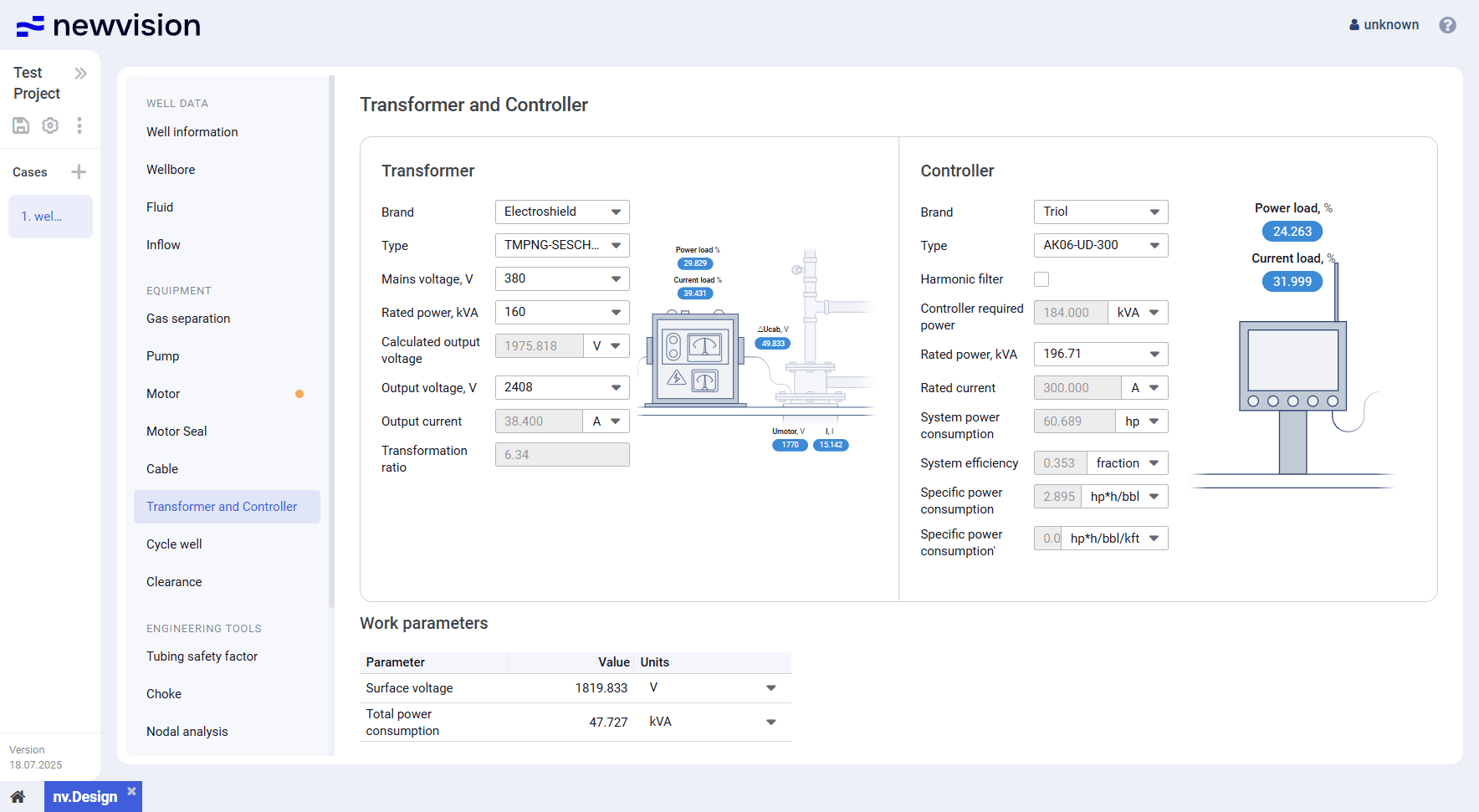
This section provides information about the surface equipment layout, specifically controller and transformer.
The section consists of the following panes:
Transformer
The pane provides controls for the transformer selection and configuration.
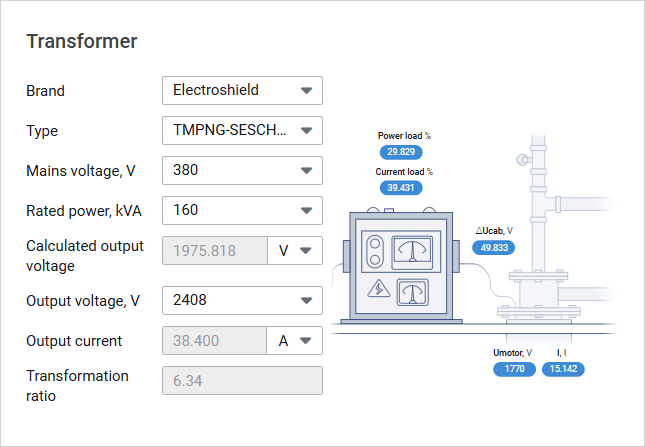
To select a transformer, select the desired options from the corresponding parameter lists.
The Calculated output voltage parameter refers to the voltage considering losses across all elements in the system. It is calculated based on other input parameters in the group.
The Output voltage value corresponds to the selected tap voltage. It is selected from the list and must be as close as possible but slightly greater than the Calculated output voltage value.
The Transformation ratio parameter reflects the relationship between the input and output voltages of the transformer. The value is calculated automatically.
In the left part of the pane, a simplified visualization of the selected transformer configuration is displayed. Labels with values of the key parameters provide the ability to assess efficiency of the equipment.
Controller
The pane provides controls for the controller selection and configuration.
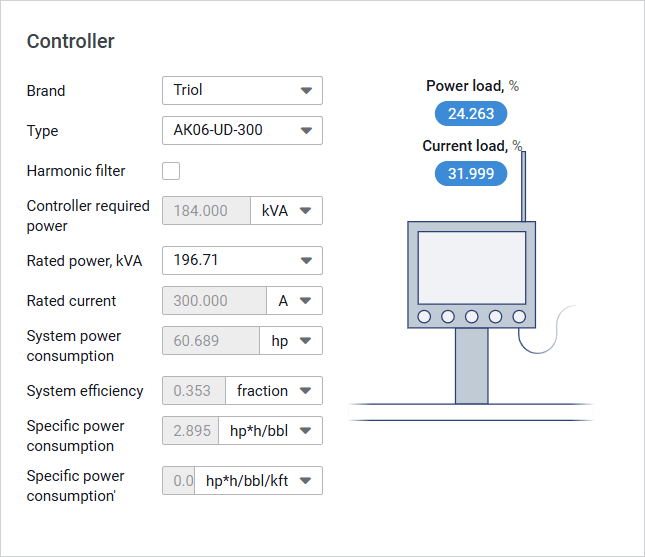
To select a controller, select the desired options from the corresponding parameter lists.
The control unit must be capable of handling both operating and starting voltage and current.
In the left part of the pane, a simplified visualization of the selected controller configuration is displayed. Labels with values of the key parameters provide the ability to assess efficiency of the equipment.
Work Parameters
The pane provides a table with values of the following operating parameters:
- Surface voltage : Based on this value, you can select the required transformer tap.
Total power consumption : Based on this value, you can select a transformer with an appropriate nominal power.
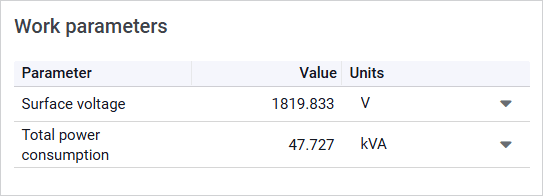
Both values are taken from the Operation parameter at surface table in the Cable section.
5.2.7 Clearance
The Clearance section provides information about the equipment dimensions and the minimum required clearance. This data is required to ensure that all downhole equipment can be safely run into the wellbore.
The section consists of the following parts:
- Equipment pane in the left part of the section.
- Visualization pane in the right part of the section.
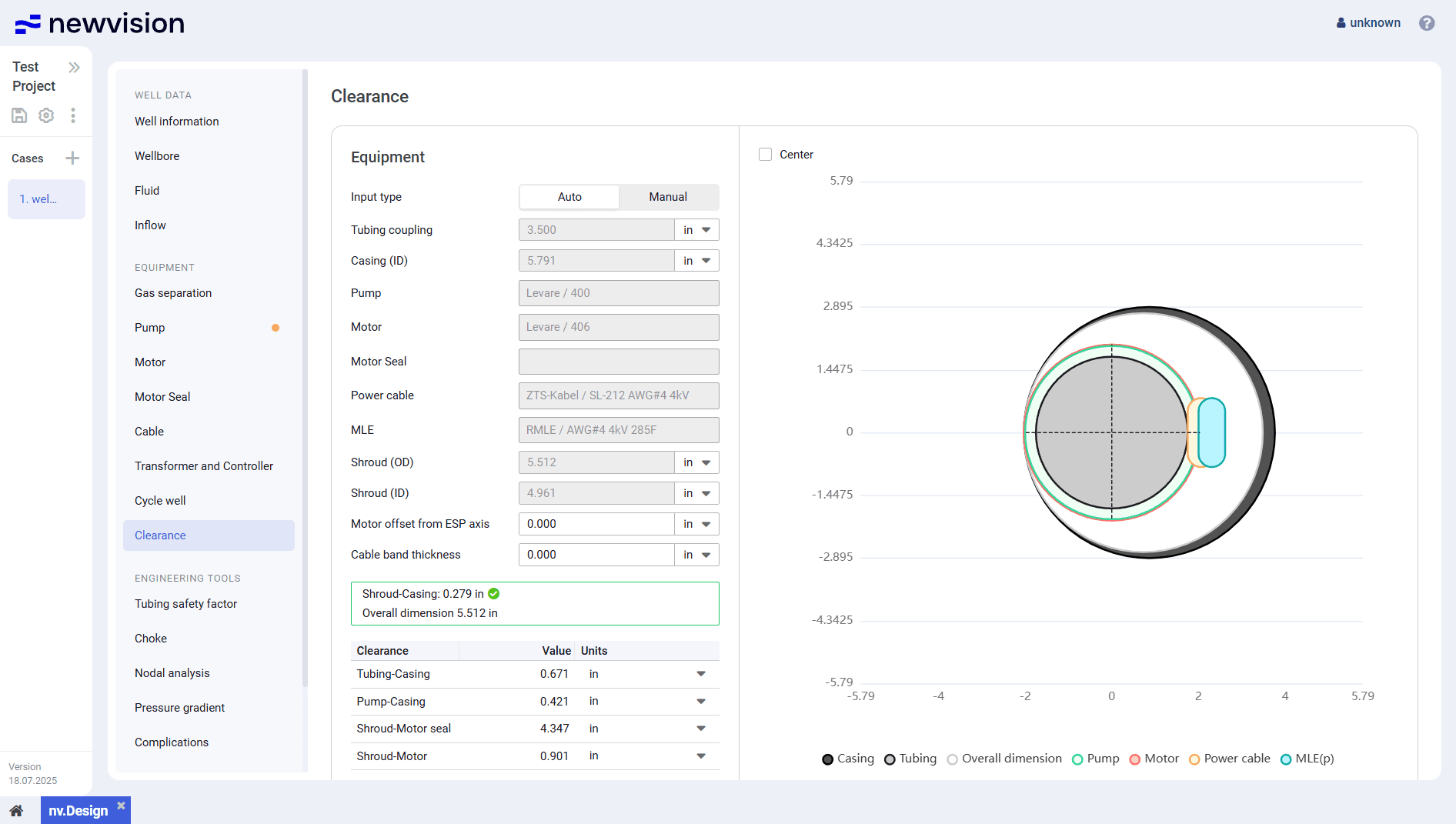
Equipment
The pane is divided into two parts:
- Equipment dimension data in the upper part of the pane.
- Clearance calculation results in the lower part of the pane.
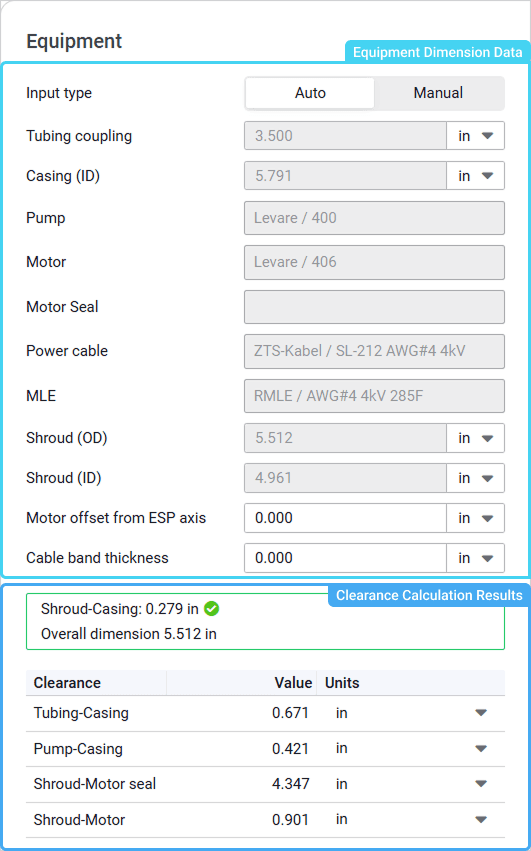
To select a method of the equipment dimension data input, select the desired option of the Input type parameter:
- Auto : Data is filled in automatically from other nv.design module sections.
- Manual : Data is entered manually to perform preliminary clearance checks to determine whether clearance values fall within acceptable limits even before detailed calculations are performed.
In the lower part of the pane, there is a table with the clearance calculation results.
At the top of the table, the summary data is displayed:
- Equipment clearance : Minimum clearance between the assembly components (taken from the table below).
Green check mark ( ) next to the value indicates that the clearance is sufficient for feasibility and operational safety of the installation process.
Red cross ( ) means that the clearance is too small and must be fixed. - Overall dimension : Maximum outer diameter of the entire assembly based on the equipment dimensions.
Visualization Pane
The pane contains a simplified layout of the ESP string inside the well.
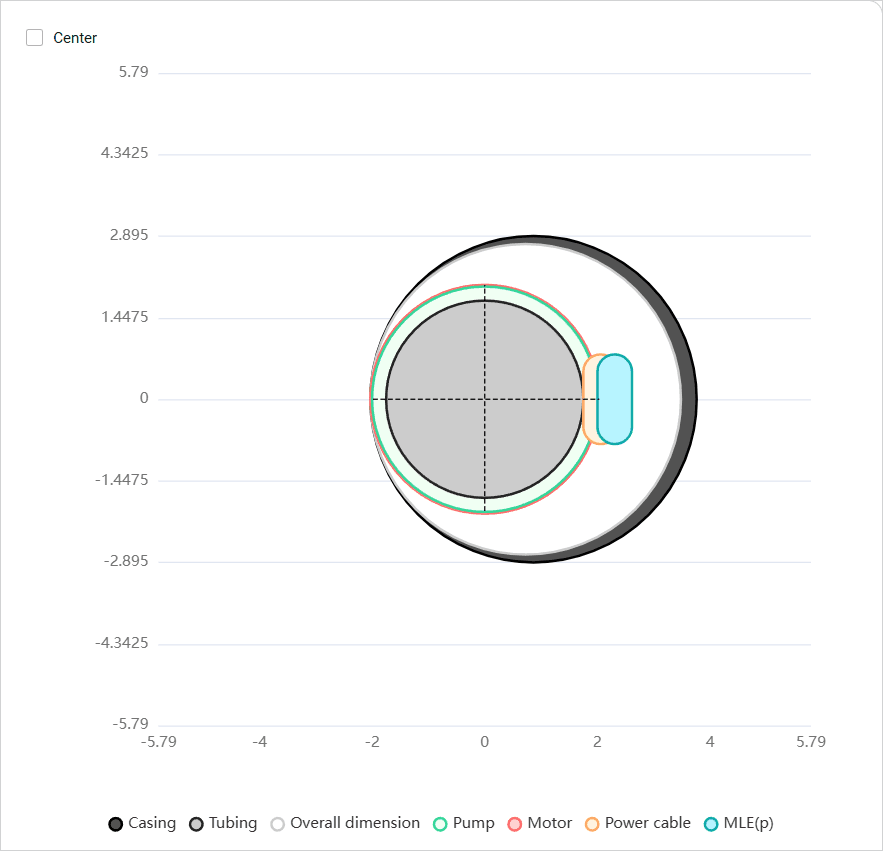
You can adjust the assembly layout to match the axis of the ESP and the production tubing to ensure proper placement and balance. To do this, in the upper-left corner of the pane, select the Center check box.
To show or hide a parameter on the layout, click the parameter name under it.
5.3 Reports
The group consists of the following sections:
5.3.1 Summary
The Summary section provides a comprehensive graphical representation summarizing all input data, calculation results, selected equipment, and performance characteristics.
It can be used as a final output document that you can export to PDF or print for documentation, review, or decision-making purposes.
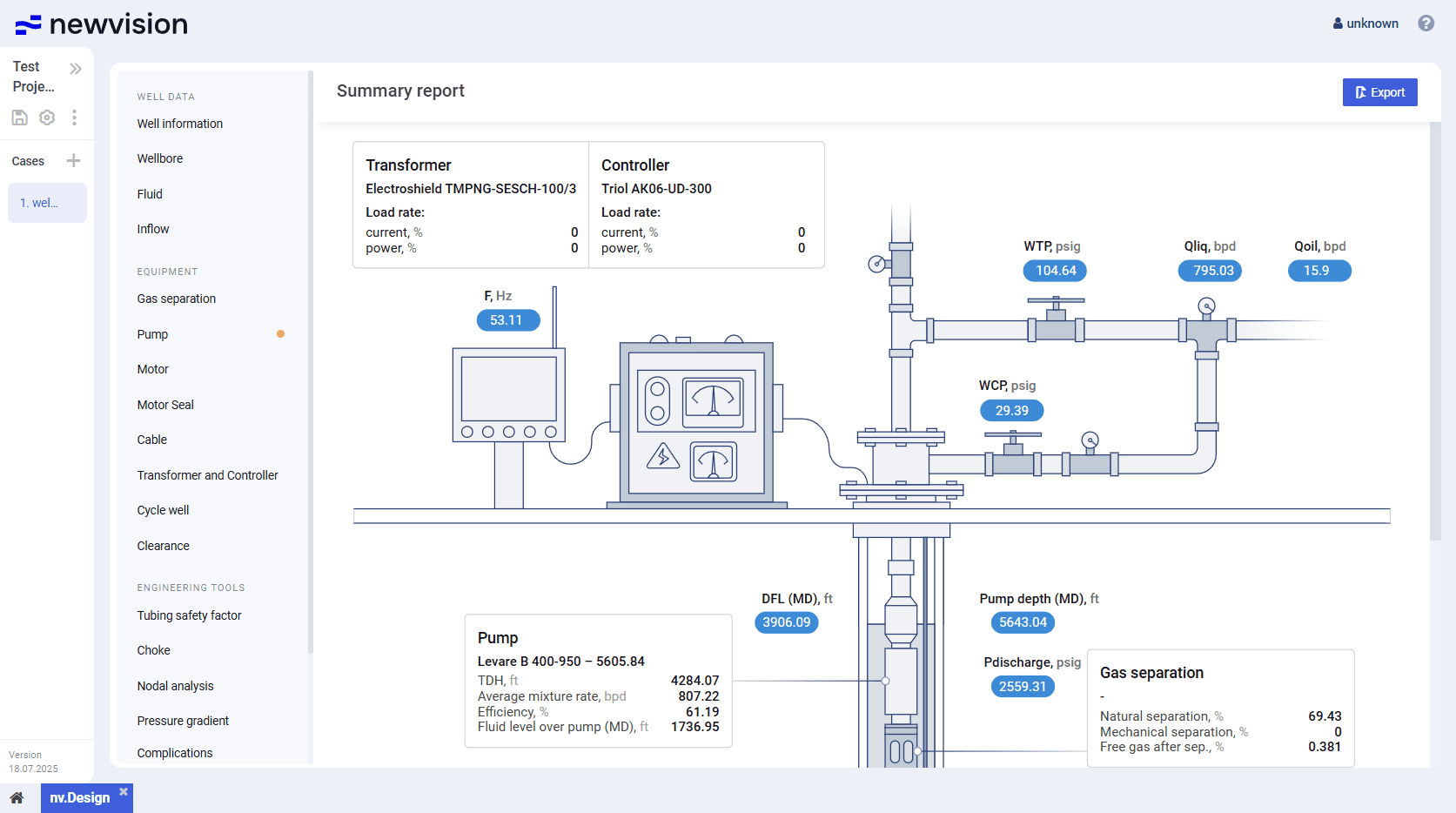
To export or print the report, in the upper-right corner of the report, click Export (  ) , and then, in the standard browser window, select the desired action.
5.3.2 Detailed
The detailed report provides an in-depth breakdown of all user inputs, calculation results, selected models, and performance parameters for each section of the well configuration.
It includes tables, charts, equipment specifications, and calculation steps, making it suitable for technical review, auditing, and project documentation.
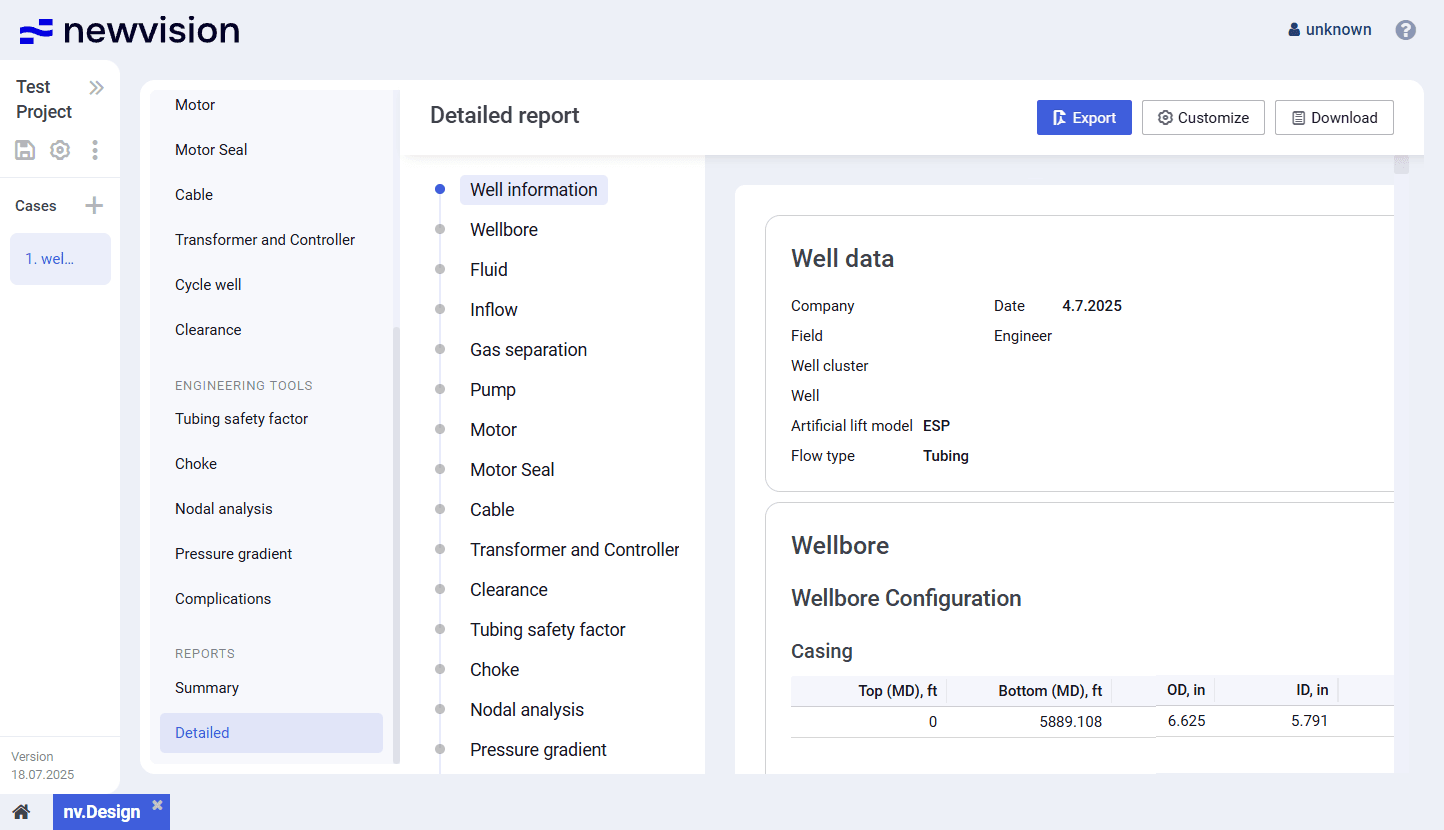
Well parameters in the report are organized into logical groups (sections). The list of sections is displayed in the left part of the report. You can navigate to the desired section by clicking its header in the list or by scrolling the report.
You can export the report to PDF and XLSX as well as print it.
To export the report to PDF or print it, in the upper-right corner of the report, click Export ( ) , and then, in the standard browser window, select the desired action.
To export the report to XLSX, in the upper-right corner of the report, click Download (  ) .
) .
You can also configure the sections displayed in the report. To do this, in the upper-right corner of the report, click Customize (  ) , and then, in the window that appears, select and/or clear check boxes of the sections that you want to show or hide in the report.
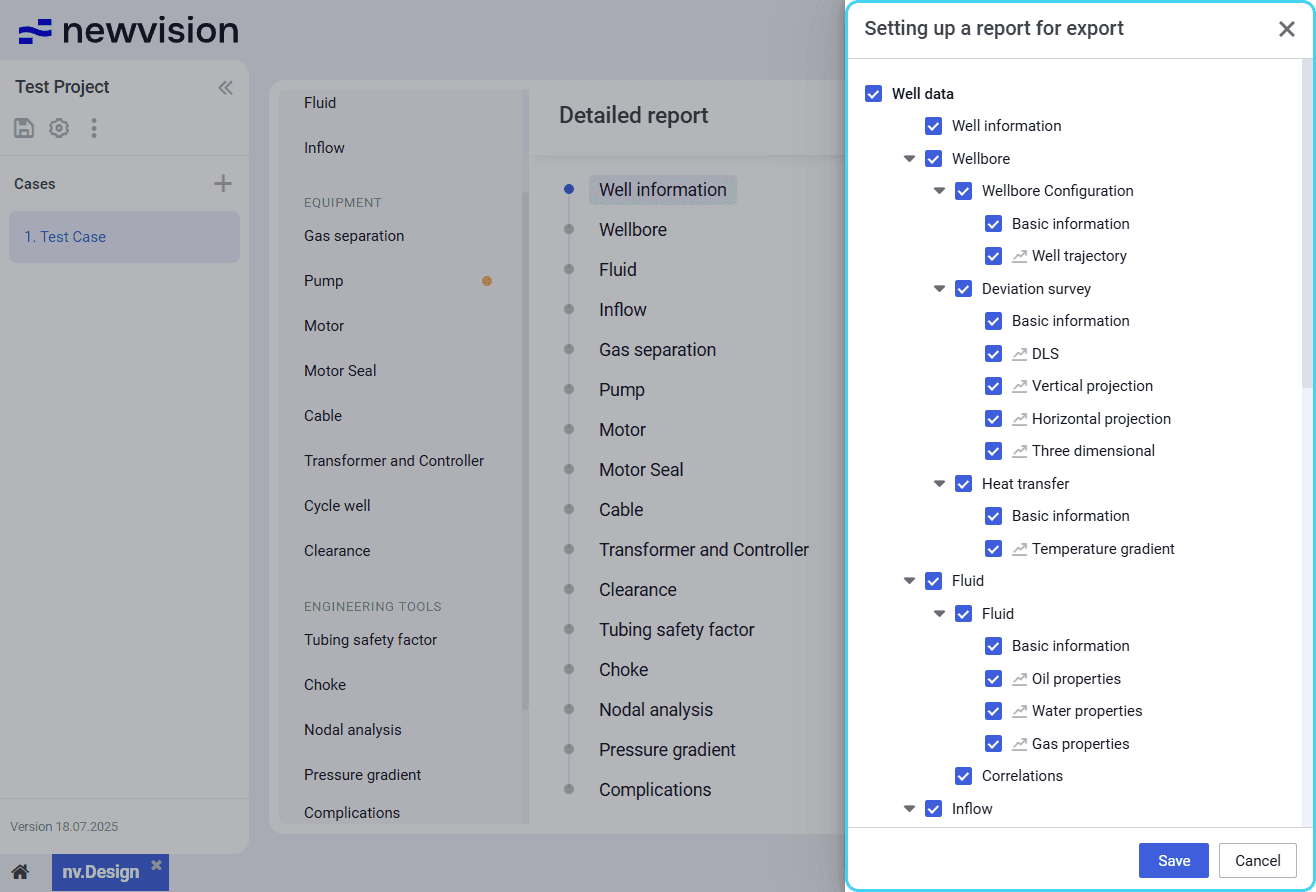
| Note Changes in the report configuration affect only the PDF export. Reports exported to XLSX contain all sections, including those that were hidden. |
User guide
Software for Well and Downhole Equipment Modeling