
Configuring instant analysis alerts
On this page
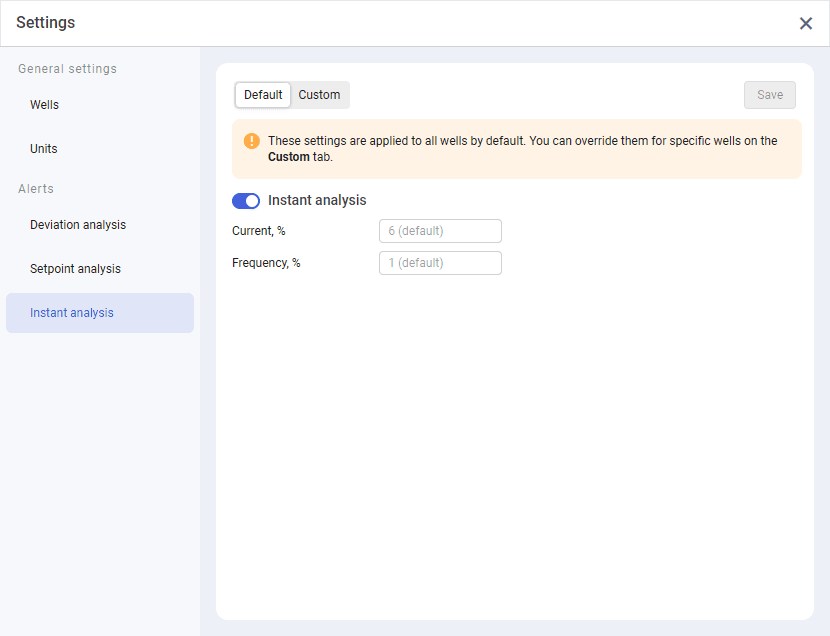
On the Instant analysis tab of the Settings window, you can configure alert generation based on deviations in the well equipment current or frequency. For details on alerts, see Alerts.
Allowable deviation is calculated dynamically based on the 24-hour rolling average of the current and frequency values. Instant analysis allows you to notify users when the current value deviates from this calculated value by more than the specified percentage.
 Select image to enlarge
The tab is divided into two subtabs:
-
Default: Configuration of default alert settings, i.e. settings that are applied to all wells if not overridden by custom well settings.
-
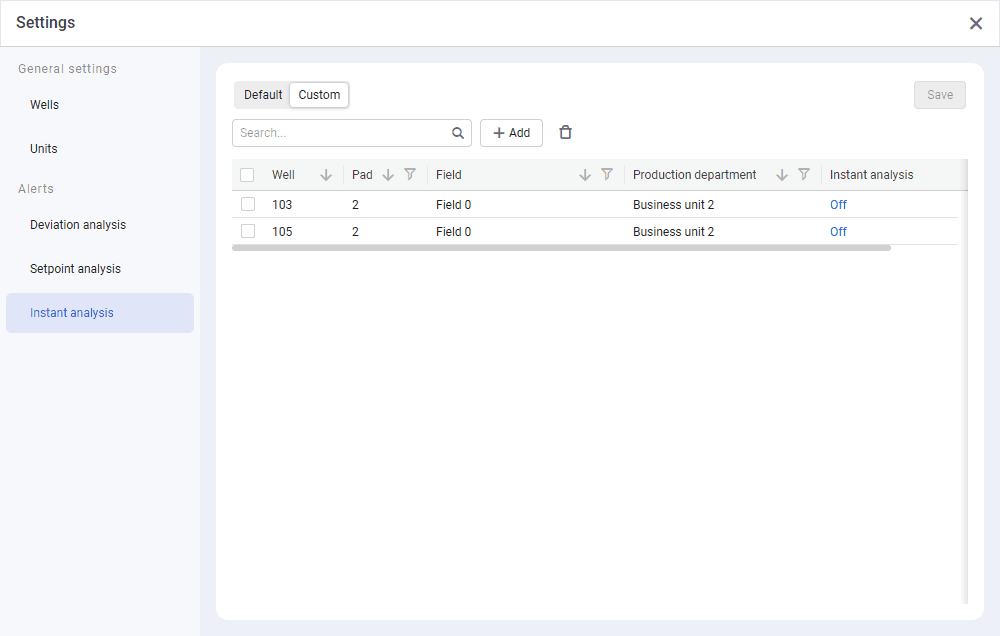
Custom: Configuration of custom alert settings, i.e. settings that are configured for specific wells and override default settings.
Note
Custom alert settings can also be configured from the Wells tab. For details, see Configuring General Well Settings.
On this tab, you can perform the following actions:
Configuring Default Instant Analysis Alerts#
To configure default parameters of alert generation based on instant analysis, perform the following actions:
-
On the Instant analysis tab, on the Default subtab, turn on the Instant analysis option. Below, a list of the alert parameters appears.
 Select image to enlarge
 -
In the Current and/or Frequency fields, specify the allowable deviation percentage (see description above).
-
(Optional) To revert parameters to their default values, click Restore default value (
 ) to the right of the modified parameter name.
To disable instant analysis by default, turn off the corresponding option on the Instant analysis tab.
Important
Default parameters do not override those configured for specific wells or well groups. To apply default parameters to a well, first you need to reset custom parameters configured in the well settings. For details, see Configuring Instant Analysis Alerts.
Configuring Custom Instant Analysis Alerts#
To configure parameters of alert generation based on instant analysis, perform the following actions:
-
On the Instant analysis tab, go to the Custom subtab. If for some wells custom parameters are already configured, a table with a list of them is displayed. If not, the subtab is empty.
 Select image to enlarge
 -
Depending on whether there already are custom parameters configured, perform one of the following actions:
-
If there are no previously configured parameters, in the central part of the subtab, click Add (
 ).
). -
If there are previously configured parameters, at the top of the table with a list of wells, click Add (
).
-
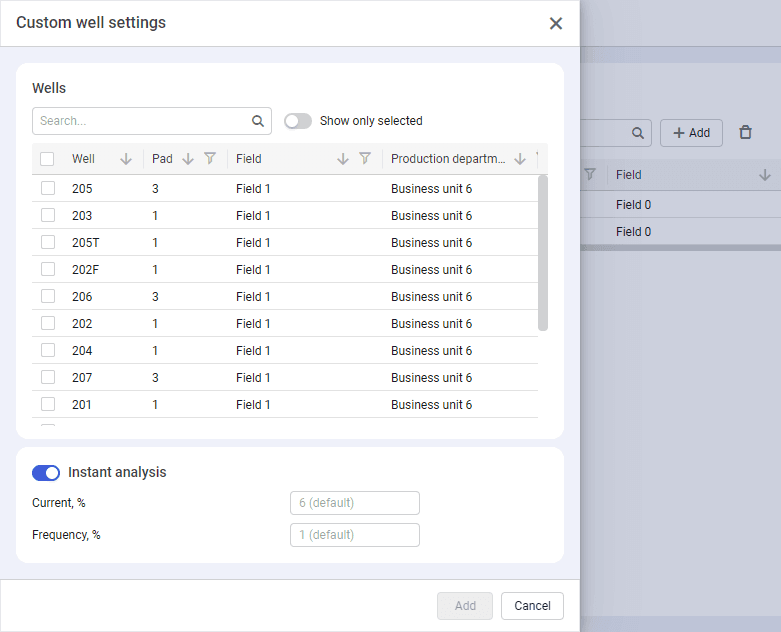
The Custom well settings opens.
 Select image to enlarge
-
In the window that opens, select check boxes of the wells for which you want to configure custom alert parameters.
Note
You can find a well by its name. To do this, at the top of the window, in the Search field, enter the well name or a part of it. If custom parameters are already configured for some of the selected wells, a warning is displayed below.
-
(Optional) To hide unselected wells in the table, at the top of the window, turn on the Show only selected option.
-
(Optional) If by default the Instant analysis option in the lower part of the window is disabled, turn it on.
-
In the Current and/or Frequency fields, specify the allowable deviation percentage (see description above).
-
(Optional) To revert parameters to their default values, click Restore default value (
) to the right of the value. -
At the bottom of the window, click Add. Selected wells with modified parameter values appear in the table.
-
In the upper-right corner of the Custom subtab, click Save.
For details on how to edit or delete custom alert parameters, see below.
Editing Custom Instant Analysis Alerts#
To edit custom instant analysis alerts, perform the following actions:
-
On the Instant analysis tab, go to the Custom subtab. A table with a list of wells with configured parameters is displayed.
Select image to enlarge -
Click the current value in the Instant analysis column.
-
In the window that opens, perform one of the following actions:
-
To enable or disable the instant analysis alerts, turn on or off the Instant analysis option.
-
(If instant analysis is enabled) To edit the current and/or frequency values, enter the new values in the corresponding fields.
-
-
(Optional) To revert parameters to their default values, click Restore default value (
) to the right of the value. -
At the bottom of the window, click Apply.
Note
To edit custom alert parameters for multiple wells at the same time, follow the configuration procedure described above and override the existing parameter values with the new ones.
-
(Optional) To delete custom alert parameters for a well, select the corresponding check box in the leftmost column of the table, and then click Delete (
 ) at the top of the table.
 -
In the upper-right corner of the Custom subtab, click Save.