
Configuring setpoint analysis alerts
On this page
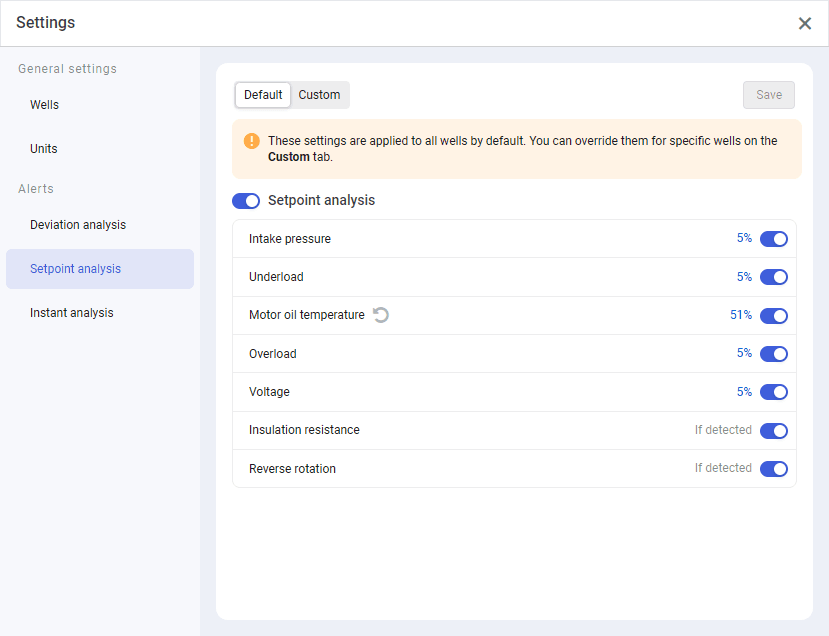
On the Setpoint analysis tab of the Settings window, you can configure generation of alerts when parameters approach their setpoints. For details on alerts, see Alerts.
A setpoint is a threshold value that, if approached, triggers an alert. To configure alert generation, you need to specify the percentage at which an alert is triggered as the corresponding parameter value approaches the setpoint.
 Select image to enlarge
The tab is divided into two subtabs:
-
Default: Configuration of default alert settings, i.e. settings that are applied to all wells if not overridden by custom well settings.
-
Custom: Configuration of custom alert settings, i.e. settings that are configured for specific wells and override default settings.
Note
Custom alert settings can also be configured from the Wells tab. For details, see Configuring General Well Settings.
On this tab, you can perform the following actions:
Configuring Default Setpoint Analysis Alerts#
To configure default parameters of alert generation based on setpoint analysis, perform the following actions:
-
On the Setpoint analysis tab, on the Default subtab, turn on the Setpoint analysis option. Below, a list of the alert parameters appears.
 Select image to enlarge
 -
(Optional) Modify default parameter values:
-
To enable or disable setpoint monitoring for a parameter, turn the corresponding option on or off.
-
To modify the percentage at which an alert must be triggered as the value approaches the setpoint, click the current value, and then, in the window that opens, enter the desired percentage and click Apply.
Note
The Insulation resistance and Reverse rotation parameters do not have a numerical setpoint. Alerts are triggered when the condition is detected at the well, rather than by exceeding a threshold.
-
-
(Optional) To revert parameters to their default values, click Restore default value (
 ) to the right of the modified parameter name.
To disable setpoint analysis by default, turn off the corresponding option on the Setpoint analysis tab.
Important
Default parameters do not override those configured for specific wells or well groups. To apply default parameters to a well, first you need to reset custom parameters configured in the well settings. For details, see Configuring Setpoint Analysis Alerts.
Configuring Custom Setpoint Analysis Alerts#
To configure parameters of alert generation based on setpoint analysis, perform the following actions:
-
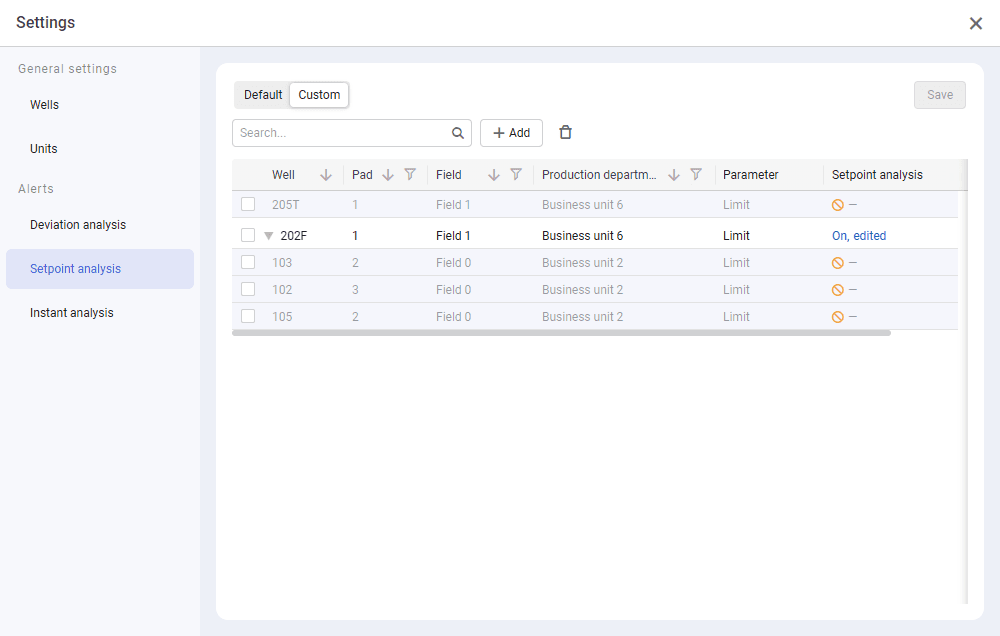
On the Setpoint analysis tab, go to the Custom subtab. If for some wells custom parameters are already configured, a table with a list of them is displayed. If not, the subtab is empty.
 Select image to enlarge
 -
Depending on whether there already are custom parameters configured, perform one of the following actions:
-
If there are no previously configured parameters, in the central part of the subtab, click Add (
 ).
). -
If there are previously configured parameters, at the top of the table with a list of wells, click Add (
).
-
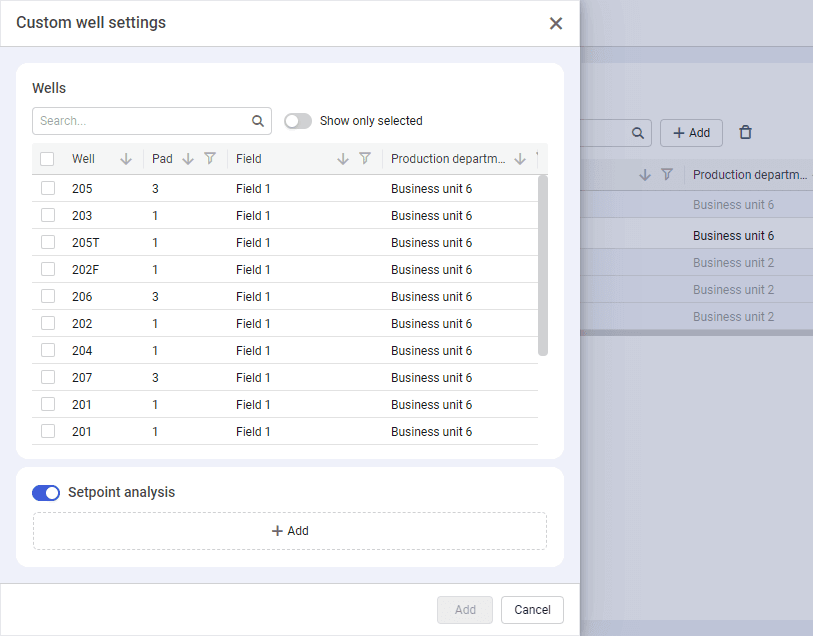
The Custom well settings opens.
 Select image to enlarge
-
In the window that opens, select check boxes of the wells for which you want to configure custom alert parameters.
Note
You can find a well by its name. To do this, at the top of the window, in the Search field, enter the well name or a part of it.
-
(Optional) To hide unselected wells in the table, at the top of the window, turn on the Show only selected option.
-
(Optional) If by default the Setpoint analysis option in the lower part of the window is disabled, turn it on.
-
Below the table, click Add (
), and then select the parameter for which you want to add a setpoint from the drop-down list. The selected parameter appears below. -
Modify default parameter values:
-
To enable or disable setpoint monitoring for the parameter, turn the corresponding option on or off.
-
To modify the percentage at which an alert must be triggered as the value approaches the setpoint, click the current value, and then, in the window that opens, enter the desired percentage and click Apply.
Note
The Insulation resistance and Reverse rotation parameters do not have a numerical setpoint. Alerts are triggered when the condition is detected at the well, rather than by exceeding a threshold.
If custom parameters are already configured for some of the selected wells, a warning is displayed below.
-
-
(Optional) To add more parameters, repeat Steps 6–7.
-
(Optional) To revert parameters to their default values, click Restore default value (
) to the right of the parameter name. -
At the bottom of the window, click Add. Selected wells with modified parameter values appear in the table.
-
In the upper-right corner of the Custom subtab, click Save.
For details on how to edit or delete custom alert parameters, see below.
Editing Custom Setpoint Analysis Alerts#
To edit custom setpoint analysis alerts, perform the following actions:
-
On the Setpoint analysis tab, go to the Custom subtab. A table with a list of wells with configured parameters is displayed.
Select image to enlarge -
In the table, make the desired changes:
-
To enable or disable setpoint analysis alerts for a well, click the current value in the Setpoint analysis column, and then, in the window that opens, turn on or off the Setpoint analysis option and click Apply.
-
To modify parameter setpoint values, perform one of the following actions:
-
At the top of the table, click Add (
). The Custom well settings opens. -
In the leftmost column, select check boxes of the desired wells.
Note
You can find a well by its name. To do this, at the top of the window, in the Search field, enter the well name or a part of it.
-
Below the table, click Add (
) and then, select the parameter for which you want to add a setpoint from the drop-down list. The selected parameter appears below. -
Modify default parameter values:
-
To enable or disable setpoint monitoring for the parameter, turn the corresponding option on or off.
-
To modify the percentage at which an alert must be triggered as the value approaches the setpoint, click the current value, and then, in the window that opens, enter the desired percentage and click Apply.
Note
The Insulation resistance and Reverse rotation parameters do not have a numerical setpoint. Alerts are triggered when the condition is detected at the well, rather than by exceeding a threshold.
-
-
(Optional) To add more parameters, repeat Steps C–D.
-
(Optional) To revert parameters to their default values, click Restore default value (
) to the right of the parameter name. -
At the bottom of the window, click Add. Modified values are displayed in the table.
-
-
-
(Optional) To delete custom alert parameters for a well, select the corresponding check box in the leftmost column of the table, and then click Delete (
 ) at the top of the table.
 -
In the upper-right corner of the Custom subtab, click Save.