
Fluid properties and correlations
On this page
5.1.3 Fluid#
The section provides information about the PVT properties of oil, water, and/or gas. It consists of two tabs:
5.1.3.1 Fluid#
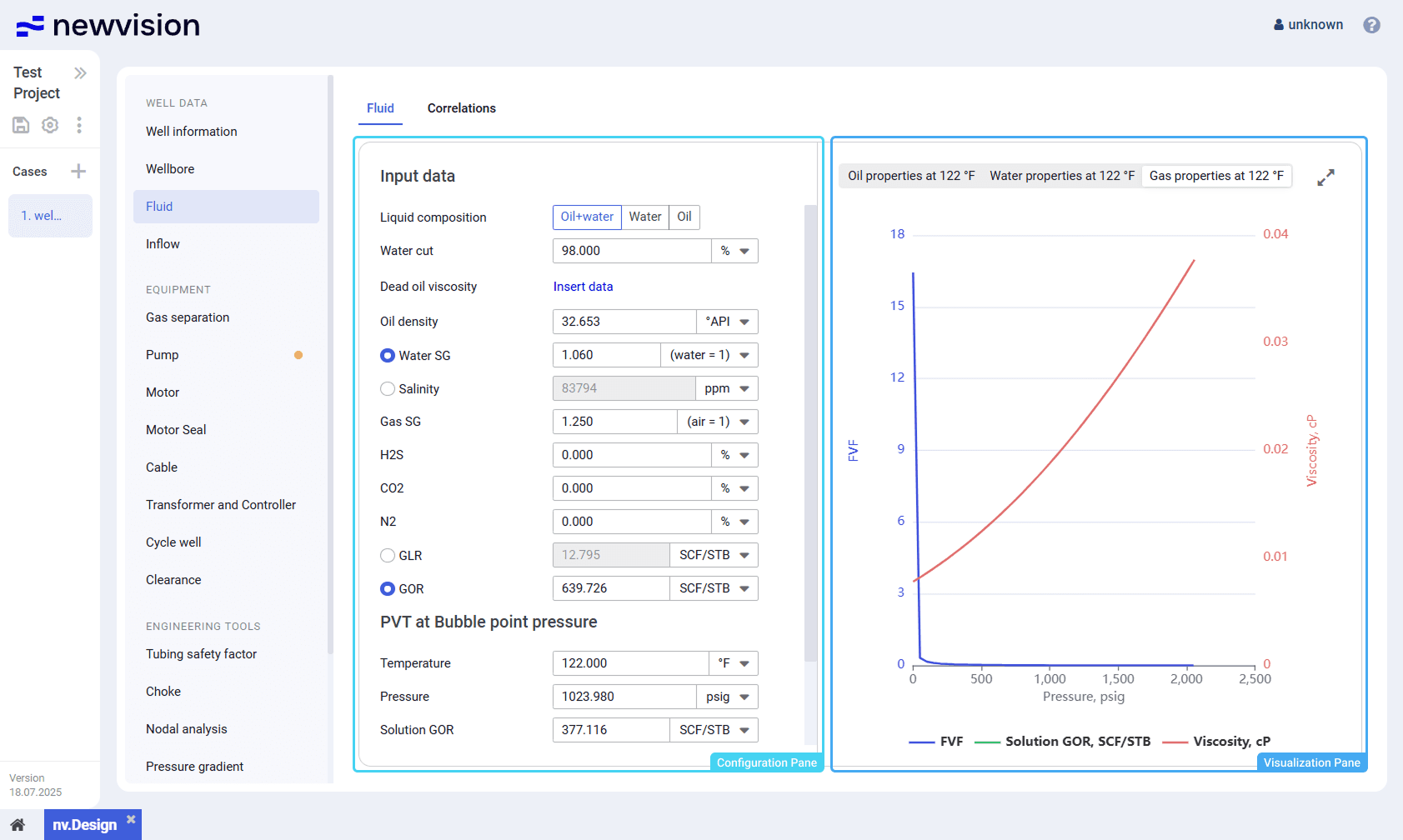
On the Fluid tab, you can configure PVT properties of the well fluid.
The tab consists of two panes:
- Configuration pane in the left part of the tab.
- Visualization pane in the right part of the tab.
 Select image to enlarge
Configuration Pane
 Select image to enlarge
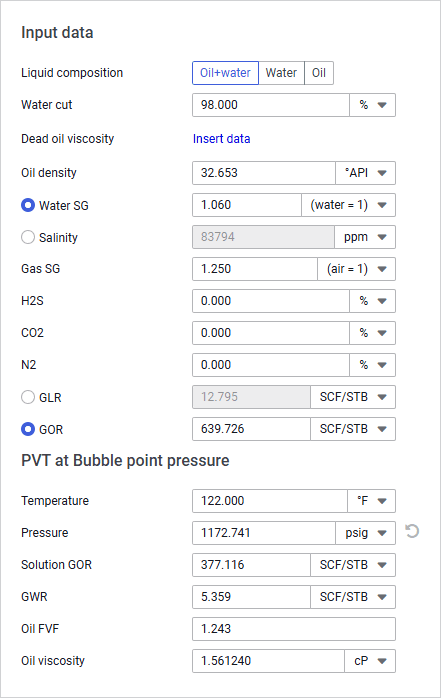
The pane contains PVT property values distributed in two parameter groups:
- Input data: Parameter values at standard conditions.
To configure dead oil viscosity matching, to the right of the parameter name, click Insert data. For details, see Configuring Dead Oil Viscosity Matching. - PVT at bubble point pressure: Parameter values at a specified temperature.
The temperature is specified in the Temperature field.
Visualization of the PVT properties at this temperature is displayed in the left part of the tab (see description below).
Visualization Pane
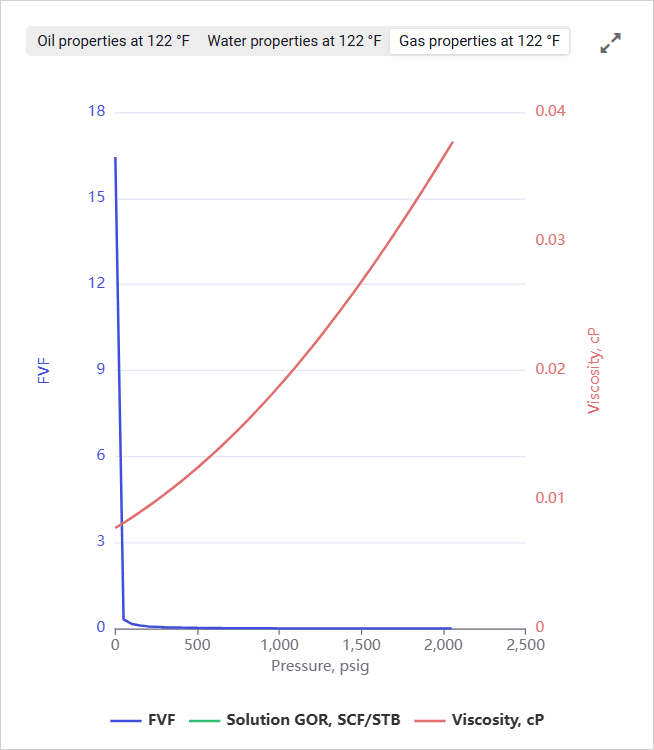
The pane contains charts that visualize the FVF, Solution GOR, and Viscosity values of oil, water, and gas at the temperature specified in the Temperature field in the configuration pane (see description above).
The pane consists of three tabs with charts of the corresponding fluid components:
- Oil properties at X °C
- Water properties at X °C
- Gas properties at X °C
 Select image to enlarge
To show or hide a parameter on the chart, click the parameter name under it.
You can also expand the pane to full screen or collapse it back to the original size using the Expand ( ) / Collapse (
 ) buttons located in the upper-right corner of the pane.
5.1.3.1.1 Configuring Fluid PVT Properties
To configure dead oil viscosity matching, perform the following actions:
- Open the nv.design module.
For details on navigation in the system, see System Interface. In the left part of the working area, in the list of the module sections, click Fluid.
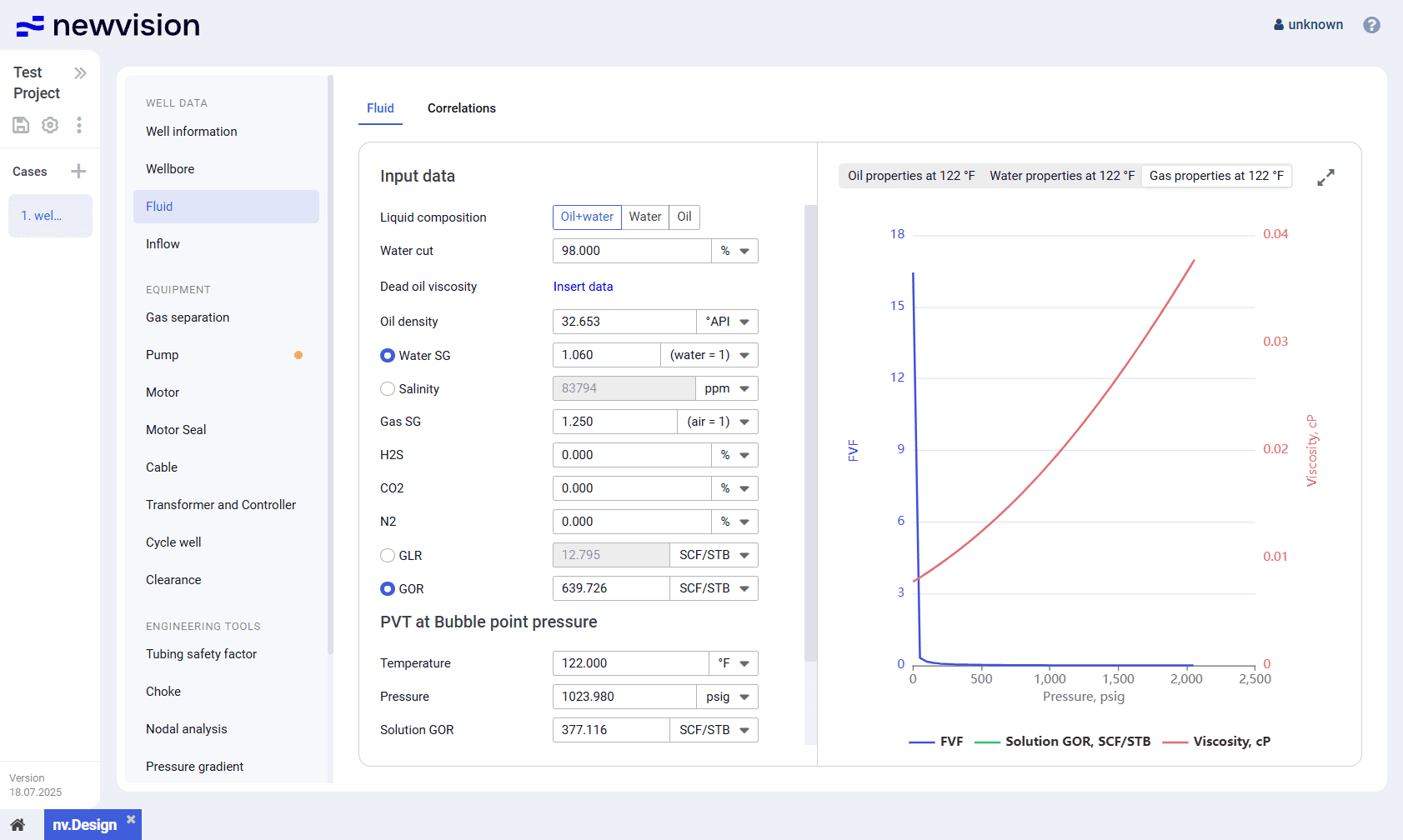
To the right of the list, the Fluid tab opens.
 Select image to enlarge
In the left part of the tab, in the Input data parameter group, perform the following actions:
a. To the right of the Liquid composition parameter name, select the well fluid composition option: Oil+water, Water, or Oil.
In the list of available parameters below, only the parameters relevant to the selected composition remain.b. In the Water cut field, enter the desired value.
c. (Optional) If the fluid composition includes high-viscosity oil, click Insert data and configure matching parameters so that available correlations could be applied. For details, see Dead Oil Viscosity Matching.
Scroll horizontally to view a wide table.
Note
If some calibration points have already been added, instead of Insert data, their number (e.g., 5 points) is displayed.d. In the Input data parameter group, fill in the rest of the PVT properties under surface conditions.
Go to the Correlations tab and select the correlations that are most suitable for the input parameters. For details, see Appendix A: PVT Correlations.Parameter values in the PVT at Bubble point pressure group are calculated automatically based on the selected correlations.
(Optional) Edit values in the PVT at Bubble point pressure group.
Scroll horizontally to view a wide table.Note
After you modify any value in this parameter group, to the right of the corresponding field, the Reset ( ) button appears. Using it, you can reset the parameter to the calculated value.
- In the right part of the tab, view charts that visualize the FVF, Solution GOR, and Viscosity values of gas, water, and/or oil at the temperature specified in the Temperature field.
- To save changes, in the left part of the module, click Save (
 ) under the name of the current project.
5.1.3.1.2 Dead Oil Viscosity Matching
To configure dead oil viscosity matching, perform the following actions:
- Open the nv.design module.
For details on navigation in the system, see System Interface. In the left part of the working area, in the list of the module sections, click Fluid .
To the right of the list, the Fluid tab opens.
Select image to enlargeIn the left part of the tab, under the Input data heading, click Insert data .
Scroll horizontally to view a wide table.Note
If some calibration points have already been added, instead of Insert data , their number (e.g., 5 points ) is displayed.The Dead oil viscosity window opens in the right part of the tab.
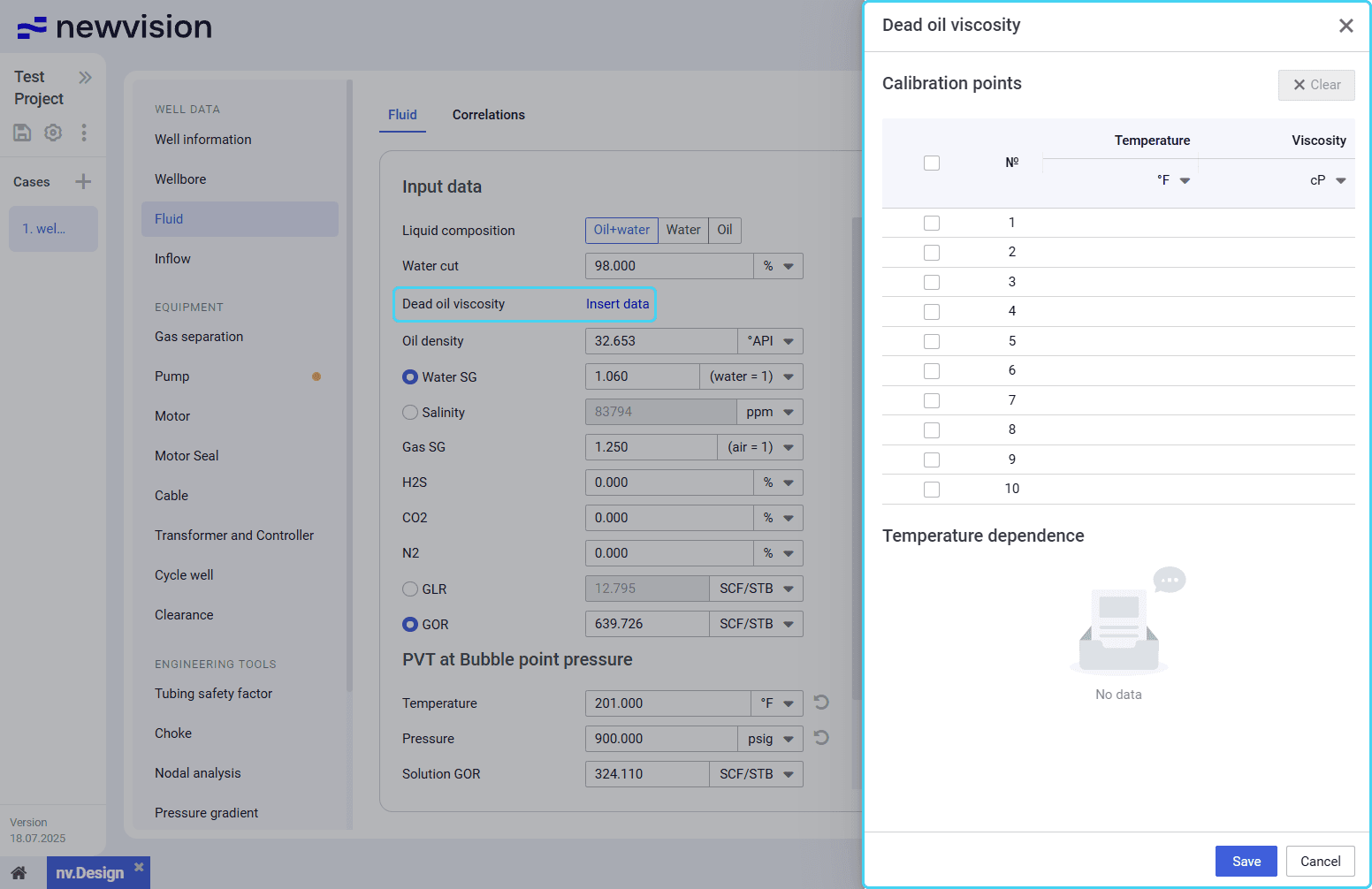 Select image to enlarge
In the window, add matching data to the Calibration points table. You can do it in the following ways:
To add data manually, double-click cells in the Temperature and Viscosity columns and enter the desired values.
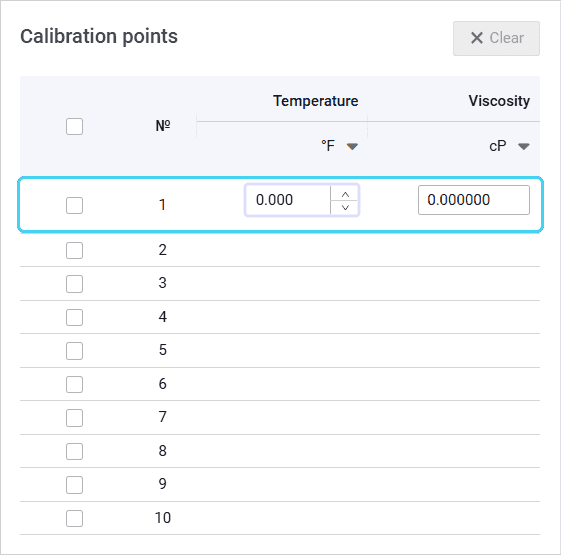 Select image to enlarge
To paste data from another table, copy it to the clipboard, and then press Ctrl+V.
The copied entries appear in the table. The more data you add, the more accurate results the matching provides.
Scroll horizontally to view a wide table.Note
The inserted data must contain numerical values only. If the data includes a row with NaN (not a number) values, delete them after insertion.(Optional)
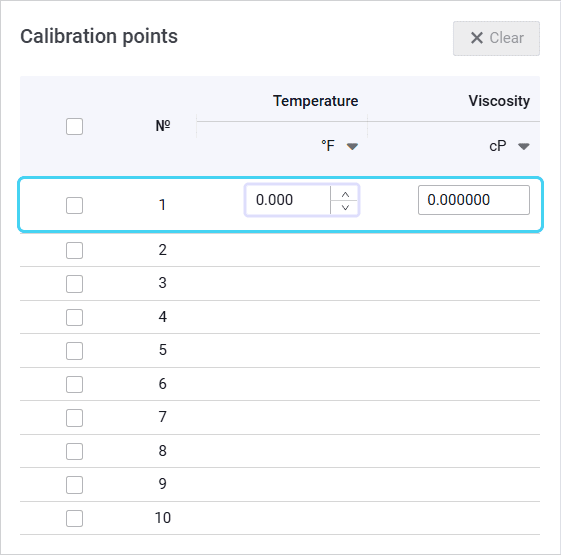
To edit values in the table, double-click the desired value and make necessary changes.
To clear data from a row, select its check box in the leftmost column, and then, above the table, click Clear (
 ) .
) .After the configuration is completed, at the bottom of the window, click Save .
Below the Calibration points table, the Temperature dependence chart appears. Under the PVT at Bubble point pressure heading in the left part of the tab, the Oil viscosity value is matched to the actual data.
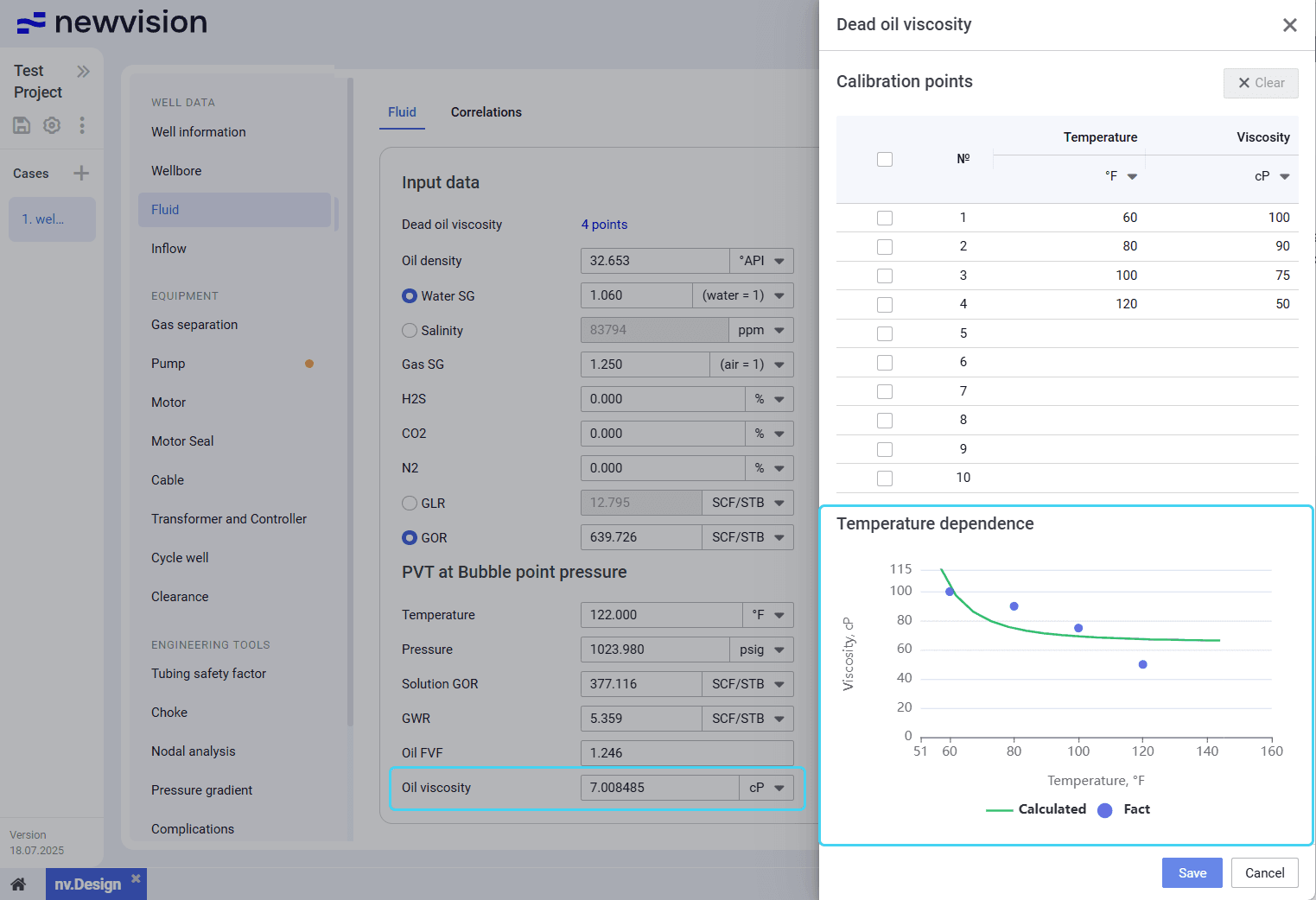 Select image to enlarge
- Close the window by clicking the cross icon ( ) in its upper-right corner.
- To save changes, in the left part of the module, click Save ( ) under the name of the current project.
5.1.3.2 Correlations#
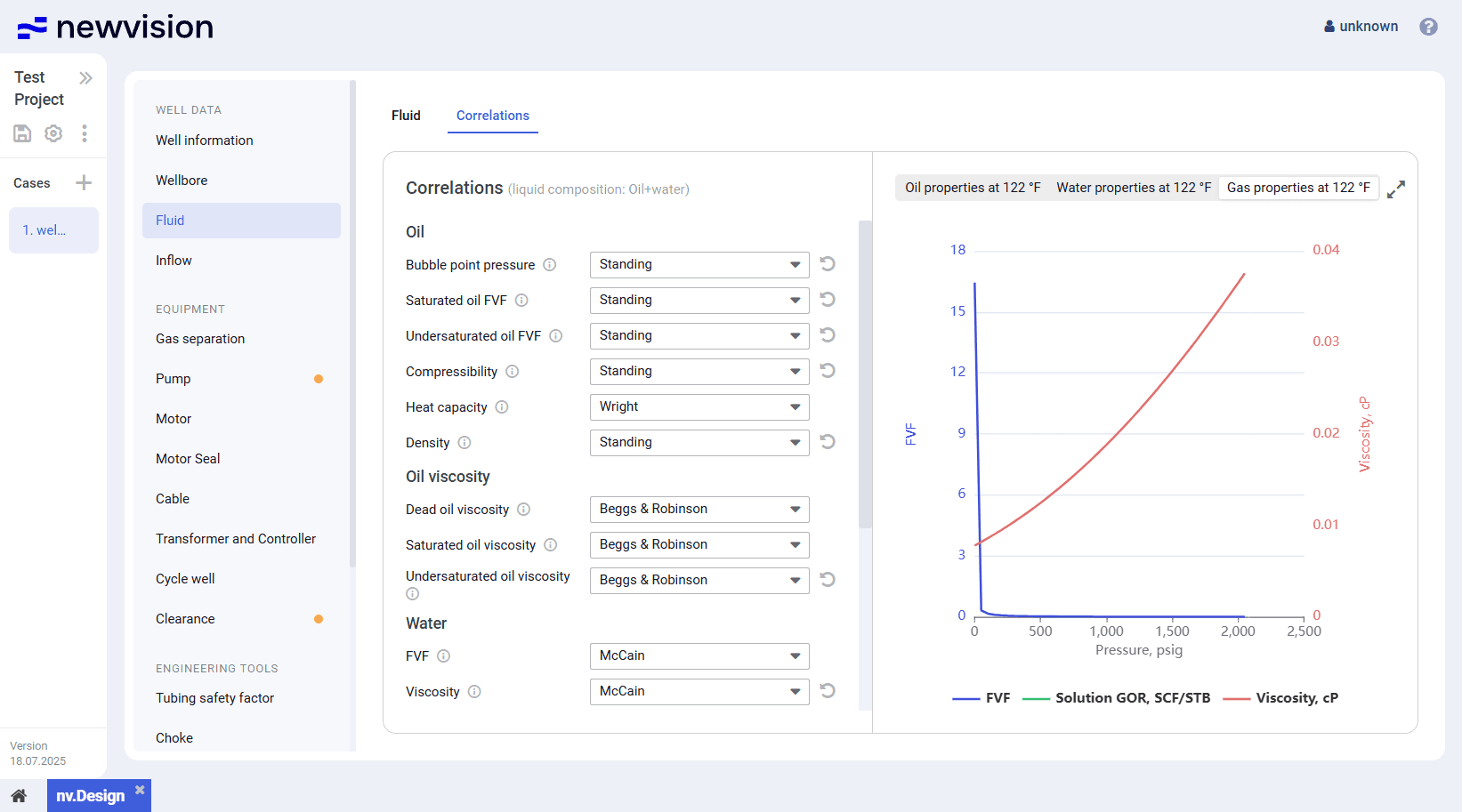
On the Correlations tab, you can select correlations that are used for the PVT property calculations.
The tab consists of two panes:
- Correlations pane in the left part of the tab.
- Visualization pane in the right part of the tab.
 Select image to enlarge
In addition to the basic physical properties of oil, gas, and water, you can configure the interfacial tension between gas and water, as well as between gas and oil. Interfacial tension affects the flow regime, phase slip, and emulsion formation in multi-phase flow, which in turn impacts pressure and velocity calculations.
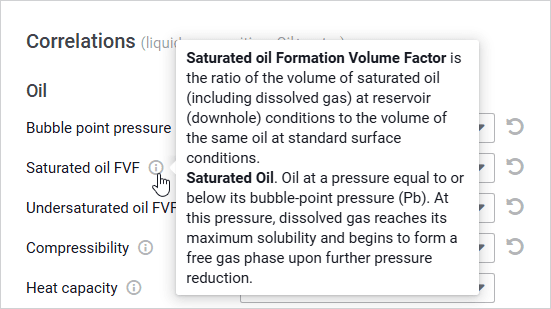
Next to the names of available parameters, the information icon (  ) is displayed. On hovering over it, a hint with a brief description of the corresponding parameter appears.
 Select image to enlarge
 | Note After you change a correlation selected by default, to the right of the corresponding list, the Reset ( ) button appears. Using it, you can change the correlation back to the default option. |
In the right part of the tab, the same visualization pane is displayed. For details, see Fluid.
A detailed description of the correlations and the criteria for their selection are provided in Appendix A: PVT Correlations.