3.2 Creating Projects
On this page
In the nv.design module, you can create a new project in several ways, depending on your current stage in the module workflow:
The created project opens with a default case (well design scenario) created automatically.
For details on creating cases, see Adding Cases.
3.2.1 Creating New Project Upon Opening nv.design#
To create a project upon opening the nv.design module, perform the following actions:
- Open the nv.design module.
For details on navigation in the system, see System Interface. Depending on whether there are any projects in the system, perform one of the following actions:
If there are no projects, in the Project Creation window, click Create Project (
 ).
).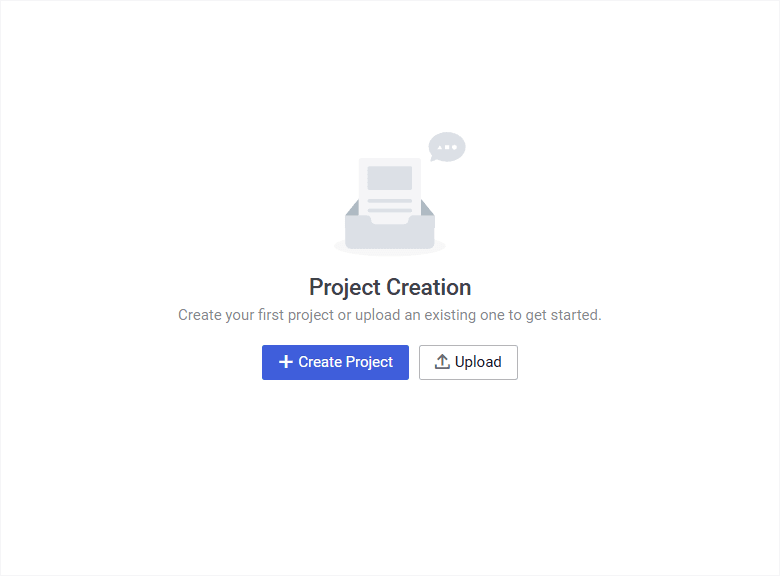 Select image to enlarge
If there already are some projects, in the upper-right corner of the Projects window,
click Add ().Scroll horizontally to view a wide table.
Important
This method is relevant only if you open the module for the first time or after clearing the browser cache. Otherwise, when you open the module, the last project you worked on will open automatically. In this case, see Creating New Project While Working on an Existing Project .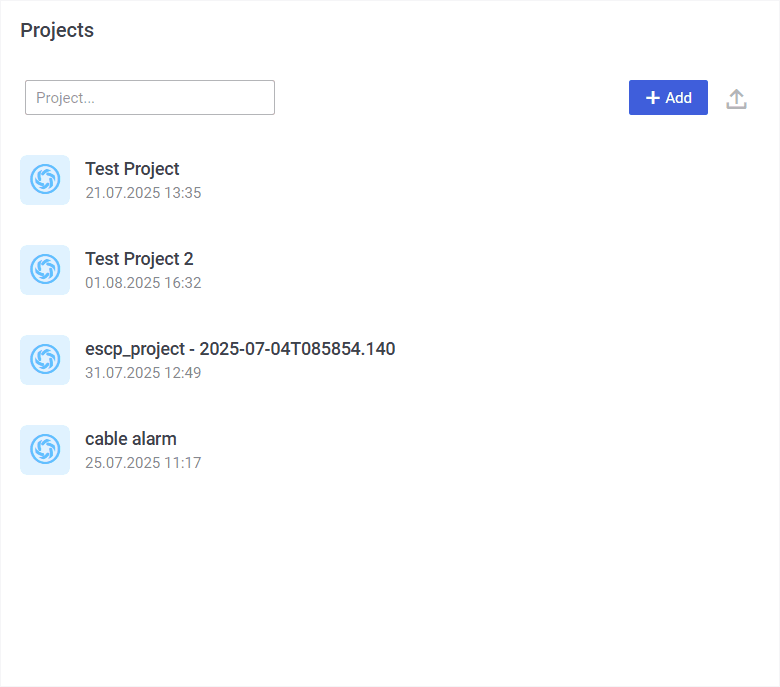 Select image to enlarge
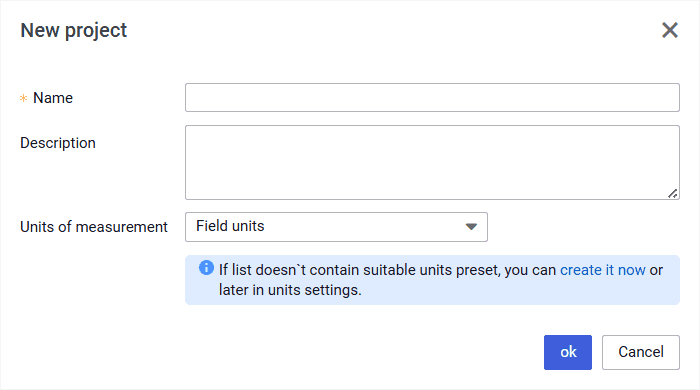
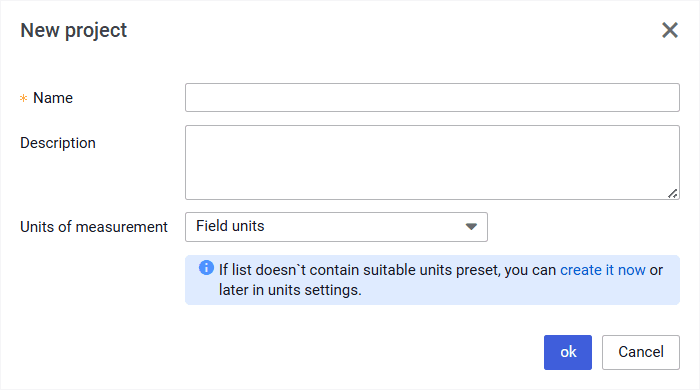
The New project window opens.
 Select image to enlarge
In the New project window, perform the following actions:
a. In the Name field, enter the new project name.
b. (Optional) In the Description field, enter a description for the new project.
c. From the Units of measurement list, select the desired measurement system: Field units (US oilfield units) or SI units (metric units).
Scroll horizontally to view a wide table.
Note
You can also create a custom set of measurement units. To do this, in the area below the list, click create it now. You can do this after the project is created as well. For details, see Configuring Custom Set of Units.d. In the lower part of the window, click ok.
3.2.2 Creating New Project While Working on an Existing Project#
To create a project while working on an existing nv.design project, perform the following actions:
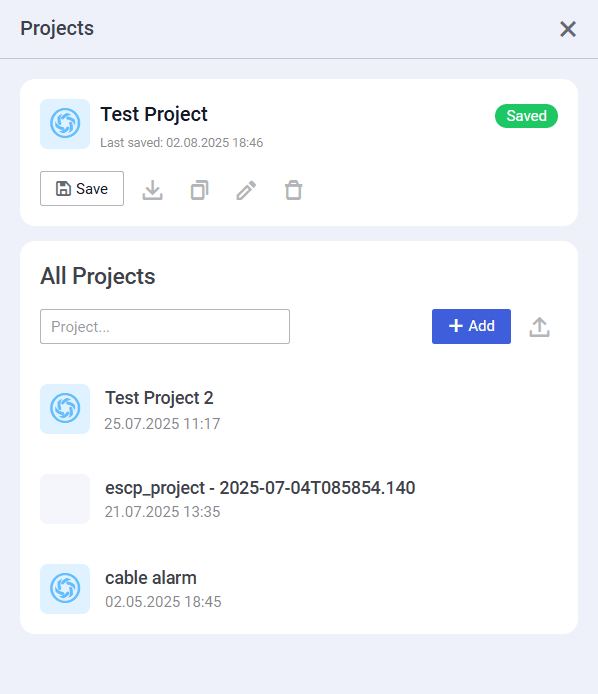
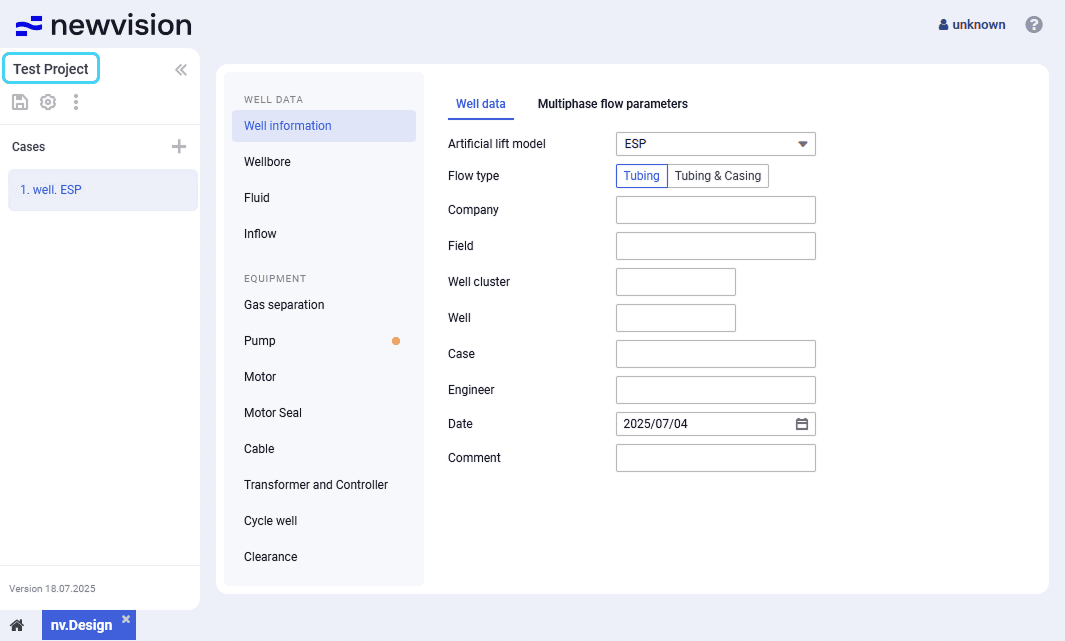
In the upper-left corner of the module, click the name of the currently open project.
 Select image to enlarge
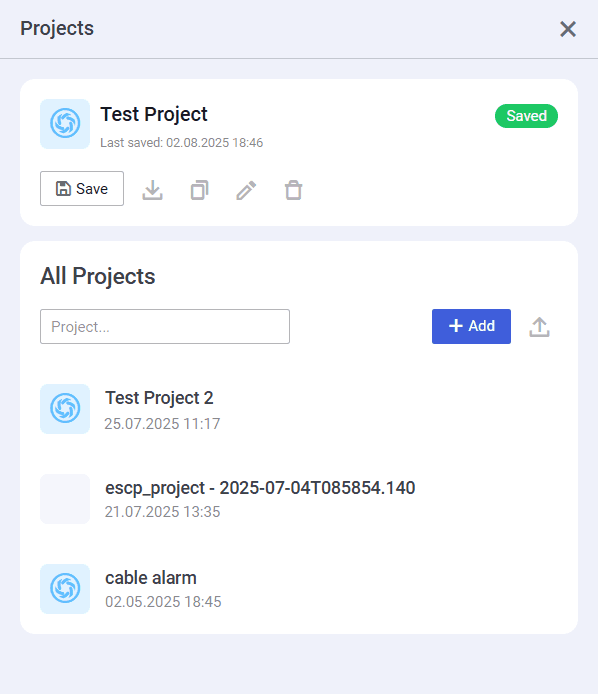
The Projects window opens.
 Select image to enlarge
In the Projects window, under the All Projects heading, click Add (
).The New project window opens.
Select image to enlargeIn the New project window, perform the following actions:
a. In the Name field, enter the new project name.
b. (Optional) In the Description field, enter a description for the new project.
c. From the Units of measurement list, select the desired measurement system: Field units (US oilfield units) or SI units (metric units).
Scroll horizontally to view a wide table.Note
You can also create a custom set of measurement units. To do this, in the area below the list, click create it now. You can do this after the project is created as well. For details, see Configuring Custom Set of Units.d. In the lower part of the window, click ok.