
Creating Tight Gas Model
To add a tank, perform the following actions:
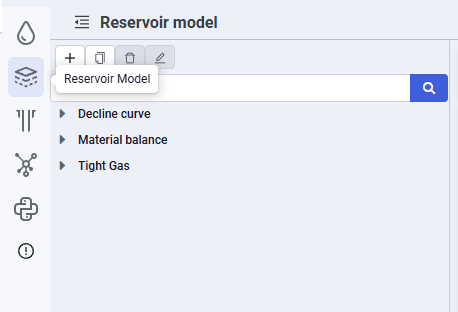
1.In the Navigator, select Reservoir Model
 Select image to enlarge
2.In the object tree, click 
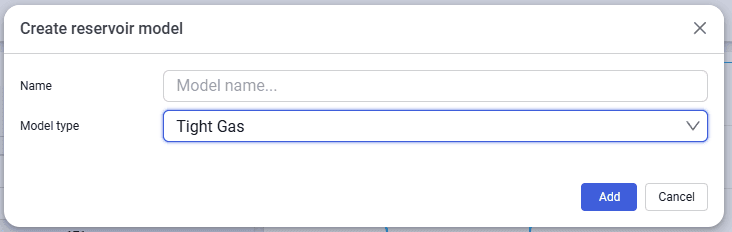
3.In the modal window, enter the model name and select the model type from the drop-down list. In this case, a Tight Gas model.
 Select image to enlarge
4.After filling in all required data, click Add
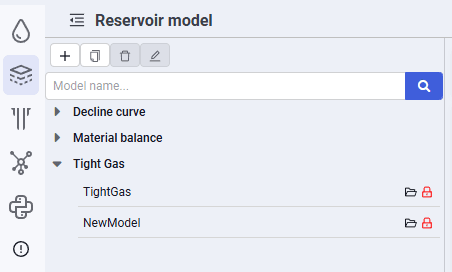
5.The new model will appear in the model tree.
 Select image to enlarge
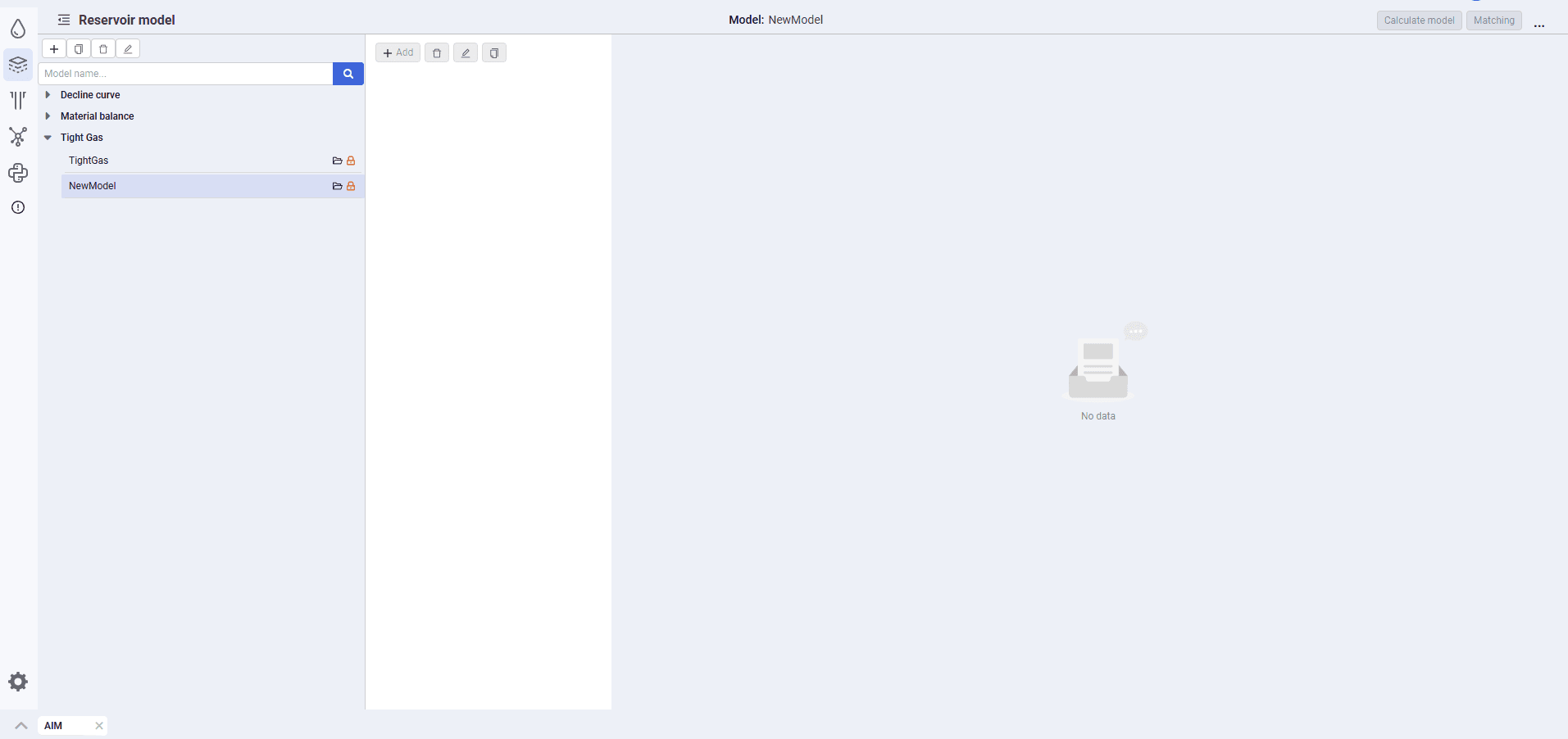
6.Load the selected model using the  button
 Select image to enlarge
7.By default, the model is locked for editing. The model status is displayed in the row with the model name. To unlock the model, click the  icon. The model will become available for editing, the model status will change to
  , and the login of the user who is editing the model will appear in the row with the model name.