
Snapshot calculation
After the entire system has been drawn and the required information has been entered, you can run a snapshot calculation of the model. To do this, click the Model calculation button in the upper-right corner of the screen.
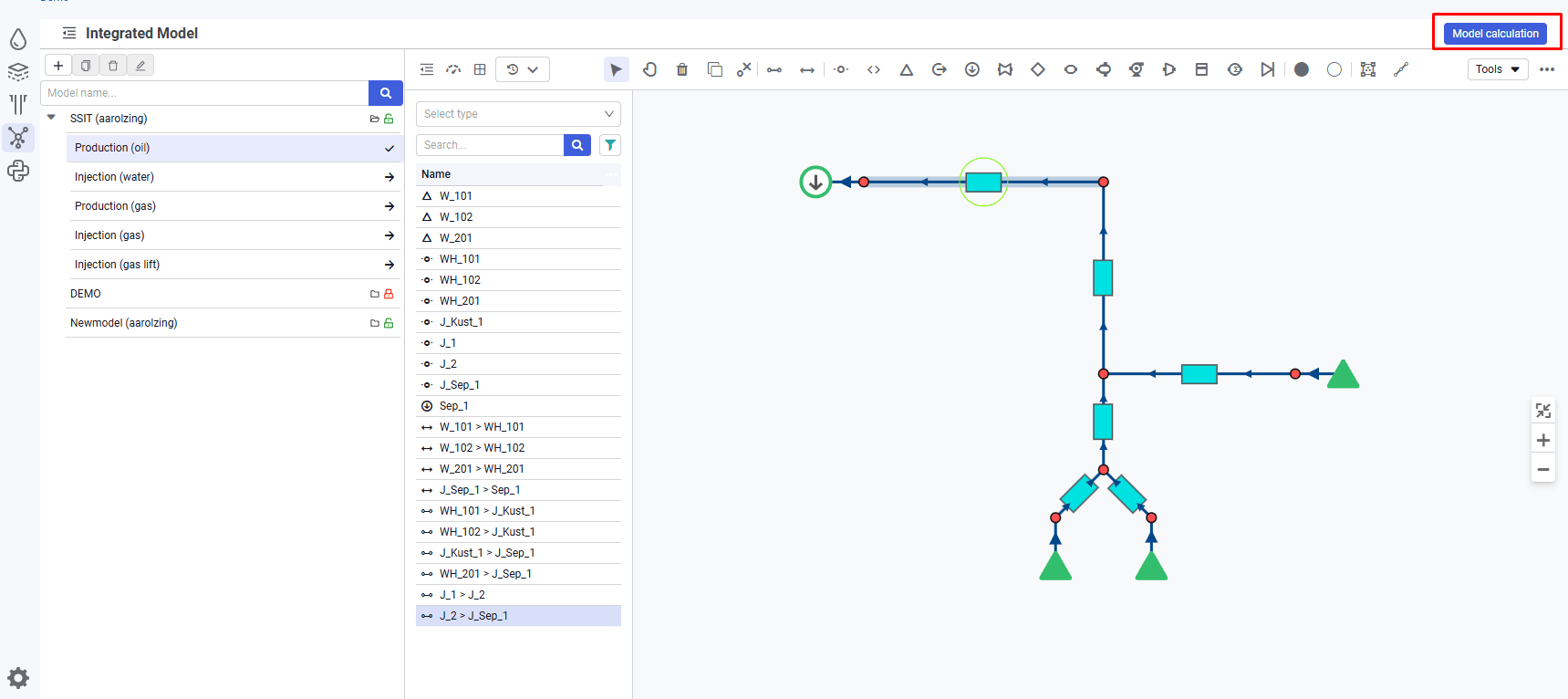 Select image to enlarge
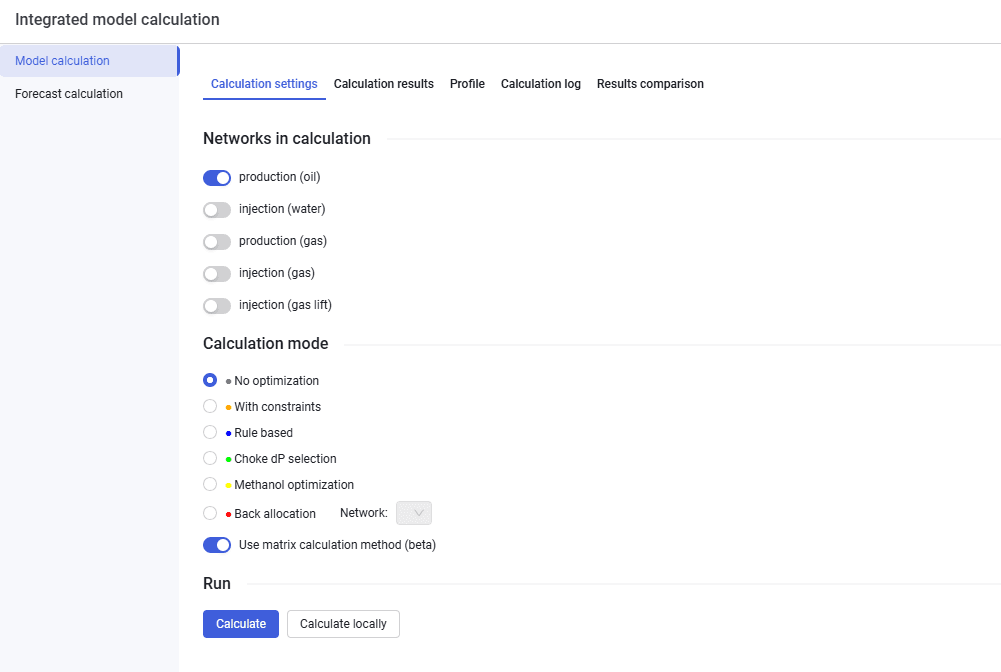
1.After you click the button, a window opens. Select the No optimization option and click Calculate.
 Select image to enlarge
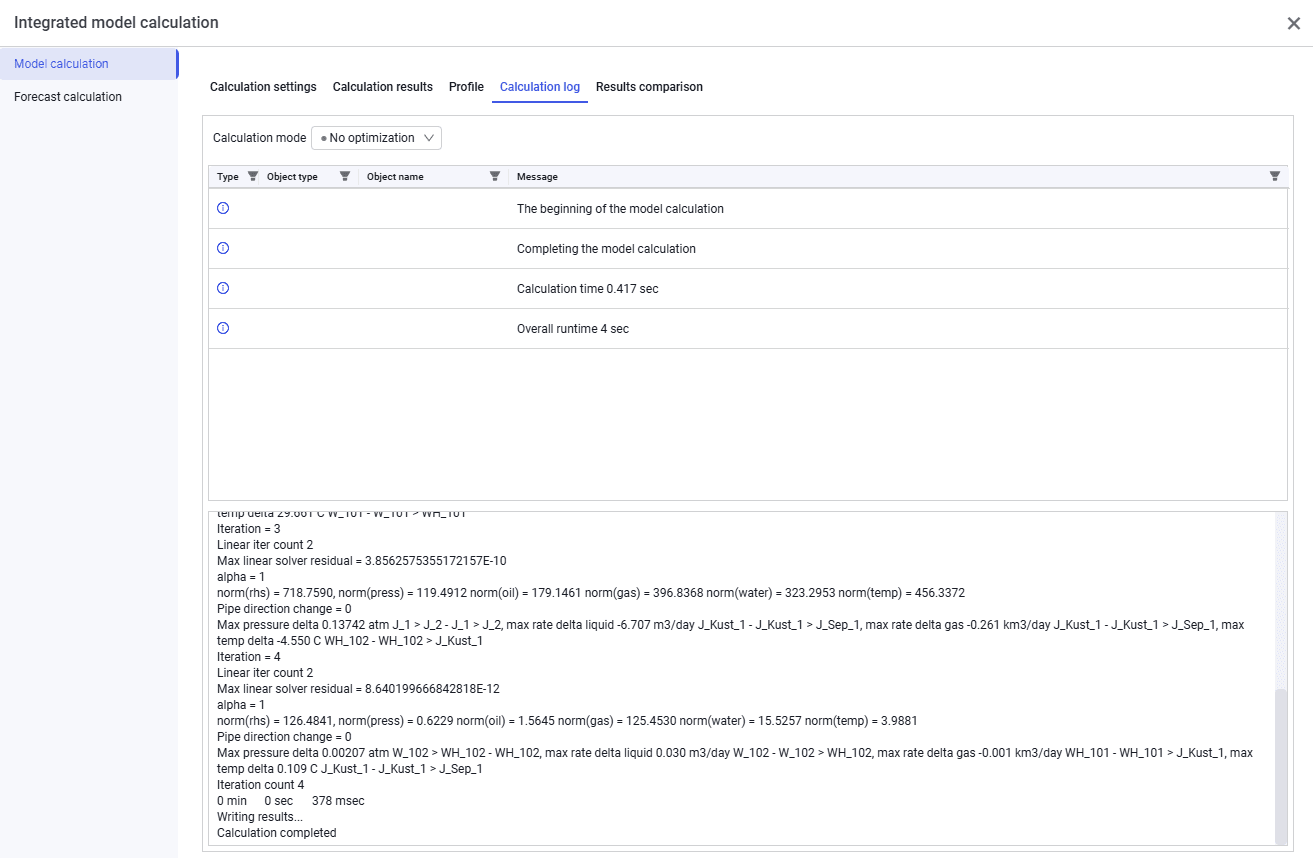
2.After the calculation is complete, you can view statistics on the Calculation log tab. The log contains information about the start and end of the calculation and its duration.
 Select image to enlarge
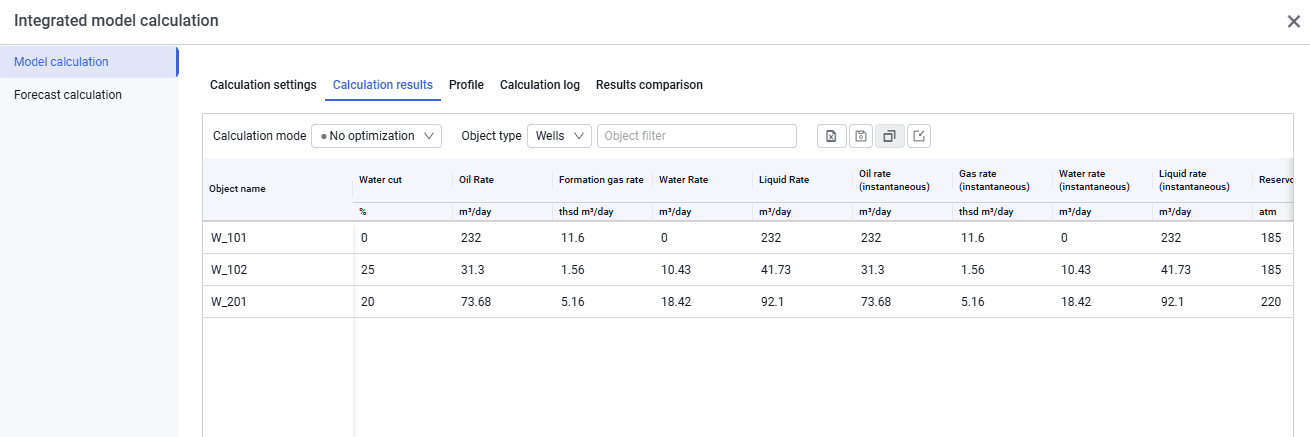
3.The Calculation results tab displays calculation results for all model objects.
 Select image to enlarge
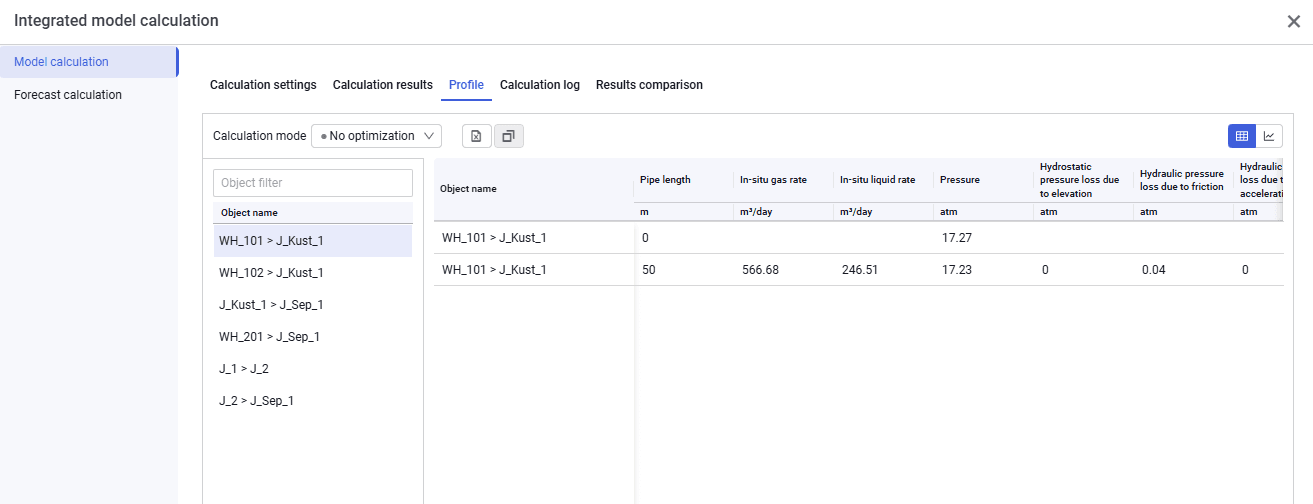
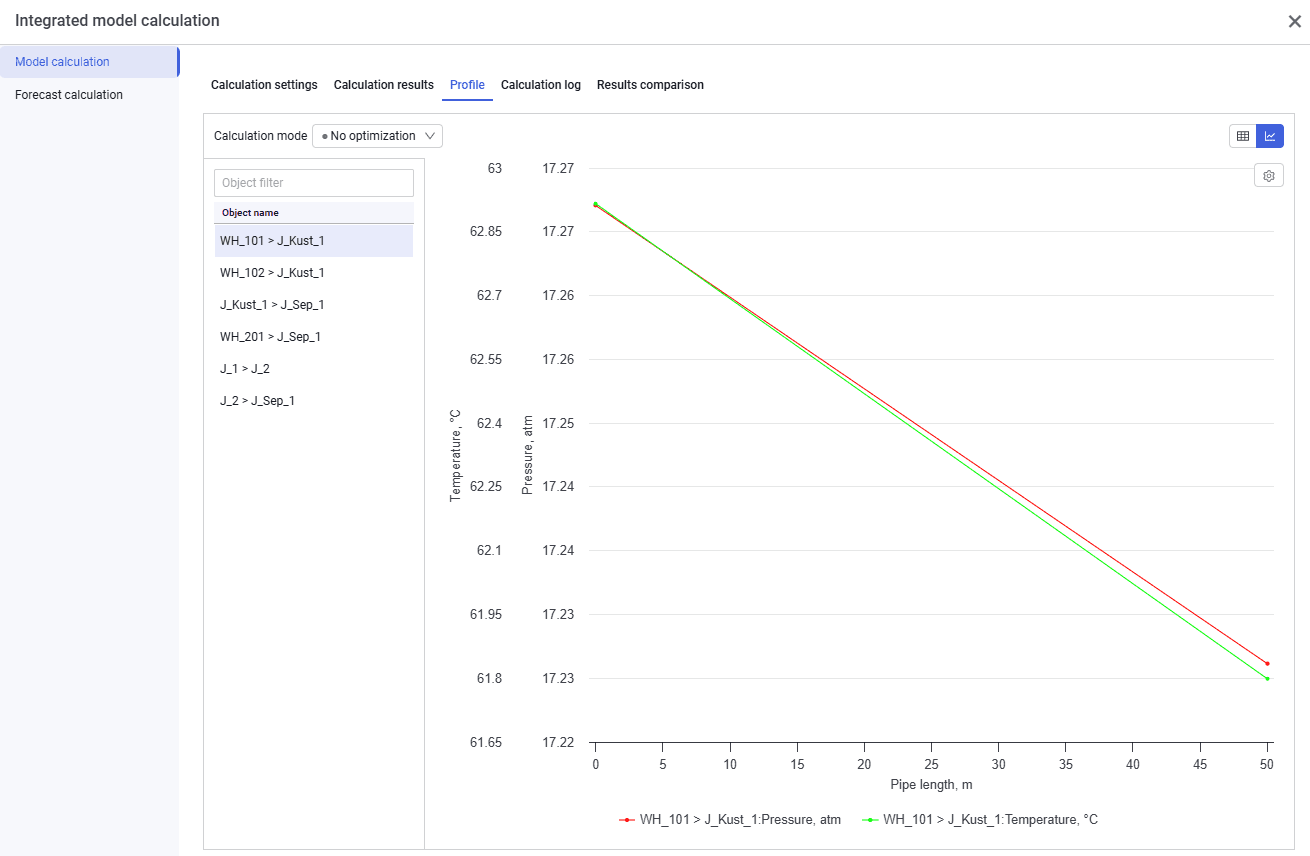
4.On the Profile tab, calculation results are displayed by pipeline sections in tabular and graphical form.
 Select image to enlarge
 Select image to enlarge
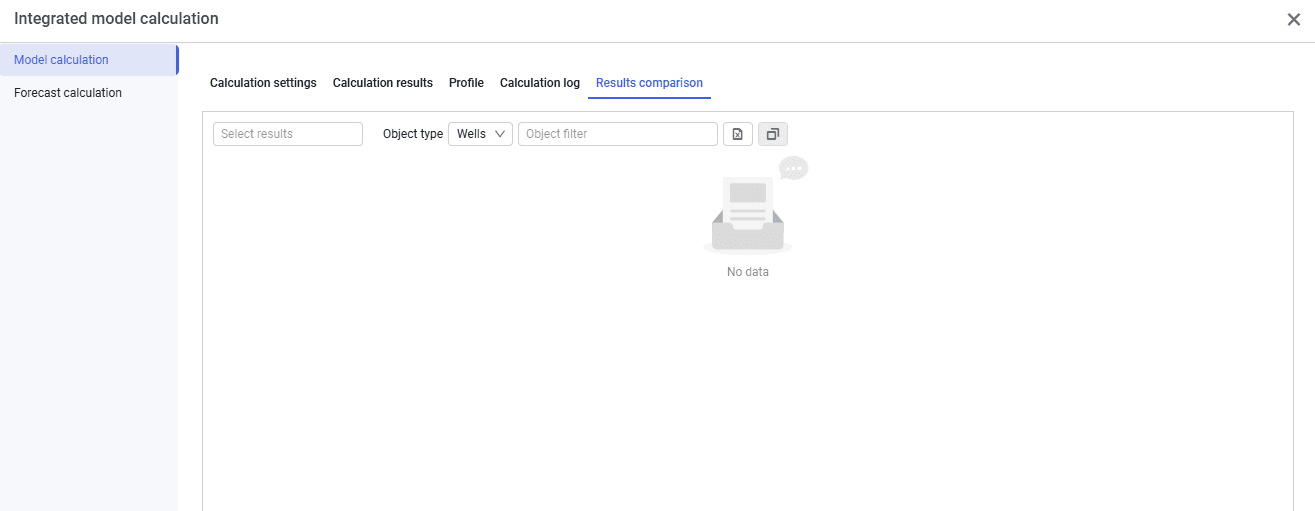
5.On the Results comparison tab, several calculation cases are compared.
 Select image to enlarge
To save a calculation case, on the Calculation results tab click the icon  , enter a result description (for example, Calculation 1 and Calculation 2), and click OK.
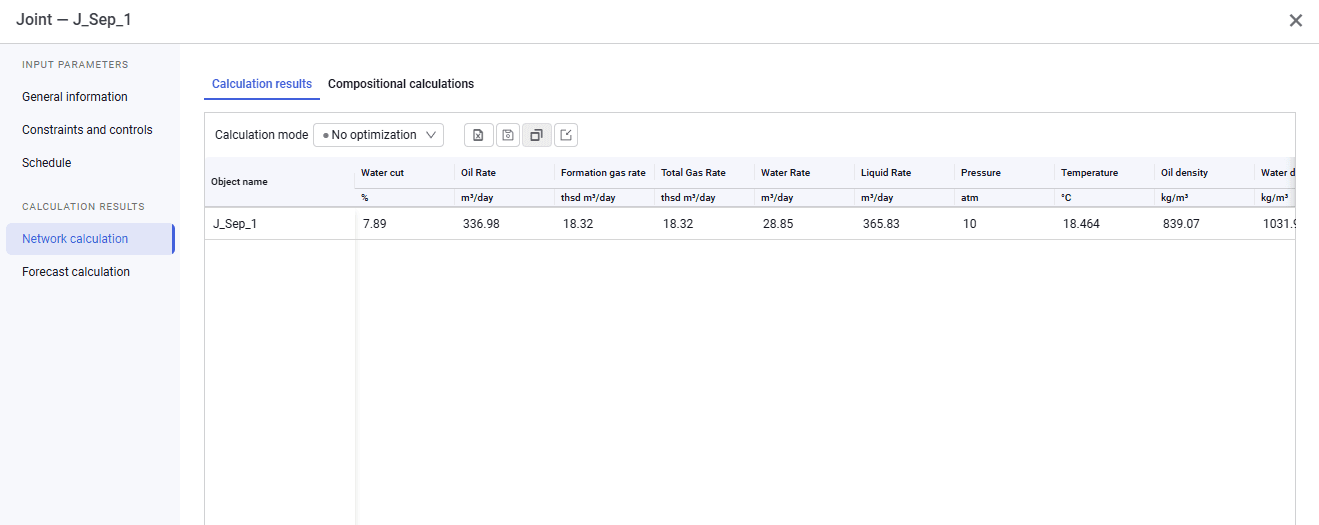
You can also view calculation results in each object separately:
- To do this, select the object in the object navigator or double-click the object icon on the schematic.
- In the window that opens, go to the Network calculation tab.
 Select image to enlarge
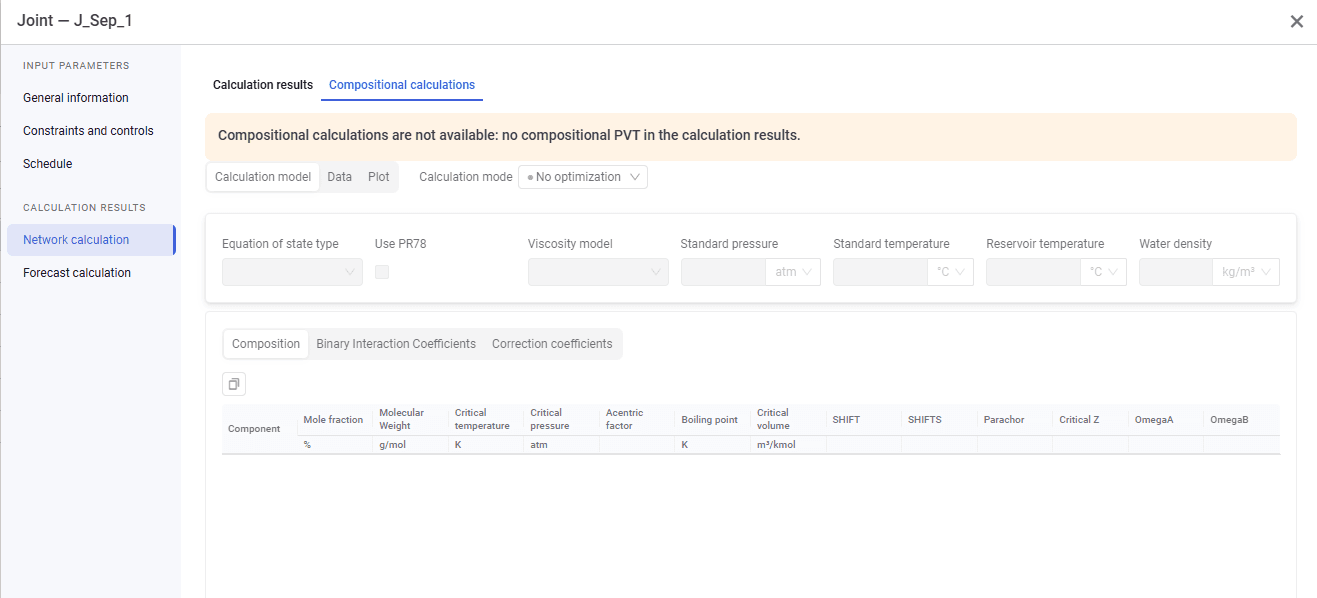
- When calculating in Tracking mode, the Compositional calculations tab with PVT calculators becomes available on the Network calculation tab.
- On the Compositional calculations tab (when a compositional PVT model is linked), you can plot a phase diagram, hydrate and wax formation curves, assess the position of the operating point relative to the plotted curves, and run a Phase equilibrium (Flash) calculation.
 Select image to enlarge