
Running Forecast Calculation
1.In the action menu  select Calculation steps. Then click the
  button
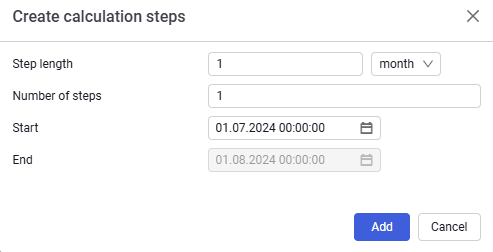
2.In the Calculation steps window that opens, fill in the parameters:
- Step length;
- Number of steps.
3.After the parameters are entered, the calculation end date is calculated automatically.
4.Click Add.
 Select image to enlarge
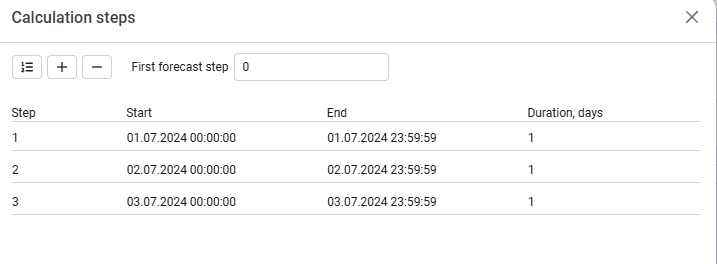
5.The new steps will be added automatically to the calculation steps. You must also specify the first forecast step. Otherwise, calculated values will not appear in the results.
 Select image to enlarge
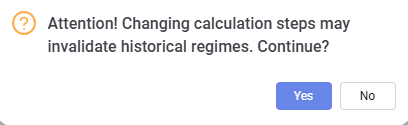
6.Save the steps using the Save button and confirm adding the forecast steps.
 Select image to enlarge
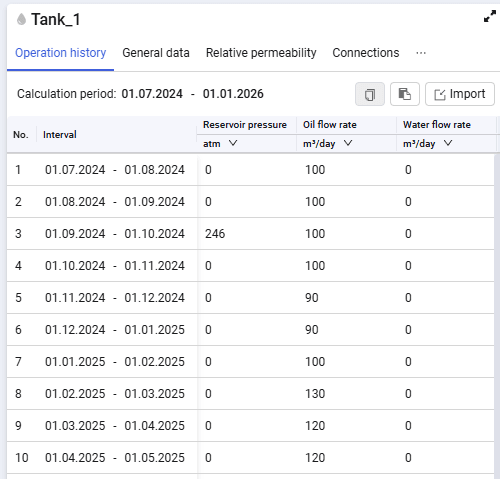
7.New rows will automatically appear on the Operation history tab with empty values.
 Select image to enlarge
8.The model is run using the Calculate model button
9.While the calculation is running, a preloader is shown on the calculation button and the button is unavailable for starting the calculation again.
10.After the calculation completes, the calculation button becomes active again and new calculated values for the forecast period appear in the Indicators table.