
Area 1. Fluid model input data
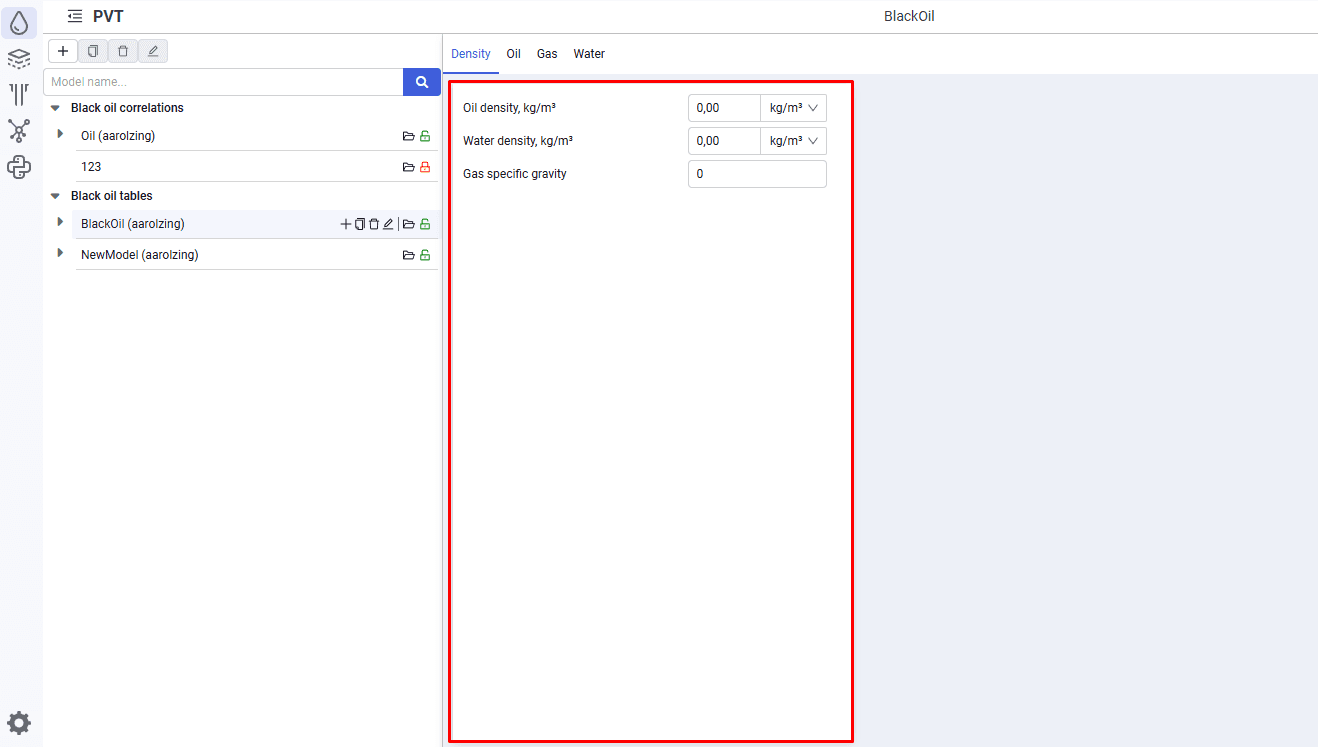
When the "Density" tab is open, the left area shows fields for entering fluid properties (oil, water, and gas densities).
 Select image to enlarge
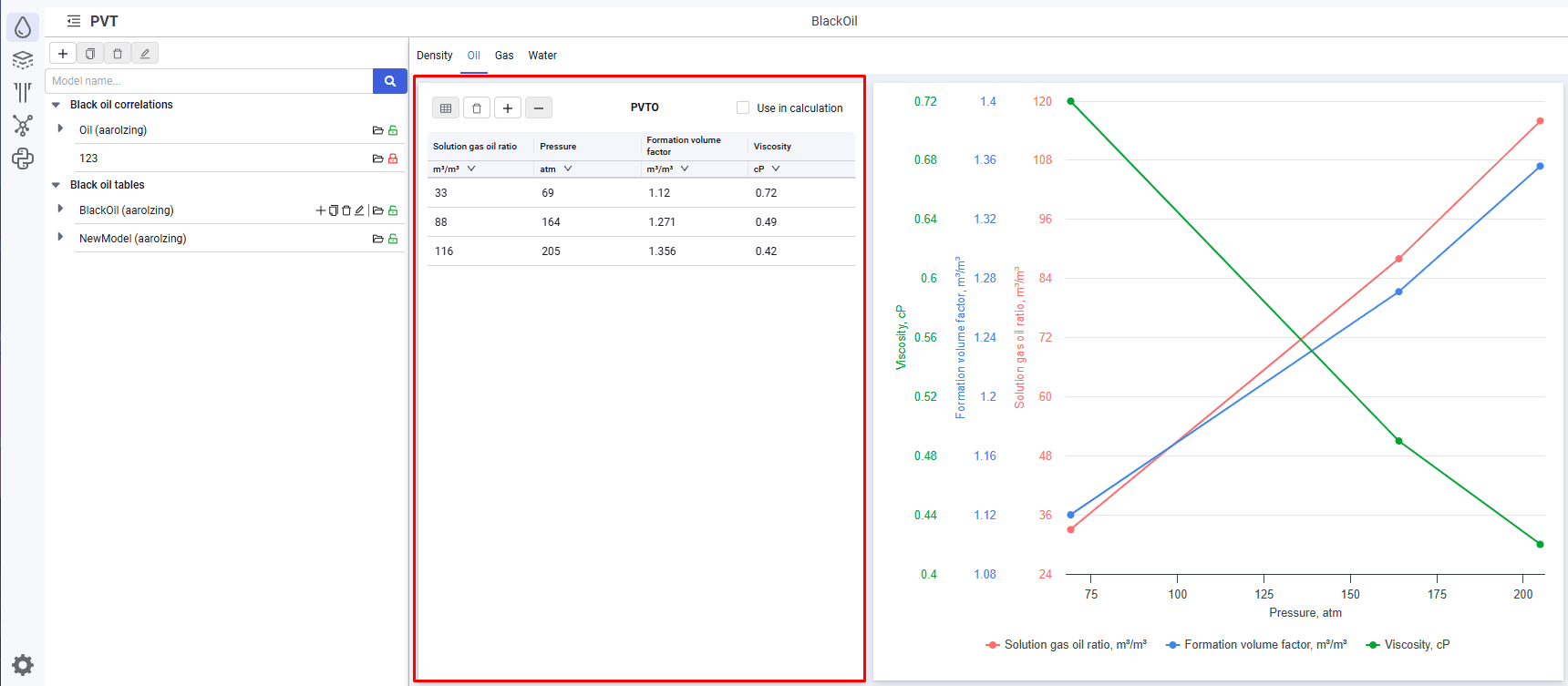
When the "Oil" tab is open, the left area shows a table of oil properties versus pressure.
 Select image to enlarge
The following buttons are available above the table:
 – create table. The button is active when there is no table;
 – delete table. The button is active when a table exists;
 – add row. When you click the button, an empty row appears in the table, where you can enter or paste values;
 – delete selected rows. The button is active when rows are selected in the table. When you click the button, the selected rows are deleted from the table;
- "Use in calculation" check box.
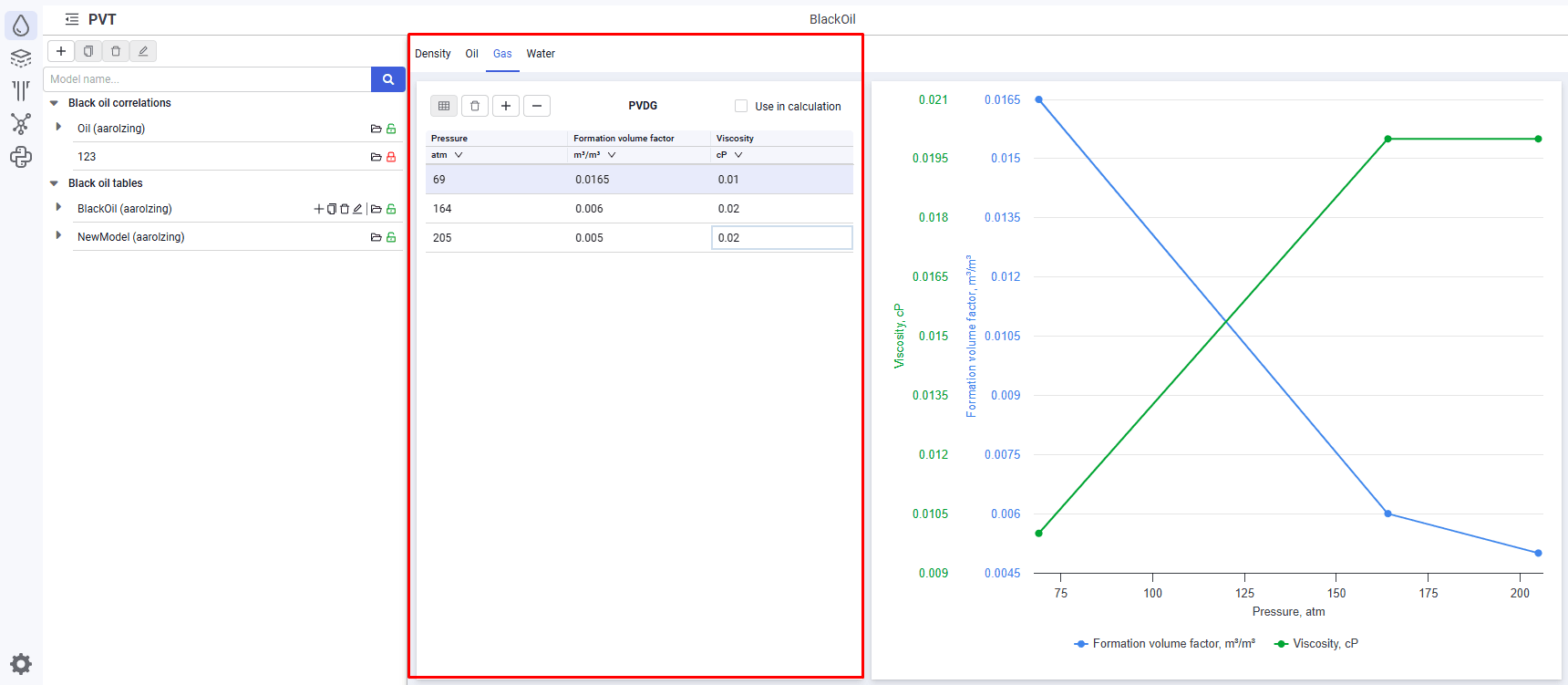
When the "Gas" tab is open, the left area shows a table of gas properties versus pressure.
 Select image to enlarge
The following buttons are available above the table:
- – create table. The button is active when there is no table;
- – delete table. The button is active when a table exists;
- – add row. When you click the button, an empty row appears in the table, where you can enter or paste values;
- – delete selected rows. The button is active when rows are selected in the table. When you click the button, the selected rows are deleted from the table;
- "Use in calculation" check box.
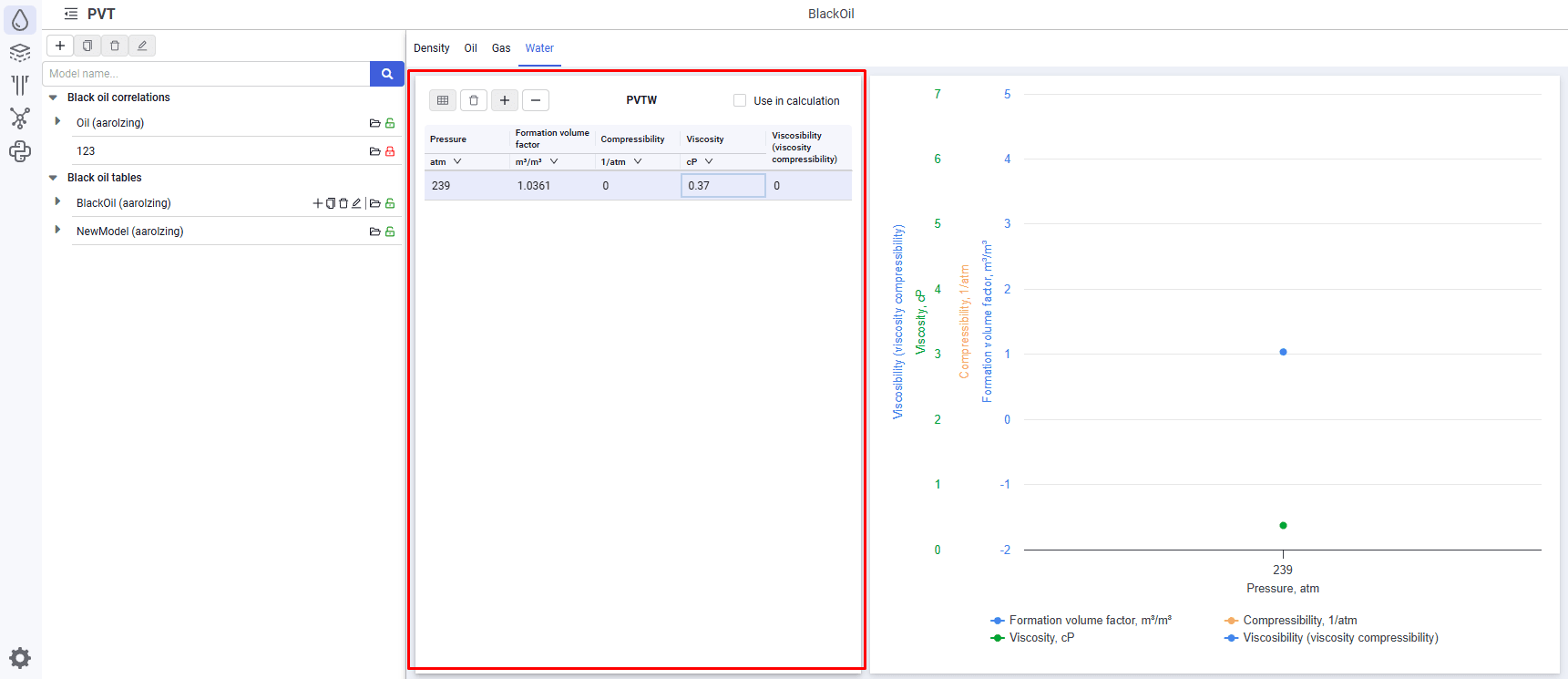
When the "Water" tab is open, the left area shows a table of water properties versus pressure.
 Select image to enlarge
The following buttons are available above the table:
- – create table. The button is active when there is no table;
- – delete table. The button is active when a table exists;
- – add row. When you click the button, an empty row appears in the table, where you can enter or paste values;
- – delete selected rows. The button is active when rows are selected in the table. When you click the button, the selected rows are deleted from the table;
- "Use in calculation" check box.