
Creating a script
To add a script, do the following:
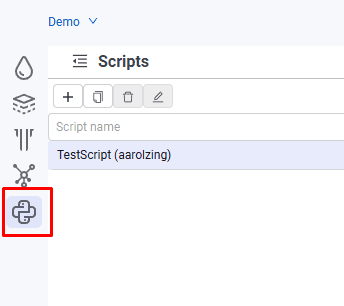
- In the navigator, select the «Scripts» tab;
 Select image to enlarge
- In the object tree, click
 ;
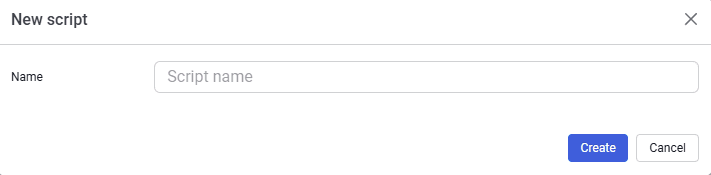
; - In the dialog that opens, enter the script name;
 Select image to enlarge
- After filling in the name, click Create;
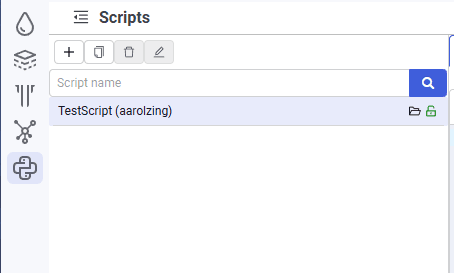
The new script appears in the script tree.
 Select image to enlarge
- Load the selected script with
 ;
;
By default the script is locked for editing. The script status is shown in the row with the script name. To unlock the script, click  . The script becomes available for editing, its status changes to
  , and the row with the script name shows the login of the user who is editing the script.