
Entering a schedule for objects
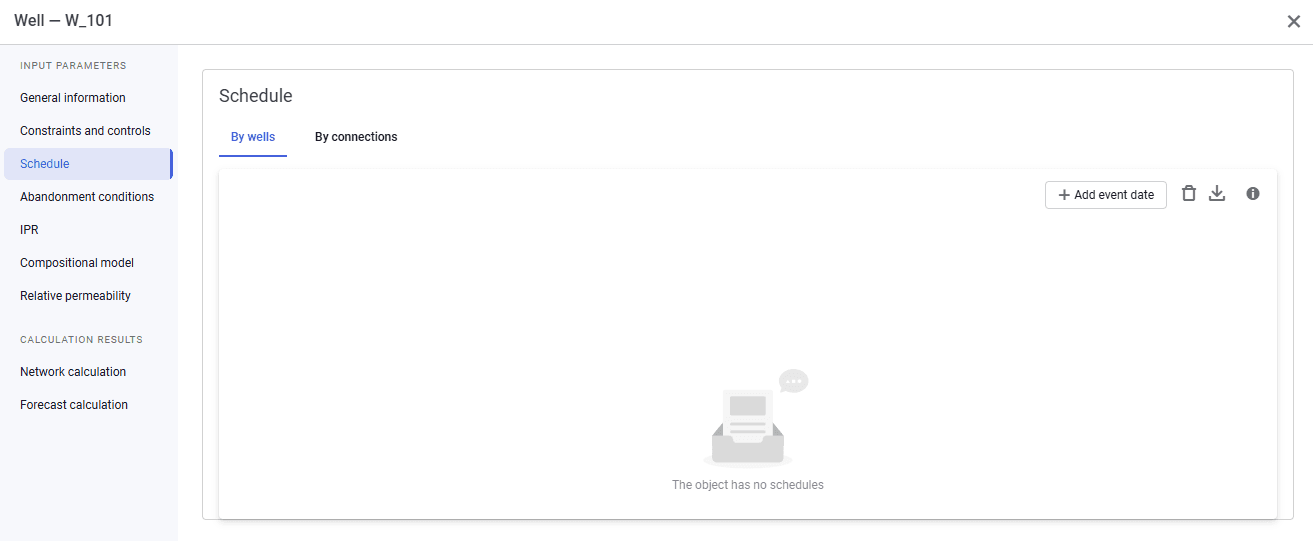
To enter a schedule for an object, double-click the object and go to the "Schedule" tab. By default the tab looks as follows.
 Select image to enlarge
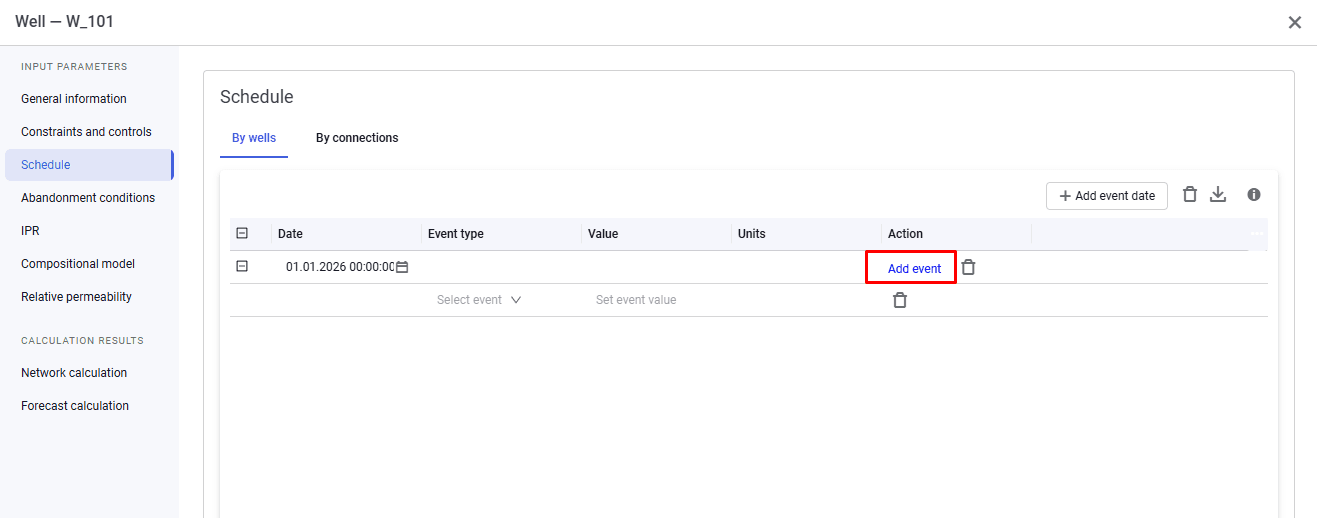
1.When you click "Add event date", a new row with date and time appears in the table (the forecast start date if a forecast period is set).
2.To change the date, click the  icon and, in the window that appears, select the date and time of the activity.
3.Then select the activity type and enter/select a value. If several activities need to be specified on the same date, click "Add event".
 Select image to enlarge
4.After activities are added for the object, a clock icon appears above it in the graphical interface.
 Select image to enlarge
For the "Choke" object there are specialized values for the "Choke mode" activity type — "Calculated diameter", "Calculated pressure drop". These options are intended to freeze the last calculated value (diameter or pressure drop) obtained on previous calculation steps.