
Working with an Excel file
The following standalone function exports and saves data to an Excel file. You can adapt this function to specific tasks. It demonstrates how to use Python and the openpyxl library built into OisIpmUtils to work with Excel files.
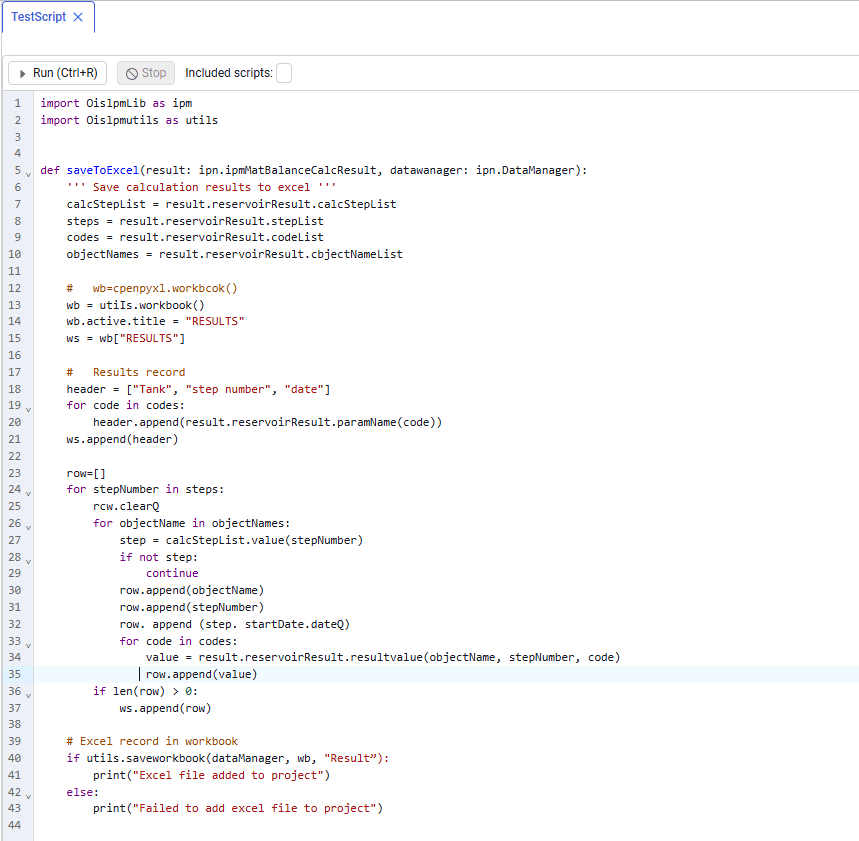 Select image to enlarge
First, import the OisIpmUtils library:
import OisIpmUtils as utils
Extracting data from calculation results
The following items are extracted from the result object that contains material-balance model calculation results: calcStepList; stepList; codeList; objectNameList.
Creating an Excel workbook and configuring the sheet
wb = utils.Workbook() — create a new Excel workbook.
wb.active.title = "RESULTS" — rename the active sheet to "RESULTS".
ws = wb["RESULTS"] — get access to the "RESULTS" sheet for further work.
Filling Excel
1. Building headers
The header list starts with the base headers: "Tank", "Step number", "Date".
For each parameter code from codes, the corresponding parameter name is added to the header:
header.append(result.reservoirResult.paramName(code))
ws.append(header) — write the headers to the first row of the Excel sheet
2. Filling with data
The loop over steps processes each calculation step.
In the inner loop over objectNames (object names), parameter values for each object and step are extracted and added to the row.
For each parameter code from codes, the value is added using result.reservoirResult.resultValue(objectName, stepNumber, code).
After the row is filled, ws.append(row) adds the data to the Excel sheet.
Saving the Excel file to the store
1. Preparing the file for saving
saveToExcel(result, dataManager) — function that saves calculation results to Excel.
2. Writing the file to the project
saveWorkbook(dataManager, wb, "Result") — save the Excel file in the project under the name "Result".
Depending on the result, a success or error message is displayed.
| Note This part of the script shows how calculation results can be written automatically to an Excel file and saved in the project using the ServerIMA API. This greatly simplifies analysis and presentation of model results. |
Working with data from an Excel file
In the script, working with data extracted from an Excel file is essential when creating any model.
Example of accessing an Excel file from different functions:
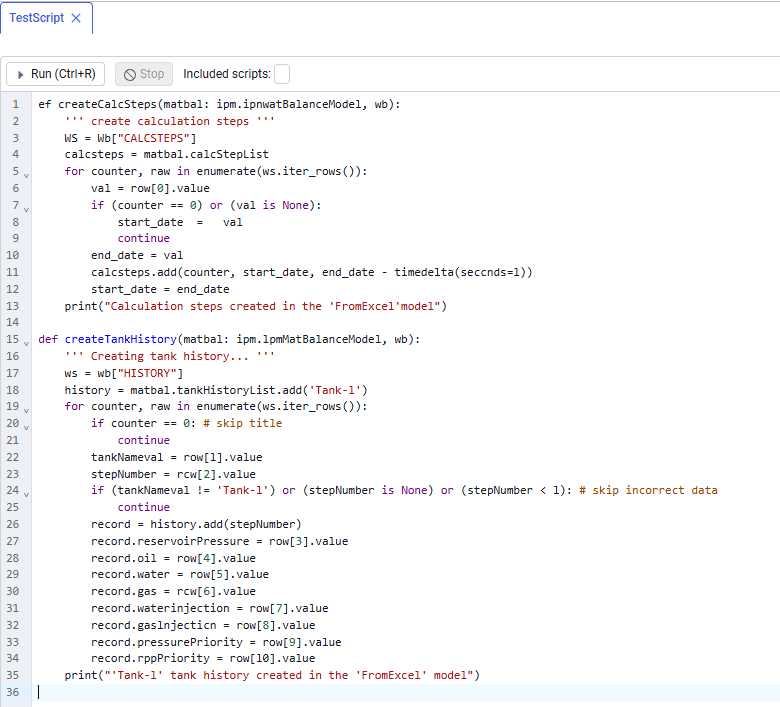 Select image to enlarge
Before running the script, make sure that the Excel file is successfully loaded into the project in the ServerIMA data management system. The file name in the project must exactly match the name used when the file is read in the script (in this case, "History"). This ensures that data is extracted correctly for further work.
Reading data from Excel
Reading an Excel file:
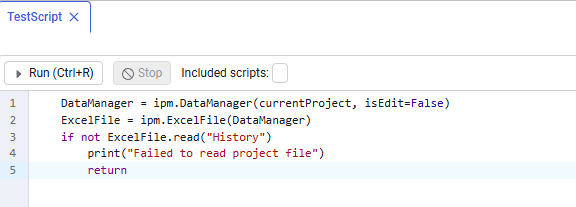 Select image to enlarge
dataManager is used to access the Excel file named "History" inside the project.
After the file is read, its contents are loaded into a Workbook object using load_workbook(excelFile.content). This allows you to work with Excel data directly in memory.
wb = loadWorkbook(dataManager, "History")
Setting calculation steps
Using the "CALCSTEPS" sheet from the loaded Workbook, the script creates calculation steps in the model. For each row (except the header row), the step start and end dates are extracted. These dates define the time intervals of each calculation step.
Filling tank history
Tank operation history is extracted from the "HISTORY" sheet. For each step, the following values are recorded: tank pressure; oil, water, and gas production; water and gas injection volumes.
Creating relative permeability (RPP) and aquifer descriptions
Relative permeability and an aquifer for the tank can also be created and configured from Excel data.