
Relative Permeability
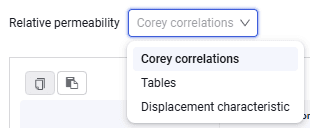
On the Relative permeability tab, you can select the relative permeability input method from the drop-down list.
 Select image to enlarge
Corey correlations, tables, and displacement characteristics are available.
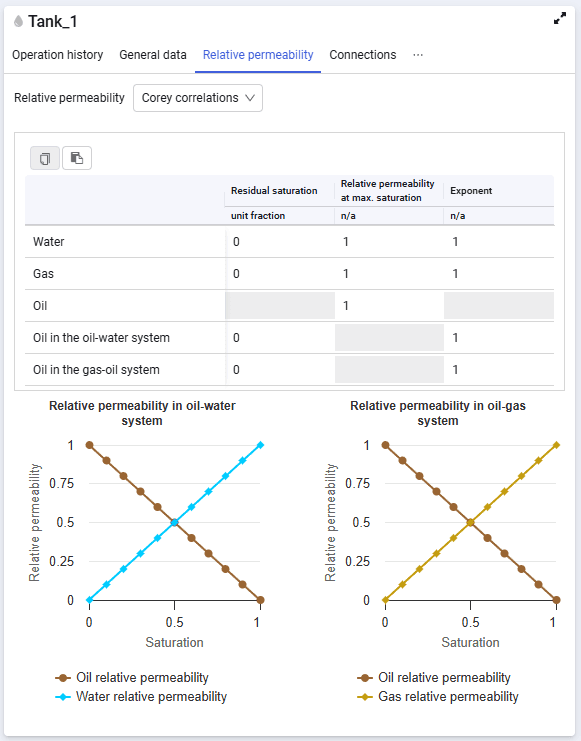
The relative permeability input window with Corey correlations selected looks as follows:
 Select image to enlarge
The following buttons are available above the table:
 – copy to clipboard.
 – paste from clipboard.
Two plots are displayed at the bottom of the window — relative permeability in the oil-water system and relative permeability in the oil-gas system.
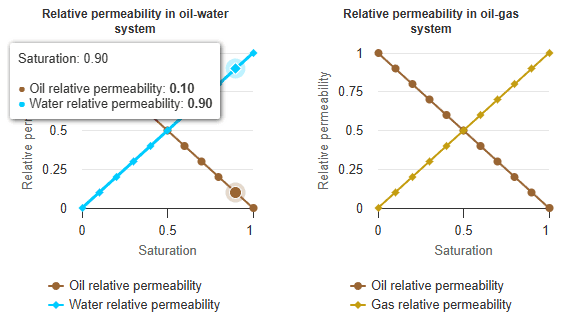
When you hover the cursor over a plot, a tooltip appears with the values at that point.
 Select image to enlarge
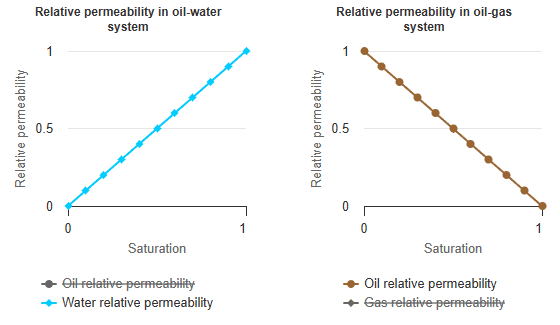
If needed, you can hide unused parameters on the plots by clicking a parameter in the legend.
 Select image to enlarge
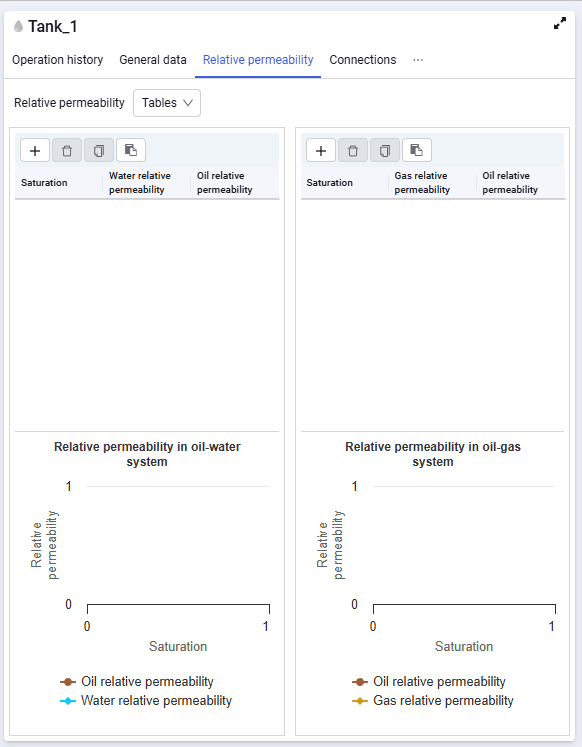
The relative permeability input window with tables selected looks as follows:
 Select image to enlarge
The following buttons are available above each table:
 – add (clicking the button adds one row that you can fill with values);
 – delete (the button is enabled when a row is selected in the table and deletes the selected row);
 – copy to clipboard. This button copies the selected row to the clipboard;
 – paste from clipboard. For a correct paste, select the required cell in the table; the entire copied value range will be pasted starting from the selected cell.
Two plots are also displayed at the bottom of the window — relative permeability in the oil-water system and relative permeability in the oil-gas system.
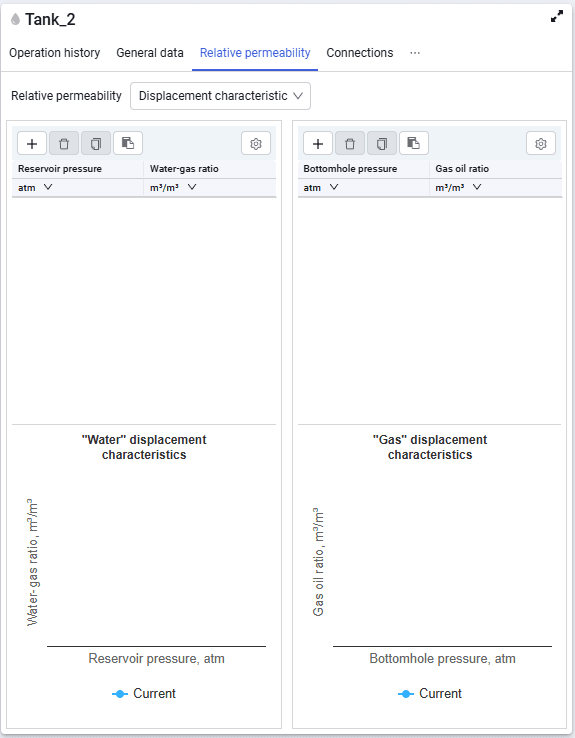
The relative permeability input window with displacement characteristics selected looks as follows:
 Select image to enlarge
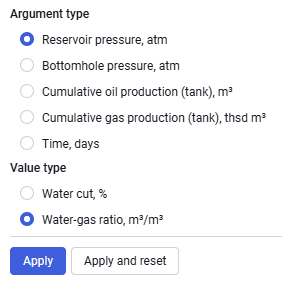
To specify this type of relative permeability, click the gear button above the plots and select the required argument type and value type.
 Select image to enlarge
The following argument types are available:
- Reservoir pressure;
- Bottomhole pressure;
- Cumulative oil production (tank);
- Cumulative gas production (tank);
- Time, days.
Value types for the "Water" displacement characteristic:
- Water cut;
- Water-gas ratio.
Value types for the "Gas" displacement characteristic:
- Gas oil ratio;
- Condensate-gas ratio.
 Select image to enlarge
To generate relative permeability, fill in the table of selected values versus arguments.