
Model Storage
Model Storage contains a list of projects in the system. A project means any set of component models, for example a test fluid model or a design well for any field, as well as complete integrated models for one field or a group of fields.
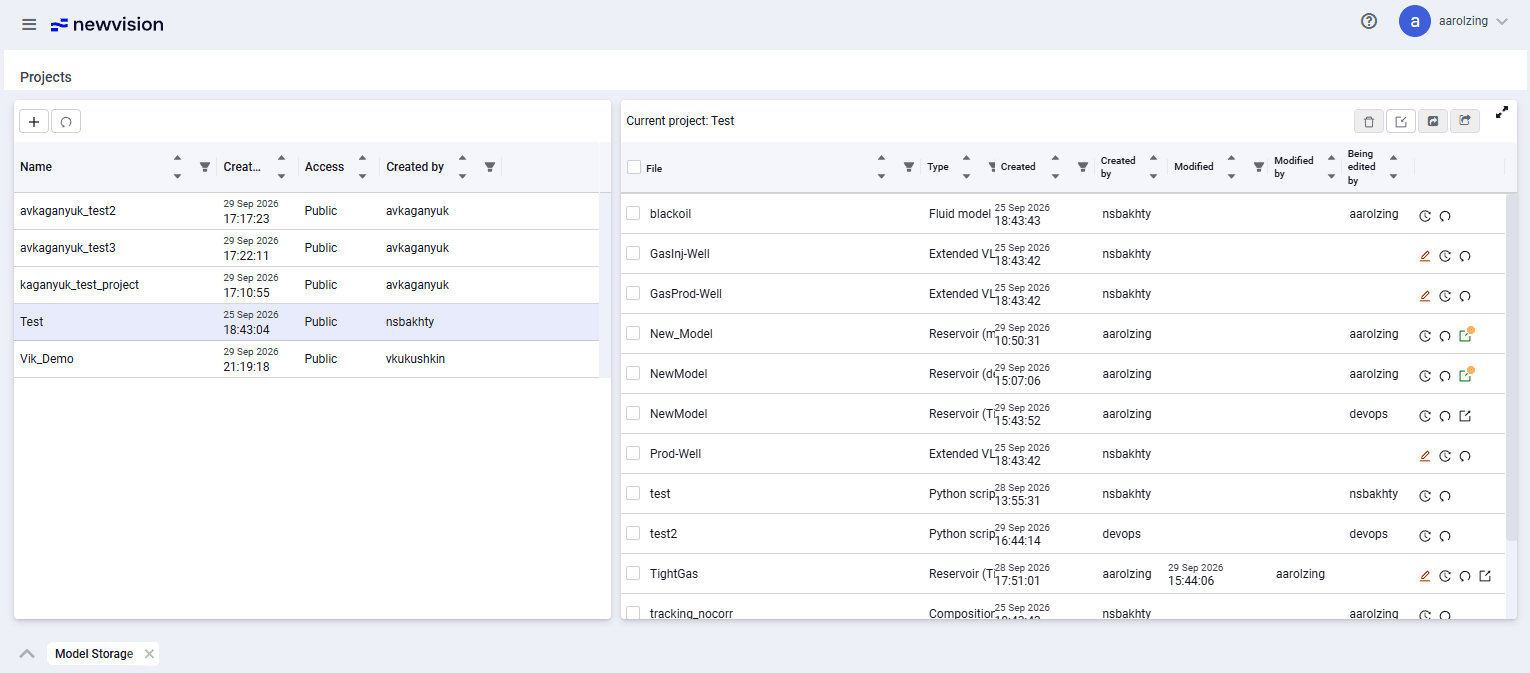 Select image to enlarge
Project management buttons are displayed in the upper-left part of the form:
 – create project;
 – refresh project list.
Adding a project is described in more detail in the Adding a project section.
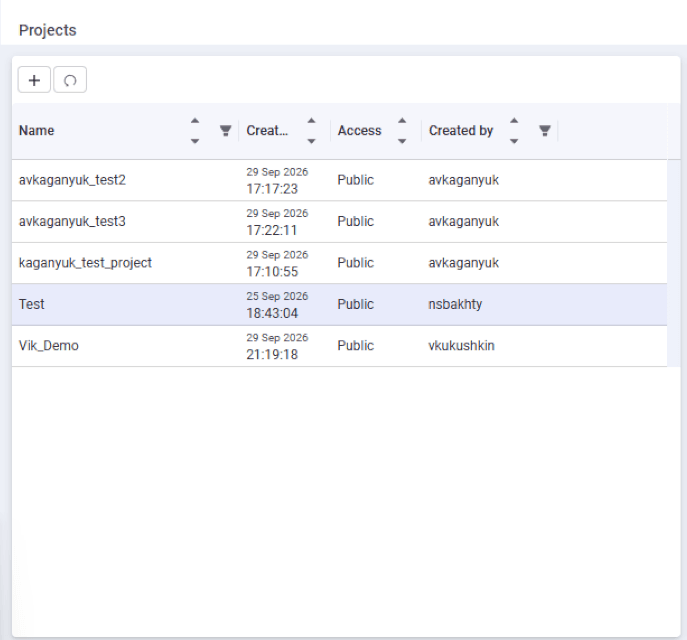
The left part of the screen contains the list of projects and basic information about them:
- Name. The project name specified by the user when creating it. Sorting in descending and ascending order and a filter are available;
- Created. The creation date is set automatically when the project is saved. Sorting in descending and ascending order is available;
- Access. A project can be public — any user can make changes and run calculations — or private, when the project is available only to the user who created it. Sorting in descending and ascending order is available;
- Created by. Displays the name of the user who created the project. It is set automatically when the project is saved. Sorting in descending and ascending order and a filter are available;
- deletion availability mark (
 ). Only your own private projects can be deleted;
 - access type change mark (
 ). Changing access to "Public" is available only for your own private projects;
 - project rename mark (
 ). You can rename your own public and private projects.
 Select image to enlarge
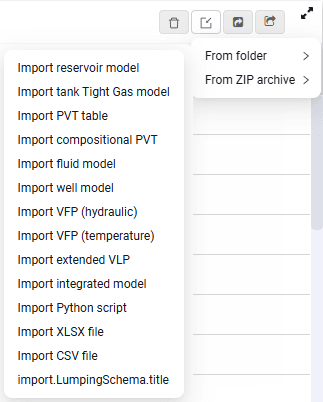
Model management buttons are displayed in the upper-right part of the screen; to show these buttons, select the required project:
 – delete selected files;
  – add files to the project;
  – export models from the project.
Clicking the add files button opens a window where you can choose to import models of the required type.
 Select image to enlarge
Importing model files is described in more detail in the Adding model files to a project section.
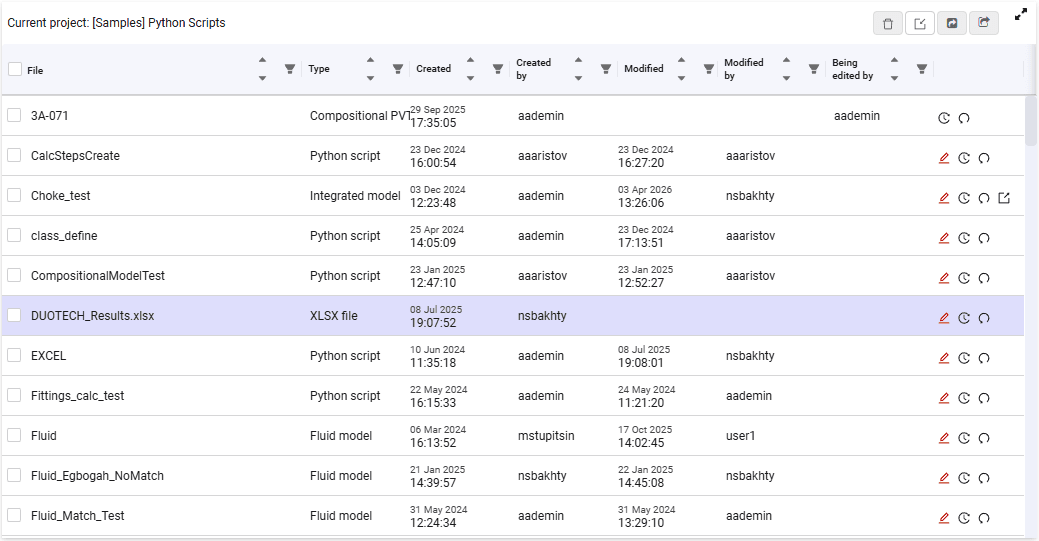
The right part of the screen displays all model files in the selected project and basic data for the model files:
- checkbox for selecting models;
- file. File name. Sorting in descending and ascending order and a filter are available;
- type. Model type (for example, fluid model, well model, and so on);
- created. Set automatically when the model is saved. Sorting in descending and ascending order is available;
- created by. Displays the name of the user who created the model. Set automatically when the project is saved;
- modified. Changes automatically after any adjustment of models in the project. Sorting in descending and ascending order is available;
- modified by. Displays the name of the user who last edited and saved the model. Sorting in descending and ascending order is available;
- being edited by. Displays the name of the user who is currently editing the model. Sorting in descending and ascending order is available;
- rename (
 ). For editing file names. You can rename a model only if the model is not currently being edited;
 - change log (
 ). Clicking this button opens a window with a table: the first column shows the dates of all model changes, and the second column shows the name of the user who changed the model on the corresponding date;
 - backups (
 ). Clicking this button opens a window with a list of backups labeled by date and time. In the window, you can select a specific date and restore the model to that state.
 Select image to enlarge