
Well model matching
To match the well model to actual data, go to the "Well model matching" tab.
The "Actual data" window is a table that contains one or more measurements against which the model can be matched.
For each measurement, fill in:
- included in calculations flag;
- measurement date;
- comment;
- casing pressure;
- tubing head pressure;
- tubing head temperature;
- water cut;
- liquid flow rate;
- measurement depth;
- pressure at measurement depth;
- temperature at measurement depth;
- reservoir pressure;
- gas oil ratio;
- free GOR.
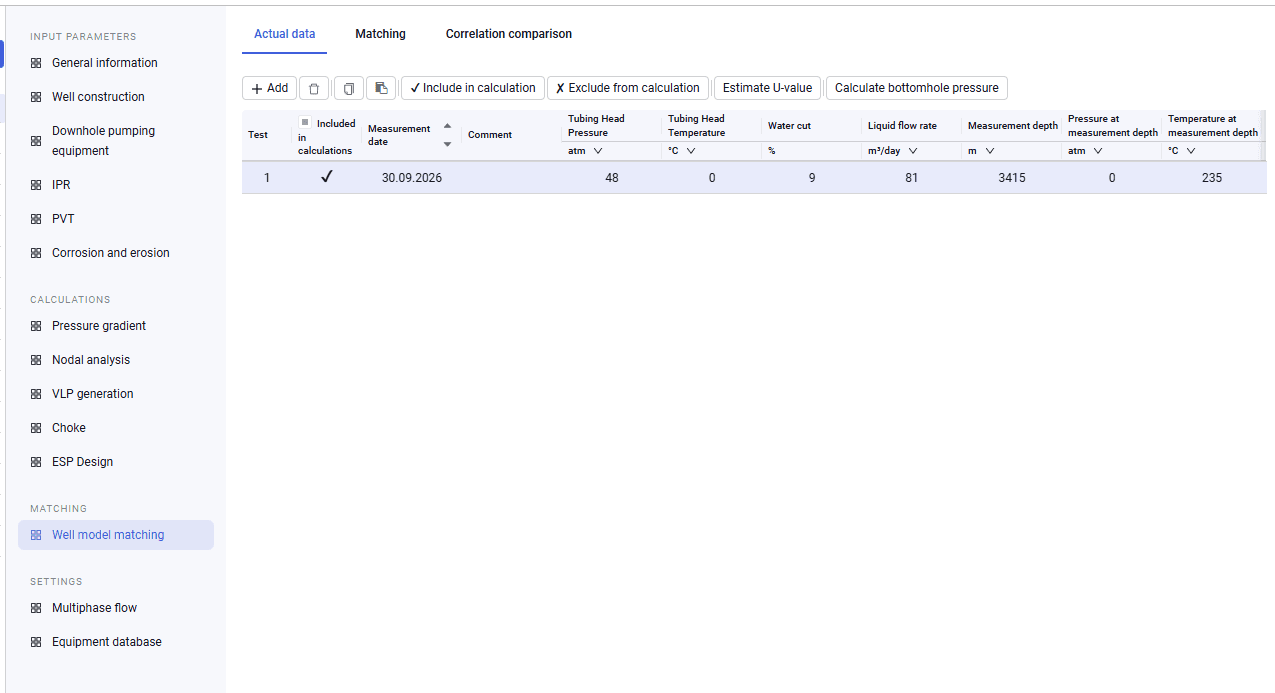 Select image to enlarge
Below the table there is a slider that you can use to move left and right across the table.
Above the table on this tab is the "Estimate U-Value" button, which matches the heat transfer coefficient to actual data. Clicking it opens a window.
This window shows tests, current heat transfer coefficient values, and the matched values. In this window you can save the obtained value immediately.
To match the well model, do the following:
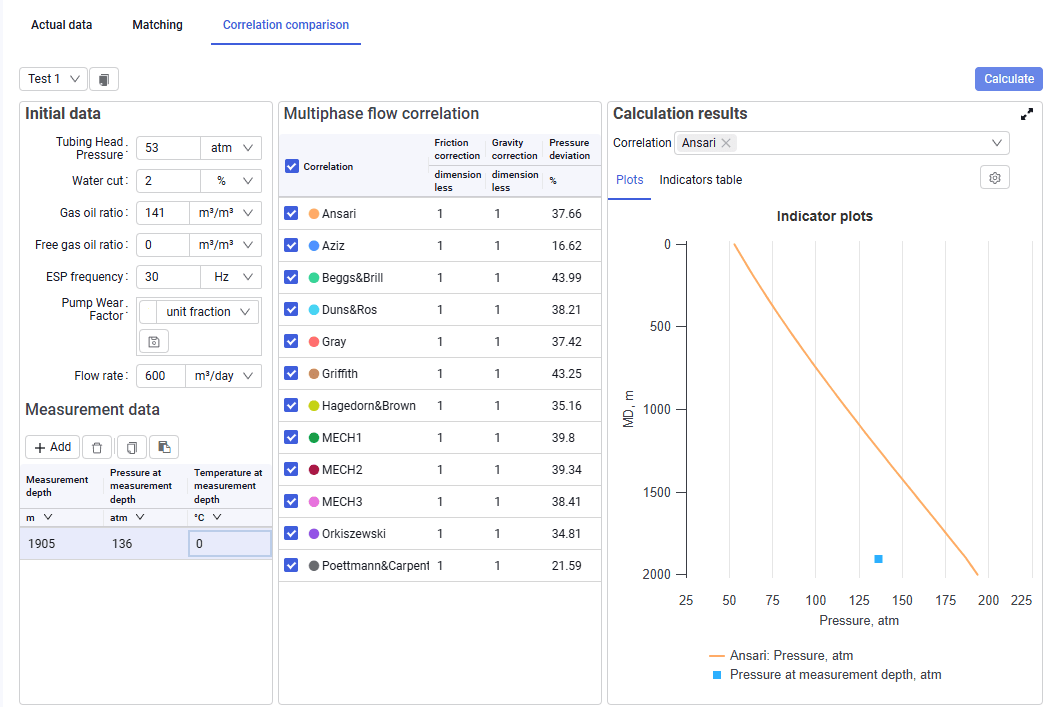
1.To match the well model, select a measurement and go to the "Correlation comparison" tab.
2.Source data for the test is filled in automatically after you select the test and click "Load test data".
3.If available, you can enter additional pressure measurements in the "Measurement data" table.
4.In the "Multiphase flow correlation" table you can select the correlations to compare and change their friction and hydrostatic correction factors.
5.After selecting correlations and filling in all required data, click "Calculate" to start the correlation comparison.
 Select image to enlarge
6.After the calculation completes, the "Calculation results" tab appears. Open it to view the calculation results and evaluate how well the correlations reproduce the actual measurement.
7.The right side of the screen also shows a pressure-versus-depth plot. To view several correlations at the same time, select them in the drop-down list above the plot.
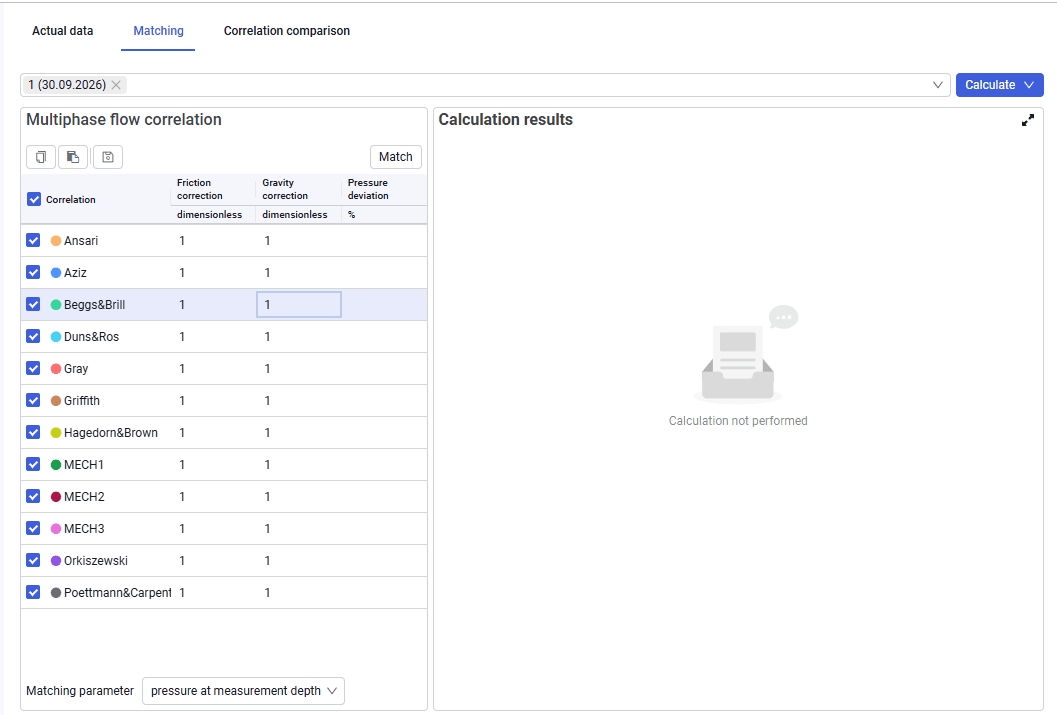
8.Automatic matching is available. To use it, go to the "Matching" tab.
 Select image to enlarge
In the upper part of the tab (in the drop-down list) you can select the tests that will be used for automatic matching of correlation correction factors. You can select one or several tests.
In the "Multiphase flow correlation" table, use the check boxes to mark the correlations for which correction factors must be matched.
Automatic matching of multiphase flow correlation correction factors is started with the "Match" button above the "Multiphase flow correlation" table. After you click this button, the system matches the friction and gravity corrections within the bounds defined in "Project Settings" and also calculates the deviation from the actual pressure value.
Calculation results appear on the right side of the screen: as a cross-plot on the "Plots" tab and in table form on the "Indicators table" tab.
To save the matched coefficients, click "Save to well general data"  above the "Multiphase flow correlation" table.