
Area 1. Fluid Model Input Data
When the "Fluid" tab is open, the left area shows fields for entering fluid properties and selecting correlations for calculating fluid parameters.
The data can change depending on the modeled fluid. For a fluid of the "Oil" type, the following data are available:
- oil density;
- gas gravity relative to air;
- water density;
- solution gas oil ratio;
- hydrogen sulfide, carbon dioxide, and nitrogen content.
For a fluid of the "Oil" type, the following correlations are available for calculating bubble point pressure, solution gas-oil ratio, and formation volume factor:
- Standing;
- Lasater;
- Vasquez & Beggs;
- Glaso;
- DeGhetto;
- Petrosky;
- AlMarhoun.
For a fluid of the "Oil" type, the following correlations are available for calculating oil viscosity:
- Beggs & Robinson;
- DeGhetto;
- Petrosky;
- Bergman;
- Egbogah;
- Beal.
For a fluid of the "Gas" type, the following data are available:
- condensate density;
- gas gravity relative to air;
- water density;
- condensate-gas ratio;
- hydrogen sulfide, carbon dioxide, and nitrogen content.
For a fluid of the "Gas" type, the following correlations are available for calculating the gas Z-factor:
- Standing;
- Dranchuck;
- Papay.
For a fluid of the "Gas" type, the following correlations are available for calculating gas viscosity:
- Lee;
- Carr.
This tab also has the "Use tables" check box for both fluid types. When it is selected, the fluid calculation is performed not using correlations, but using tabular relationships specified by the user on the "PVT Tables" tab.
When the "Fluid" tab is selected, plot settings are available in the input data area for both fluid types: you can select the temperature for which the plot will be built in the calculation results area, and the parameters whose dependence on pressure will be plotted.
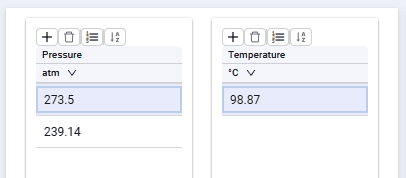
When the "Fluid calculation" tab is open, the left area shows fields for entering pressures and temperatures for which fluid properties will be calculated based on correlations or tables.
 Select image to enlarge
The following buttons are available above each of the tables:
 – add (when you click the button, one row is added that you can fill with a value);
 – delete (the button is active when a row is selected in the table; it lets you delete the selected row);
 – generate (when you click this button, a window opens where you enter the number of steps, the minimum and maximum values, and click "Generate", after which the generated values are displayed in the table;
 – sort (when you click this button, the values in the table are sorted in ascending order).
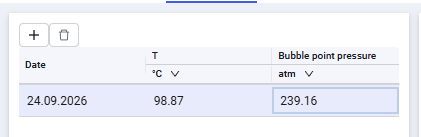
When the "PVT matching" tab is open, the left area shows fields for entering laboratory tests used to match the fluid model.
 Select image to enlarge
The following buttons are available above the table:
- – add (when you click the button, one row is added that you can fill with the required values);
- – delete (the button is active when a row is selected in the table; it lets you delete the selected row).
For a fluid model of the "Oil" type, enter:
- test date;
- temperature;
- bubble point pressure;
- pressure (series of values for given temperature and bubble point pressure);
- dissolved gas (series of values for given temperature and bubble point pressure);
- oil formation volume factor (series of values for given temperature and bubble point pressure);
- oil viscosity (series of values for given temperature and bubble point pressure).
For a fluid model of the "Gas" type, enter:
- test date;
- temperature;
- pressure (series of values for a given temperature);
- Z-factor (series of values for a given temperature);
- gas formation volume factor (series of values for a given temperature);
- gas viscosity (series of values for a given temperature).
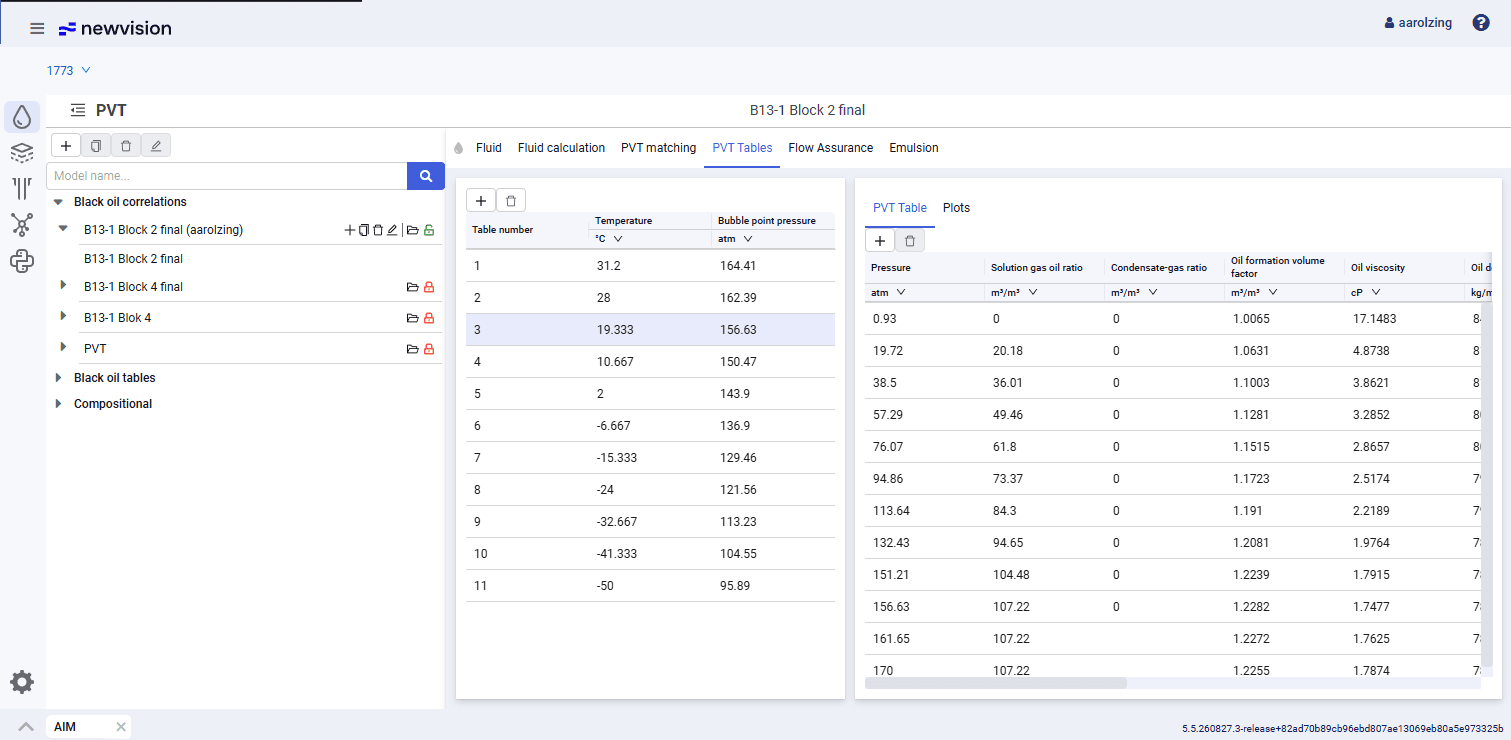
When the "PVT Tables" tab is open, the left area shows fields for entering tables used to calculate the fluid when the "Use tables" check box is selected on the "Fluid" tab.
 Select image to enlarge
The following buttons are available above the tables:
- – add (when you click the button, one row is added that you can fill with the required values);
- – delete (the button is active when a row is selected in the table; it lets you delete the selected row).
For the fluid model, enter:
- table number;
- temperature;
- bubble point pressure;
- pressure (series of values for given temperature and bubble point pressure);
- solution gas oil ratio (series of values for given temperature and bubble point pressure);
- condensate-gas ratio (series of values for given temperature and bubble point pressure);
- oil formation volume factor (series of values for given temperature and bubble point pressure);
- oil viscosity (series of values for given temperature and bubble point pressure);
- oil density (series of values for given temperature and bubble point pressure);
- oil compressibility (series of values for given temperature and bubble point pressure);
- gas formation volume factor (series of values for given temperature and bubble point pressure);
- gas viscosity (series of values for given temperature and bubble point pressure);
- gas density (series of values for given temperature and bubble point pressure);
- gas Z-factor (series of values for given temperature and bubble point pressure);
- water formation volume factor (series of values for given temperature and bubble point pressure);
- water viscosity (series of values for given temperature and bubble point pressure);
- water density (series of values for given temperature and bubble point pressure).
If not all parameters are entered in the table, the missing parameters are calculated using the correlations selected on the "Fluid" tab.
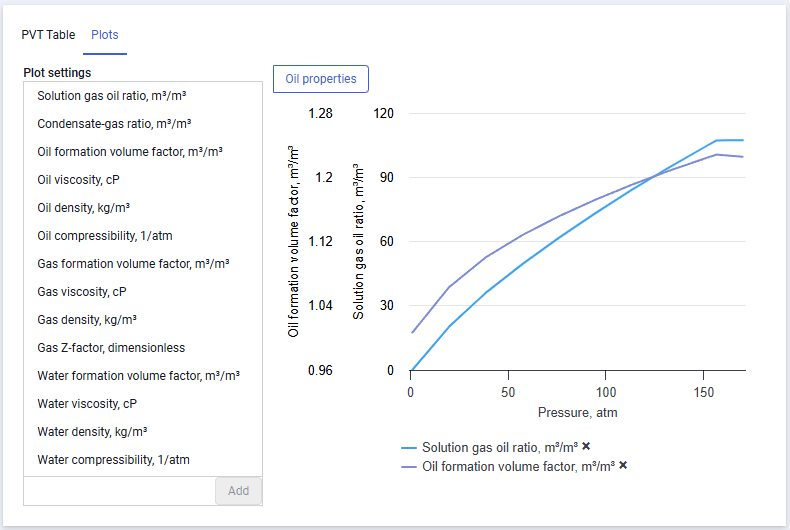
When you switch to the "Plots" tab, you can view plots for the entered values.
 Select image to enlarge
In the left area, you can select the parameters that will be displayed on the plot.
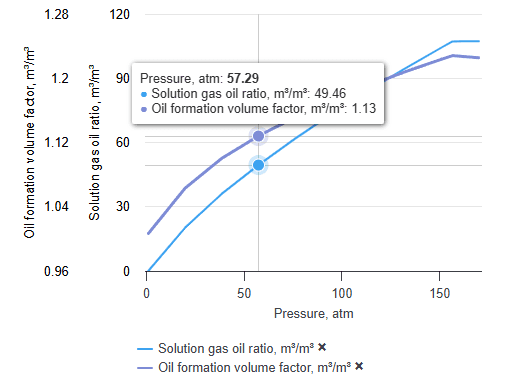
When you hover over the plot, a pop-up window with values is displayed.
 Select image to enlarge
When you click a parameter in the legend below the plot, the curve of that parameter versus pressure is hidden.
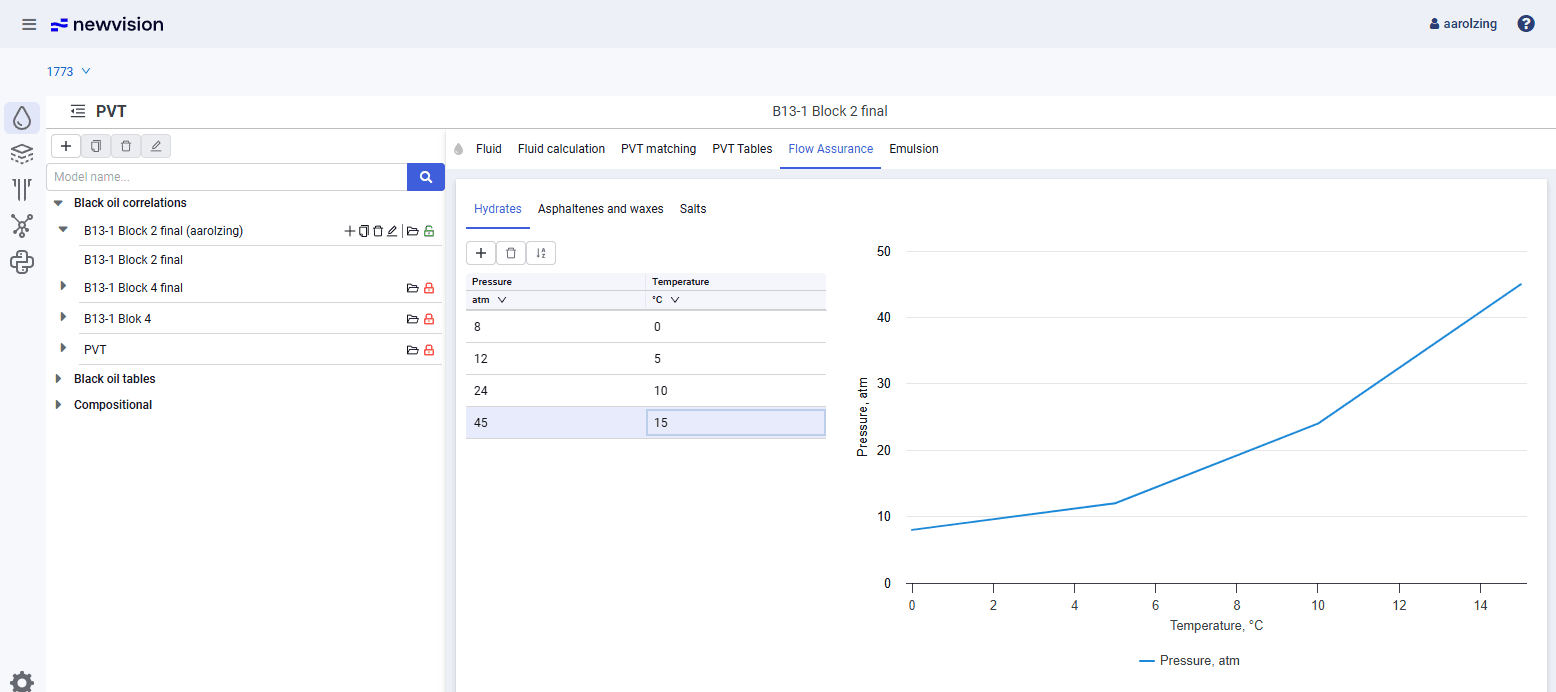
When the "Flow Assurance" tab is open, the left area shows fields for entering tables to build hydrate, ARPD, and salt formation curves.
Flow assurance items work as warnings (displaying the presence or absence of a formation risk) when calculations are run in the "Pressure gradient" section of the well to which this PVT model is connected (nv.AIM WELL module).
 Select image to enlarge
The following buttons are available above each of the tables:
- – add (when you click the button, one row is added that you can fill with values);
- – delete (the button is active when a row is selected in the table; it lets you delete the selected row);
- – sort (when you click the button, the values in the table are sorted in ascending order).
After you enter values, hydrate, ARPD, and salt formation curves are built in the right area.
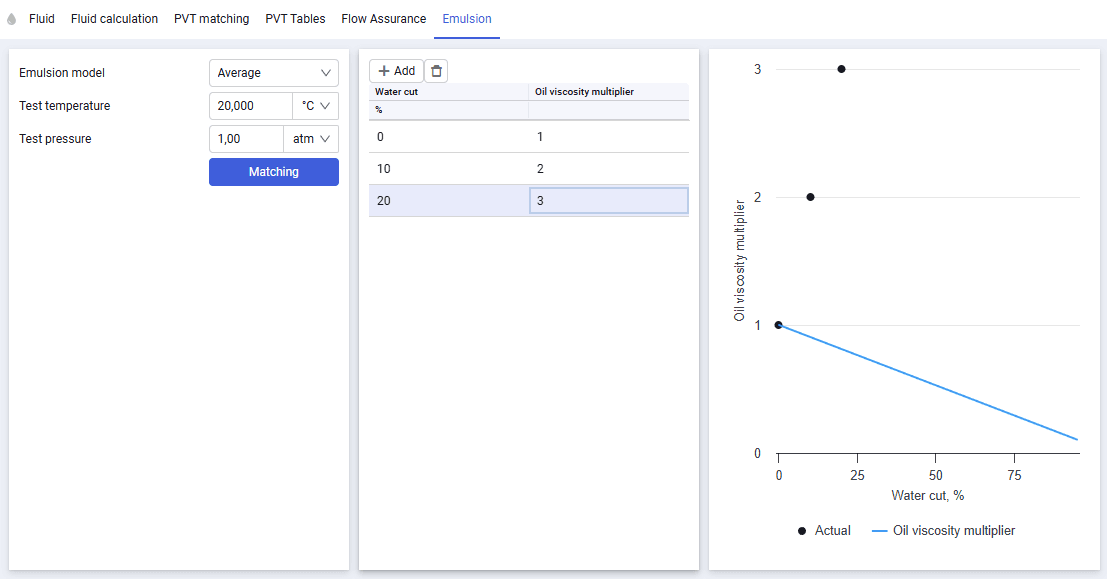
When the "Emulsion" tab is open, the left area shows fields for selecting the emulsion model (Brinkman, Vand, Woelflin, Average, Three Stage, OIS are available), entering test temperature and pressure, and a table of the oil viscosity multiplier versus water cut.
The Brinkman, Vand, Woelflin, Average, and OIS models are predefined emulsion models.
The Three Stage model lets you match the calculated emulsion model to user-specified points of the oil viscosity multiplier versus water cut.
 Select image to enlarge