
Area 2. Calculation Results
Depending on the selected tab, different data can be displayed in the calculation results.
When the Fluid tab is open, the right area shows plots of fluid properties whose settings are selected in the left area.
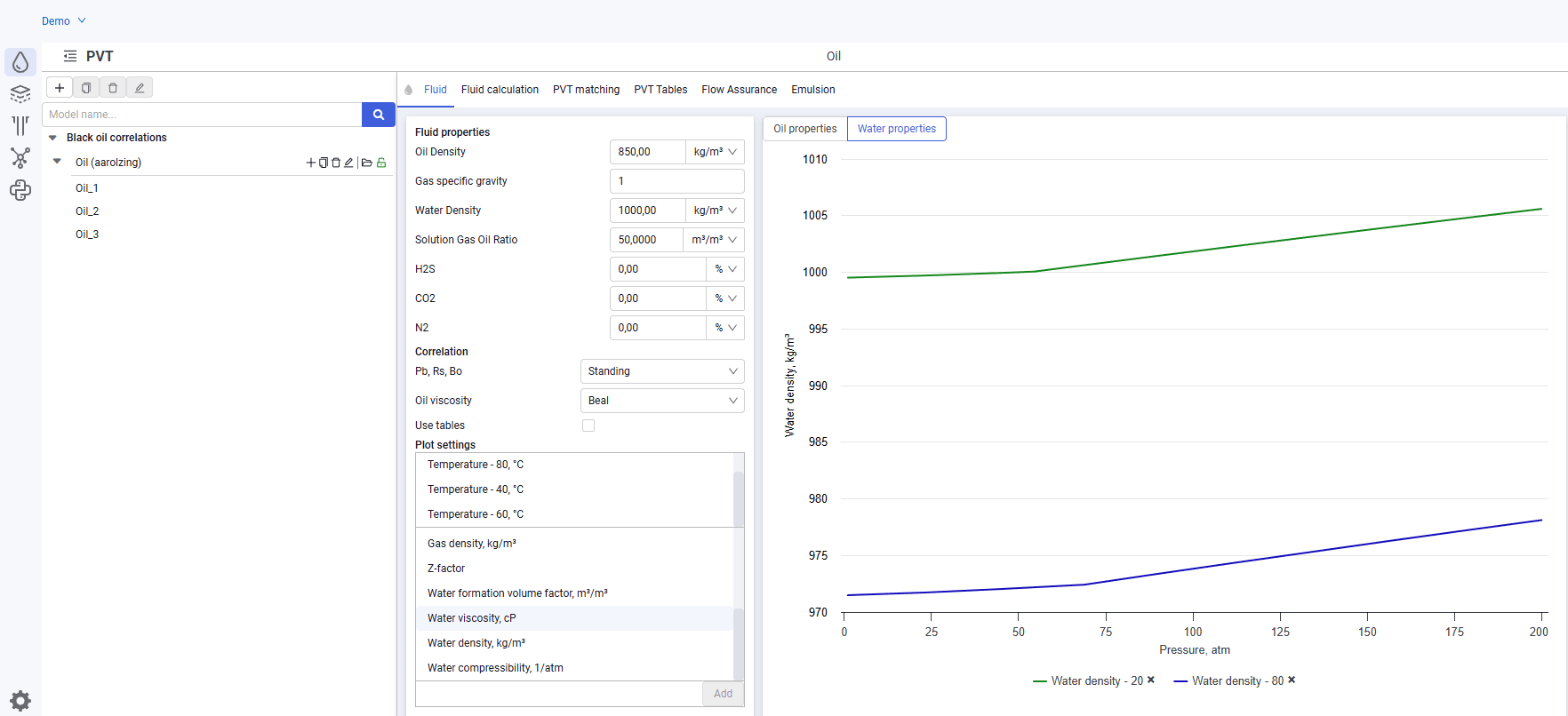 Select image to enlarge
When the Fluid calculation tab is open, the right area shows the fluid calculation result in tabular form. Values are calculated based on the selected or generated pressure and temperature values.
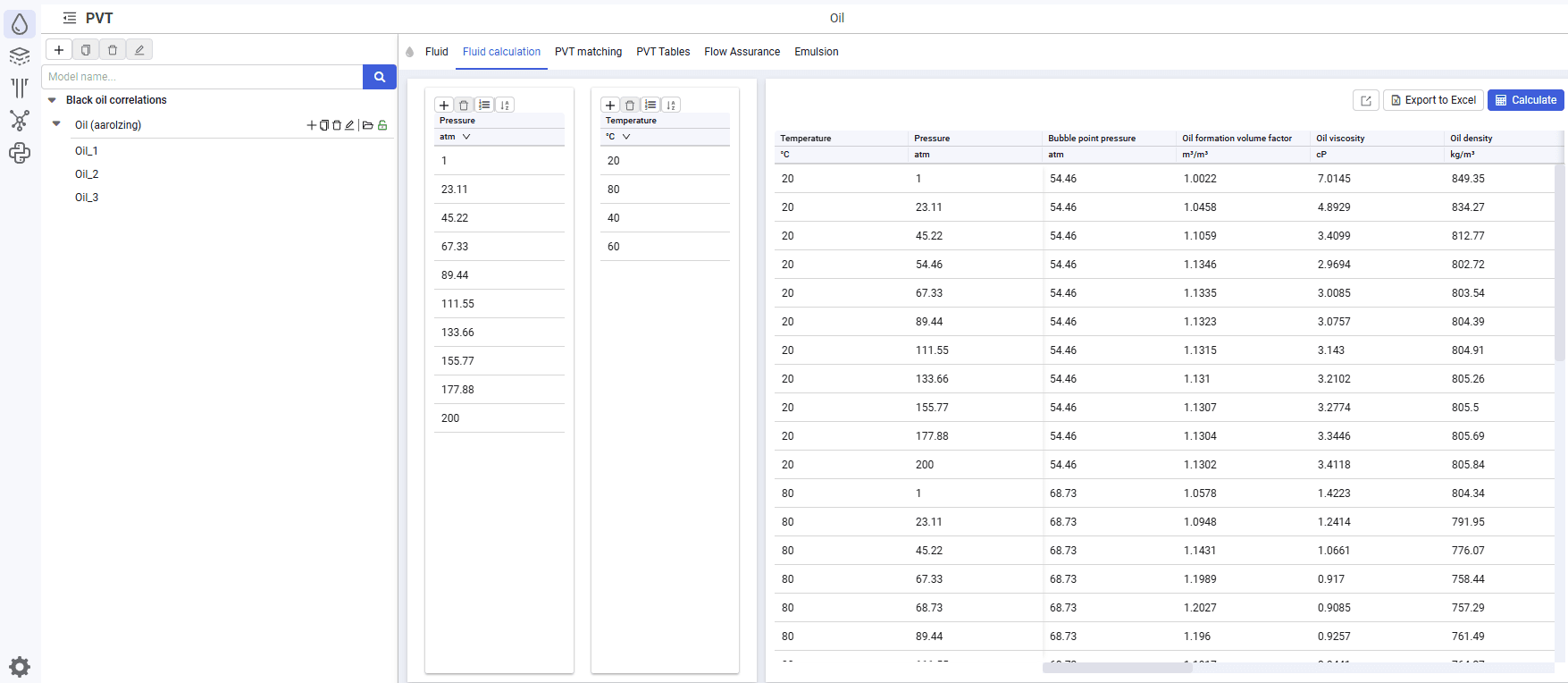 Select image to enlarge
The following buttons are available above the calculation results table:
 – export PVT table. After you click this button, a window opens where you can create a new table or use an existing one for export, create a new region or overwrite an existing one, and enter the calculation temperature and reference pressure. The exported PVT table appears in the model tree in the Black Oil tables section;
- Export to Excel – export table to Excel. Use this button to save the calculation results table in Excel format to the PC;
- Calculate – after you click this button, the fluid calculation is run.
When the PVT matching tab is open, the right area shows the correlation matching result for each parameter of the selected laboratory test.
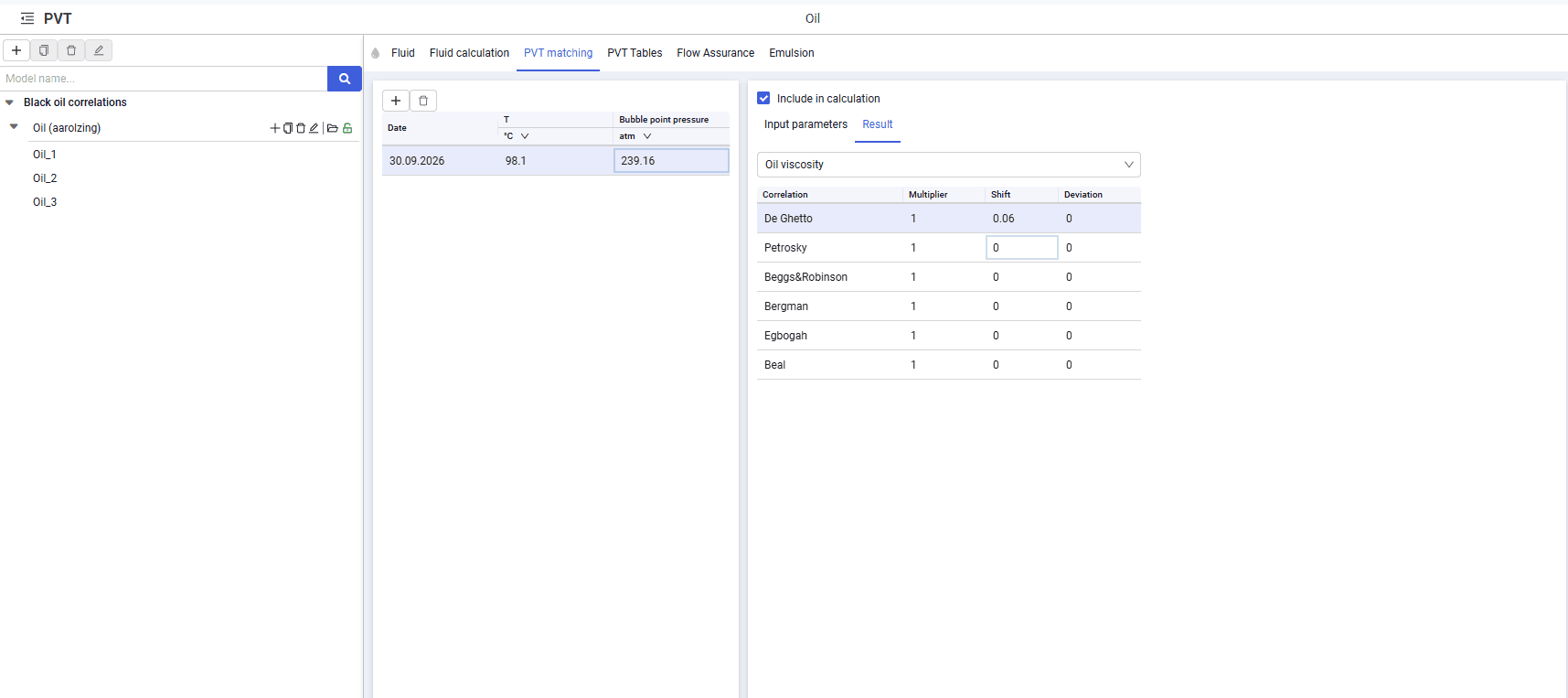 Select image to enlarge
The table also lists correlation parameters: their name, multiplier and shift (coefficients used to match correlations), and the final deviation from the laboratory test. The most preferable option is a multiplier close to one and a shift close to zero.