
Experiments tab
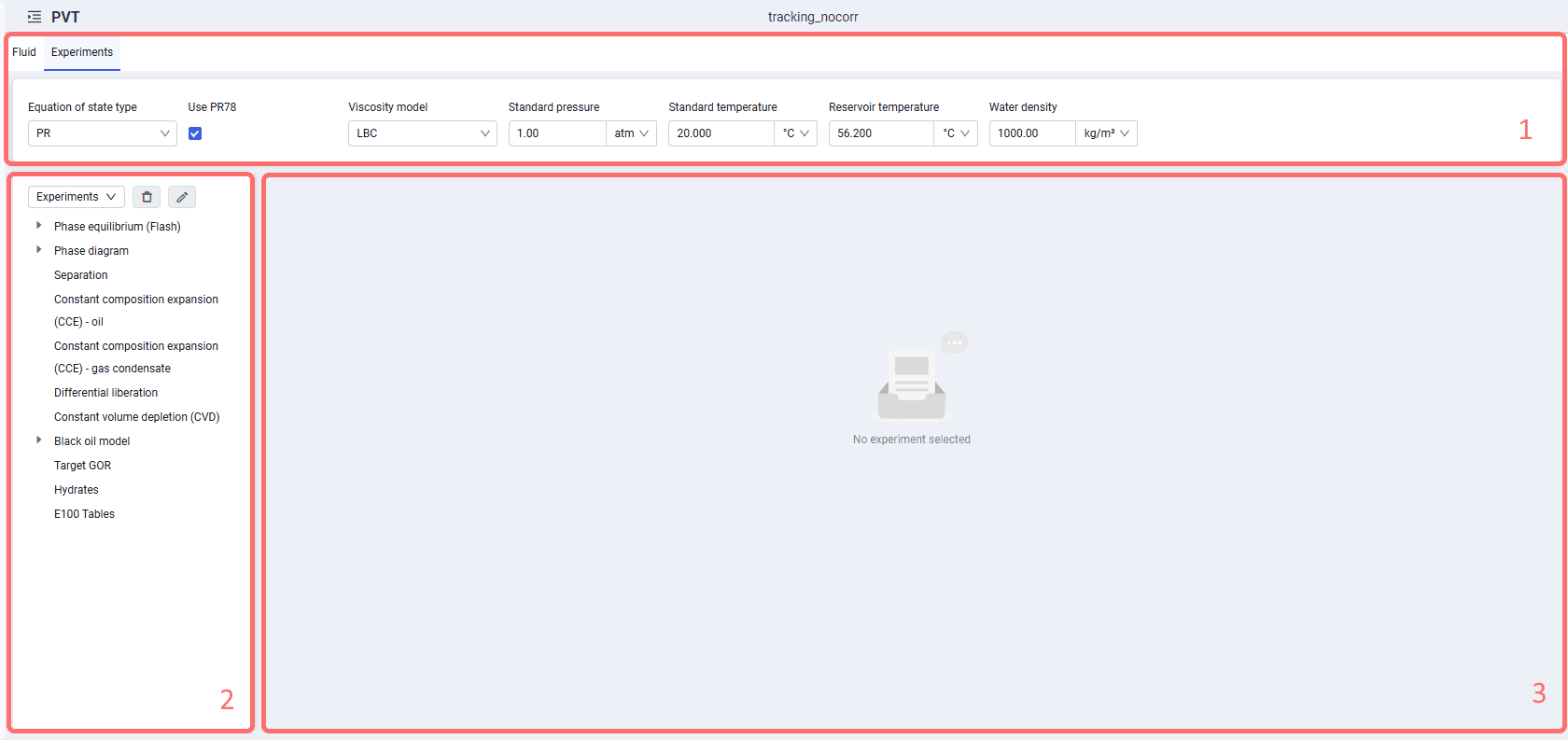
On the "Experiments" tab, the user can run virtual experiments from the list to assess the quality of the imported compositional model. All completed experiments are saved; they can be deleted or renamed. The tab is divided into 3 areas.
 Select image to enlarge
Area 1 shows the selected equation of state type (PengRobinson or SoaveRedlichKwong), the selected viscosity model (Pedersen or Lohrenz-Bray-Clark), standard and reservoir condition values, and water density.
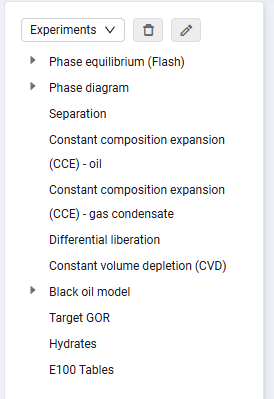
Area 2 contains the list of calculated experiments. To select an experiment, click the "Experiments" drop-down list and select the required calculation type.
 Select image to enlarge
Area 3 displays information for each selected experiment type.
"Phase equilibrium (Flash)" experiment
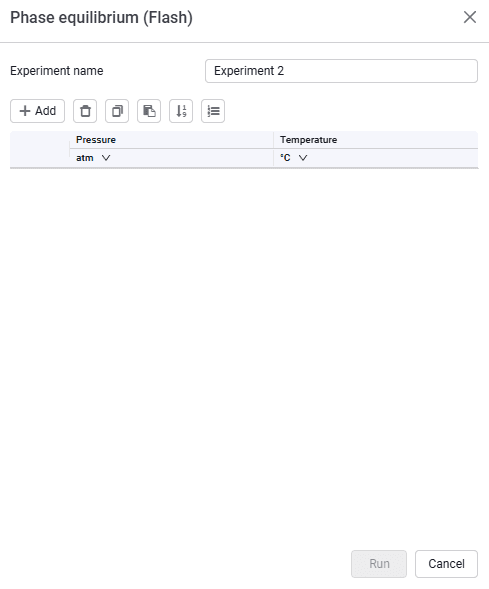
After you select the experiment, a window opens for choosing calculation parameters: pressure, temperature.
 Select image to enlarge
After the calculation is started, the calculation appears in the experiment list, and the calculation results are displayed in the experiment information window (area 3). The results are the properties and composition of each phase for the selected pressure and temperature.
"Phase diagram" experiment
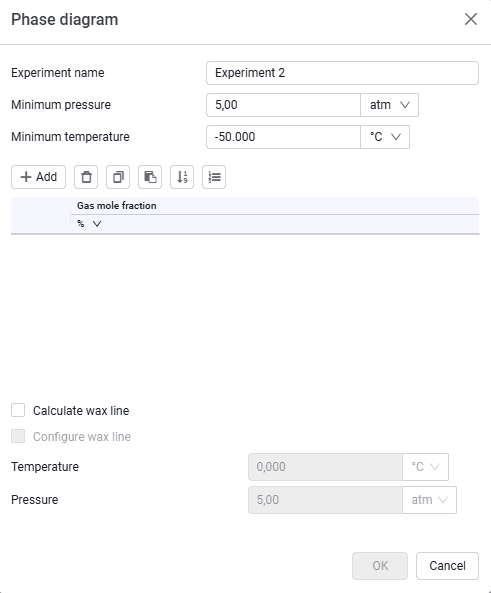
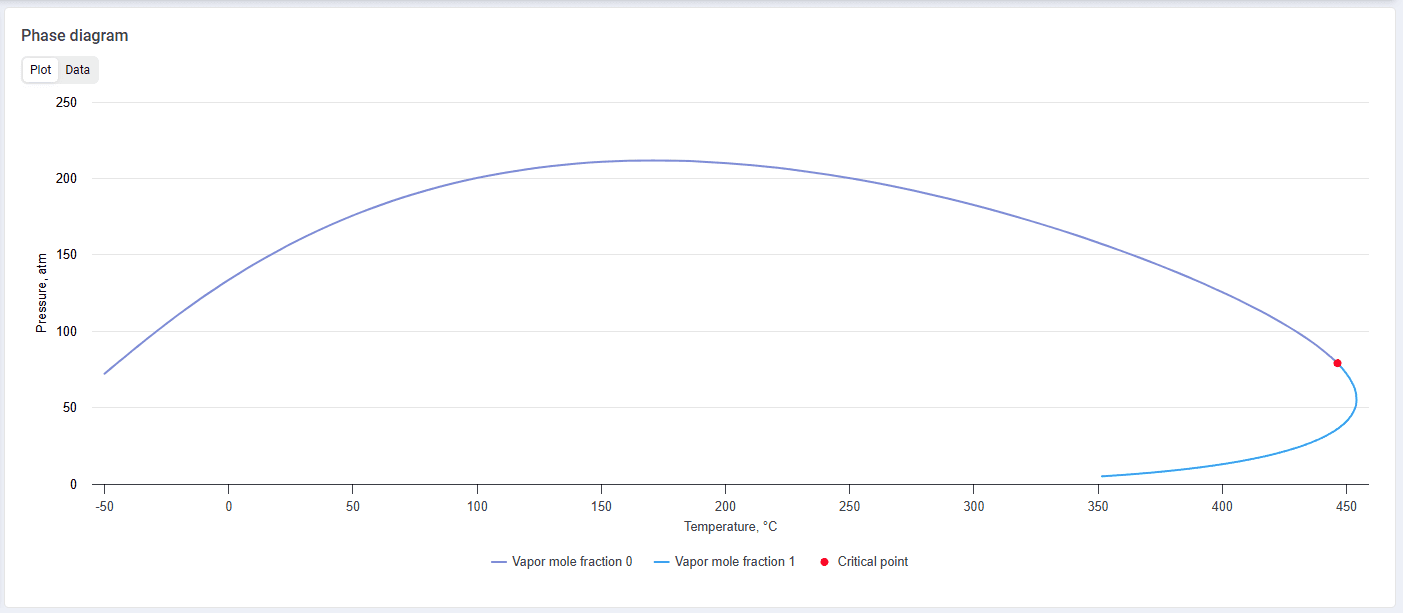
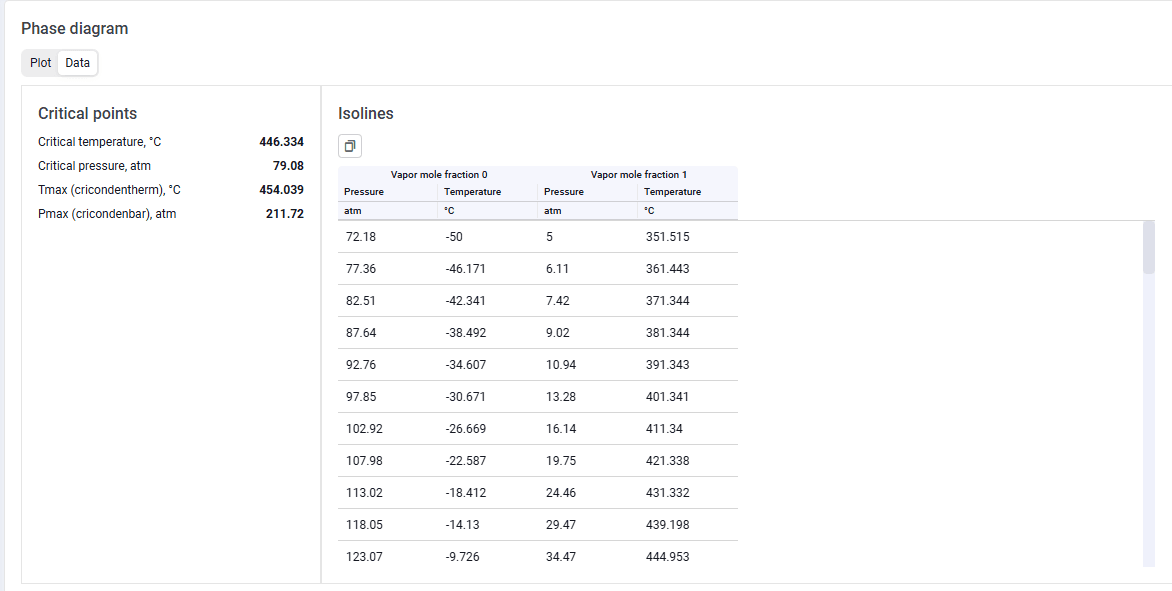
After you select the experiment, a window opens for choosing parameters to build the phase diagram: gas phase mole fraction and minimum pressures and temperatures.
 Select image to enlarge
 Select image to enlarge
 Select image to enlarge
You can view the results in both graphical and tabular form.
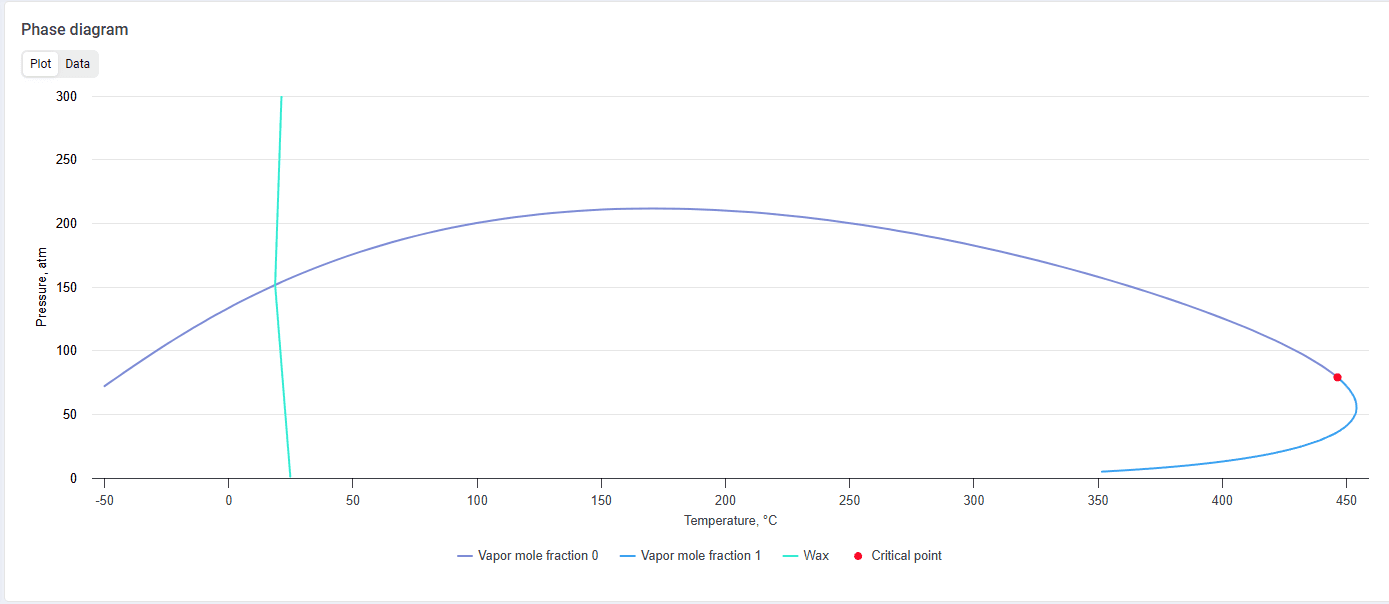
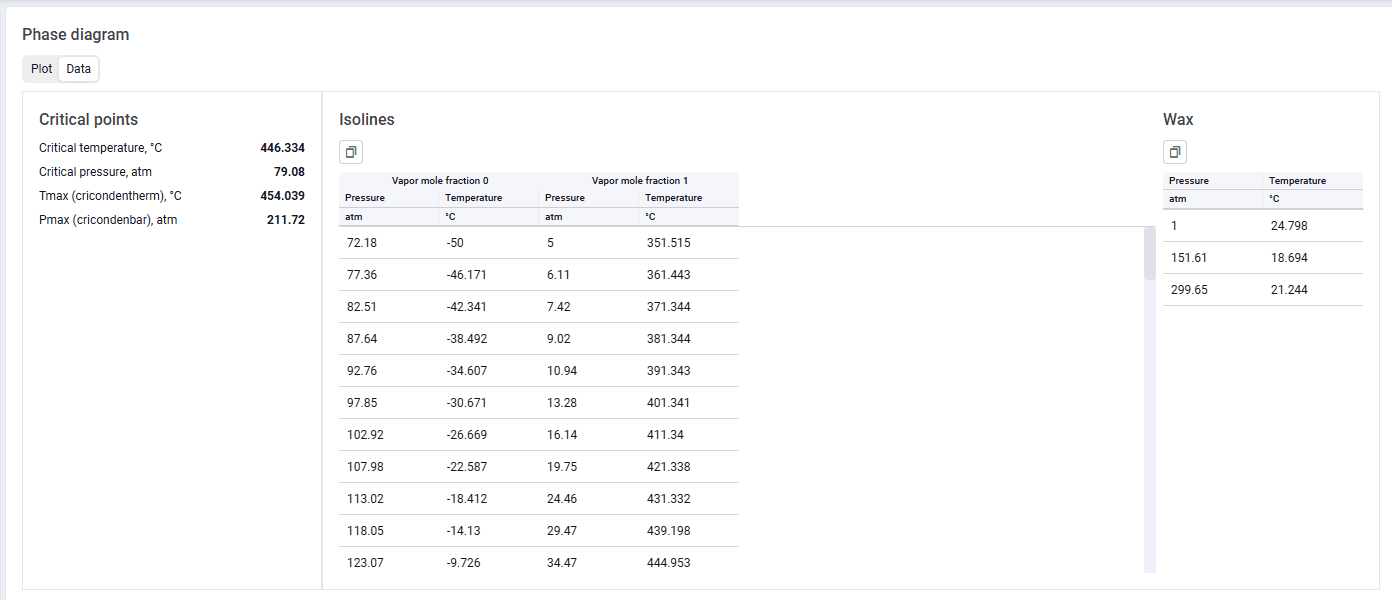
To plot the wax precipitation line, select the "Calculate wax line" check box when specifying the parameters for building the diagram. When the calculation is run with this setting, wax information appears in the results. You can also match the wax line to selected temperature and pressure values (by enabling the "Configure wax line" check box).
 Select image to enlarge
 Select image to enlarge
"Separation" experiment
After you select the experiment, a window opens for choosing calculation parameters: pressure and temperature at the separation stages, as well as reservoir temperature and pressure values.
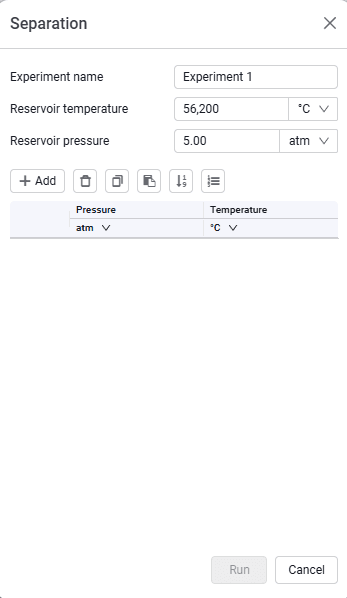 Select image to enlarge
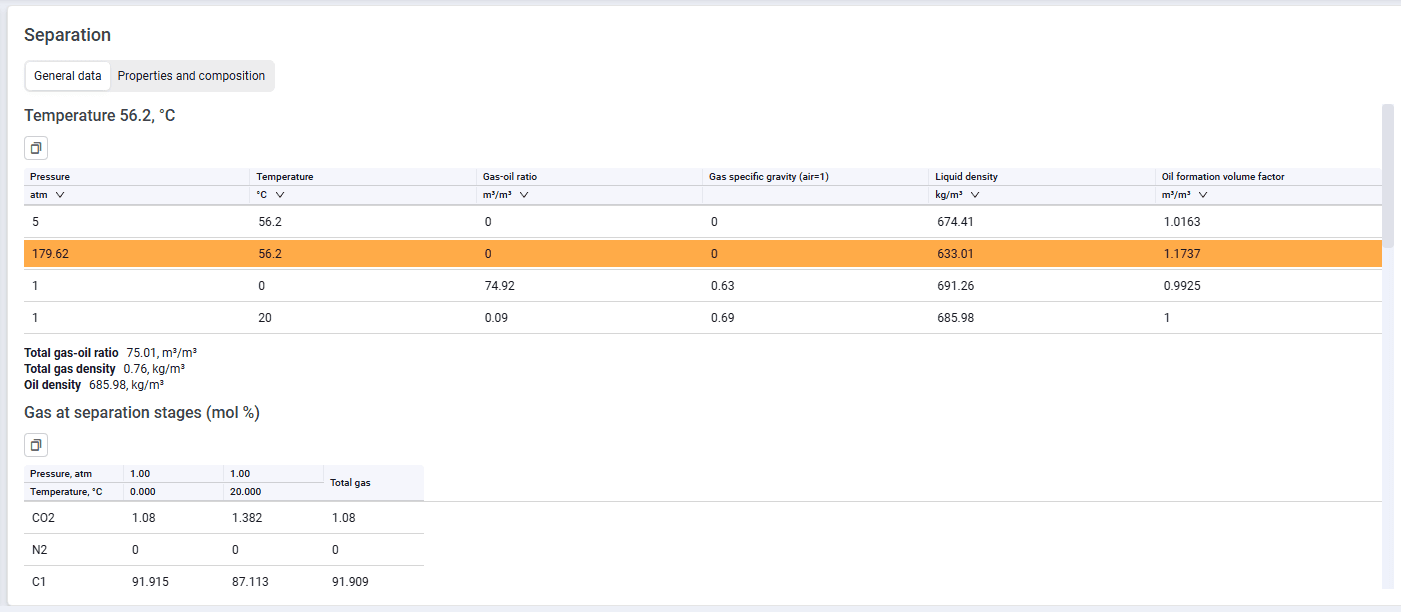 Select image to enlarge
After the calculation is completed, the experiment data are displayed, as well as the fluid composition and properties at each separation stage.
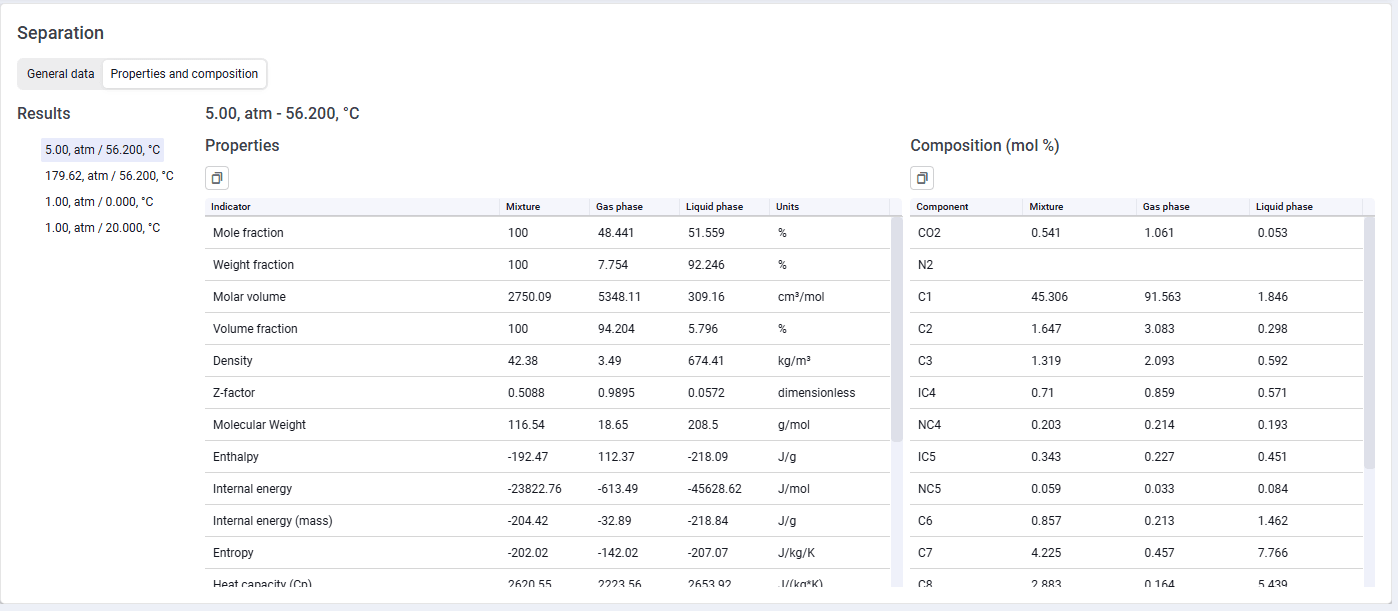 Select image to enlarge
"Constant composition expansion (CCE) - oil" experiment
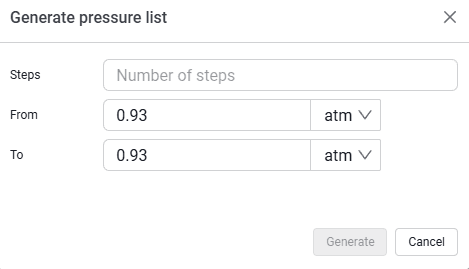
After you select the experiment, a window opens for choosing calculation parameters: pressures and temperature. To specify pressure, you can use the value generation function with selection of the minimum, maximum, generation step, and units.
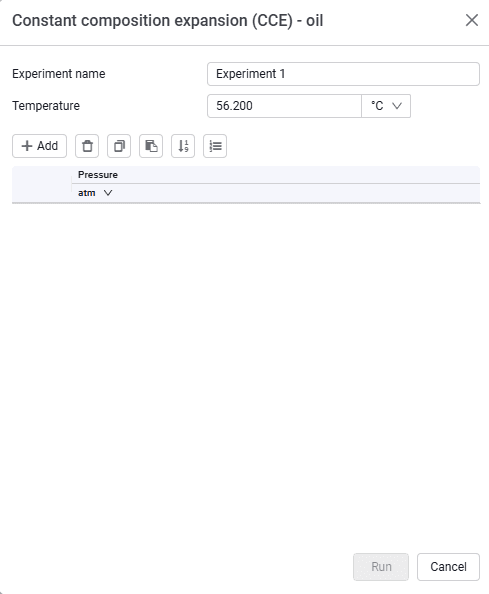 Select image to enlarge
 Select image to enlarge
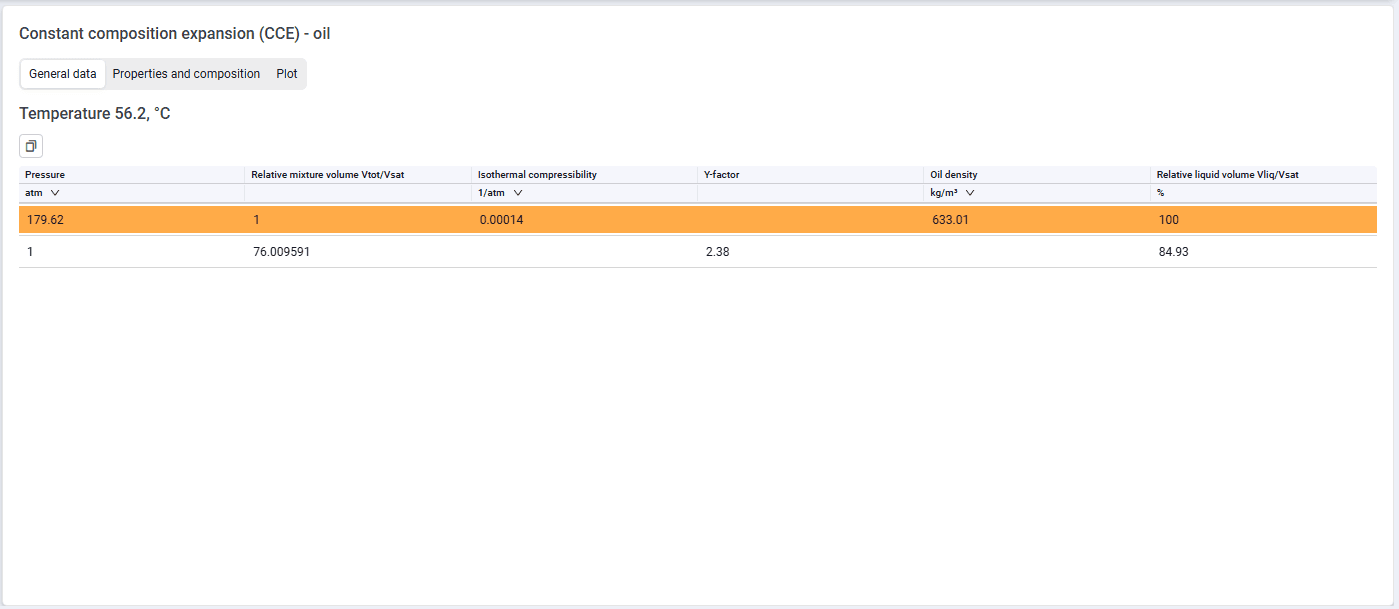
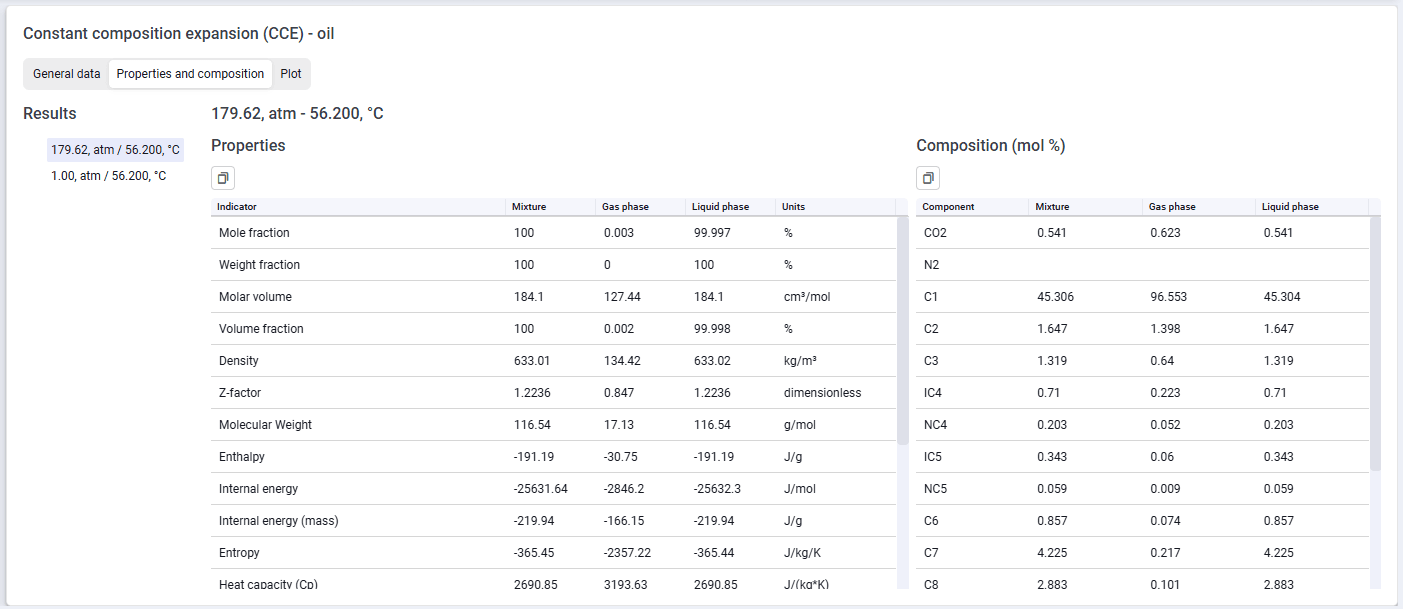
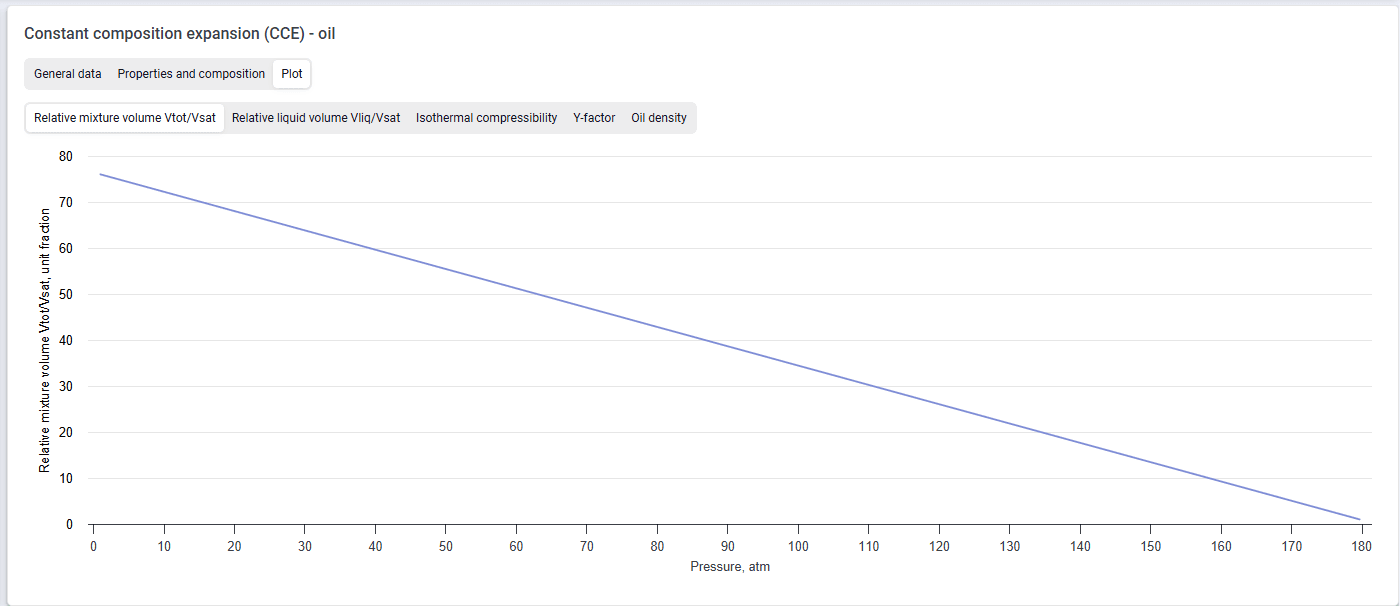
After the calculation is completed, the parameters of each step, the fluid composition and properties are displayed, and plots of the calculated properties are built.
 Select image to enlarge
 Select image to enlarge
 Select image to enlarge
"Constant composition expansion (CCE) - gas condensate" experiment
After you select the experiment, a window opens for choosing calculation parameters: pressures and temperature. To specify pressure, you can use the value generation function with selection of the minimum, maximum, generation step, and units.
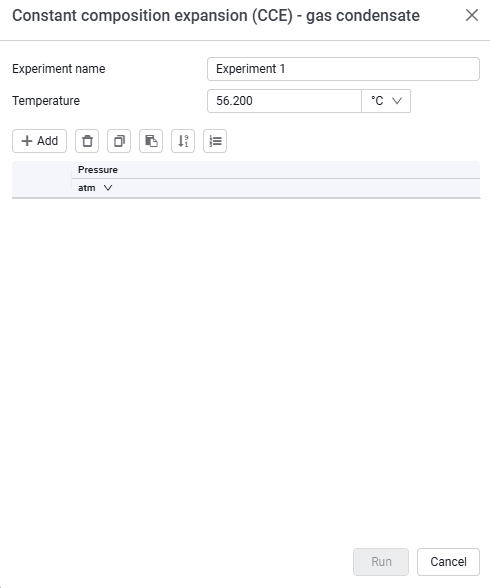 Select image to enlarge
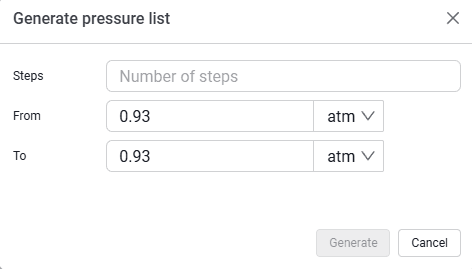 Select image to enlarge
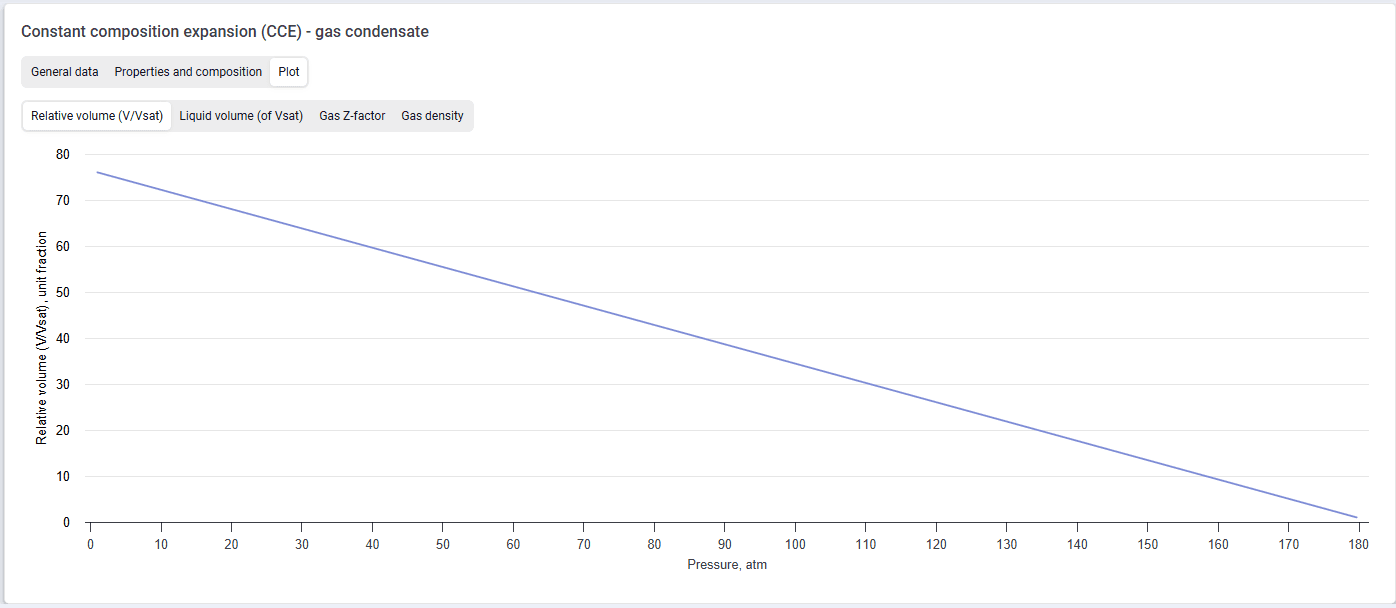
After the calculation is completed, the parameters of each step, the fluid composition and properties are displayed, and plots of the calculated properties are built.
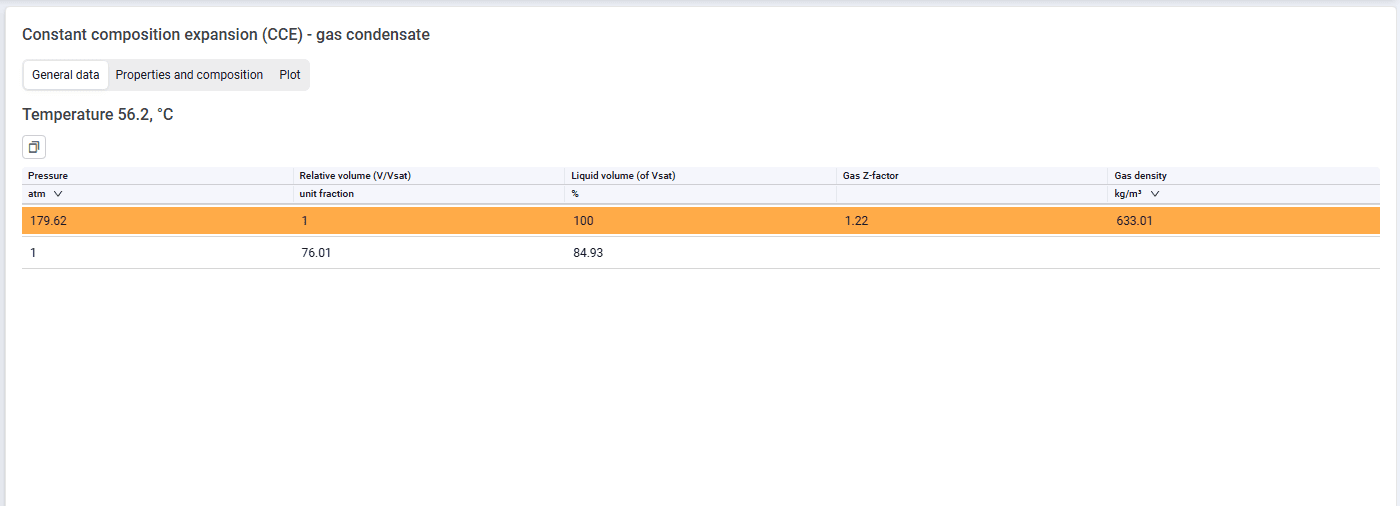 Select image to enlarge
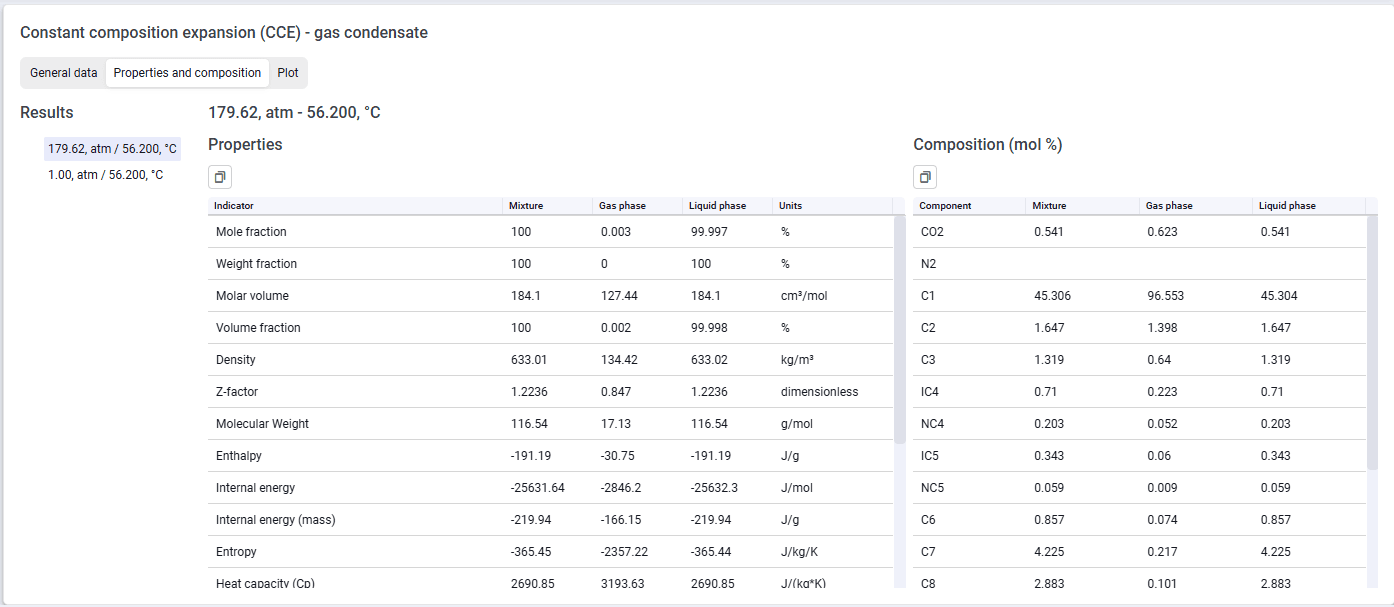 Select image to enlarge
 Select image to enlarge
"Differential liberation" experiment
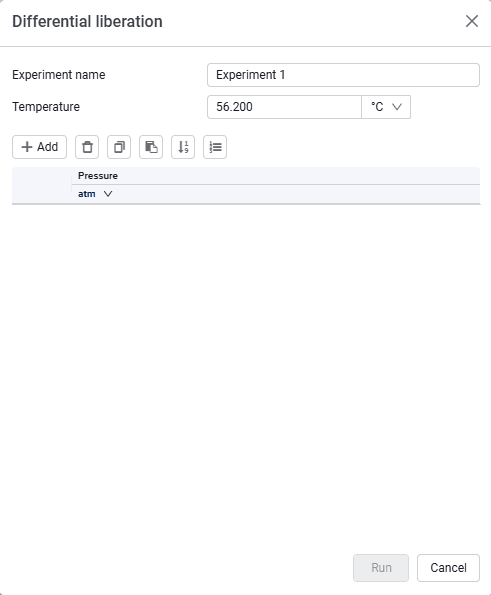
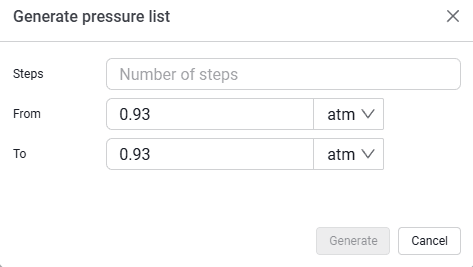
After you select the experiment, a window opens for choosing calculation parameters: pressures and temperature. To specify pressure, you can use the value generation function with selection of the minimum, maximum, generation step, and units.
 Select image to enlarge
 Select image to enlarge
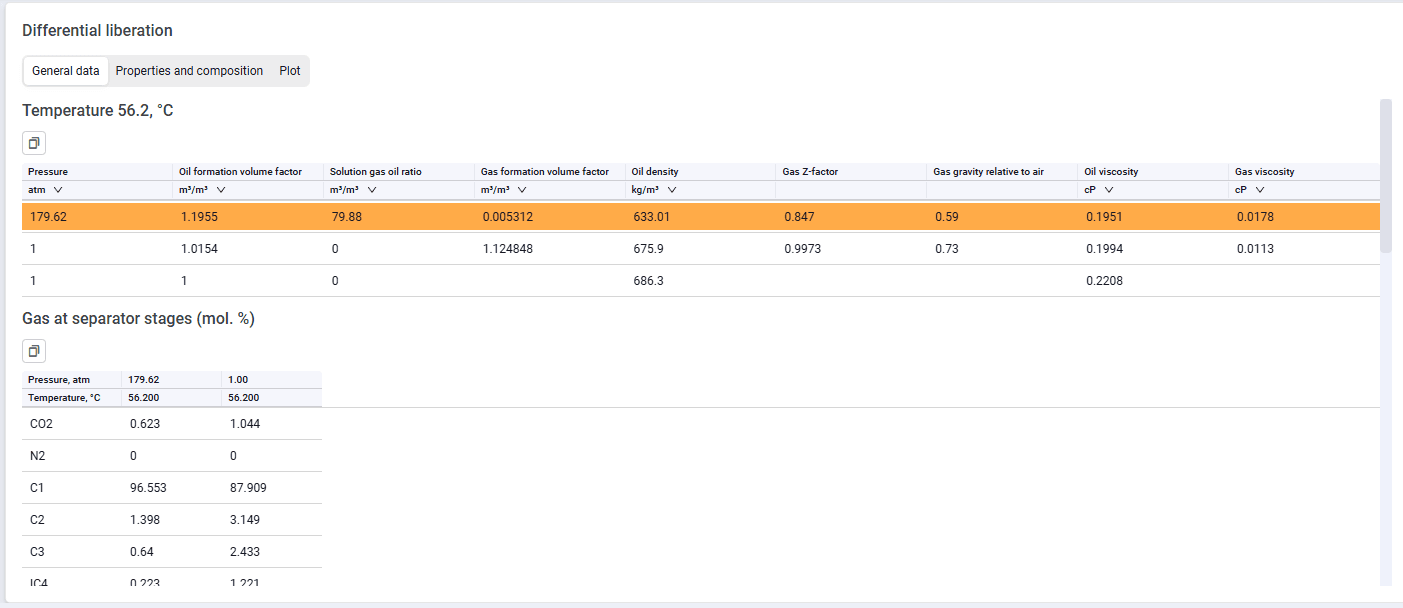
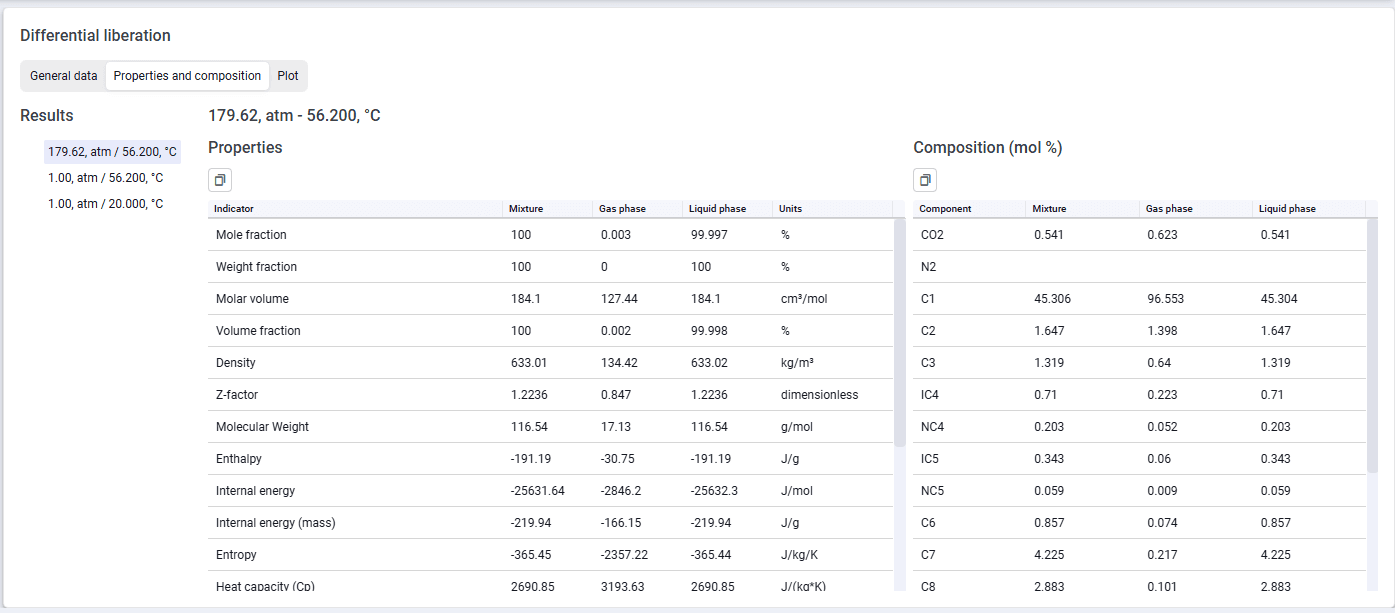
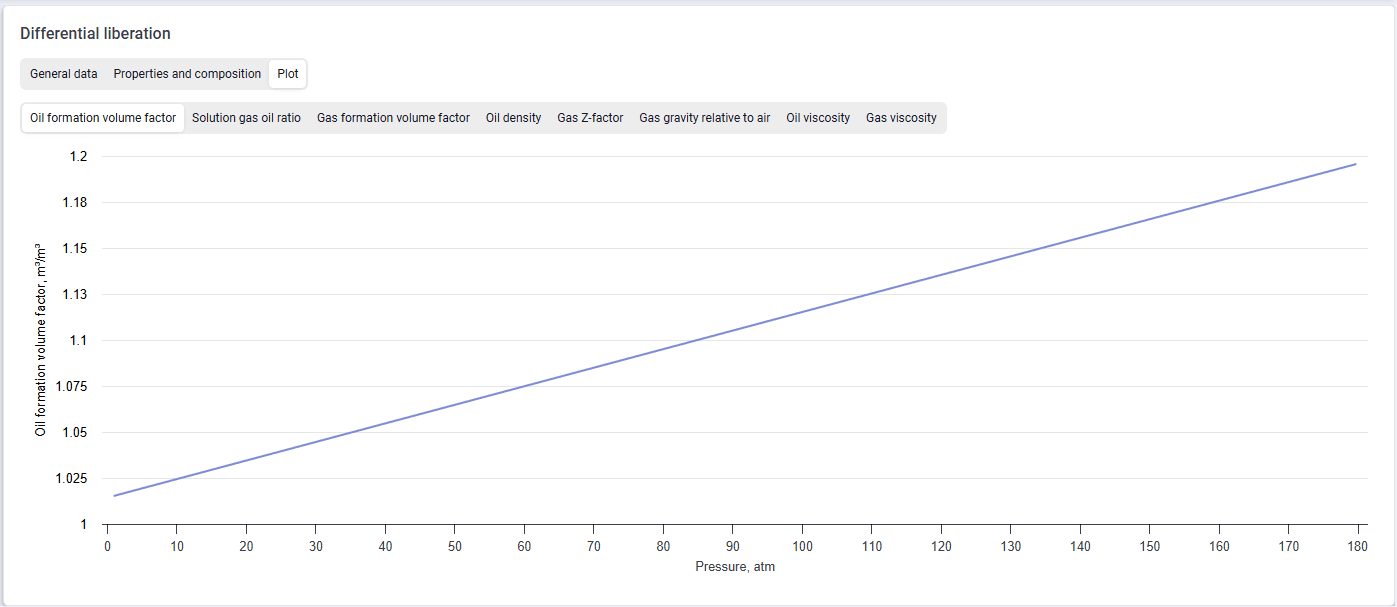
After the calculation is completed, the parameters of each step, the fluid composition and properties are displayed, and plots of the calculated properties are built.
 Select image to enlarge
 Select image to enlarge
 Select image to enlarge
"Constant volume depletion (CVD)" experiment
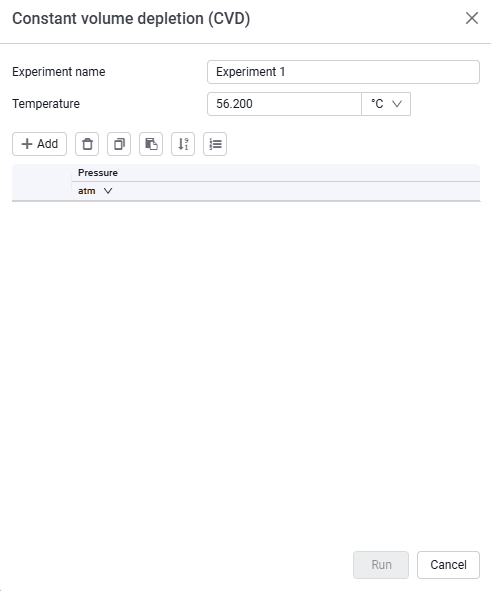
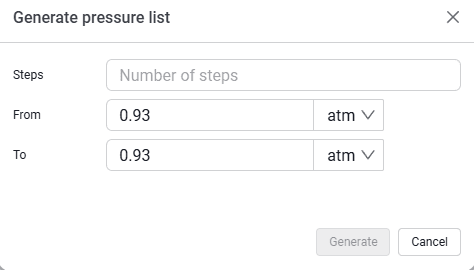
After you select the experiment, a window opens for choosing calculation parameters: pressures and temperature. To specify pressure, you can use the value generation function with selection of the minimum, maximum, generation step, and units.
 Select image to enlarge
 Select image to enlarge
After the calculation is completed, the parameters of each step, the fluid and condensate composition and properties are displayed, and plots of the calculated properties are built.
"Hydrates" experiment
After you select the experiment, a window opens for choosing parameters to build the hydrate formation curve: water salinity, methanol fraction, and pressure and temperature ranges.
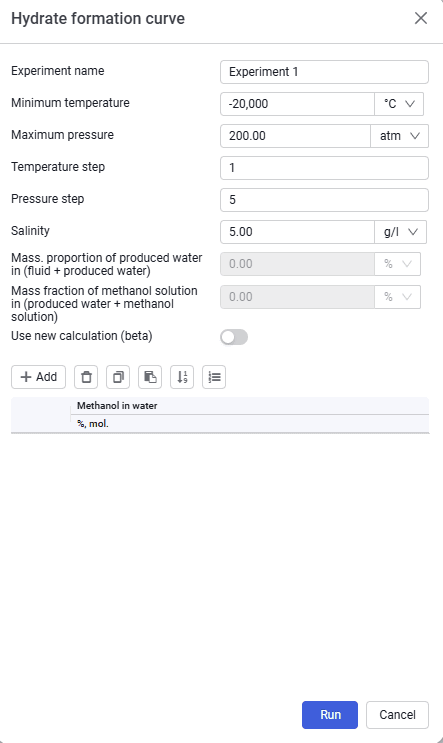 Select image to enlarge
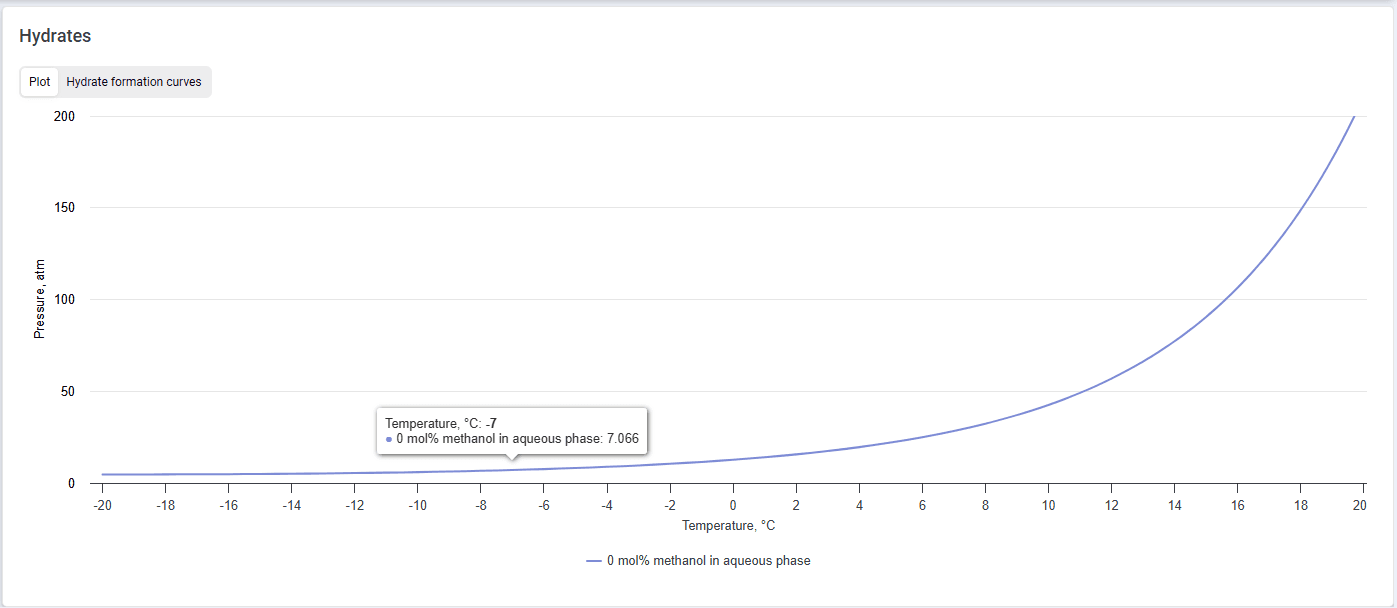 Select image to enlarge
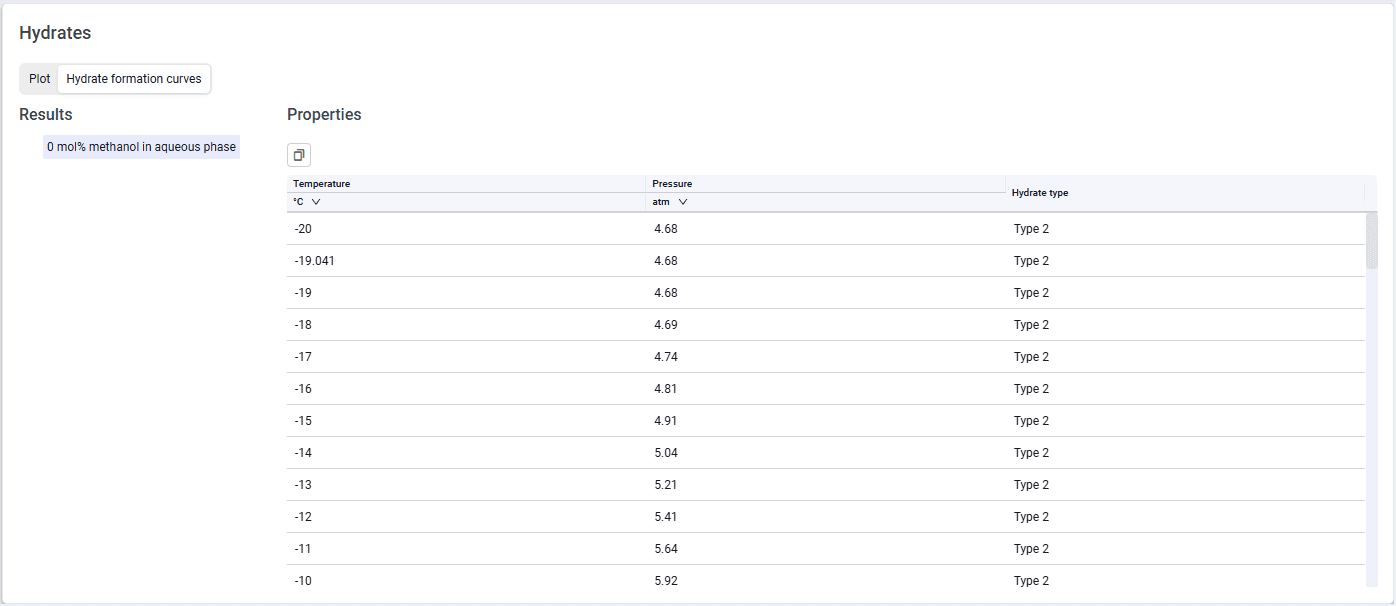 Select image to enlarge
"Black oil model" experiment
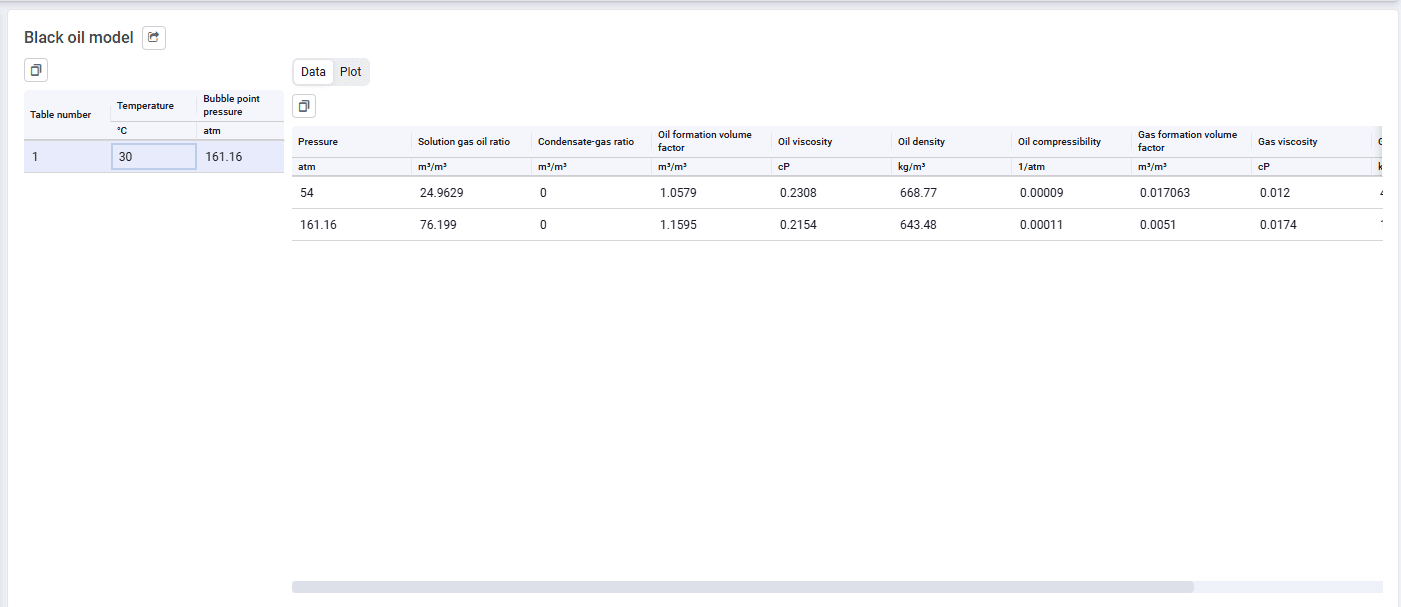
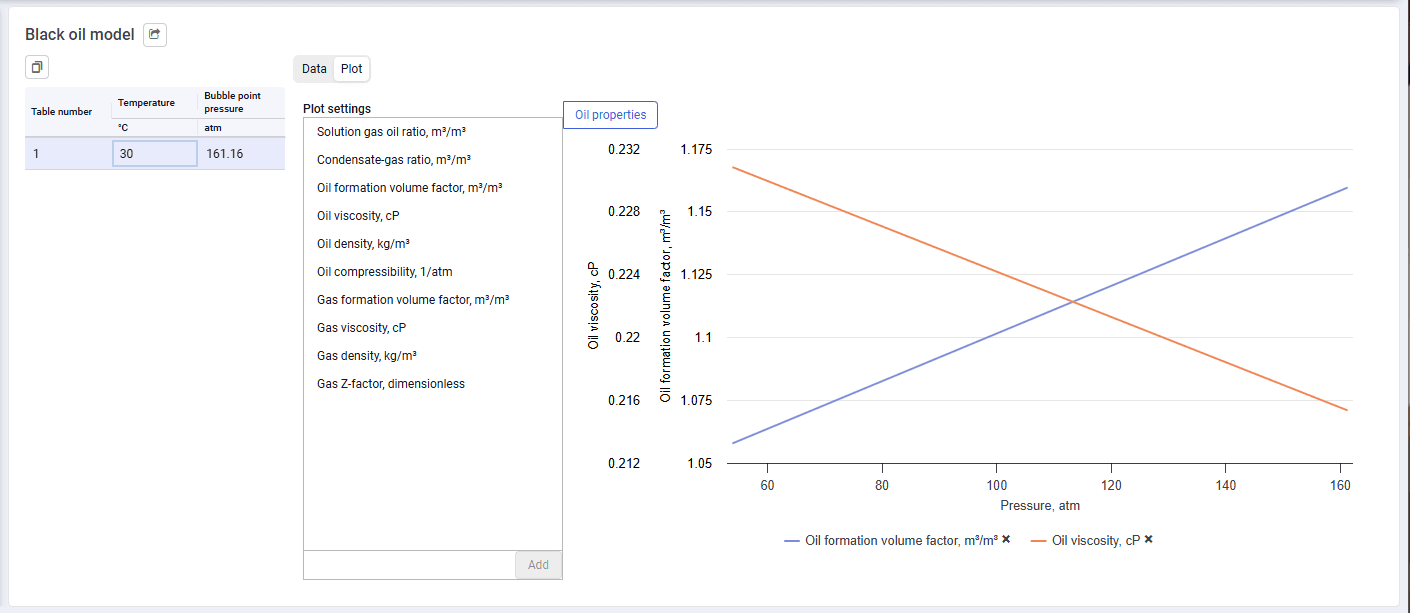
After you select the experiment, a window opens for choosing parameters to generate black oil tables with fluid properties. You must select the experiment type (Differential liberation, constant volume depletion, CME) on which the calculation will be based and its run parameters. You can also specify your own separation conditions or use standard conditions. Based on the calculation results, you can view the data in tabular and graphical form; the graphical representation of calculated properties is split into oil properties and gas properties — displayed on separate tabs.
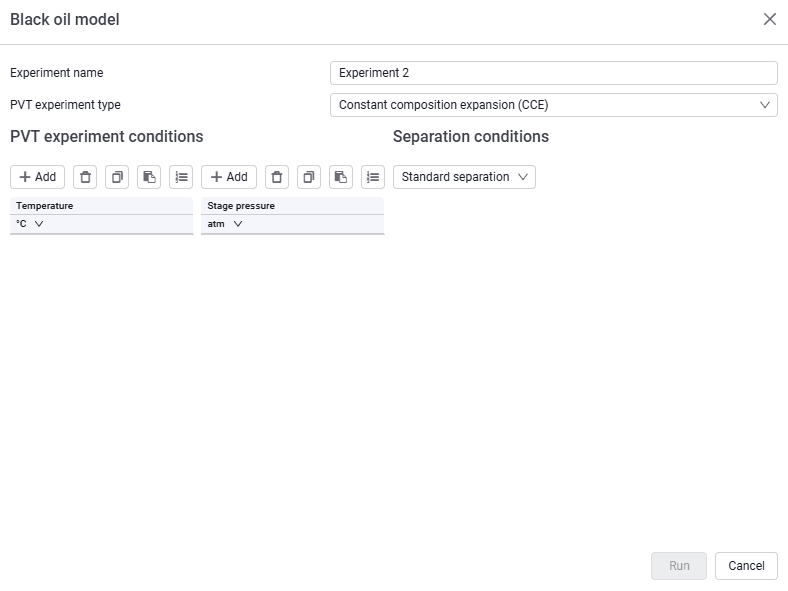 Select image to enlarge
 Select image to enlarge
 Select image to enlarge
 Select image to enlarge
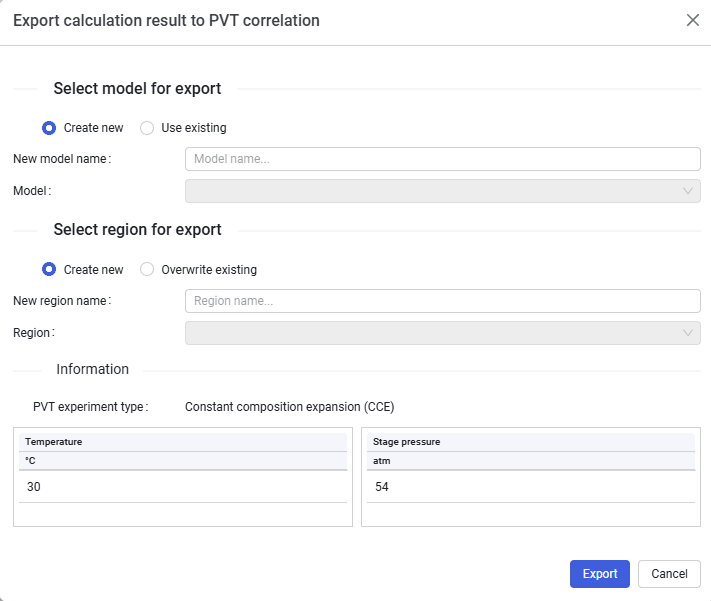
Clicking the "Export PVT tables" button opens a dialog for saving calculation results as a Black Oil correlations file with a filled "PVT Tables" tab. You can save to existing Black Oil models or create a new one.
"E100 Tables" experiment
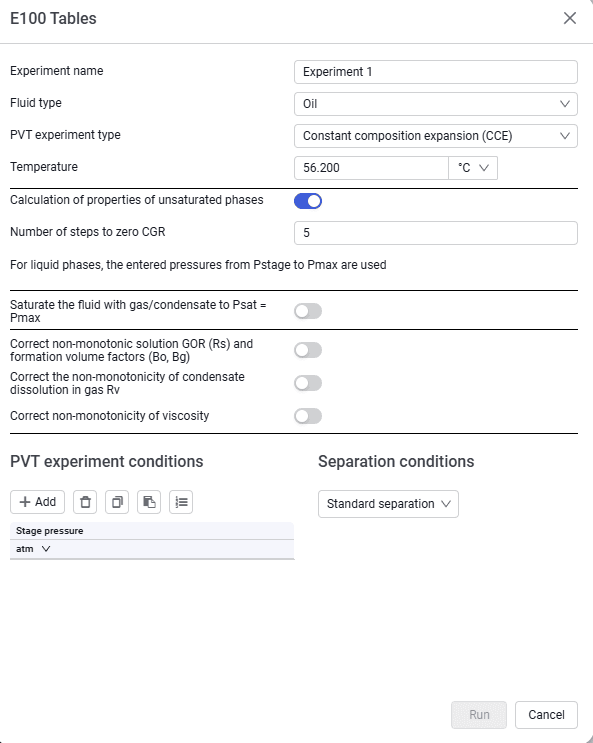
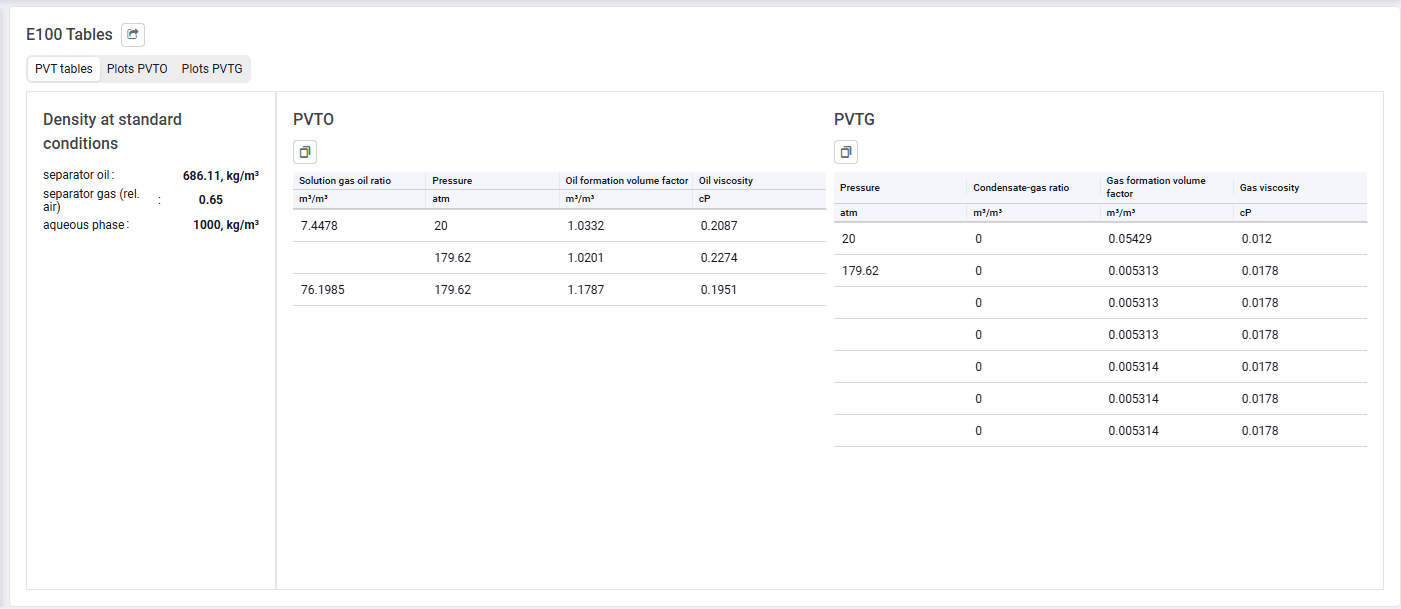
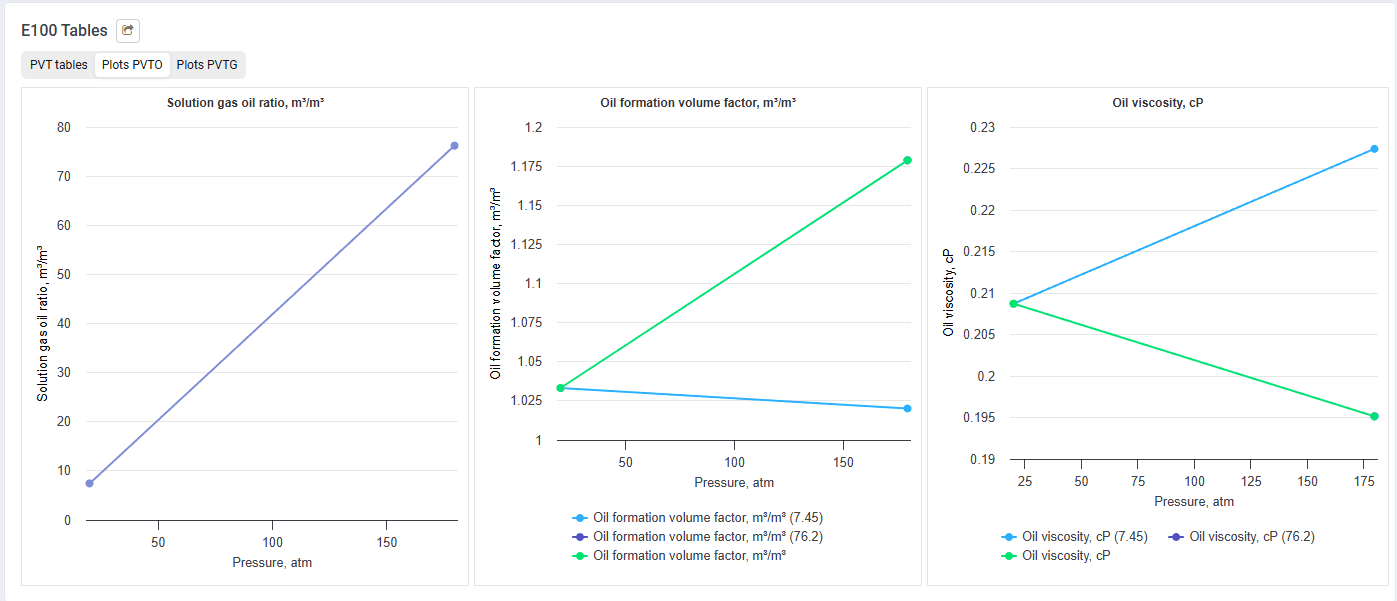
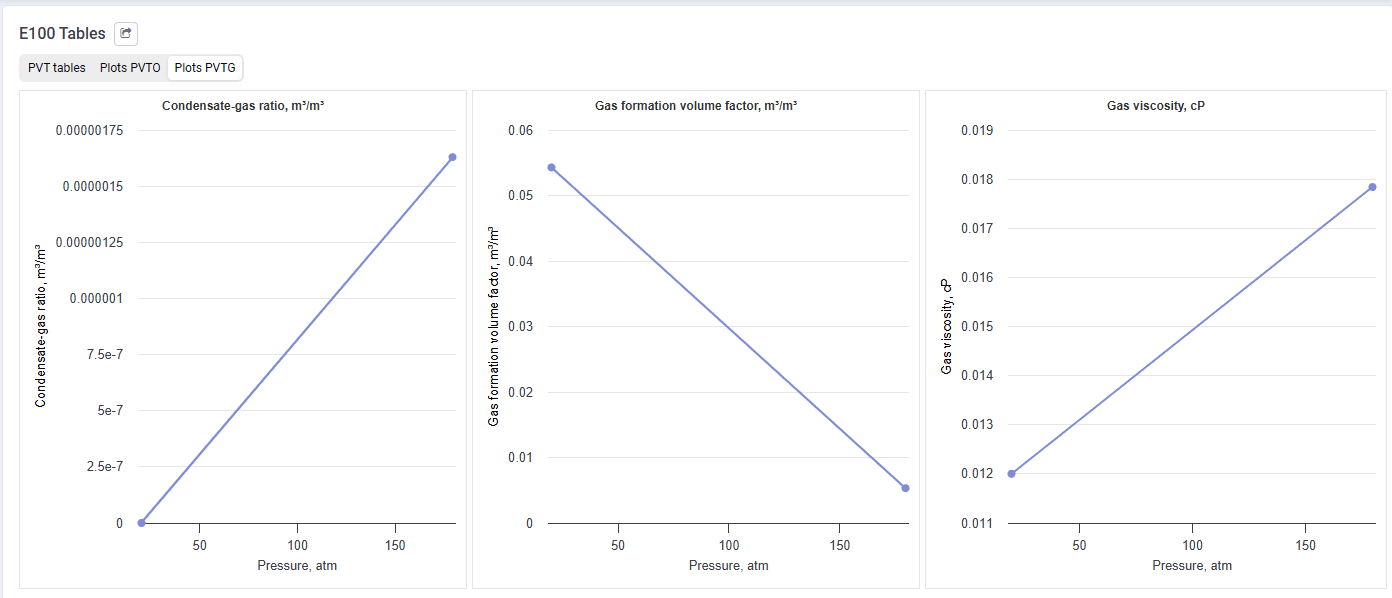
After you select the experiment, a window opens for choosing parameters to generate PVT tables in E100 format. You must select the fluid type (oil, gas), the experiment type (Differential liberation, constant volume depletion, CME) on which the calculation will be based, and its run parameters. You can add calculation points for undersaturated fluid and the required number of points using the "Calculation of properties of unsaturated phases" switch. You can also saturate the fluid and correct the monotonicity of calculated properties using the corresponding switches. You can also specify your own separation conditions or use standard conditions. Based on the calculation results, you can view the data in tabular and graphical form (PVTO, PVTG).
 Select image to enlarge
 Select image to enlarge
 Select image to enlarge
 Select image to enlarge
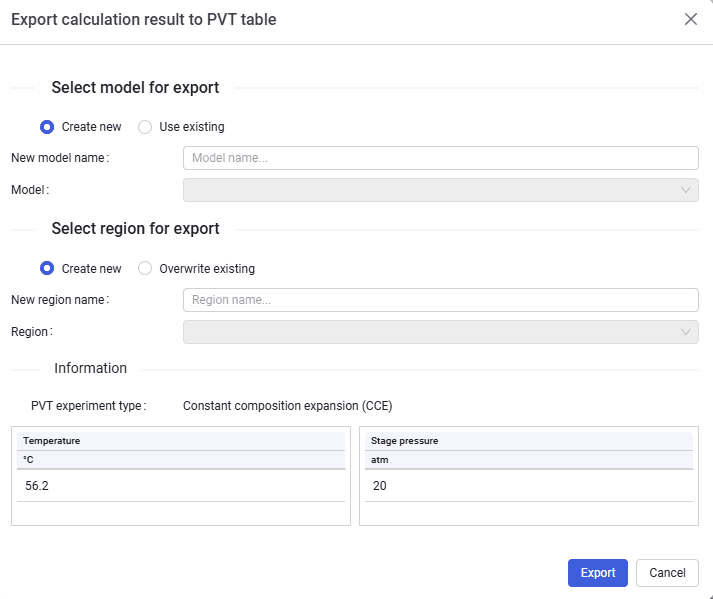
Clicking the "Export PVT tables" button opens a dialog for saving calculation results as a Black Oil tables file with filled tabs. You can save to existing PVT tables or create a new one.
 Select image to enlarge