
Analyzing calculation results
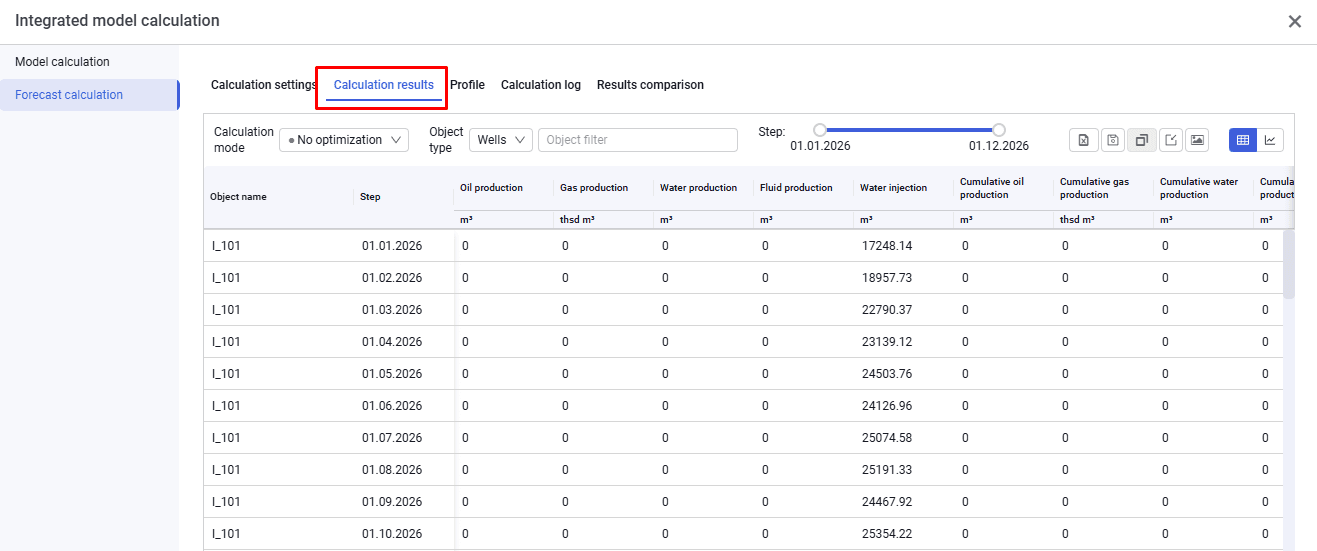
1.To analyze calculation results, go to the "Calculation results" tab.
 Select image to enlarge
2.On this tab you can select the objects for which calculation results will be displayed, filter them, select calculation steps, and export the results in Excel format.
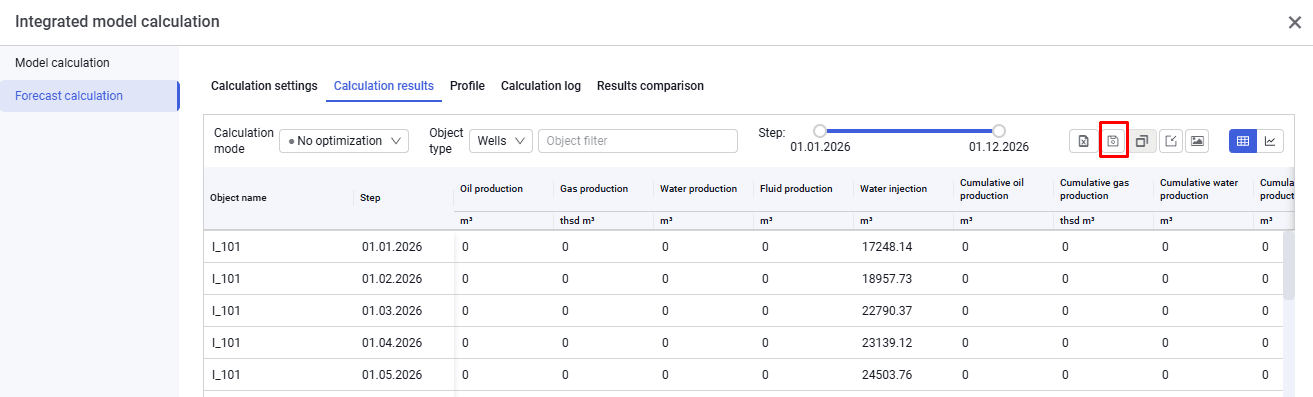
3.To later compare the current calculation results with others, click "Save results for comparison" in the upper-right corner of the screen.
 Select image to enlarge
4.In the pop-up window, enter a result description (calculation name) and click "OK".
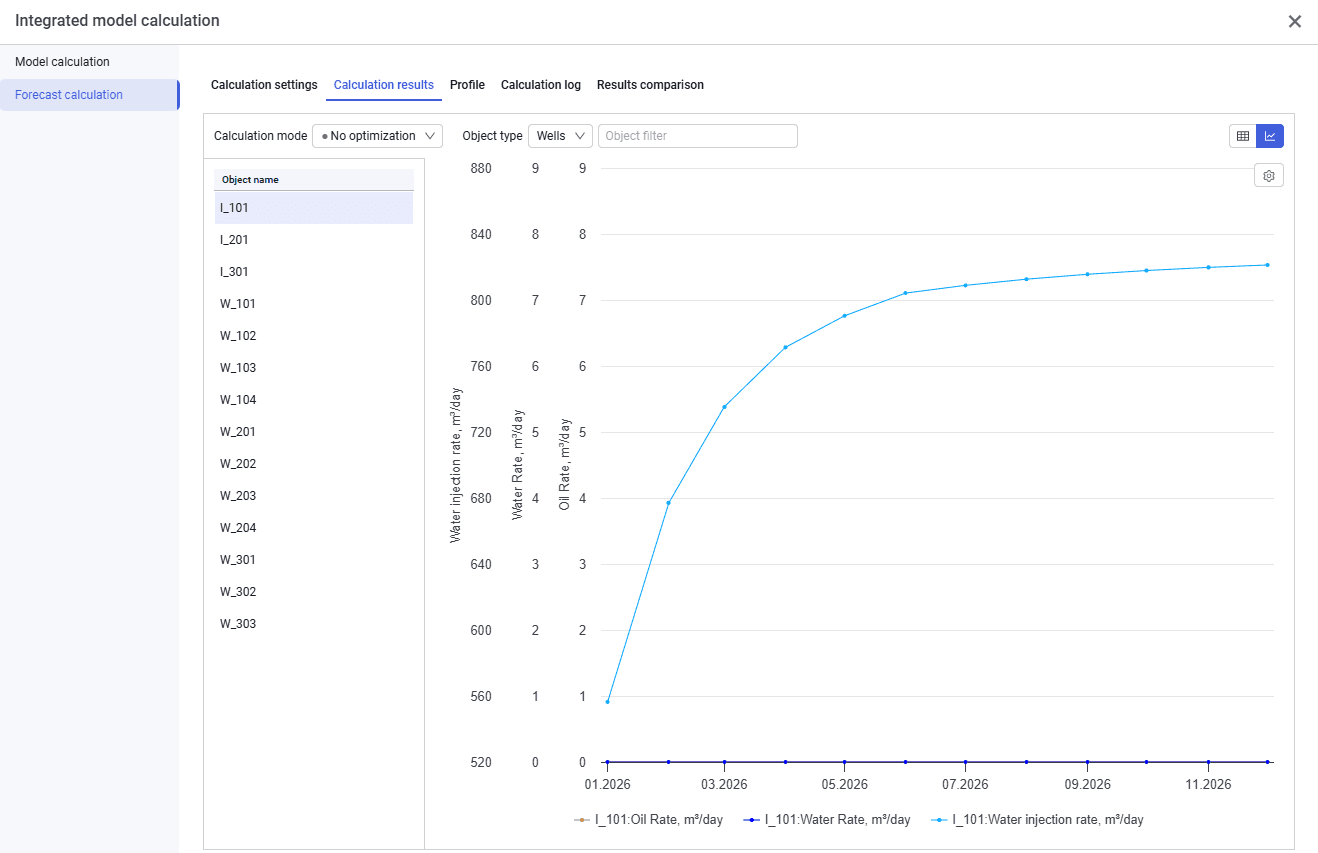
5.To analyze plots, click "Plot" in the upper-right corner of the window. In the window that opens, you can select the object type, filter objects, and select the parameters to display on the Y-axis.
 Select image to enlarge
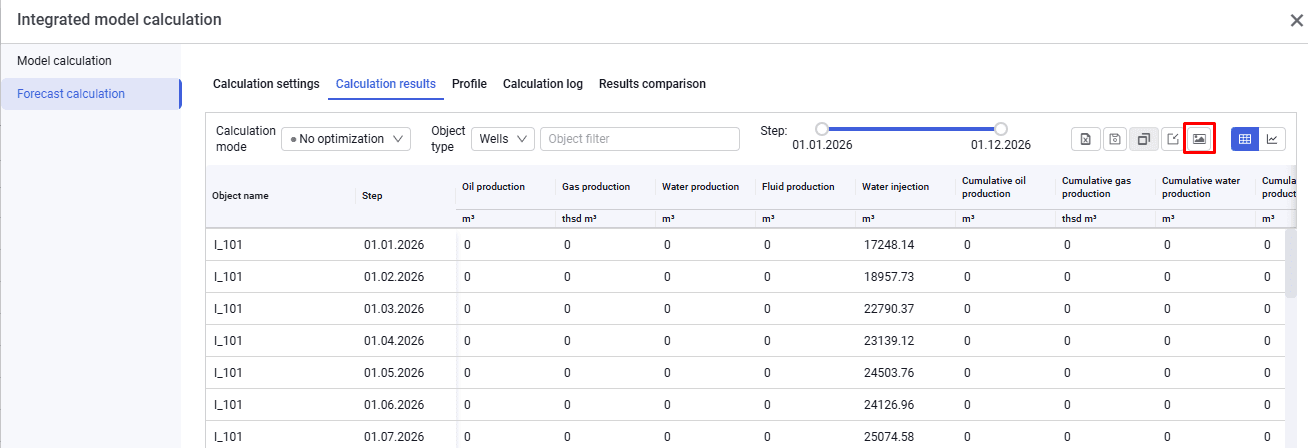
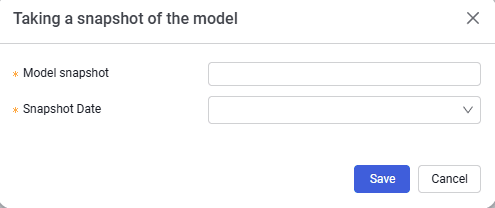
6.On the "Calculation results" tab you can create a model snapshot for any forecast calculation step — Snapshot. To do this, click  . In the window that appears, enter a name and select the date for which to create the snapshot. Click "Save".
 Select image to enlarge
 Select image to enlarge
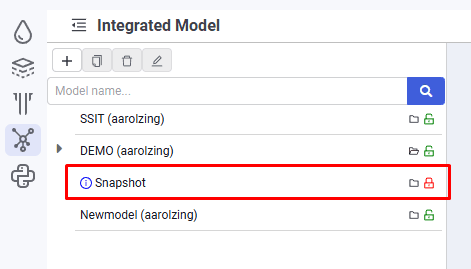
7.After that, a snapshot model for the selected date appears in the model navigator under the original model. You can work with the snapshot model in the same way as with a regular model.
 Select image to enlarge