
Entering constraints for elements
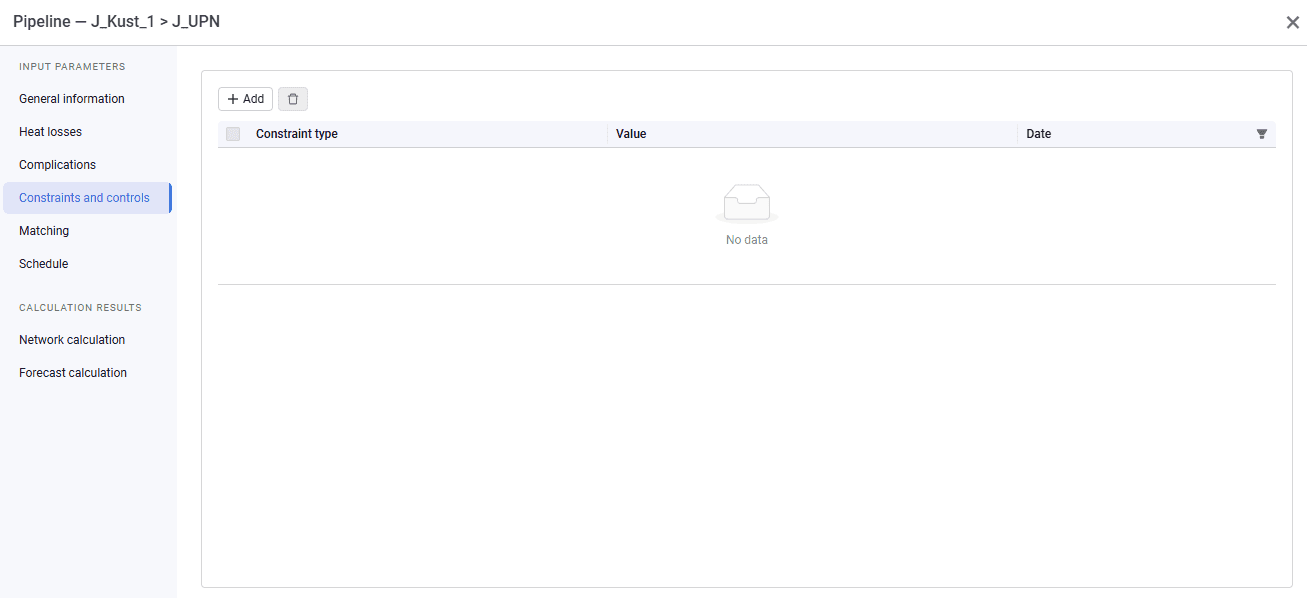
1.To enter constraints for an element, double-click the object and go to the "Constraints and controls" tab. By default the tab looks as follows.
 Select image to enlarge
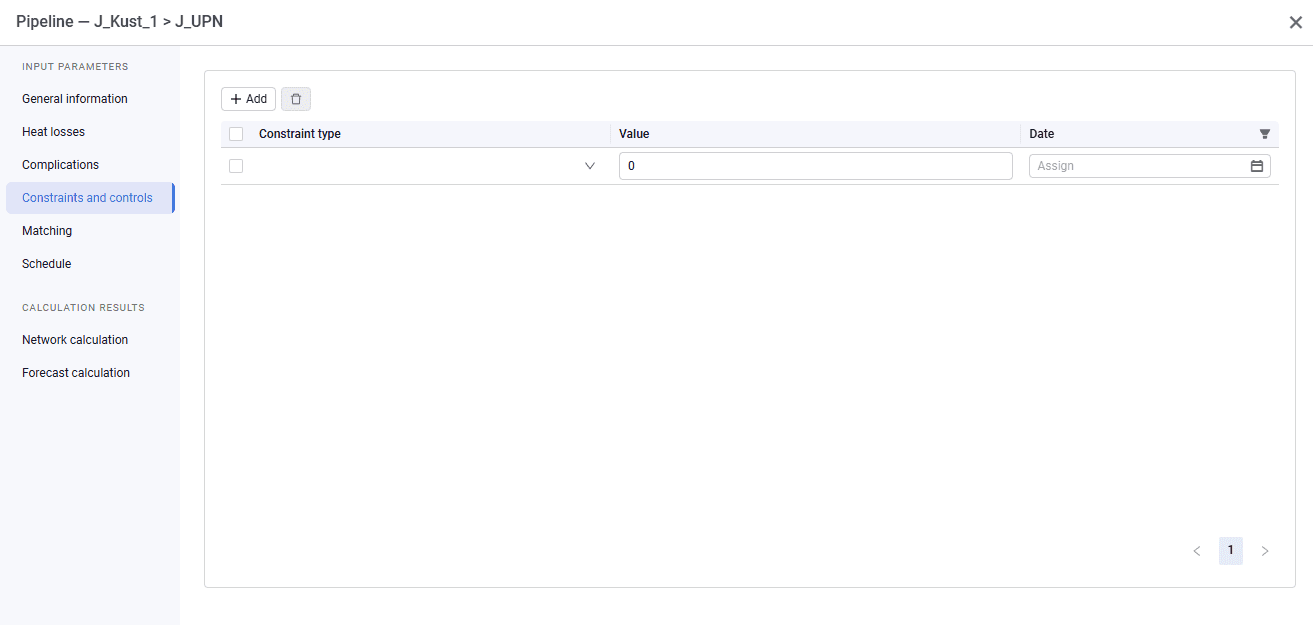
2.On the "Constraints" tab, when you click "Add", a row appears in the table where you can select the constraint type, value, units, and date. Specifying a constraint date lets you apply the constraint not from the start of the calculation, but from a specific date.
 Select image to enlarge
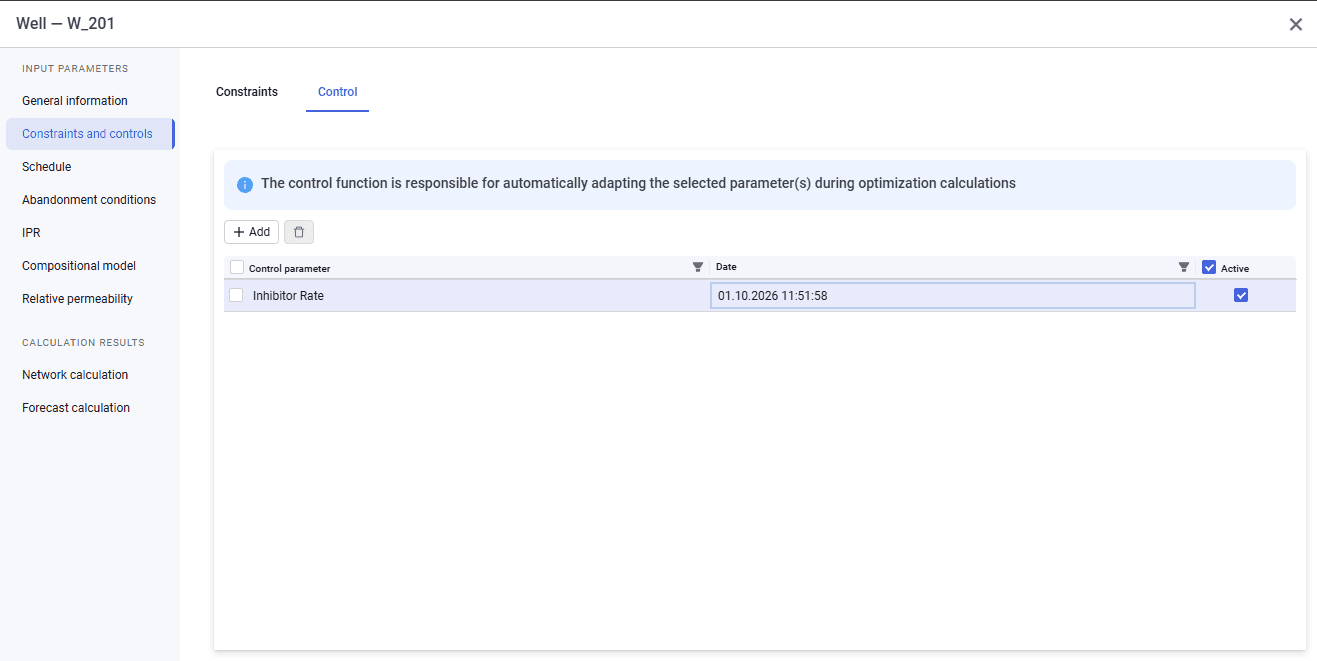
3.On the "Control" tab, when you click "Add", a row appears in the table where you can select the control parameter, date, and active state. Specifying a control date lets you enable and disable control from a specific date.
The following control parameter types are available:
- pressure drop (for wells and chokes);
- frequency (for wells);
- inhibitor rate.
 Select image to enlarge
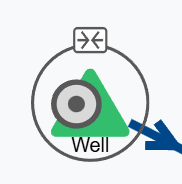
4.After a constraint is added, a two-arrow icon  appears above the object on the schematic. After a control parameter is added, a circle appears around the element on the schematic.
 Select image to enlarge