
Constraint and control manager
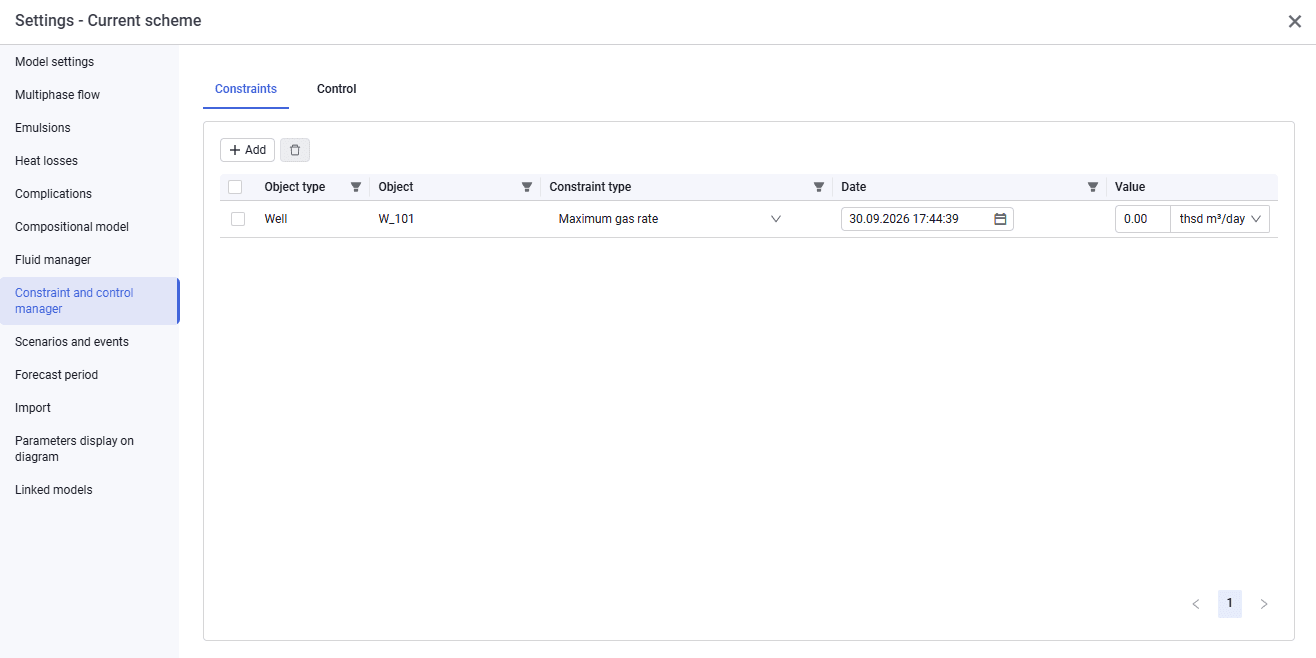
The "Constraints" tab looks as follows.
 Select image to enlarge
When adding a constraint, enter the following data:
- object type. Filled in automatically after you select an object;
- object. Select an object from the drop-down list;
- constraint type;
- date. For a snapshot calculation, leave the field empty. For a forecast calculation, fill it in according to the task: you can leave it empty, in which case the constraint applies from the start of the calculation, or specify a date, in which case the constraint starts applying from that date.
- value.
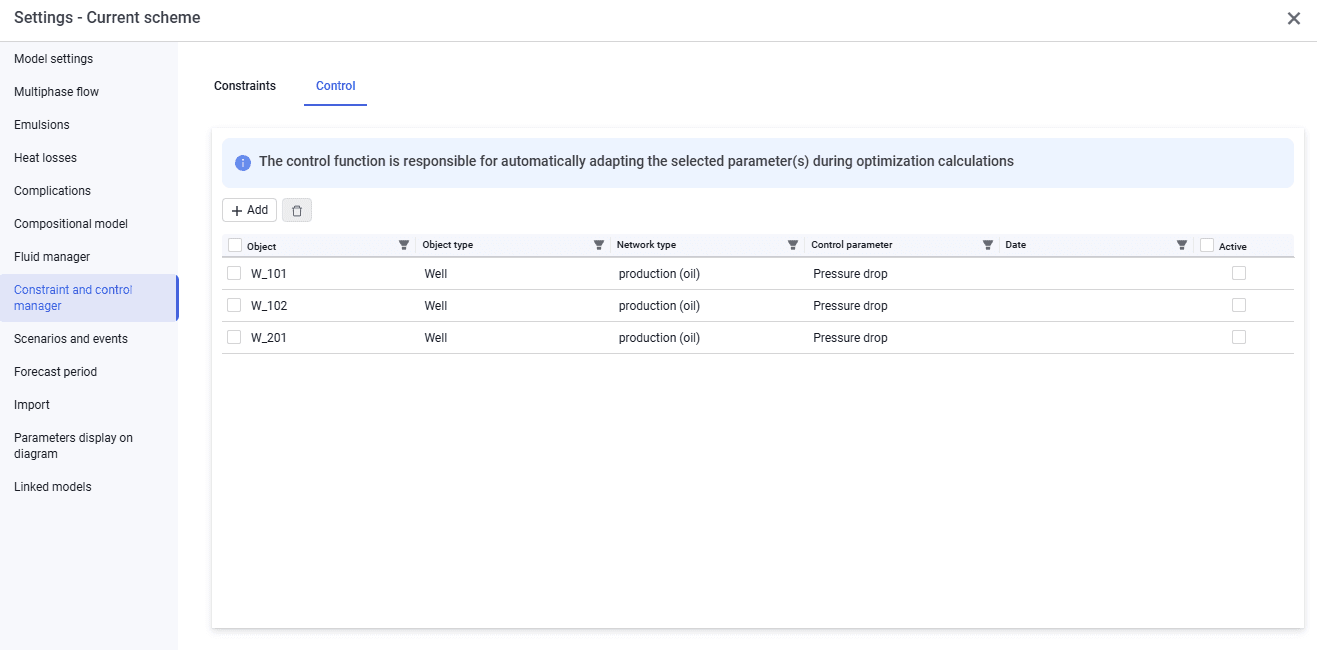
The "Control" tab looks as follows.
 Select image to enlarge
The control function is responsible for automatic matching of the selected parameter during an optimization calculation.
When adding a control, enter the following data:
- object type and network type. Filled in automatically after you select an object;
- object. Select an object from the drop-down list;
- control parameter.
- date. For a snapshot calculation, leave the field empty. For a forecast calculation, fill it in according to the task: you can leave it empty, in which case the constraint applies from the start of the calculation, or specify a date, in which case the constraint starts applying from that date.
- active. Control is enabled when the check box is selected and disabled when it is cleared.
Constraints are used in optimization calculations. For details, see the nv.AIM SOLVER user guide, section Entering constraints for elements.