
nv.AIM PIPE home page
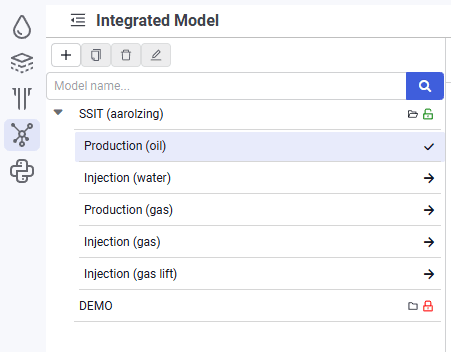
The nv.AIM PIPE module home page consists of two areas — the model tree and the model workspace.
The model tree contains the following controls:
Hide/show model tree
 — used to enlarge the workspace for working with models;
Create new model
 — used to create new models in the project;
Clone selected model
 — the button is inactive by default; to clone a model, select it in the tree. This function is used to create, configure, and run calculations on a model when the original model must not or cannot be changed;
Delete selected model
 — the button is inactive by default; to delete a model, select it in the tree;
Rename selected model
 — the button is inactive by default; to rename a model, select it in the tree.
 Select image to enlarge
The model tree shows the components of the open model — production (oil), injection (water), production (gas), injection (gas), injection (gas lift). By default the list of components is collapsed. The  button expands the list.
The following controls are available for each model:
Load model
 — clicking this loads the model so you can view all model properties and parameters. Model editing is not available;
Enter edit mode
 — clicking this opens access to edit models;
Exit edit mode
 — available only in edit mode.
In edit mode, the login of the user who is currently editing is displayed in the model row. While a model is being edited, other users can open it only in read-only mode and cannot run calculations or make any changes to the model.
Exiting edit mode is accompanied by a pop-up window:
- "Save" – all model changes are saved;
- "Don't save" – changes are not saved; the model remains in the state it had before editing;
- "Cancel" – exiting edit mode is not performed.