
Entering IPR data
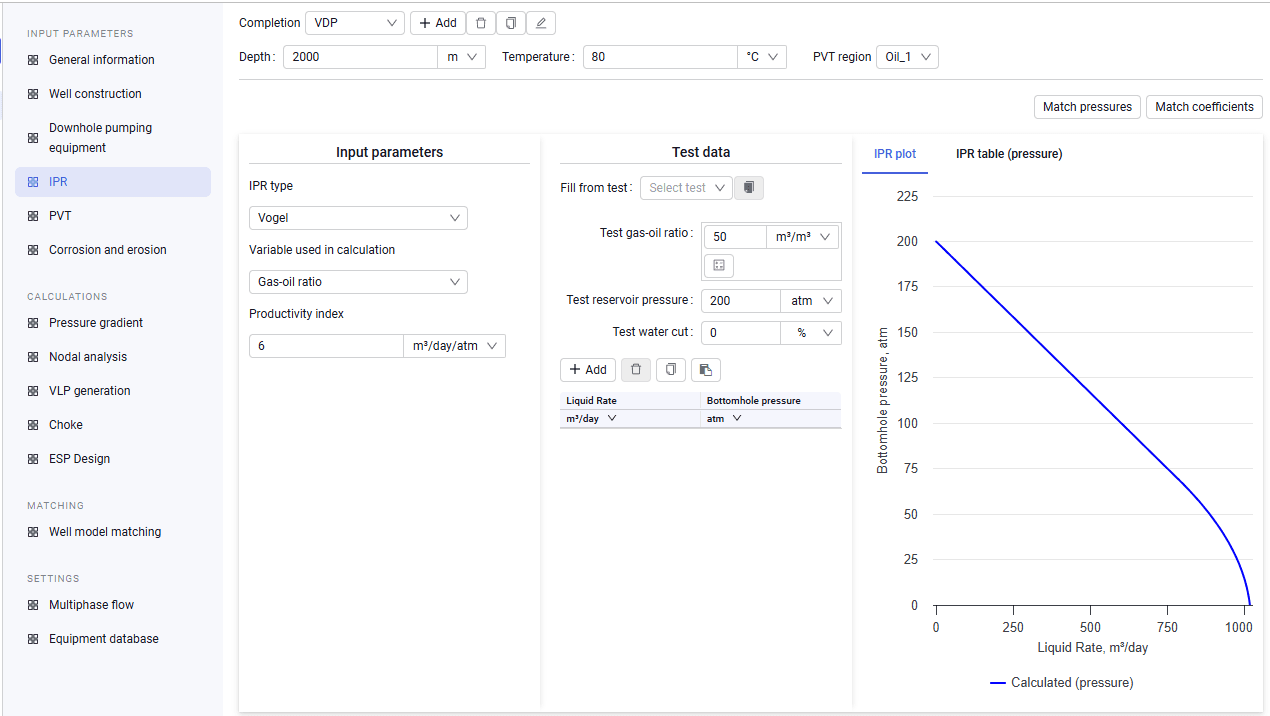
1.On the "IPR" tab, create a completion by clicking Add and entering its name.
2.After creating the completion, enter the depth and temperature and select a previously created "PVT" region.
3.Then select the IPR type that will be used to calculate the IPR curve and enter source data depending on the type (for example, for the "Vogel" type, enter the productivity index, and so on).
4.Enter the test reservoir pressure, test bubble point pressure, and water cut. If any tests were entered on the "Well model matching" tab, you can automatically pull data from a test by clicking Fill from test and selecting the target test from the drop-down list.
5.If test data is available, you can also enter it: the dependence of liquid flow rate on bottomhole pressure.
 Select image to enlarge
6.If required, you can run automatic matching of the IPR curve. There are two matching options: reservoir pressure matching and productivity index matching (matching is started with the buttons in the upper-right corner of the screen). After matching, the system automatically changes the matched value.