
Area 2. Graphical interface
This area displays the graphical schematic of the Integrated Model built by the user.
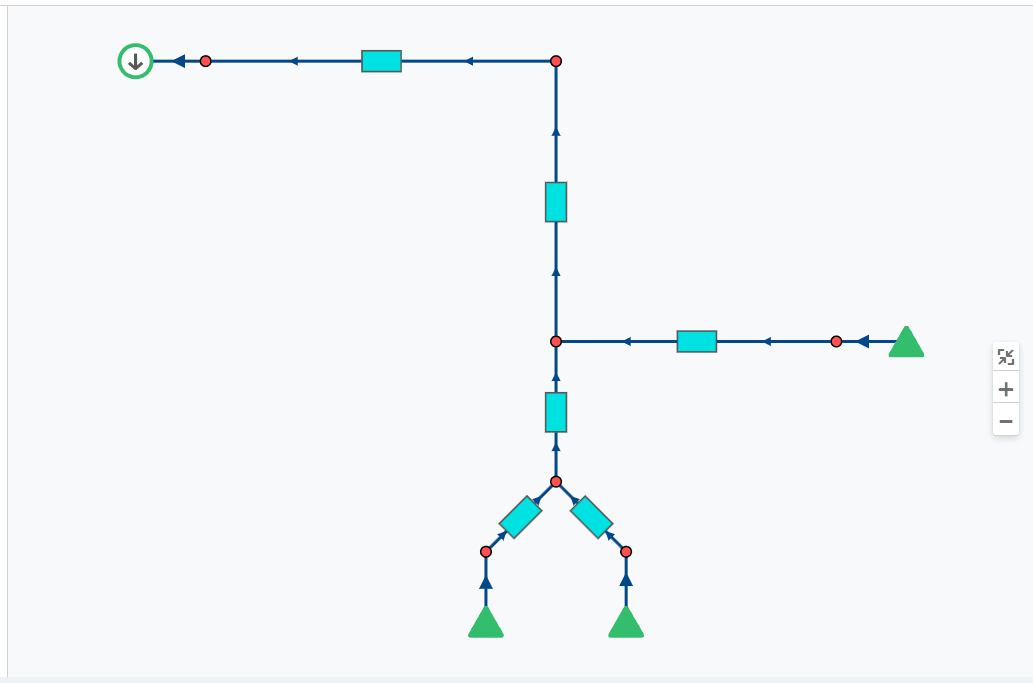 Select image to enlarge
The following buttons are available on the right side of the graphical interface:
 – button to fit the schematic to the screen. When clicked, a scale is applied automatically so that the entire schematic fits on the screen;
 – zoom in button;
 – zoom out button.
You can also change the scale with the mouse wheel.
In the upper-right part of the graphical interface there is a button to select which calculation the model schematic is displayed from (for example, different calculation cases).
You can enter a sub-flowsheet (Flowsheet) by pressing Shift and the left mouse button. If the user is inside a nested schematic (pad), a button with the name of the pad the user is in is displayed in the upper-left part of the screen. To return to the overall schematic, click the "home" icon ( ).
).